# ⚙️ Installation & Setup
## Complete Step-by-Step Installation Guide[](#complete-step-by-step-installation-guide "Direct link to Complete Step-by-Step Installation Guide")
> **💥 Target Audience**: Complete beginners with zero EA trading experience
>
> **⚡ Already familiar with MetaTrader 4?** Check out our [💻 Installation Guide](/banana-ea/mt4/docs/v4/beginners-guide/overview/installation-setup.md) for a faster, technical installation process.
> Reading Time: 15 minutes
This guide will walk you through installing BananaEA on MetaTrader 4 with **zero technical experience required**. Follow each step carefully and you'll be ready to trade in 15 minutes.
***
## 🎯 Before You Start[](#-before-you-start "Direct link to 🎯 Before You Start")
### What You Need[](#what-you-need "Direct link to What You Need")
✅ **MetaTrader 4** installed and working
✅ **Demo trading account** with your broker (start here!)
✅ **BananaEA files** downloaded from [**Latest Downloads**](https://my.itradeaims.net/latest-downloads/) on your [member dashboard](https://my.itradeaims.net/)
✅ **15 minutes** of uninterrupted time
### What You DON'T Need[](#what-you-dont-need "Direct link to What You DON'T Need")
❌ Programming knowledge
❌ Previous EA experience
❌ Expensive computer or VPS
❌ Live trading account (demo first!)
***
## 📋 Step 1: Prepare MetaTrader 4[](#-step-1-prepare-metatrader-4 "Direct link to 📋 Step 1: Prepare MetaTrader 4")
### Check Your Demo Account[](#check-your-demo-account "Direct link to Check Your Demo Account")
1. **Open MetaTrader 4** from your desktop
2. **Verify you're connected** - Look for connection status in bottom-right corner
3. **Ensure demo account is active** - Check account number and balance
### Verify Chart Display[](#verify-chart-display "Direct link to Verify Chart Display")
1. **Look at any currency pair** (e.g. EUR/USD chart) - Some brokers open default charts
2. **Confirm price updates** - Prices should be moving (during market hours)
3. **Check timeframe** - Start with M1 (1-minute) charts switch to M5 if needed. To change timeframe, right-click chart → Timeframes → M1 or what most traders do is click on the M1 button in the toolbar.
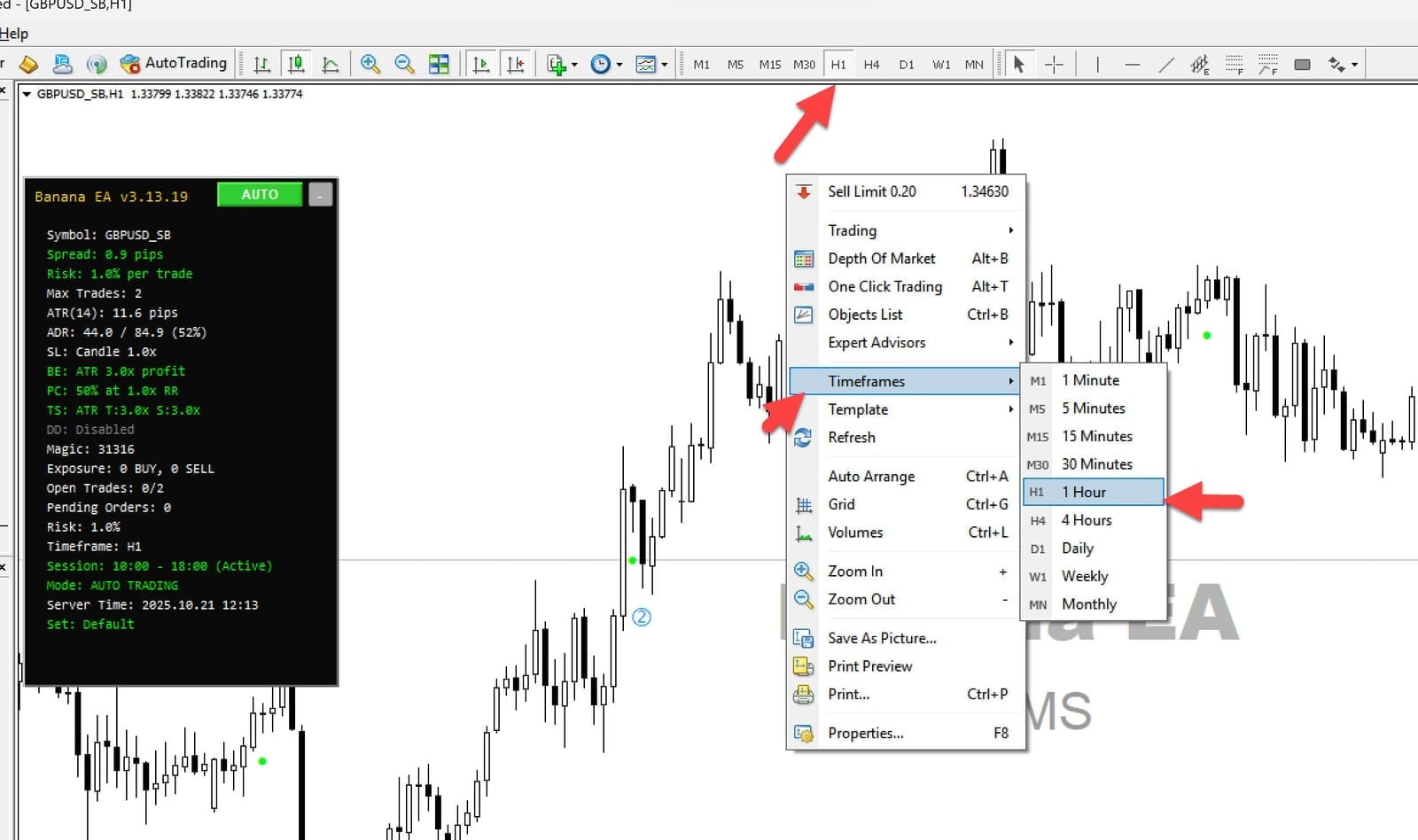
Check that MT4 is connected, the chart is updating, and the timeframe is suitable for your first setup.
### Enable Expert Advisors[](#enable-expert-advisors "Direct link to Enable Expert Advisors")
1. **Look for "AutoTrading" button** in MT4 toolbar (top of screen)
2. **Check button status**:
* ✅ **GREEN AutoTrading button** = EAs can trade
* ❌ **RED AutoTrading button** = EAs cannot trade
If button is RED: Click it to turn GREEN
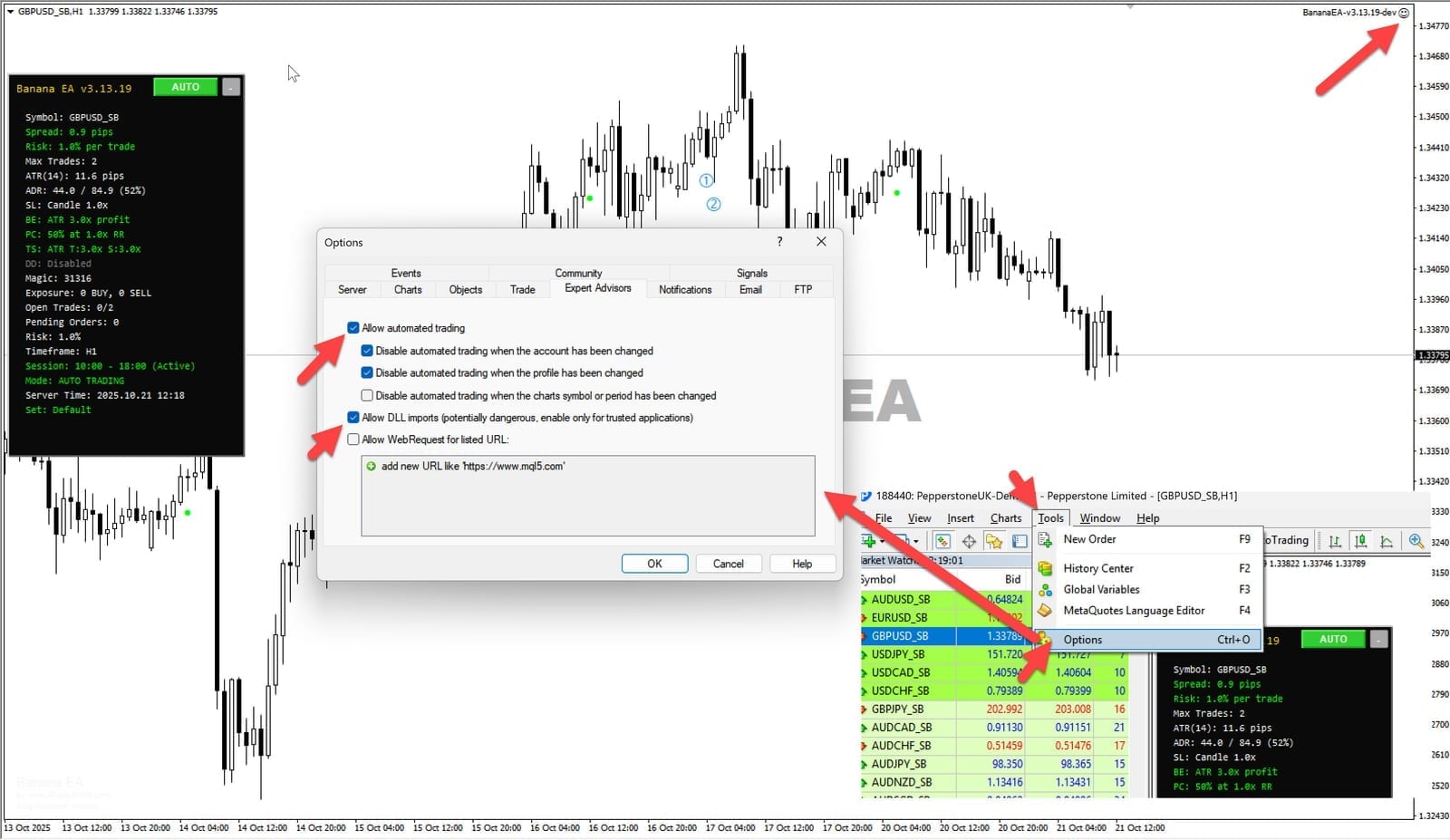
The AutoTrading button must be enabled before an EA can manage trades.
### Configure EA Settings[](#configure-ea-settings "Direct link to Configure EA Settings")
1. **Go to Tools → Options**
2. **Click "Expert Advisors" tab**
3. **Enable these settings**:
```
☑ Allow automated trading
☑ Allow DLL imports
☑ Confirm DLL function calls
☑ Allow imports of external experts
```
Click "OK"
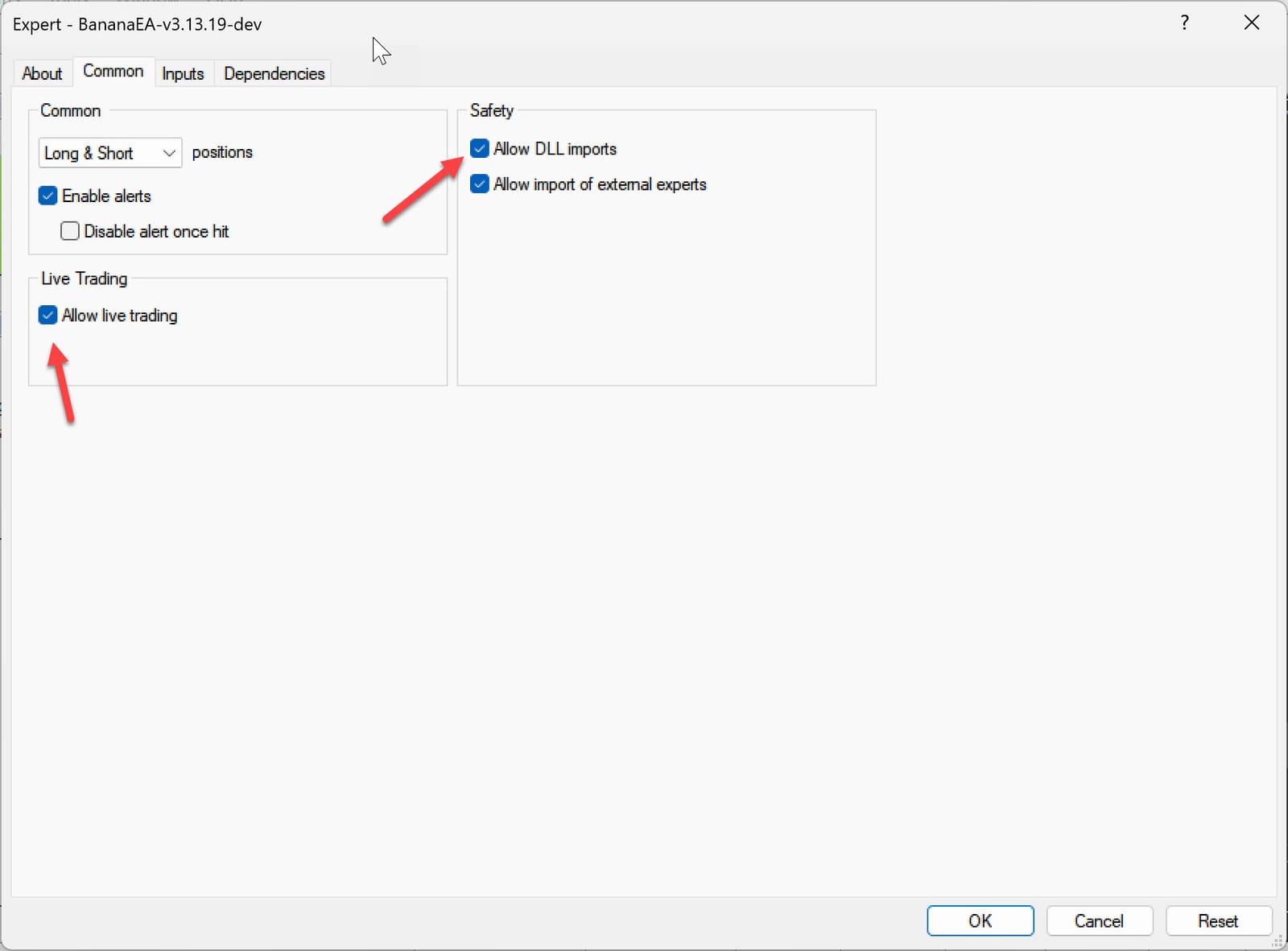
Confirm the Expert Advisors settings before attaching BananaEA to a chart.
***
## 📂 Step 2: Locate MetaTrader Data Folder[](#-step-2-locate-metatrader-data-folder "Direct link to 📂 Step 2: Locate MetaTrader Data Folder")
### Method 1: Through MT4 Menu[](#method-1-through-mt4-menu "Direct link to Method 1: Through MT4 Menu")
1. **In MT4**: File → Open Data Folder
2. **Data folder opens automatically**
### Method 2: Manual Location[](#method-2-manual-location "Direct link to Method 2: Manual Location")
* Usually located at: `C:\Users\[YourName]\AppData\Roaming\MetaQuotes\Terminal\[BrokerID]\`
### Navigate to Experts Folder[](#navigate-to-experts-folder "Direct link to Navigate to Experts Folder")
1. **In the opened folder**: Go to `MQL4` folder
2. **Open the `Experts` folder**
### Copy BananaEA Files[](#copy-bananaea-files "Direct link to Copy BananaEA Files")
1. **Copy the main EA file** to the `Experts` folder:
* `BananaEA.ex4` (main EA file)
2. **Copy the library file** to the `Libraries` folder:
* Navigate back to `MQL4` folder
* Open the `Libraries` folder
* Copy `iTradeAIMSLib.ex4` (required library file - **MUST BE INSTALLED**)
> **⚠️ Important**: You will only receive compiled `.ex4` files for security. Source code is not distributed to protect intellectual property.
>
> **⚠️ Critical**: Both files are required! The EA will not work without the library file in the Libraries folder.
### Restart MetaTrader[](#restart-metatrader "Direct link to Restart MetaTrader")
1. **Close MetaTrader 4** completely
2. **Wait 5 seconds**
3. **Reopen MetaTrader 4**
***
## 📊 Step 3: Choose Your Trading Pair[](#-step-3-choose-your-trading-pair "Direct link to 📊 Step 3: Choose Your Trading Pair")
### Beginner Recommendation: EUR/USD[](#beginner-recommendation-eurusd "Direct link to Beginner Recommendation: EUR/USD")
**Why EUR/USD is perfect for beginners:**
* Commonly available major currency pair
* Lowest spreads (reduced trading costs)
* Predictable behavior during European/US sessions
* Extensive historical data for backtesting
### Alternative Options[](#alternative-options "Direct link to Alternative Options")
**For more experienced traders:**
* **GBP/USD**: Higher volatility, bigger moves
* **USD/JPY**: Asian session activity
* **EUR/GBP**: European pairs correlation
### Open Your Chart[](#open-your-chart "Direct link to Open Your Chart")
1. **File → New Chart → EURUSD**
2. **Set timeframe to M1** (1-minute)
3. **Ensure chart is displaying current prices**
***
## 🤖 Step 4: Attach BananaEA to Chart[](#-step-4-attach-bananaea-to-chart "Direct link to 🤖 Step 4: Attach BananaEA to Chart")
### Open Expert Advisor Panel[](#open-expert-advisor-panel "Direct link to Open Expert Advisor Panel")
1. **View → Navigator** (or press Ctrl+N)
2. **Look for "Expert Advisors" section**
3. **Find "BananaEA"** in the list
### Attach EA to Chart[](#attach-ea-to-chart "Direct link to Attach EA to Chart")
1. **Drag "BananaEA"** from Navigator to your EUR/USD chart
2. **EA Settings window opens automatically**
Configure Basic Settings
**On "Common" tab:**
```
☑ Allow live trading
☑ Allow DLL imports
☑ Confirm DLL function calls
☑ Allow imports of external experts
```
**On "Inputs" tab:** (Start with default settings)
* **Lot Size**: 0.01 (micro lots for demo)
* **Max Spread**: 3.0 pips
* **Risk Percent**: 2% (conservative)
Click "OK"
***
## ✅ Step 5: Verify Installation[](#-step-5-verify-installation "Direct link to ✅ Step 5: Verify Installation")
### Check EA is Active[](#check-ea-is-active "Direct link to Check EA is Active")
**Look for these indicators:**
1. **Smiley face icon** in top-right corner of chart
2. **EA name "BananaEA"** displayed on chart
3. **"Expert Advisors" tab** in Terminal window (bottom)
### Common Status Messages[](#common-status-messages "Direct link to Common Status Messages")
**✅ Good Messages:**
* "BananaEA initialized successfully"
* "iTradeAIMSLib loaded successfully"
* "Ready for trading"
* "Waiting for signal"
**⚠️ Warning Messages:**
* "AutoTrading is disabled" → Click AutoTrading button
* "Not enough money" → Normal on small demo accounts
* "Invalid symbol" → Use correct currency pair
**❌ Error Messages:**
* "Expert advisor is not allowed to trade" → Check settings
* "DLL not allowed" → Enable DLL imports in settings
* "iTradeAIMSLib not found" → Library file missing from Libraries folder
> **⚠️ Library Check**: If you don't see "iTradeAIMSLib loaded successfully", the library file was not installed correctly. Ensure `iTradeAIMSLib.ex4` is in the `MQL4/Libraries/` folder.
***
## 🎮 Step 6: Test With Demo Account[](#-step-6-test-with-demo-account "Direct link to 🎮 Step 6: Test With Demo Account")
### Start Conservative[](#start-conservative "Direct link to Start Conservative")
**First Week Settings:**
* **Account**: Demo only (never live account)
* **Lot Size**: 0.01 (smallest possible)
* **Risk**: 1-2% maximum
* **Timeframe**: Focus on learning, not profit
### Monitor Initial Trades[](#monitor-initial-trades "Direct link to Monitor Initial Trades")
**Watch for:**
1. **Trade execution** - EA places trades automatically
2. **Risk management** - Stop losses and take profits set correctly
3. **Account balance** - Should not decline rapidly
4. **Trade frequency** - Expect 5-15 trades per day
### Track Performance[](#track-performance "Direct link to Track Performance")
**Daily Review:**
* **Winning trades vs losing trades**
* **Average profit per trade**
* **Maximum drawdown**
* **EA behavior during news events**
***
## 🔧 Step 7: Optimization (After 1-2 Weeks)[](#-step-7-optimization-after-1-2-weeks "Direct link to 🔧 Step 7: Optimization (After 1-2 Weeks)")
### Fine-Tune Settings[](#fine-tune-settings "Direct link to Fine-Tune Settings")
**After observing EA performance:**
1. **Adjust lot sizes** based on comfort level
2. **Modify risk percentage** (1-5% range)
3. **Test different timeframes** (M1, M5, M15)
4. **Experiment with spread settings**
### Advanced Configuration[](#advanced-configuration "Direct link to Advanced Configuration")
**For experienced users:**
* **News filter**: Disable trading during high-impact news
* **Time filters**: Limit trading to specific hours
* **Correlation filters**: Avoid trading correlated pairs simultaneously
***
## 🚨 Critical Success Tips[](#-critical-success-tips "Direct link to 🚨 Critical Success Tips")
### Never Skip These Steps[](#never-skip-these-steps "Direct link to Never Skip These Steps")
1. **Always start with demo account** (minimum 2 weeks)
2. **Test EA thoroughly** before any live trading
3. **Start with minimal risk** (1-2% per trade maximum)
4. **Keep MT4 running** 24/7 for best results
5. **Monitor EA regularly** (first few days especially)
### Warning Signs to Watch[](#warning-signs-to-watch "Direct link to Warning Signs to Watch")
**Stop EA immediately if:**
* Account loses more than 10% in one day
* EA places trades outside market hours
* Trades are much larger than expected
* Error messages appear repeatedly
***
## 🎯 Next Steps[](#-next-steps "Direct link to 🎯 Next Steps")
### Ready to Learn More?[](#ready-to-learn-more "Direct link to Ready to Learn More?")
* **Understand EA basics** → [🤔 Understanding EAs](/banana-ea/mt4/docs/v4/beginners-guide/overview/understanding-eas.md)
* **Learn trading fundamentals** → [📚 Trading Basics](/banana-ea/mt4/docs/v4/beginner-tutorial-original.md)
* **Optimize your setup** → [Advanced Settings](/banana-ea/mt4/docs/v4/complete-user-guide/settings-guide.md)
### Need Help?[](#need-help "Direct link to Need Help?")
* **Common problems** → [🛠️ Troubleshooting](/banana-ea/mt4/docs/v4/troubleshooting.md)
* **FAQ section** → [❓ Frequently Asked Questions](/banana-ea/mt4/docs/v4/faq.md)
* **Community support** → [💬 Discord/Telegram](/banana-ea/mt4/docs/v4/support/overview.md)
***
## Setup Complete[](#setup-complete "Direct link to Setup Complete")
*You've successfully installed BananaEA. Remember: Start small, learn continuously, and never risk money you can't afford to lose.*