# 💾 Installation Guide
info
These are Version 4 installation steps. The latest stable Version 4 release is `v4.5.1`. Version 4 uses `MQL4\Experts\BananaEA.ex4`; Version 5 installs separately and uses Version 5 presets.
## 🚀 Before You Begin[](#-before-you-begin "Direct link to 🚀 Before You Begin")
Make sure you have the following ready:
✅ **MetaTrader 4 (MT4)** installed and working ✅ **Active broker account** with MT4 access ✅ **Valid BananaEA License Key** (provided with purchase) ✅ **AutoTrading enabled** in MT4 → `Tools → Options → Expert Advisors`
***
## 📁 File Installation[](#-file-installation "Direct link to 📁 File Installation")
### Step 1: Download BananaEA Package[](#step-1-download-bananaea-package "Direct link to Step 1: Download BananaEA Package")
**Single Zip File**: Download the latest `BananaEA.zip` from [**Latest Downloads**](https://my.itradeaims.net/latest-downloads/) on your [member dashboard](https://my.itradeaims.net/).
**Zip Contents** (MQL4 folder structure):
| File | Folder | Description |
| ---------------------------------- | ----------------- | ----------------------------------------------- |
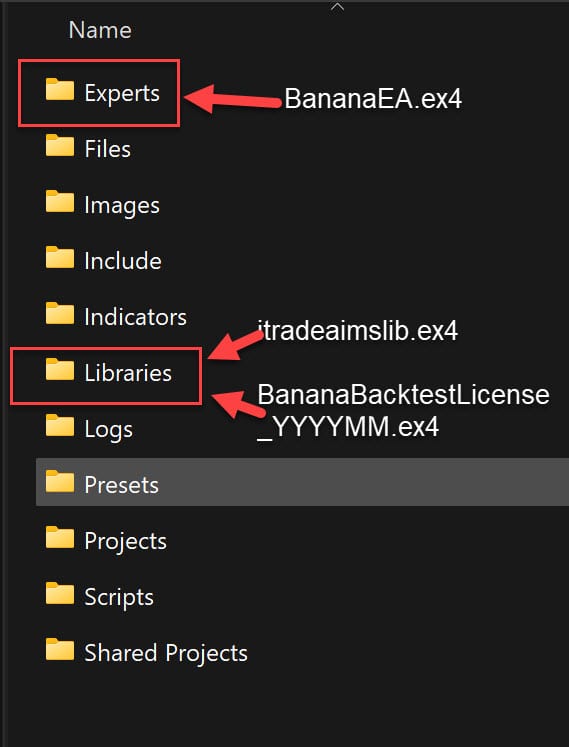
| `BananaEA.ex4` | `MQL4/Experts/` | Main Expert Advisor |
| `iTradeAIMSLib.ex4` | `MQL4/Libraries/` | Required dependency (MUST be installed) |
| `BananaBacktestLicense_202601.ex4` | `MQL4/Libraries/` | **6-Month License** (Valid until June 30, 2026) |
| `BEA4-DAXH1-A.set` | `MQL4/Presets/` | DAX H1 preset configuration |
| `BEA4-DAXM5-Main.set` | `MQL4/Presets/` | DAX M5 preset configuration |
> **Backtest license:** The current backtest license file is valid for 6 months. Check your customer portal for the latest license file and expiry date.
> ⚠️ **Note:** Preset filenames may vary in future updates. Always check the latest files in your customer portal.
> **Optimization Sets:** Download the latest optimization sets from
***
### Step 2: Locate MT4 Data Folder[](#step-2-locate-mt4-data-folder "Direct link to Step 2: Locate MT4 Data Folder")
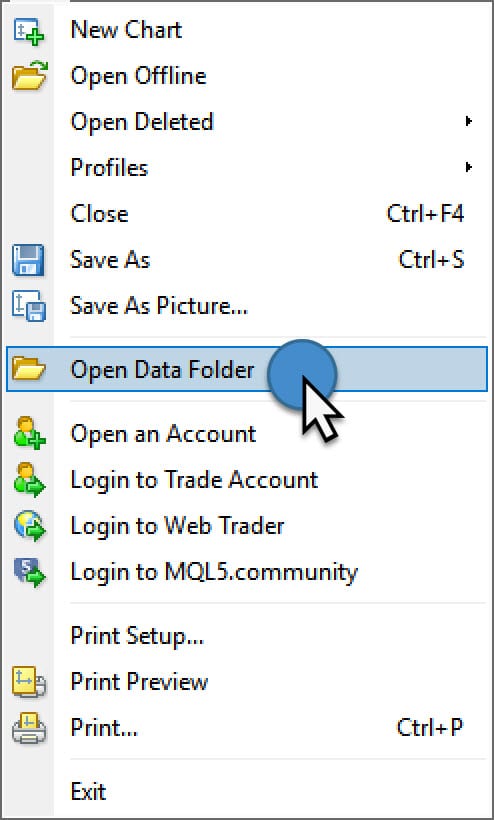
1. Open **MetaTrader 4**
2. Click **File → Open Data Folder**
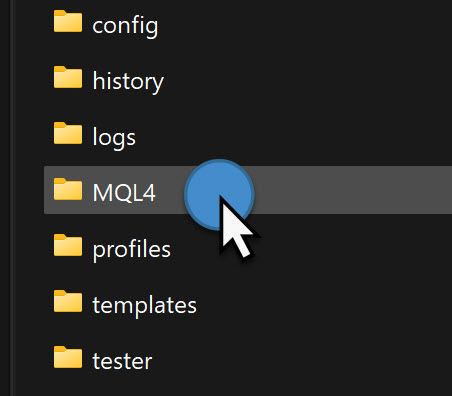
3. This opens your MT4 installation directory
***
### Step 3: Extract and Copy Files[](#step-3-extract-and-copy-files "Direct link to Step 3: Extract and Copy Files")
**Quick Installation:**
1. Extract the downloaded BananaEA.zip file
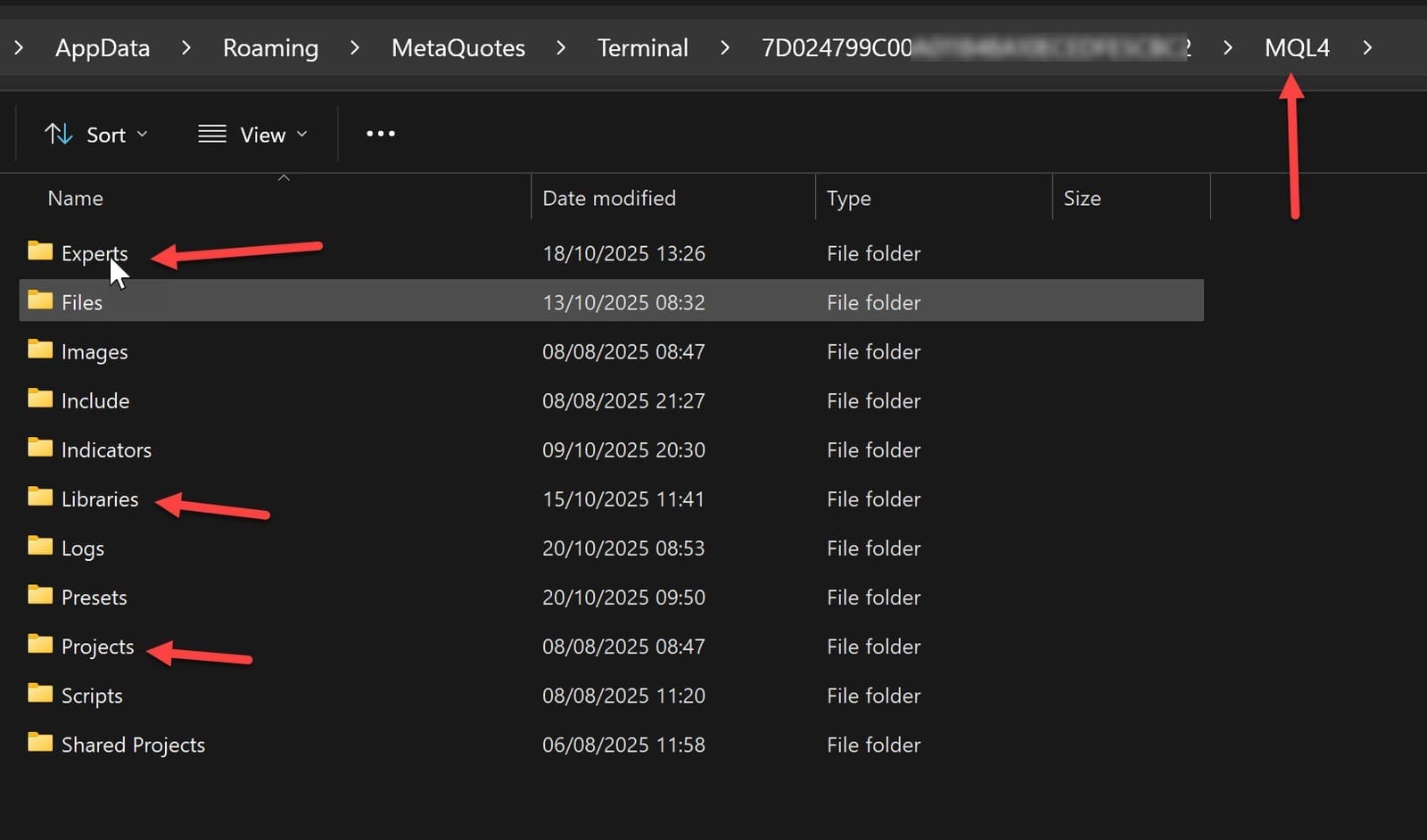
2. Copy the entire **MQL4** folder from the zip
3. Paste into your MT4 Terminal folder (from Step 2)
4. Click **"Yes to All"** when Windows asks to merge/replace files
**What Gets Installed:**
* ✅ `BananaEA.ex4` → Experts folder
* ✅ `iTradeAIMSLib.ex4` → Libraries folder
* ✅ `BananaBacktestLicense_202601.ex4` → Libraries folder (6-month license!)
* ✅ Preset files → Presets folder
> ⚠️ **Critical:** Without `iTradeAIMSLib.ex4` in the **Libraries** folder, the EA will not initialize and may show errors.
**Manual Installation** (if preferred):
* Copy `.set` files → `MQL4/Presets/`
* Copy templates → `MQL4/Templates/`
* Copy images → `MQL4/Images/`
***
### Step 3a: Set High DPI Compatibility for Fresh MT4 Installs[](#step-3a-set-high-dpi-compatibility-for-fresh-mt4-installs "Direct link to Step 3a: Set High DPI Compatibility for Fresh MT4 Installs")
If this is a new MT4 installation, check the Windows High DPI compatibility setting before you rely on the object-based BananaEA dashboard.
Use this fix if the dashboard looks too small, stretched, clipped, misplaced, or the buttons do not line up with mouse clicks.
1. Close **MetaTrader 4** completely.
2. Open the folder where MT4 is installed.
* If you use a desktop shortcut, right-click the shortcut and choose **Open file location**.
* Look for `terminal.exe`. It may appear as **terminal** if Windows hides file extensions.
3. Right-click `terminal.exe` and choose **Properties**.
4. Open the **Compatibility** tab.
5. Click **Change high DPI settings**.
6. Tick **Override high DPI scaling behaviour**.
7. Set **Scaling performed by** to **System**.
8. Click **OK**, then **Apply**, then **OK**.
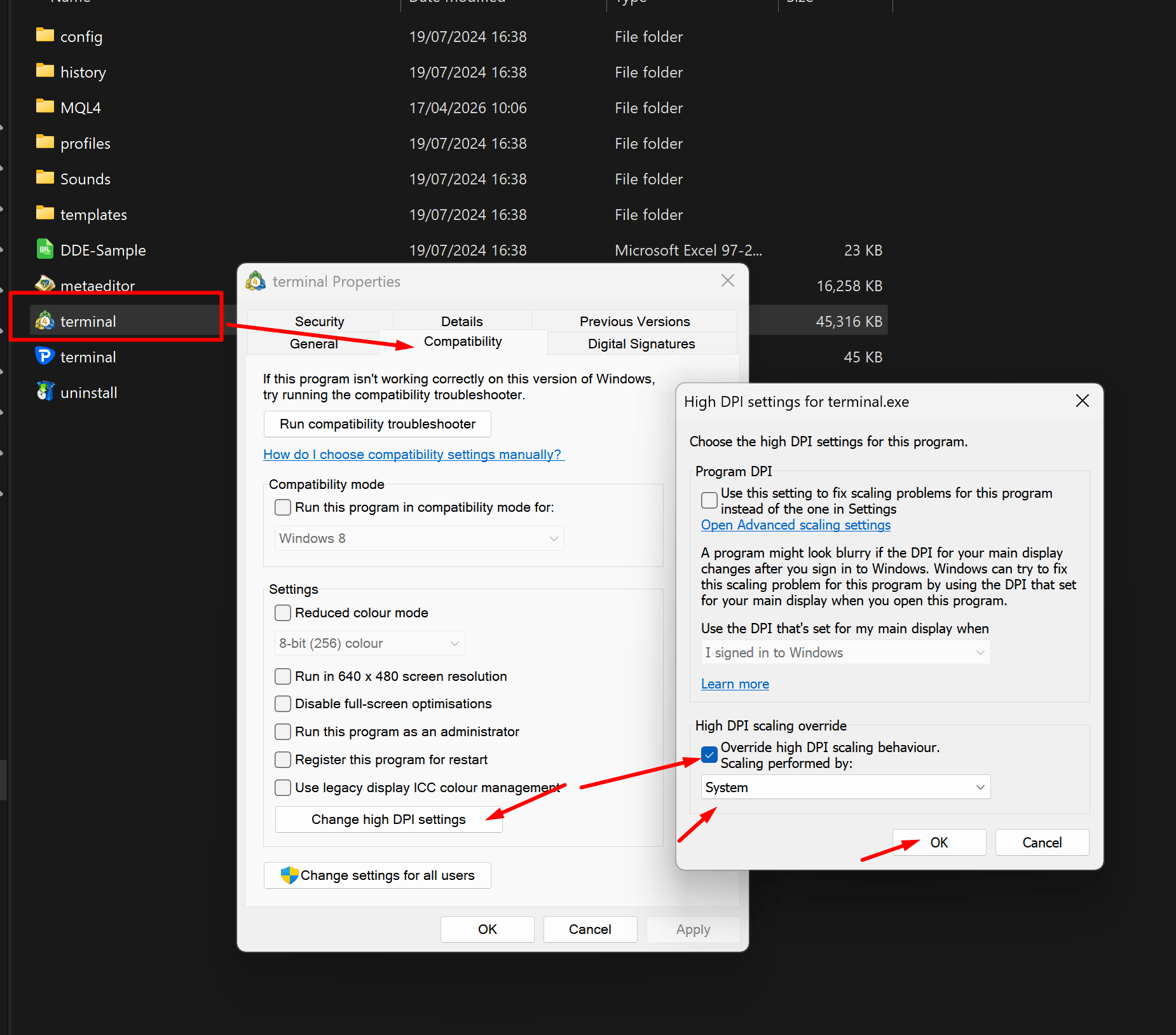
Use System scaling for MT4 terminal.exe so the BananaEA dashboard objects align correctly.
For more display symptoms and checks, see [MT4 High DPI compatibility fix](/banana-ea/mt4/docs/v4/troubleshooting.md#mt4-dashboard-or-buttons-look-wrong).
***
### Step 4: Restart MetaTrader 4[](#step-4-restart-metatrader-4 "Direct link to Step 4: Restart MetaTrader 4")
1. Close MT4 completely
2. Re-open MT4
3. BananaEA should now appear under **Navigator → Expert Advisors**
***
### Step 5: Attach EA to Chart[](#step-5-attach-ea-to-chart "Direct link to Step 5: Attach EA to Chart")
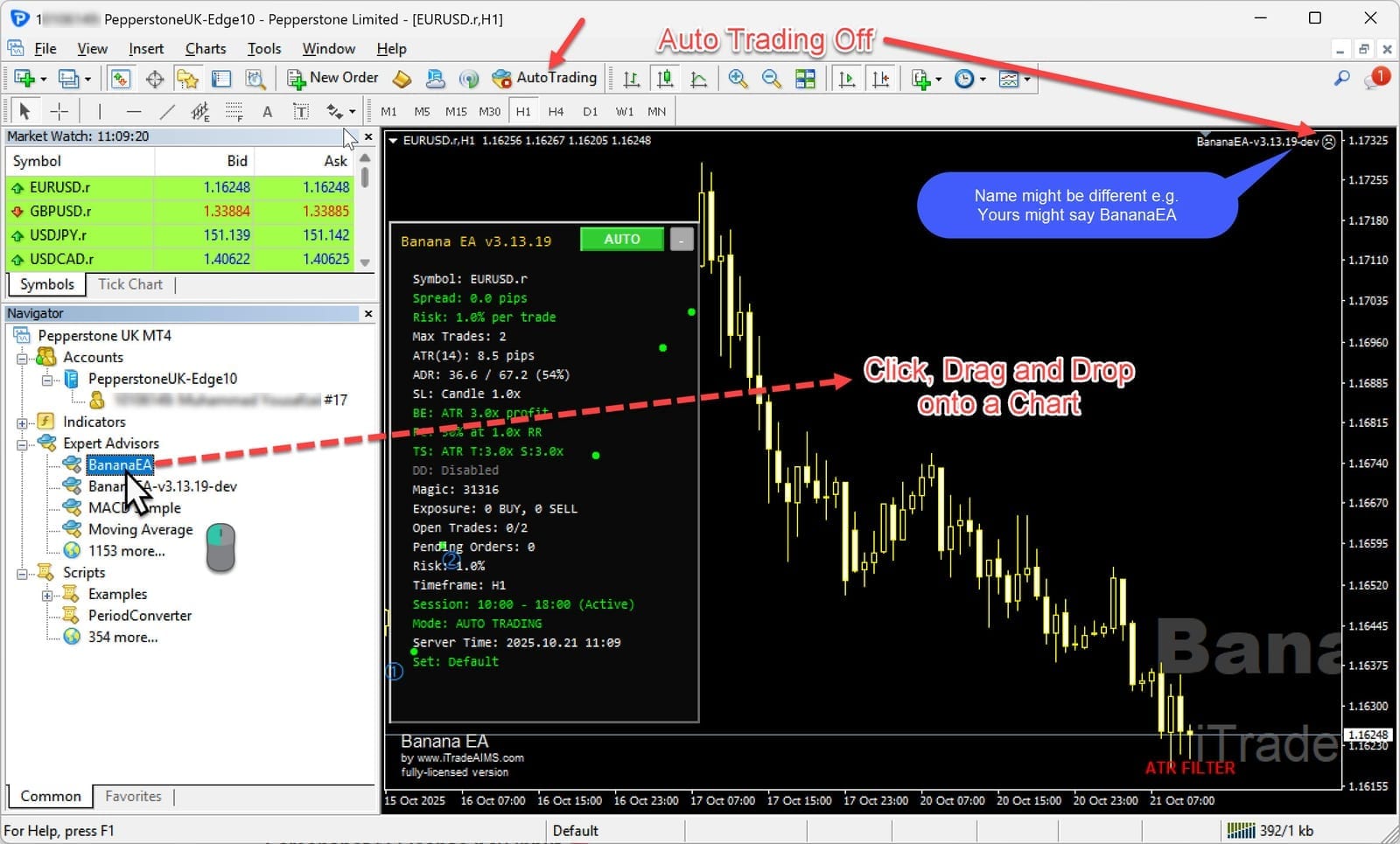
1. In **Navigator**, expand **Expert Advisors**
2. Double-click **BananaEA**, or drag it onto your chart
***
## ⚙️ Configure Initial Settings[](#️-configure-initial-settings "Direct link to ⚙️ Configure Initial Settings")
When the EA Properties dialog opens:
### Common Tab[](#common-tab "Direct link to Common Tab")
✅ Check **Allow live trading** ✅ Check **Allow DLL imports** ✅ Check **Allow import of external experts**
***
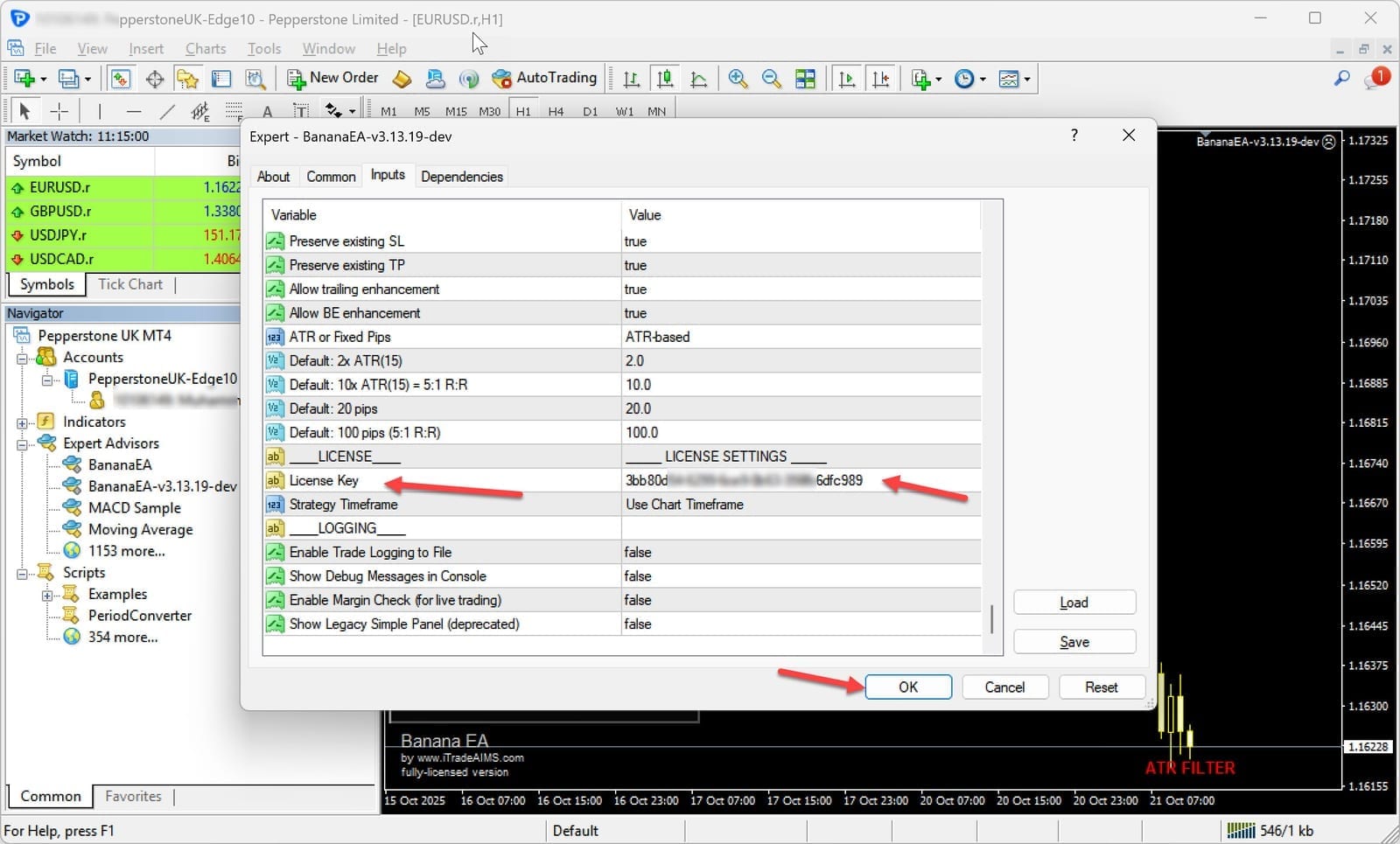
### Inputs Tab – License & Configuration[](#inputs-tab--license--configuration "Direct link to Inputs Tab – License & Configuration")
#### 🔐 License Configuration (Required)[](#-license-configuration-required "Direct link to 🔐 License Configuration (Required)")
Enter your license key in **License Key**.
**Example License Key Format:** `3bb80d54-6299-6ce9-0b63-356fb6dfc989`
> ⚠️ Your license must match your MT4 account for the EA to function.
***
## 📊 Trading Configuration[](#-trading-configuration "Direct link to 📊 Trading Configuration")
Configure your preferred trading parameters or load a preset file (see next section).
***
## 📈 Step 8: Install Optimization Files (ESSENTIAL)[](#-step-8-install-optimization-files-essential "Direct link to 📈 Step 8: Install Optimization Files (ESSENTIAL)")
structured configuration files are updated **weekly** for current market conditions.
### Download the Latest Files[](#download-the-latest-files "Direct link to Download the Latest Files")
👉
### Installation Process[](#installation-process "Direct link to Installation Process")
1. Download your chosen `.set` file(s)
2. Copy to `MQL4/Presets/` folder in your MT4 data directory
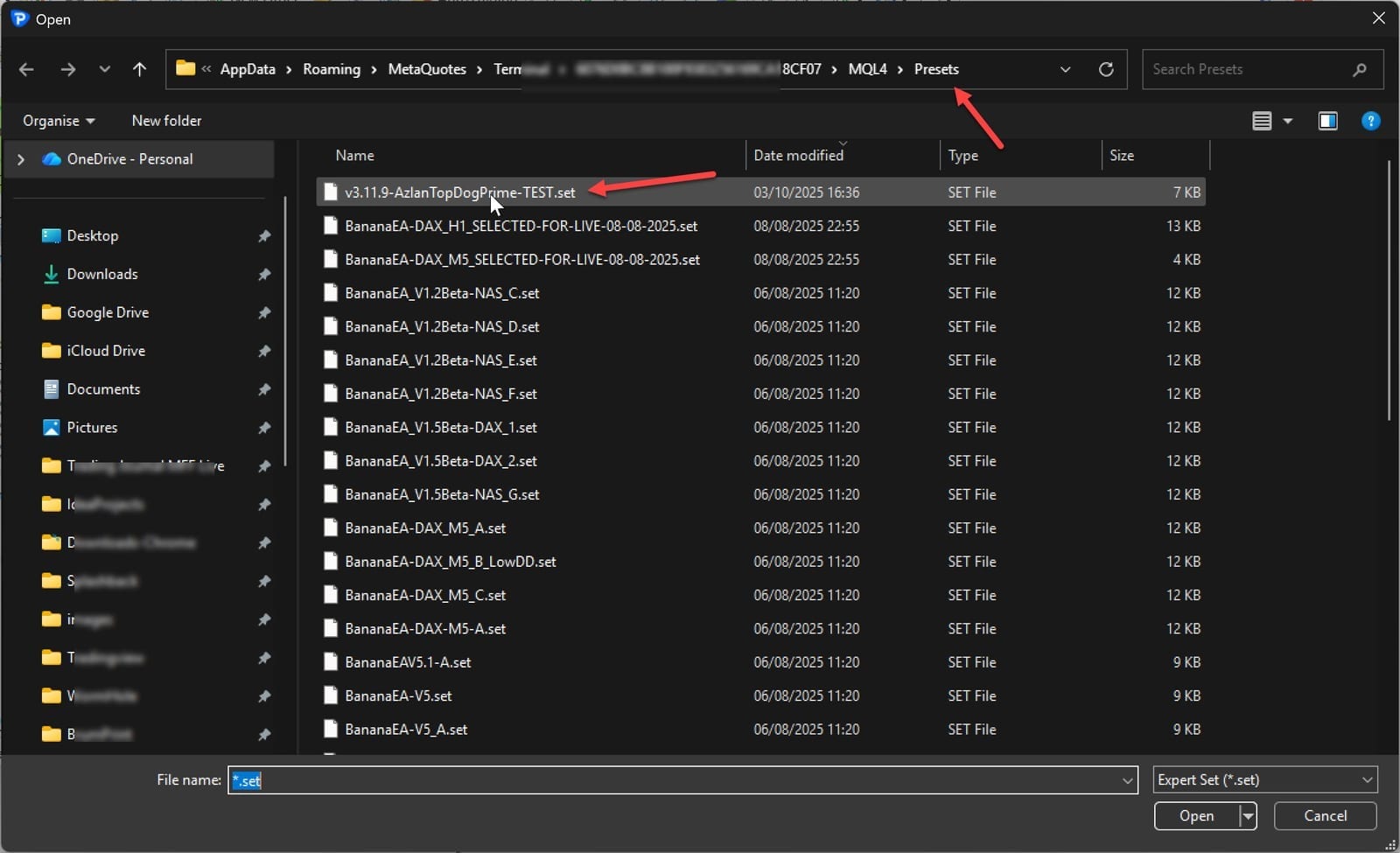
### Load Optimization File in EA[](#load-optimization-file-in-ea "Direct link to Load Optimization File in EA")
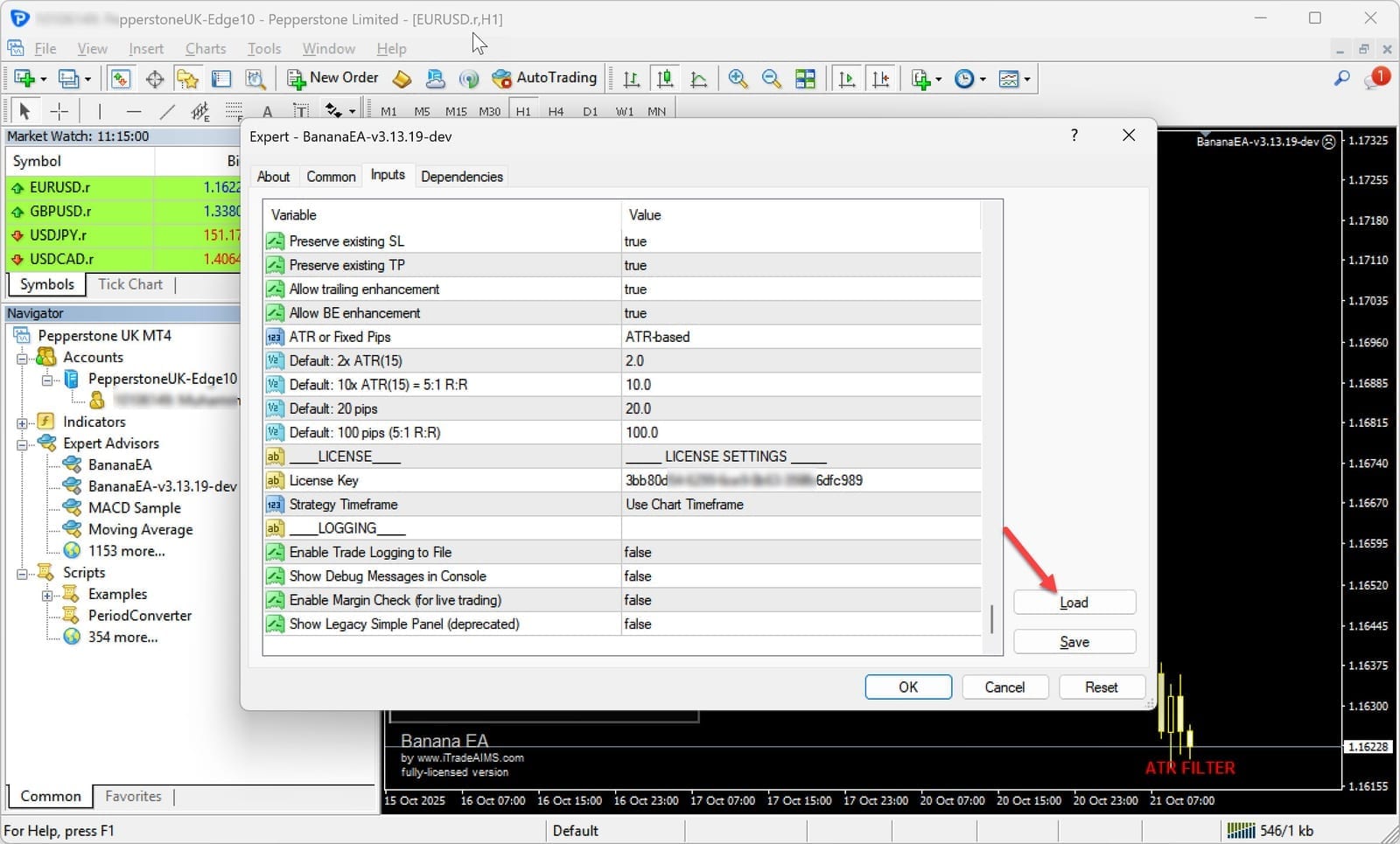
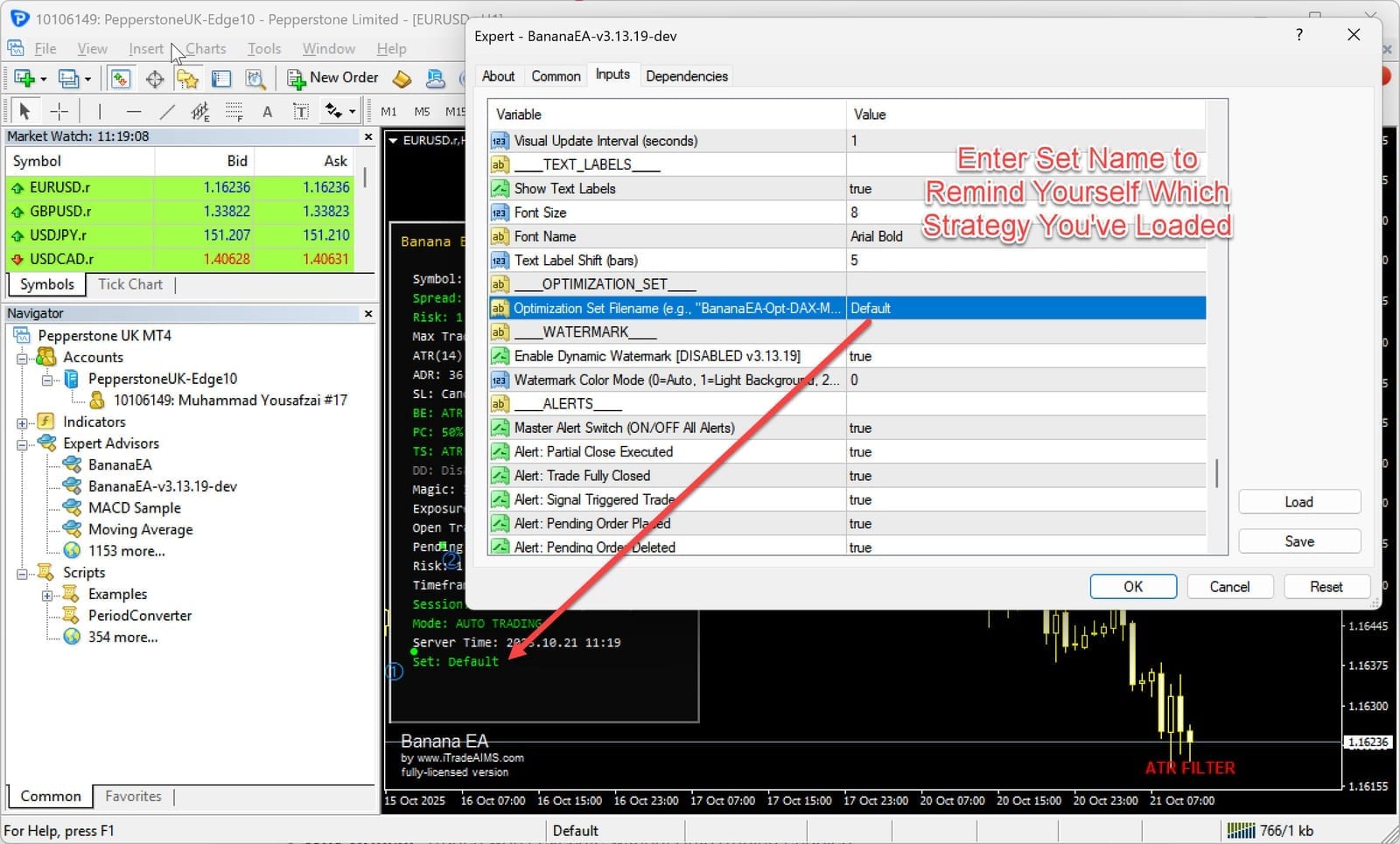
1. Open **EA Properties → Inputs**
2. Click **Load**
3. Select your downloaded `.set` file
* e.g. `AZLN_BananaEA-DAX-M5-TOPDOG-PRIME.set`
* or `BananaEA-DAX-M5.set`
All parameters will load automatically.
***
## ✅ Step 9: Activate Trading Mode (FIRST TIME USERS)[](#-step-9-activate-trading-mode-first-time-users "Direct link to ✅ Step 9: Activate Trading Mode (FIRST TIME USERS)")
### ✨ NEW Safety Feature (v4.4.4)[](#-new-safety-feature-v444 "Direct link to ✨ NEW Safety Feature (v4.4.4)")
**BananaEA starts in PAUSED mode for your protection.** This means YOU control when trading begins.
tip
**Safety First:** The EA will monitor markets and display signals, but won't open any trades until you activate it.
### **To Start Trading:**[](#to-start-trading "Direct link to to-start-trading")
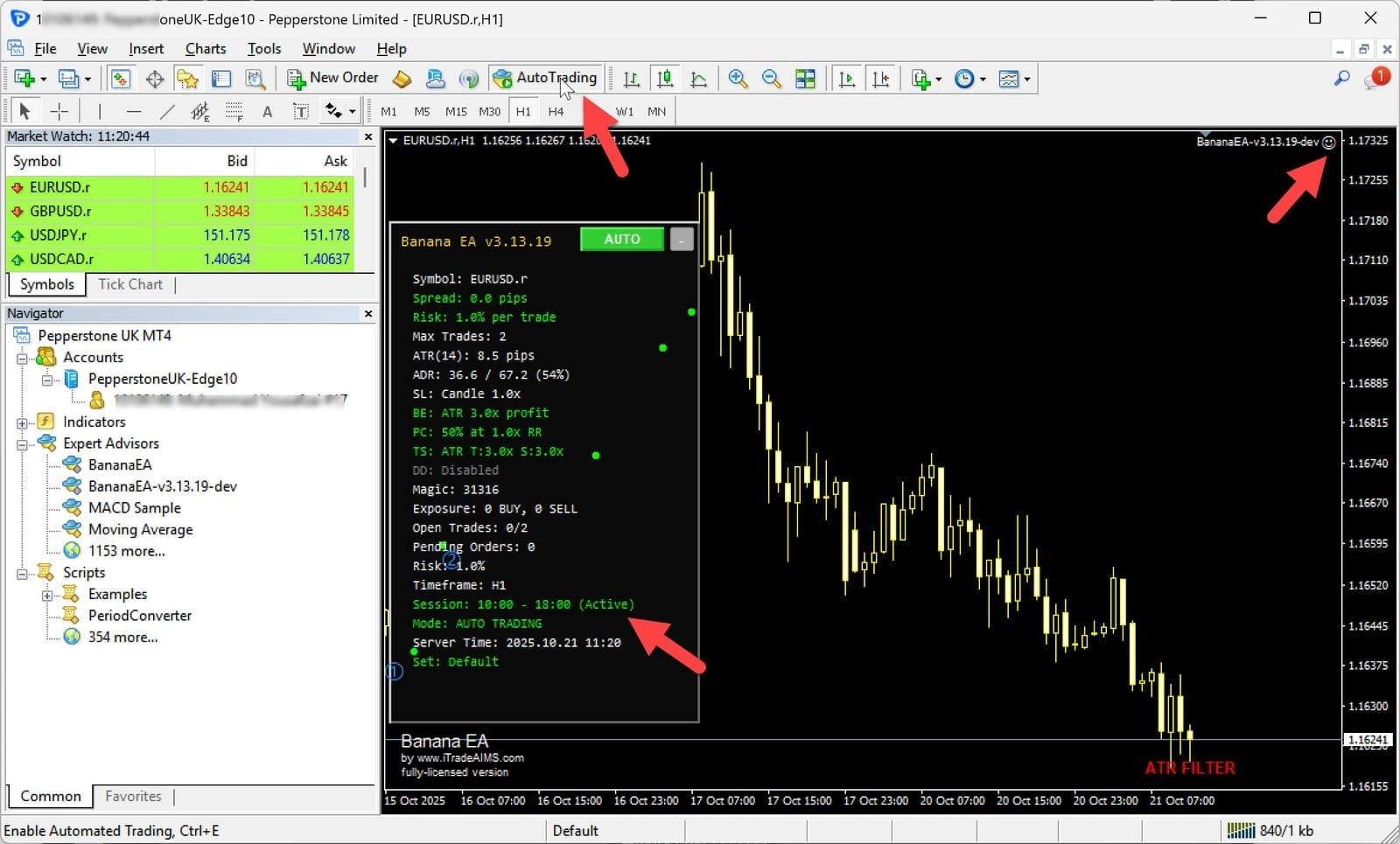
1. **Locate the TC button** on your dashboard (top-left by default)
2. **Click once**: PAUSED → AUTO (trading enabled) ✅
3. **EA is now active** and will detect signals and open trades
### **TC Button Three-State System:**[](#tc-button-three-state-system "Direct link to tc-button-three-state-system")
**Understanding the Button States:**
* 🔴 **PAUSED** (Red button): EA monitoring only, **no trades opened**
* 🟢 **AUTO** (Green button): **Full automated trading** enabled
* 🔵 **MANAGE** (Blue button): Managing existing trades only, no new entries
**Button Cycling:** Click repeatedly to cycle through states:
```
PAUSED → AUTO → MANAGE → PAUSED → AUTO → ...
```
info
**Strategy Tester Note:** When running backtests, the EA automatically detects Strategy Tester mode and bypasses PAUSED mode. Your backtests will run normally without manual activation.
[Learn more about three-state control →](/banana-ea/mt4/docs/v4/complete-user-guide/settings-guide/trade-management-mode.md)
***
## ✅ You're Ready to Trade\
> BananaEA is now fully installed and configured. Click the TC button to activate trading!
***
### 🔁 Important Notes on Optimization Files[](#-important-notes-on-optimization-files "Direct link to 🔁 Important Notes on Optimization Files")
* ✅ Check **weekly** for updated optimization sets
* ✅ Optimizations adapt to **current market conditions**
* ✅ Symbol-specific options available for different instruments
* ✅ Always **demo-test** before going live