Advanced Controls
AIMS Box includes dashboard controls that let you adjust the chart view without reopening the full Inputs tab every time.
The available controls depend on platform. MT4 uses a compact mini dashboard. MT5 uses the wider AIMS Confluence Indicator dashboard.
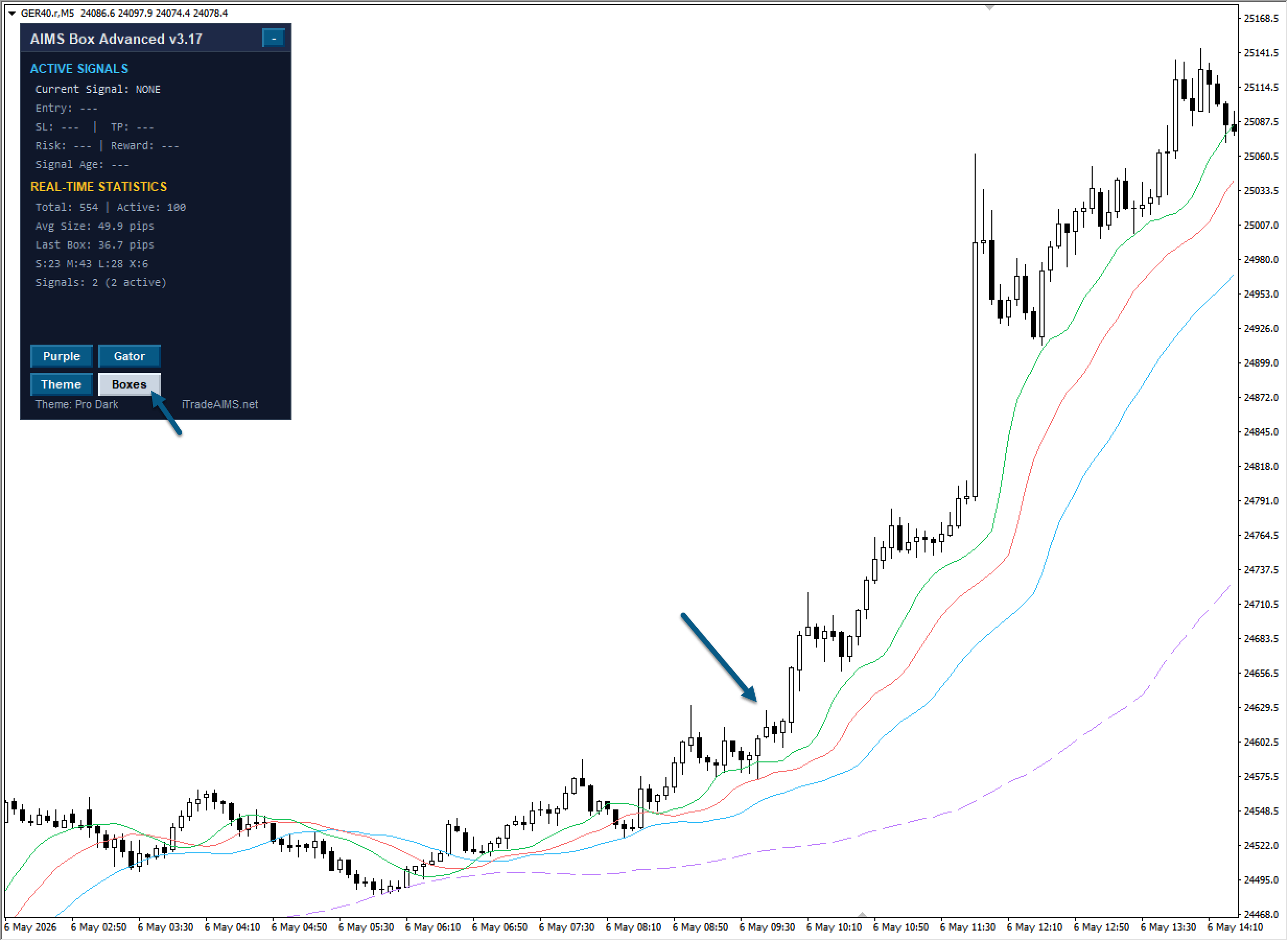
MT4 Mini Dashboard Controls
The MT4 dashboard focuses on the box and level workflow.
Common MT4 controls include:
- Boxes
- Gator
- Purple
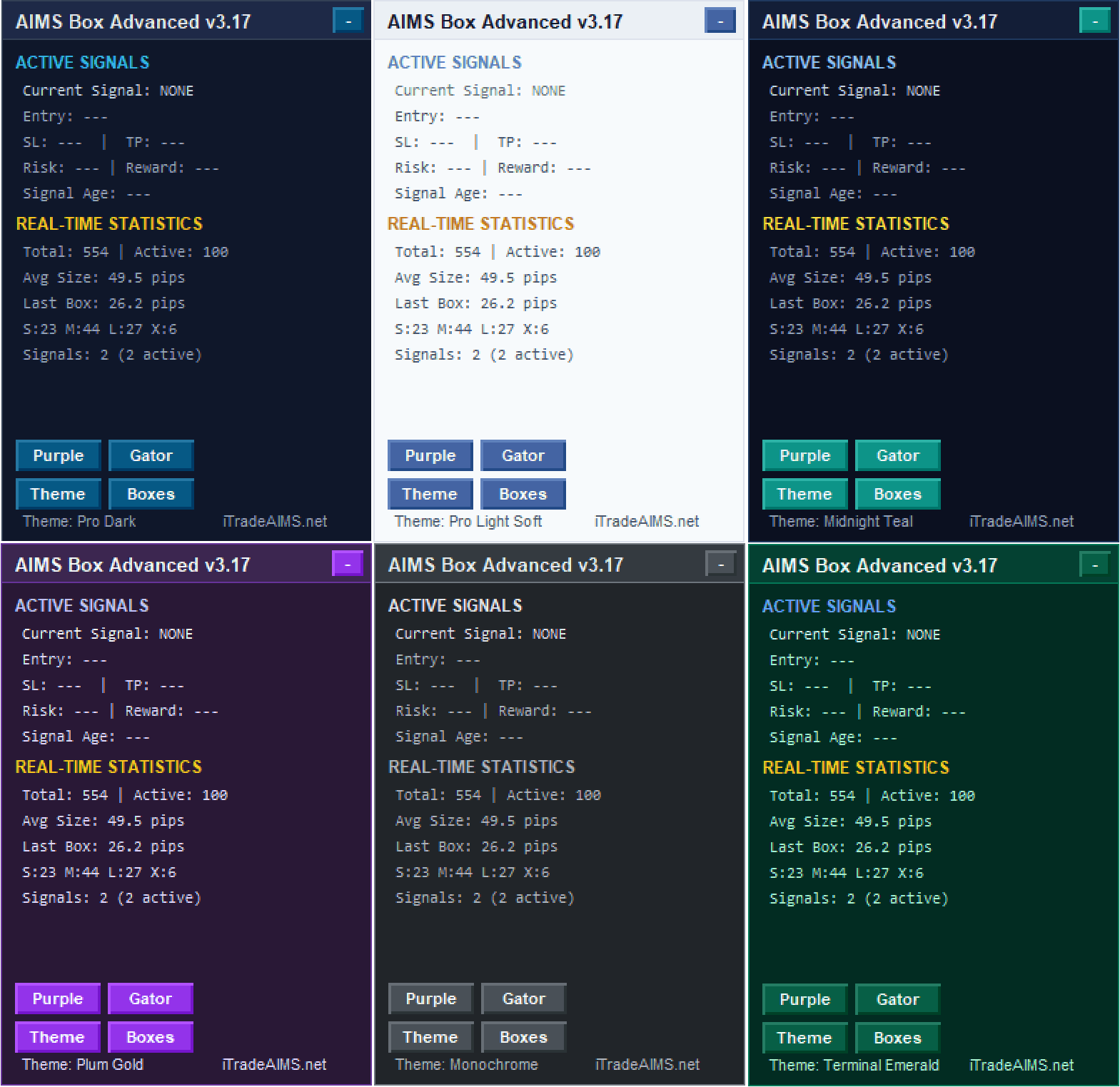
- Theme
Use Boxes to show or hide grey box zones.
Use Gator and Purple to show or hide those chart references when available.
These controls change chart visibility only. They do not pause box calculation, setup evaluation, or filter evaluation.
MT5 Box Tab
Use the Box tab when reviewing AIMS Box information.
The dashboard can show:
- Market state.
- Upcoming news.
- Last signal state.
- Filters.
- Community and resources links.
- GUI settings.
Filters Section
The Filters section can include quick toggles such as:
Show Boxes
Signal Levels
Gator Filter
Purple Filter
ATR Box Filter
Use these carefully. Turning filters off can make more setups appear, but it can also remove useful context.
News Section
The AIMS Confluence Indicator dashboard can show upcoming news context.
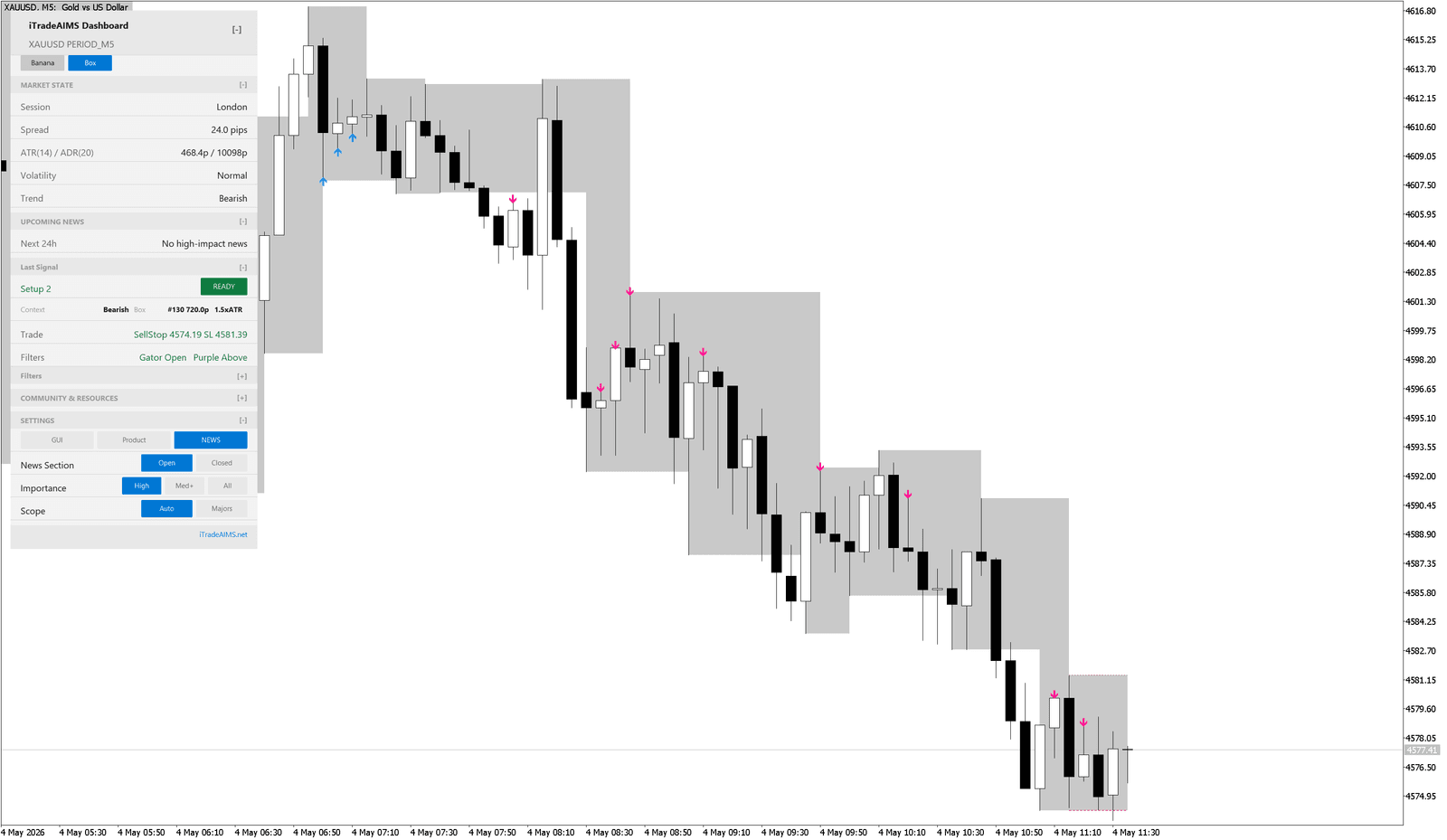
If the dashboard says no high-impact news is expected, still check your own market calendar before important trades.
GUI Settings
Some MT5 versions include dashboard controls for:
- Scale.
- Theme.
- Restore Defaults.
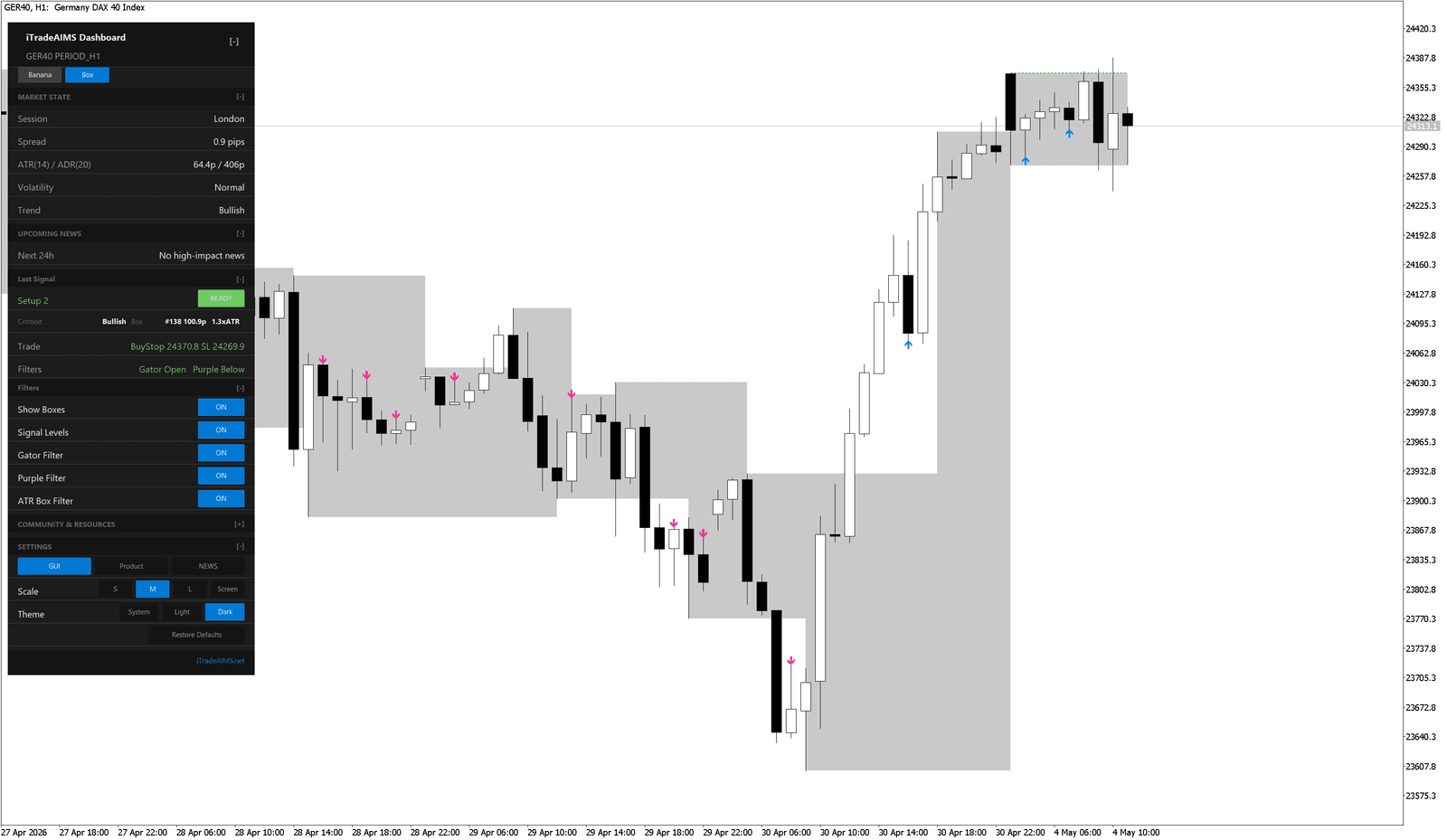
Use Restore Defaults when the dashboard becomes hard to read or settings have drifted too far from the starting point.
Some MT4 builds use a Theme button instead of the MT5 scale and theme controls.
Dashboard Position And Size
If the dashboard covers price:
- Collapse sections you do not need.
- Use a smaller scale.
- Move to a higher screen resolution if available.
- Save the chart as a template only after the layout is readable.
Best Practice
Use dashboard controls as convenience tools. For important changes, make one change at a time and observe how the chart behaves before changing another setting.