Box Super quick start
Use this when you have AIMS Box Super access (or an invite). If the script list still shows publish pending, wait for a real TradingView URL — do not guess one.
1. Open the script
- Confirm access at my.itradeaims.net → License Center.
- Sign in to TradingView with the same username that was granted.
- Open AIMS Box Super from your invite list or the iTradeAIMS profile when published.
- Add it to a clean chart (one symbol, one timeframe you actually trade).
2. What you should see
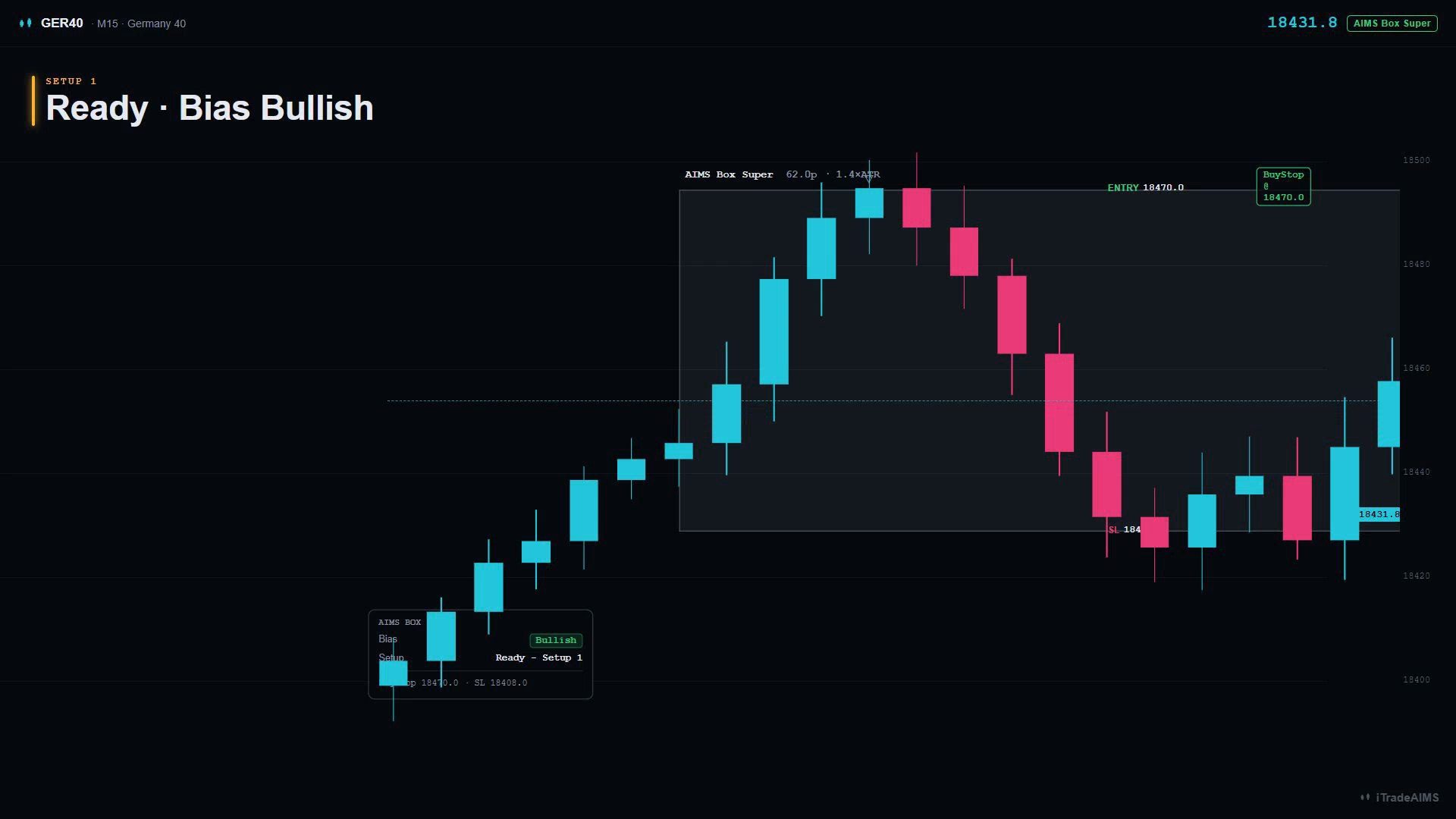
- Grey structure boxes after confirmed fractal highs and lows
- Dashboard (default bottom-left) with Bias, setup state, and trade reference
- No Gator lines and no candle tint from this script
If you want visible Gator lines, add AIMS Gator as a separate indicator.
3. First SETUP READY
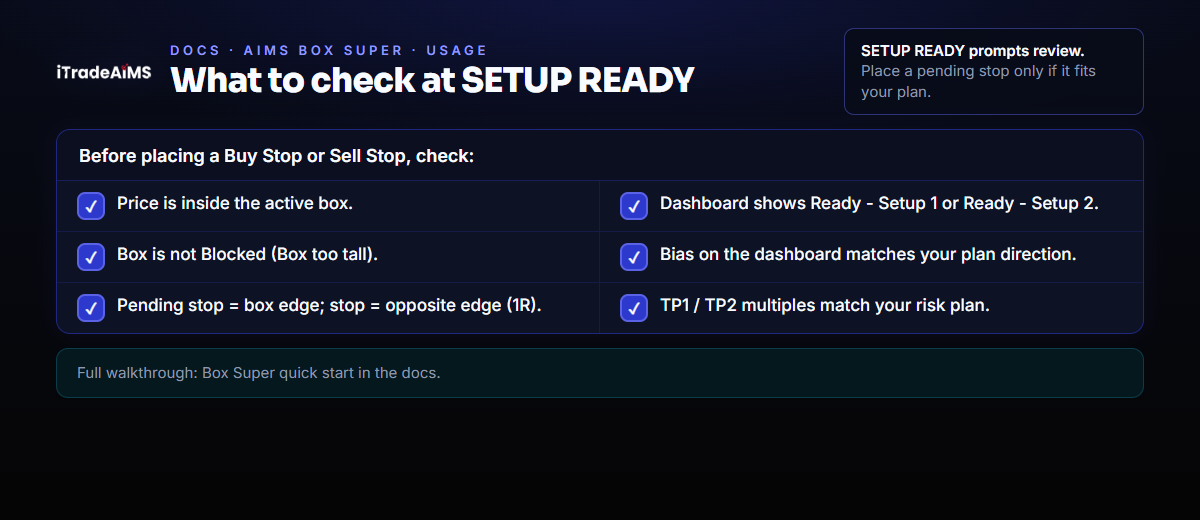
When the dashboard shows Ready - Setup 1 or Ready - Setup 2:
- Confirm price is still inside the box.
- Note the pending edge (Buy Stop high / Sell Stop low) and the opposite-edge stop.
- Place the pending order only if it fits your plan and risk.
4. Next
- Box Super settings
- Box Super alerts
- Overview: AIMS Box Super