AIMS Box Super
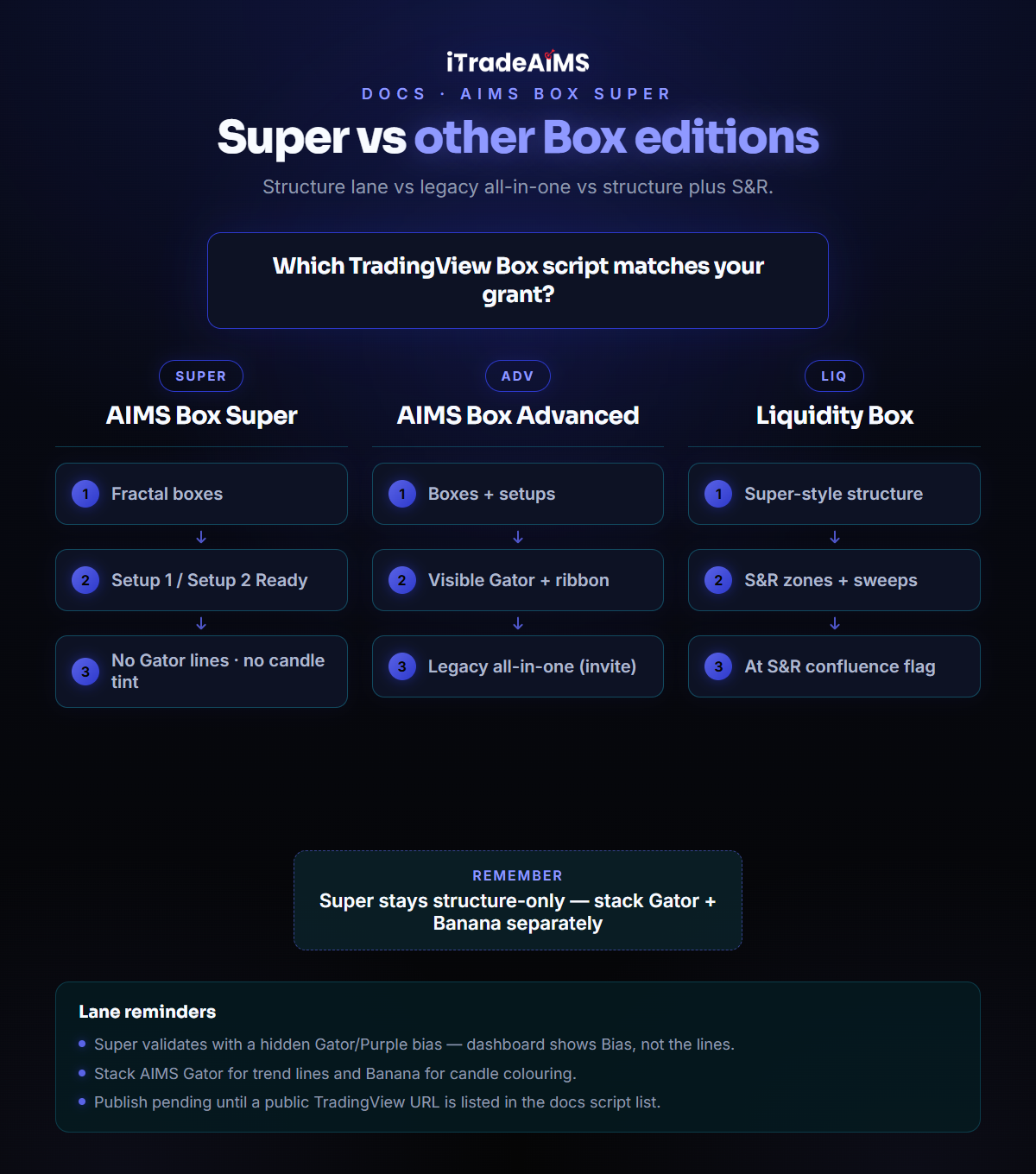
AIMS Box Super is the going-forward structure indicator in the AIMS Box TradingView family. It draws fractal boxes and Setup 1 / Setup 2 pending-order prompts — and keeps the trend engine invisible.
On the chart it is listed as iTradeAIMS | AIMS Box Super (short title AIMS Box Super).
There is no public TradingView script URL yet. Treat Super as invite / publish pending. Do not use a guessed link. When a real URL ships, this page and the script list below will flip to live access.
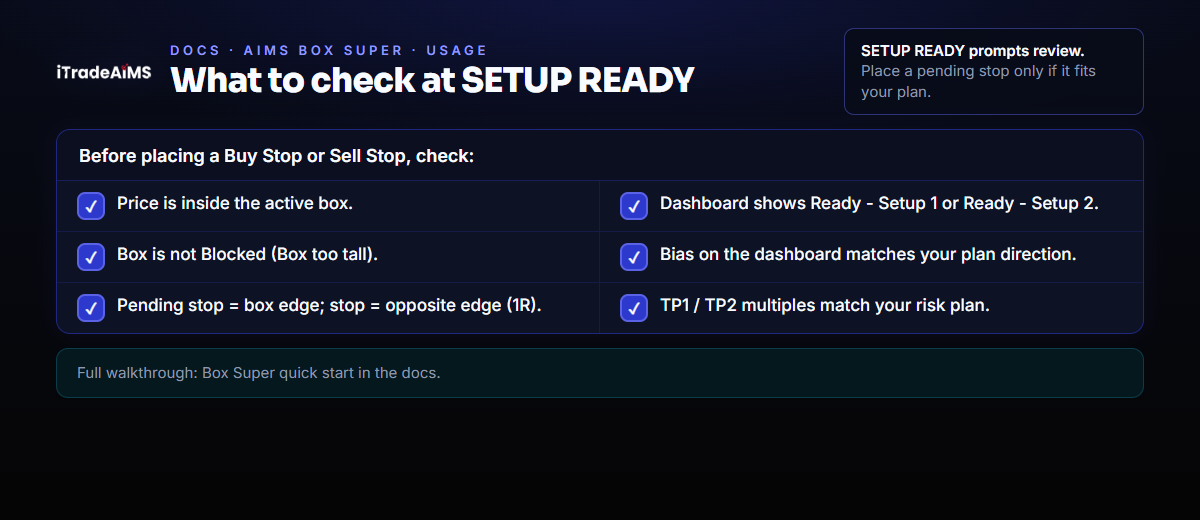
SETUP READY means: if this fits your plan, place a pending Buy Stop or Sell Stop. The indicator does not place trades, size positions, or replace your plan. Not financial advice.
What Super is (and is not)
| Super shows | Super does not show |
|---|---|
| Fractal boxes (grey structure zones) | AIMS Gator lines, mouth ribbon, or trend cloud |
| Setup 1 / Setup 2 ready labels and trade levels | Banana-style candle colouring |
| Dashboard Bias, setup state, and trade reference | Gator / Purple settings (those params are baked in) |
Super validates setups with a hidden Gator + Purple Magic bias engine. The call (Bias) appears on the dashboard; the mechanism stays off the chart. Stack AIMS Gator for visible trend lines and Banana for candle appearance — three lanes, no overlap.
How a setup works (plain English)
- A box forms between a confirmed fractal high and low.
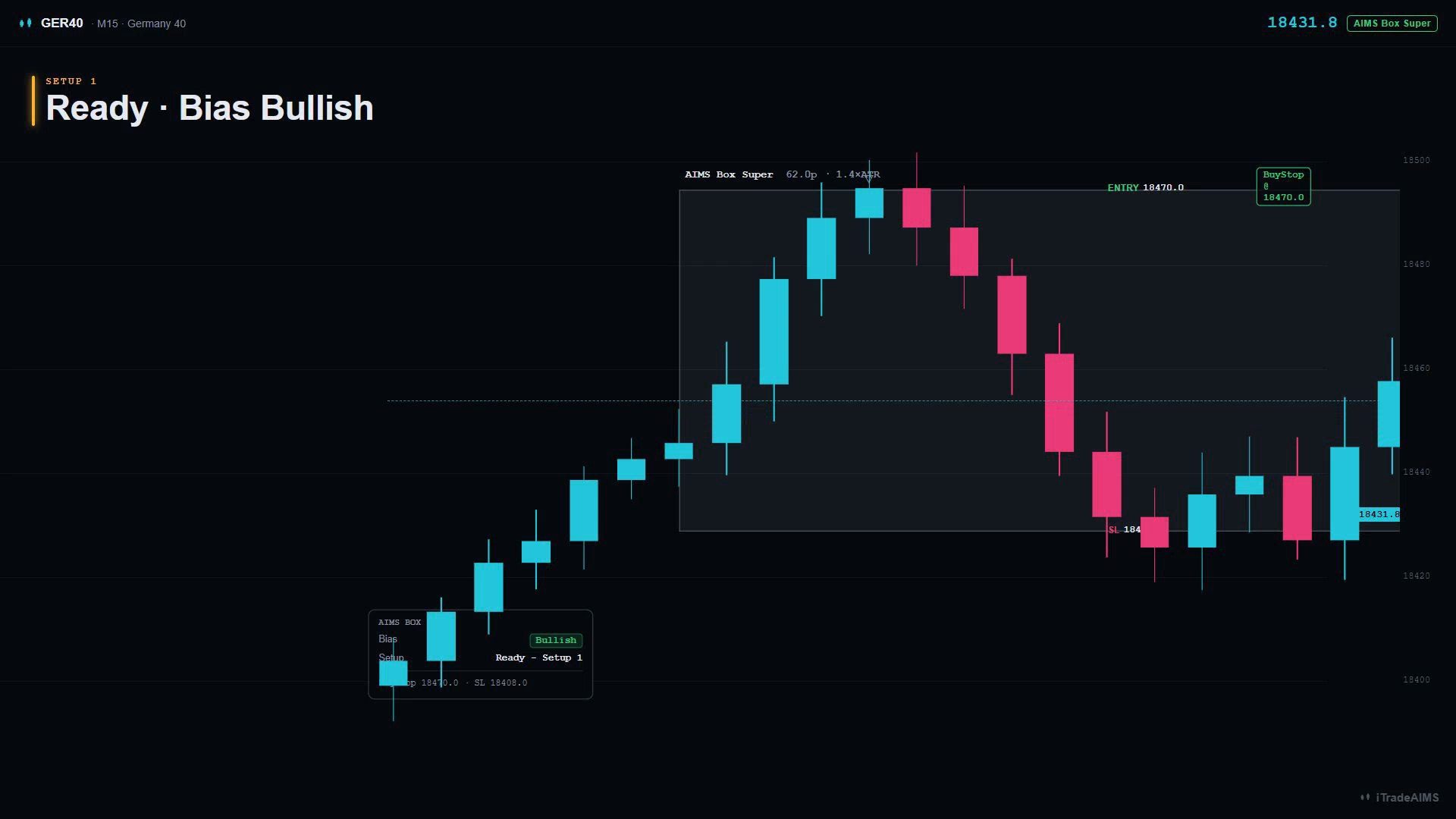
- When price is inside the box, the internal bias filters agree, and the box is not oversized (ATR gate), the dashboard moves to Ready - Setup 1 or Ready - Setup 2.
- That is your cue to consider a pending stop:
- Long → Buy Stop at the top of the box
- Short → Sell Stop at the bottom of the box
- Stop loss → the opposite edge of the box (that height is your 1R)
- TP1 / TP2 → multiples of that same height (defaults 1× and 2×)
- After that:
- Triggered — price hits the pending edge; levels freeze on the chart
- Invalidated — a new box takes over, or the opposite edge breaks first
Setup 1 vs Setup 2 (short)
| Setup | Plain English |
|---|---|
| Setup 1 | Congestion / inside-box bias — pending stop at the box edge when Ready |
| Setup 2 | Continuation after the mouth opens — still a pending stop at the box edge when Ready |
Both use the same pending-order model. Oversized boxes can still draw but show Blocked (Box too tall) and will not arm.
Which script is which?
Public structure teaser — last fractal box + optional pip-limit tint. No Setup 1/2 lifecycle.
Invite-only — full box lifecycle with visible Gator lines, mouth ribbon, settings, and trend candle tint (legacy all-in-one).
Invite-only Pro — fractal boxes, MT5-parity Setup 1/2 lifecycle, invisible Gator/Purple bias, ALMA option, volatility cloud, volume anomaly + ATR box gate, dashboard, PineConnector pending-order alerts.
Structure-only Setup 1/2 lane — invisible Gator/Purple bias validation, no gator lines, no candle tint. Open the Box Super docs while the TradingView URL is pending.
Box Super structure plus Support & Resistance zones and ★ S&R confluence. Open the Liquidity Box docs while the TradingView URL is pending.
- Advanced — legacy all-in-one: boxes plus visible Gator / ribbon / candle tint.
- PRO — invite-only Pro lane with extra filters and PineConnector options.
- Super — clean structure lane (this page) — publish pending.
- Liquidity Box — Super-style structure plus Support & Resistance and ★ S&R confluence — Liquidity Box docs.
Access
Confirm your grant at my.itradeaims.net → License Center, then open the script from your TradingView access list or the iTradeAIMS profile.
Until a public script URL is listed above, treat Super as invite / publish pending.
Next steps
- Box Super quick start — attach and read your first chart (when granted)
- Box Super settings — every input group in plain language
- Box Super alerts — alerts at SETUP READY
- Shared Box TV help: Troubleshooting