Quick Start On MT5
Use this after AIMSWaveMT5 is installed.
1. Open The Chart
- Open MetaTrader 5.
- Open the symbol and timeframe you want to review.
- Load enough recent history — aim for roughly 100–150 bars so Elliott counts can stabilize.
2. Attach The Indicator
- Press
Ctrl+Nto open Navigator. - Open
Indicators > iTradeAIMS. - Drag AIMSWaveMT5 onto the chart.
- Enter your license key if the settings window asks for it.
- Select OK.
3. Confirm The Chart Is Ready
Check:
- The indicator name appears in the chart indicator list.
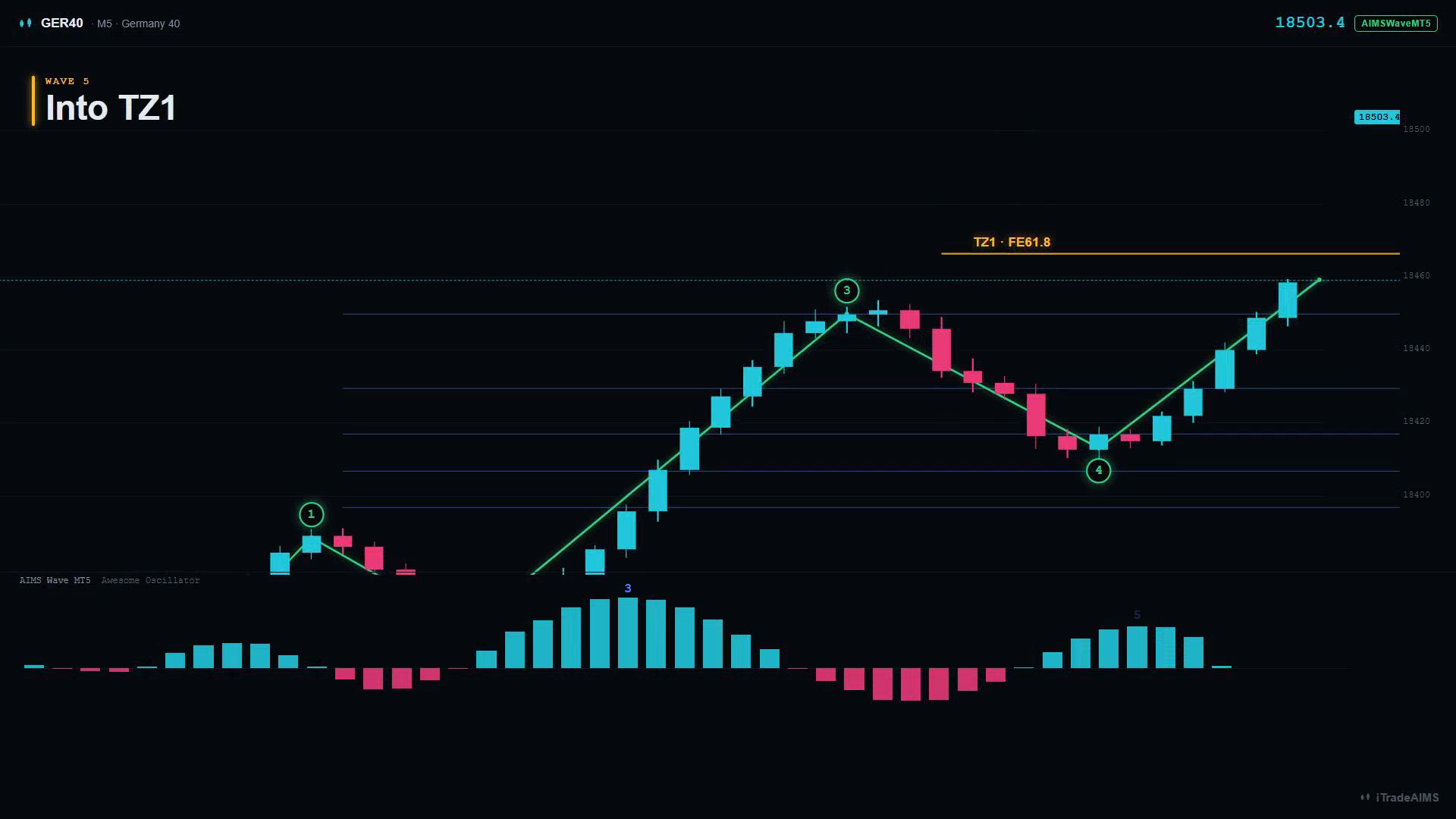
- On-chart wave labels (for example 3, 4, 5) appear after enough history loads.
- Target zone lines (TZ1/TZ2) draw when the count is active.
- The Experts tab does not show a repeated license or loading error.
4. Suite users — open the Wave tab
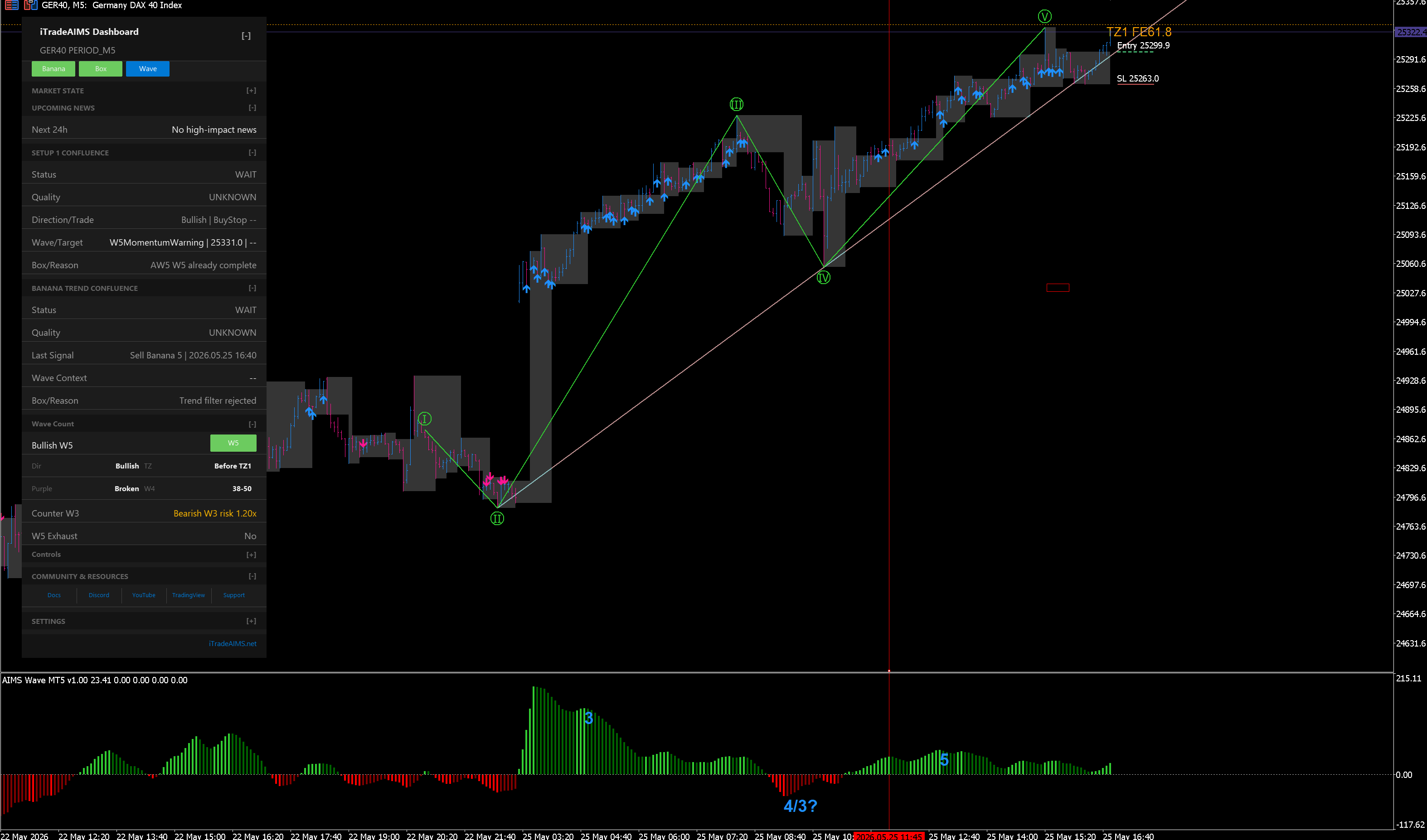
If you run the Confluence Indicator Suite, switch the dashboard to the Wave tab for Setup 1 Confluence and wave-stage quality reads:
Next
- Review MT5 settings
- Troubleshoot MT5
- TradingView chart walkthrough — TV-only images