MT5 Settings
Use this page to review the main settings areas for AIMSWaveMT5.
For suite-specific Wave tab behaviour and Setup 1 Confluence, see AIMS Wave in the Confluence suite.
Open Settings
- Right-click the chart.
- Select Indicators List.
- Select AIMSWaveMT5.
- Select Properties.
- Open the Inputs tab.
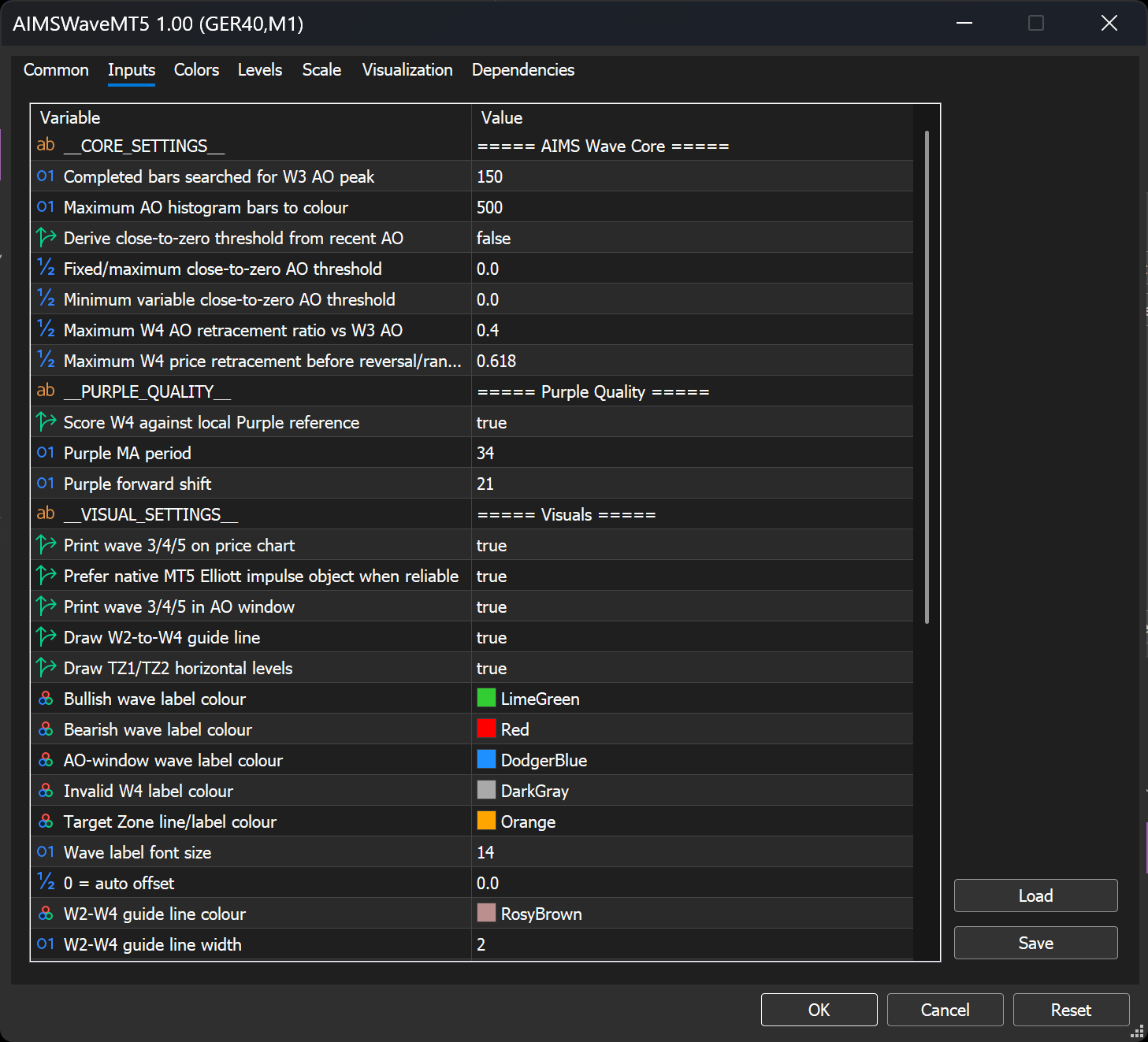
Core Settings
Key inputs at the top of the Inputs tab:
- Completed bars searched for W3 AO peak — how far back wave logic scans.
- Maximum history bars — how much data Wave reads; align with the 100–150 bars rule when counts look truncated.
- Print wave 3/4/5 on price chart — on-chart Elliott labels.
Purple Quality And Visual Settings
Use Purple Quality and Visual Settings to control filter context and label appearance. Change one option at a time so you can see which setting affected the chart.
Levels, AO Tools, And Alerts
Scroll the Inputs tab for zero levels, AO bar-count tools, and W5 alert toggles.
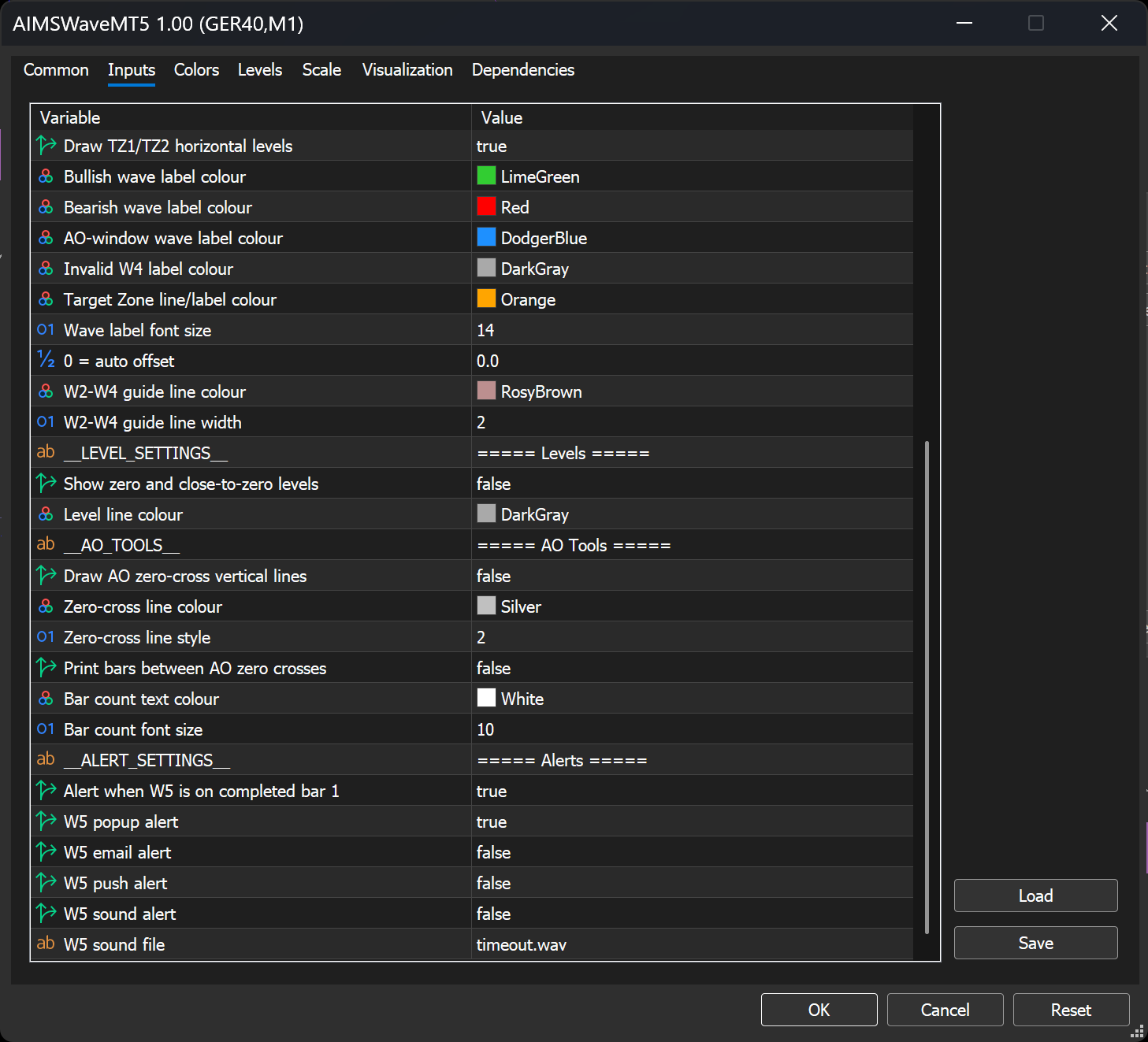
Key inputs include:
- Maximum AO histogram bars to colour — AO window display depth.
- Alert when W5 is on completed bar 1 — W5 alert master switch.
When W5 completes on the completed bar, AIMS Wave can raise an on-screen alert (if enabled). Pair the popup with the Wave tab and Setup 1 Confluence — late-wave extension often maps to CAUTION or AVOID.
Next
- AIMS Wave in the Confluence suite — full MT5 teaching gallery
- Quick start on MT5
- Troubleshoot MT5