Installation
Do not turn off Windows Defender. If Windows reports a virus, quarantines the file, or the installer came from anywhere other than an official iTradeAIMS source, stop and contact support.
Sign in at my.itradeaims.net and open Latest Downloads for MetaTrader installers. TradingView products use invite access — request or confirm access from the same dashboard if you purchased there.
MetaTrader Installer Screens
The MT4 and MT5 installers use the same basic flow. The product name and folder names change, but the screens work the same way.
- Read and accept the license agreement.
- Review the setup information screen.
- Select the MetaTrader data folder opened from
File > Open Data Folder. - Review the
Ready to Installdestination location. - Click
Installonly when the path is correct. - Read the post-install information page, then click
Nextor finish setup.
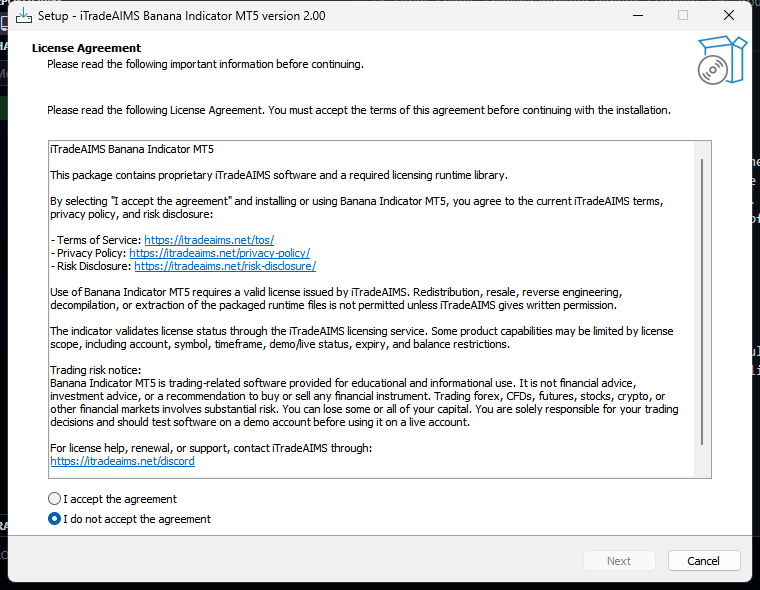
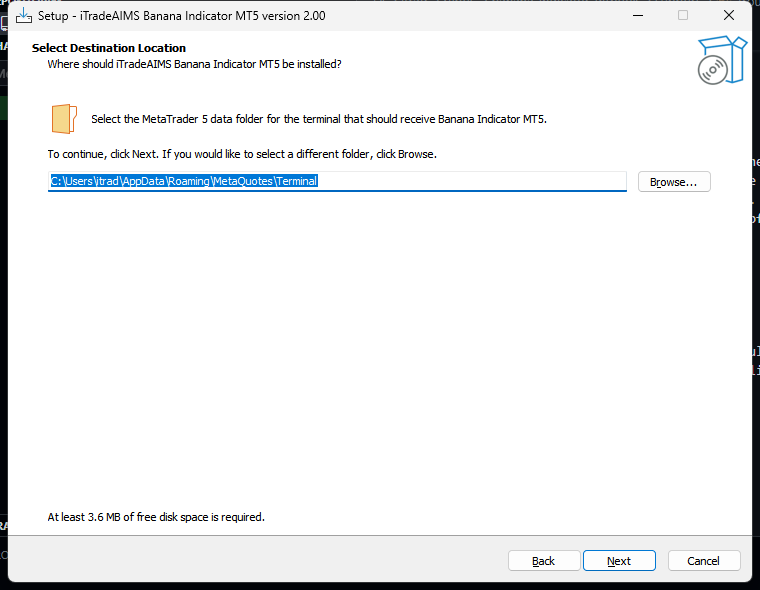
Before clicking Install, the installer shows a Ready to Install page with the destination location. Read that path one more time. Click Install only if it matches the data folder opened from File > Open Data Folder. If the path looks wrong, click Back and choose the correct folder.
After you click Install, Setup may show an information page with the next steps. Read it, then click Next. The important part is the same: restart or refresh MetaTrader, open Navigator > Indicators > iTradeAIMS, attach Banana Indicator to a chart, and enter your license key.
Install On MetaTrader 4
- Open MT4.
- Click
File > Open Data Folder. - Download the official Banana Indicator MT4 installer from Latest Downloads on your member dashboard, then run it.
- When the installer asks where to install, select the MT4 data folder that opened in step 2.
- Complete setup.
- Restart MT4, or right-click inside Navigator and choose
Refresh. - Open
Navigator > Indicators > iTradeAIMS. - Drag Banana Indicator onto your chart.
- Enter your license key in the SerialKey input.
- Click
OK.
Expected installed locations:
MQL4/Indicators/iTradeAIMS/
MQL4/Libraries/
You normally do not need to copy files manually when using the installer.
Install On MetaTrader 5
- Open MT5.
- Click
File > Open Data Folder. - Download the official Banana Indicator MT5 installer from Latest Downloads on your member dashboard, then run it.
- When the installer asks where to install, select the MT5 data folder that opened in step 2.
- Complete setup.
- Restart MT5, or right-click inside Navigator and choose
Refresh. - Open
Navigator > Indicators > iTradeAIMS. - Drag Banana Indicator onto your chart.
- Enter your license key in the SerialKey input.
- Click
OK.
Expected installed locations:
MQL5/Indicators/iTradeAIMS/
MQL5/Libraries/
If you use more than one MT5 terminal, run the installer once for each terminal and select that terminal's own data folder each time.
Add On TradingView
TradingView access works differently. There is no Windows installer.
- Sign in to TradingView.
- Confirm access was granted — check your member dashboard if you just purchased.
- Open the matching Banana script (Latest preferred):
- Request access or follow the access instructions you were given.
- Wait until access is approved for your TradingView account.
- Open the script page again.
- Click
Use on chart. - Save it to favorites if you want faster access later.
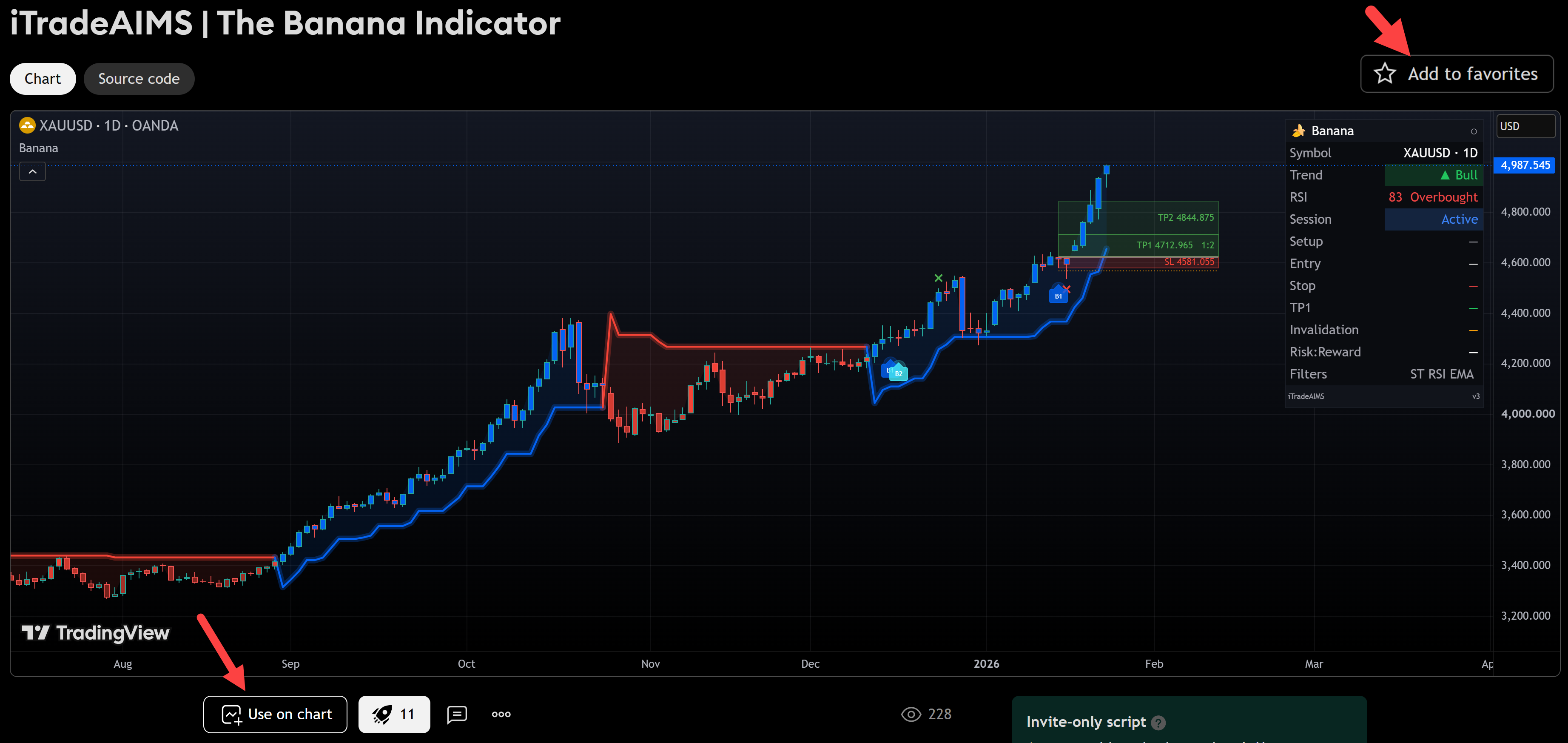
If TradingView says the script is invite-only and you cannot use it, access has not been granted to your TradingView account yet.
After Installation
Check these items before using the indicator:
- The indicator appears in the correct platform.
- The indicator can be attached to a chart.
- MetaTrader users have entered their license key.
- No license error is shown.
- Alerts are configured only if you want them.
- You understand that signals appear for review, not automatic entry.
Common Problems
I Cannot Find The Indicator In MetaTrader
- Restart MetaTrader.
- Right-click Navigator and choose
Refresh. - Confirm you selected the correct data folder during install.
- If you have several broker terminals, repeat the install for the terminal you are using.
The License Is Not Accepted
- Check that the license key is entered exactly as issued.
- Confirm internet access is available.
- Remove and reattach the indicator after correcting the key.
- Contact support if the message remains.
The Banana Indicator installation path depends on the platform version you use.
Use the platform-specific guide:
- Install The Banana Indicator MT4
- Install The Banana Indicator MT5
- Get access to The Banana Indicator TV
Do not use MT4 installation steps for MT5, or MT5 installation steps for MT4. TradingView does not use a Windows installer.