Install On MT5
Use this guide for The Banana Indicator MT5 only.
Shared installer wizard
Newer iTradeAIMS MT5 packages use the same installer UI documented on Confluence suite install. The Banana-specific screenshots below show the same flow; suite installs use the shared PNG ladder there.
Before You Start
You need:
- MetaTrader 5 installed and opened at least once.
- The official Banana Indicator MT5 installer from Latest Downloads on your member dashboard.
- Your license key, if one was issued.
- Internet access for license validation.
Download the installer first
Sign in at my.itradeaims.net, open Latest Downloads, and download The Banana Indicator MT5 installer (or the suite package that includes it) before you run the steps below.
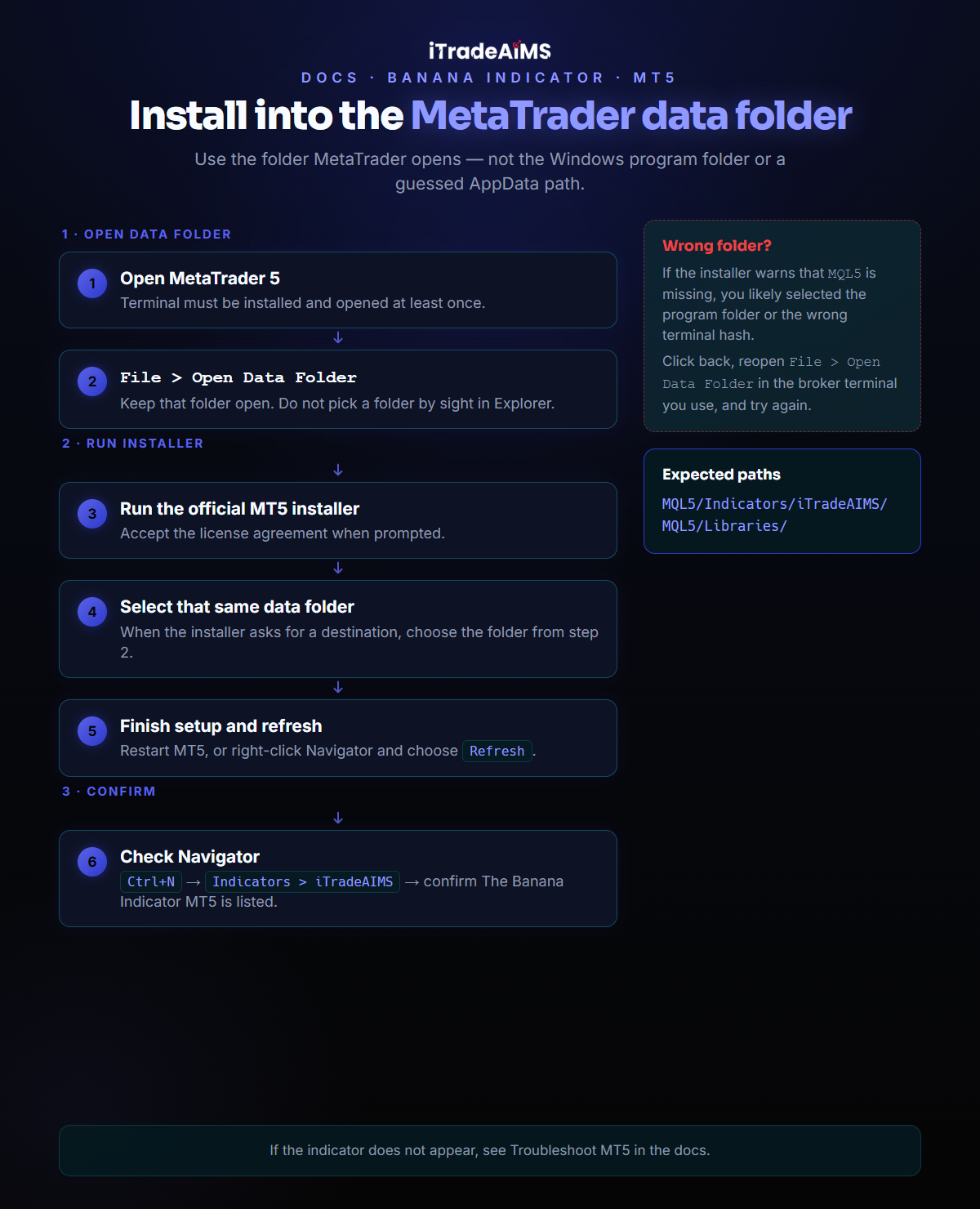
1. Open The MT5 Data Folder
- Open MetaTrader 5.
- Select
File > Open Data Folder. - Keep that folder open.
Use the folder opened by MetaTrader 5. Do not choose a folder by sight from Windows Explorer.
2. Run The MT5 Installer
- Download The Banana Indicator MT5 from Latest Downloads on your member dashboard.
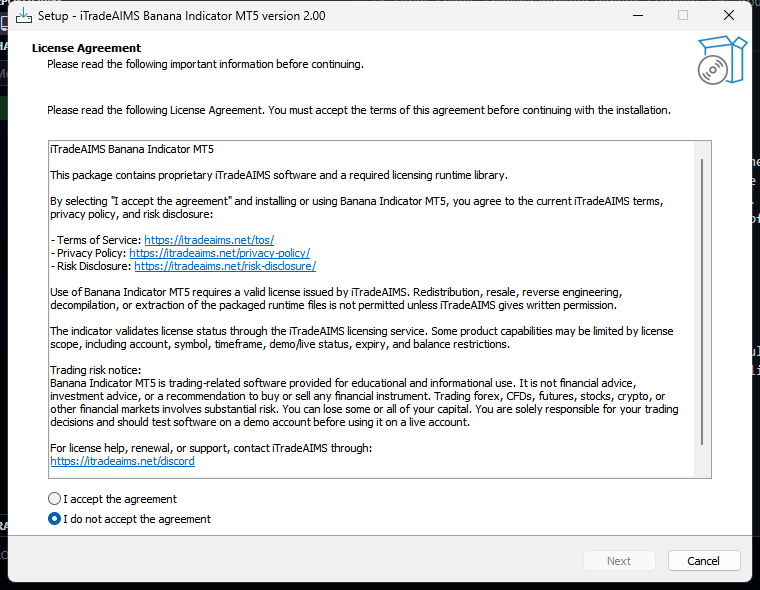
- Run the official installer you downloaded.
- Accept the license agreement when prompted.
- When the installer asks for a folder, select the MT5 data folder opened from
File > Open Data Folder. - Complete setup.
- Restart MT5, or right-click inside Navigator and select
Refresh.
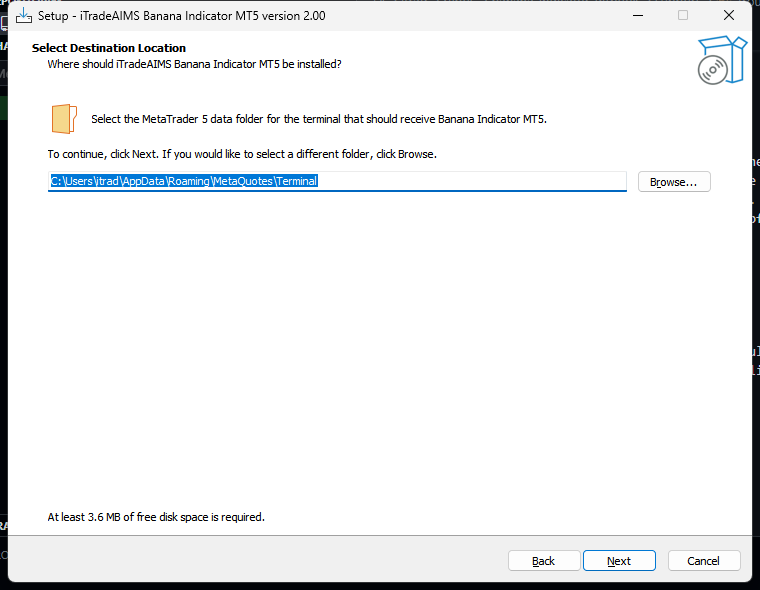
Expected MT5 locations:
MQL5/Indicators/iTradeAIMS/
MQL5/Libraries/
3. Confirm The Indicator Appears
- Press
Ctrl+Nto open Navigator. - Open
Indicators > iTradeAIMS. - Confirm
The Banana Indicator MT5is listed.
If the indicator does not appear, use Troubleshoot MT5.