Quick Start On TradingView
Use this page after TradingView access is confirmed.
Review and backtest — not live trading by default
AIMS Algo plots strategy logic on chart. Strategy Tester shows historical simulation metrics. Connecting live orders requires your own broker setup and risk plan.
1. Add the strategy to your chart
Open the official strategy page, then add it to the chart:
- Select Add to chart.
- Confirm the chart title lists AIMS Algo (or the exact script name from your grant).
- Use the same username that received invite-only access.
2. Open Strategy Tester
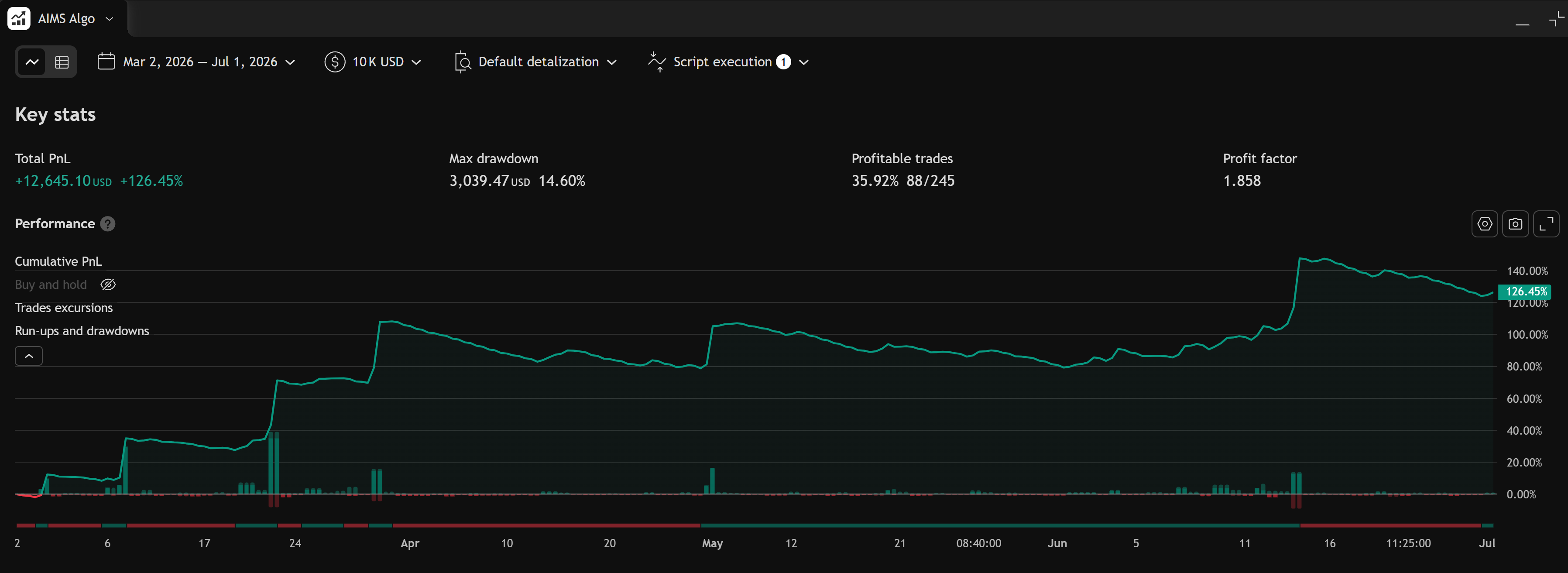
- Open the Strategy Tester panel at the bottom of TradingView.
- Confirm the tester is bound to AIMS Algo on this chart.
- Set symbol and timeframe you intend to review.
- Use a date range long enough for your question (see Strategy Tester results).
3. Leave defaults for the first session
For your first look:
- Do not change inputs until you can read entries, exits, and the mapped structure on chart.
- Note whether the strategy is in long, short, or flat for the current bar.
- Read the Overview tab in Strategy Tester before optimizing parameters.
4. Read the chart vs the tester
| Surface | What it shows |
|---|---|
| Chart overlay | Mapped structure, entries, exits, labels |
| Strategy Tester | Net profit, drawdown, win rate, trade list, equity curve |
The chart helps you understand the logic; the tester helps you measure it over history. Neither replaces your trading plan.