Start On TradingView
Use this path for AIMS Wave on TradingView. iTradeAIMS ships three TradingView editions — pick the script that matches your license.
TradingView does not use a MetaTrader installer. Access is granted to a TradingView username, then the invite-only script is added to a chart.
TradingView editions
Core Elliott wave count, labels, and rhythm read on chart.
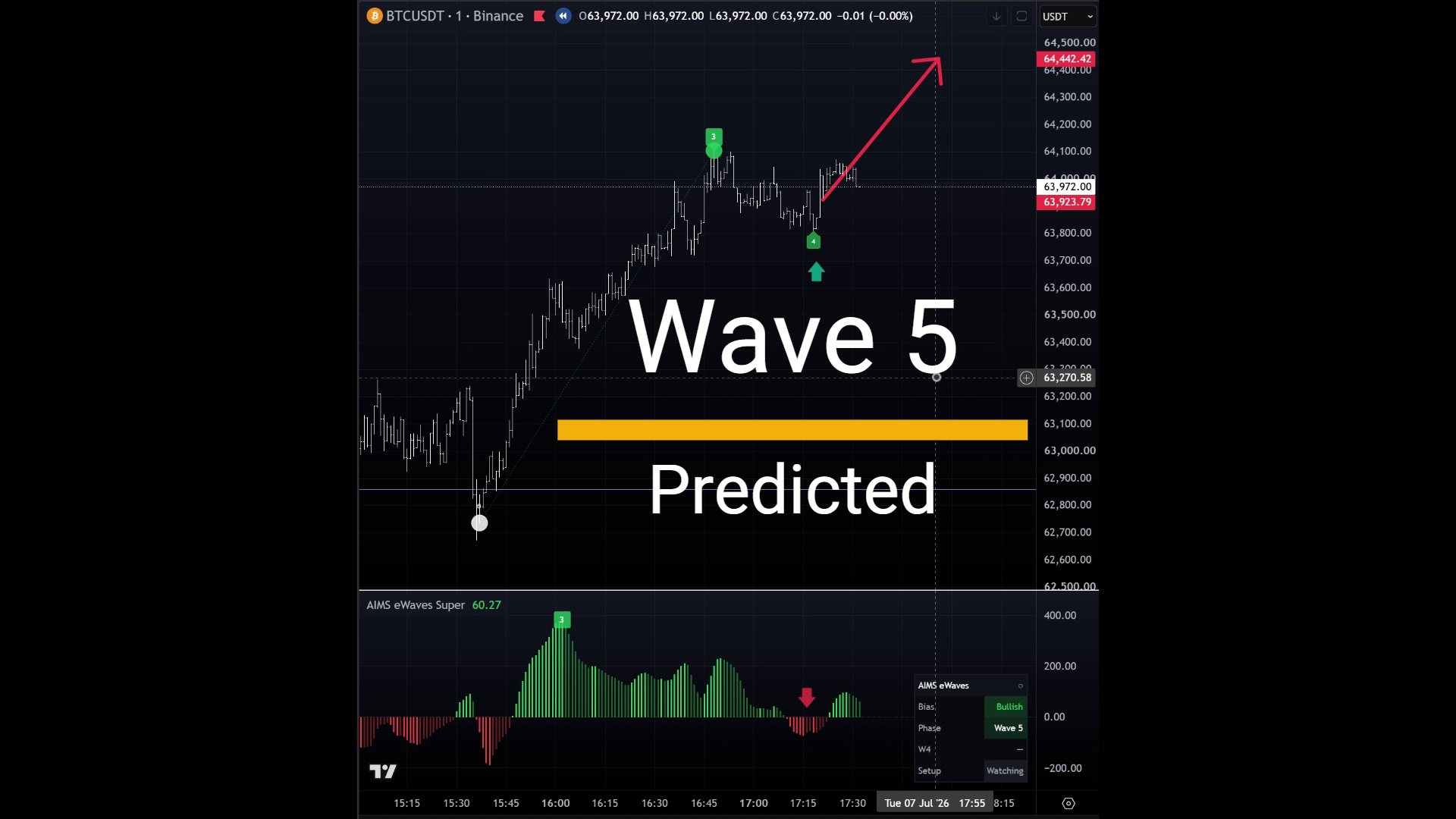
Super edition — Elliott wave labels, target zones, rhythm panel, and Wave 5 prediction context on chart.
Premium wave-count lane — scored multi-degree Elliott counts, completed-cycle persistence, W4 forecast pockets, TZ targets, and dashboard. Open the eWaves Pro docs while the TradingView URL is pending.
- Free (AIMS Wave TV) — core Elliott wave count, labels, and rhythm read on chart.
- eWaves Super — extended Super edition with prediction context; most chart walkthrough images use this edition.
- eWaves Pro (publish pending) — premium wave-count lane with scored multi-degree counts, completed-cycle persistence, W4 forecast pockets, TZ targets, and dashboard. Read the eWaves Pro guide while gated; flip to live access when a public TradingView URL ships.
Check my.itradeaims.net → License Center for your active wave product, then open the matching script above.
Fast Path
- Confirm TradingView access
- Add it to a chart — Free / Super; or eWaves Pro quick start when granted
- Study chart examples (mostly Super) or eWaves Pro overview
- Troubleshoot TradingView
Wave labels describe structure on completed bars. They are not automatic trade instructions. Not financial advice.
What To Confirm First
Before troubleshooting chart display, confirm:
- You are signed in to the TradingView username that was granted access.
- The chart lists AIMS Wave, AIMS eWaves Super, AIMS eWaves Pro, or the exact name from your grant.
- TradingView no longer shows an invite-only access message (Super grants; Pro when published).
- The indicator is on the chart where you expect wave labels.