Quick Start On TradingView
Use this page after TradingView access is confirmed.
Review prompts, not orders
AIMS Wave labels structure on completed bars. It does not place trades or replace your trading plan.
1. Add the script to your chart
Open the edition that matches your license, then add it to the chart:
- Select Add to chart (or Use on chart) on the script page.
- Confirm the chart title lists your edition — AIMS Wave, AIMS eWaves Super, AIMS eWaves Pro, or the exact name from your grant.
- Use the same TradingView username that received invite-only access.
2. Load enough history
AIMS Wave needs sufficient closed bars before counts stabilize. Zoom out until you can see roughly 100–150 bars and a full 1–5 sequence where possible.
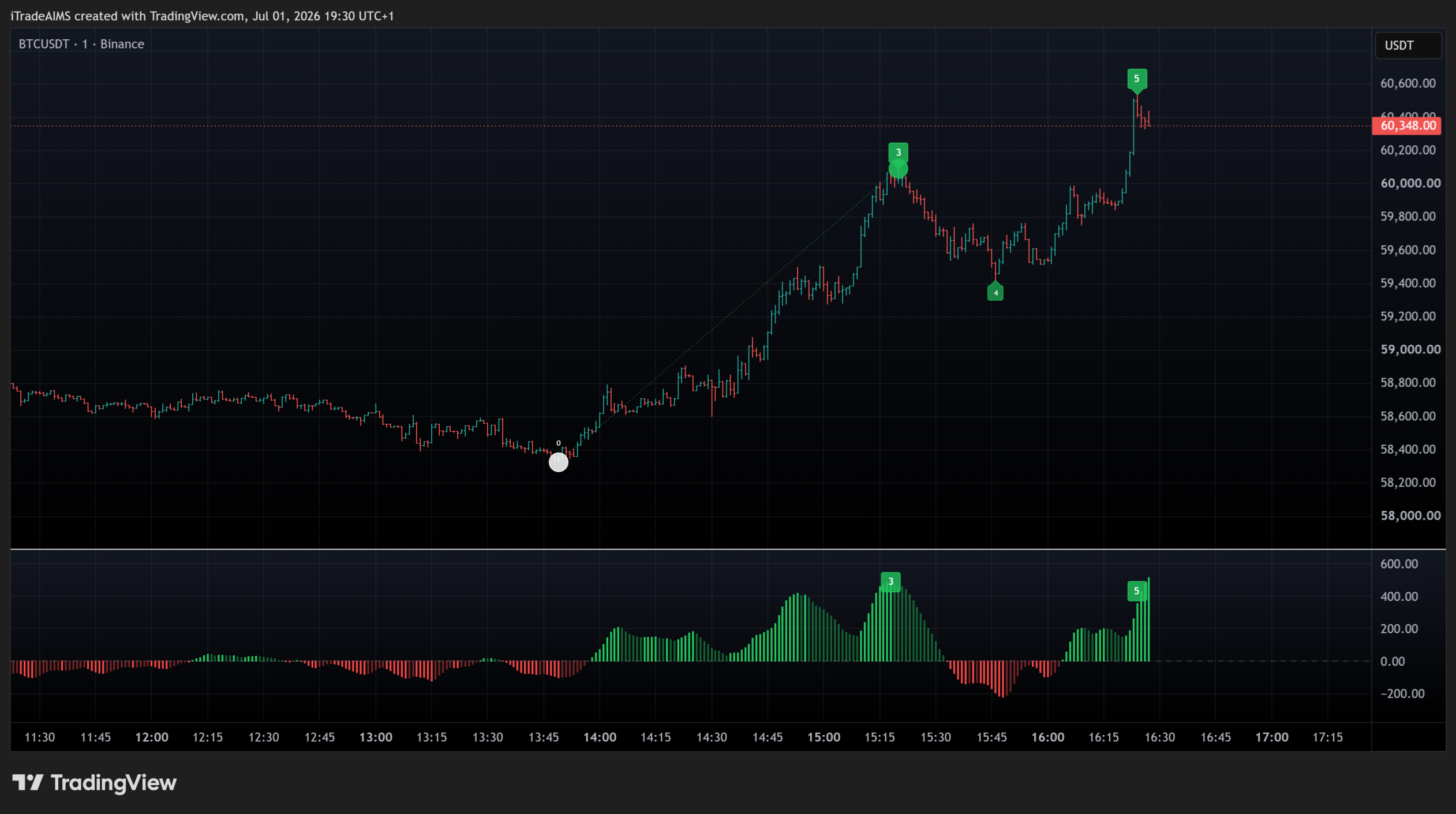
3. Read the panel
| Element | What it tells you |
|---|---|
| Wave count / phase | Current Elliott position (for example Wave 4 pullback) |
| Target zones | Distance and room toward the next projected stall area |
| Rhythm tools | Companion histogram / panel (build-dependent) |
4. Review before you act
- Confirm labels are on closed structure — not mid-candle guesses.
- Note target zone distance — late Wave 5 into TZ1 often means shrinking reward.
- If you also run AIMS Box (especially PRO), compare box setup state with wave phase.
Next steps
- Chart walkthrough — chart examples
- Troubleshoot TradingView
- What is AIMS Wave?