Strategy Tester Results
Use this page after Quick start on TradingView when you want to interpret The Ultimate Nasdaq-100 Strategy backtests in TradingView.
Script page
Past performance
Strategy Tester output is historical simulation on TradingView's data model. Slippage, spreads, fills, and live broker rules can differ. Not financial advice.
What to open
- Add The Ultimate Nasdaq-100 Strategy to your chart (button above).
- Open Strategy Tester at the bottom of TradingView.
- Select a Nasdaq-100 symbol and timeframe you actually trade or research.
- Set a date range (multi-year windows help regime context).
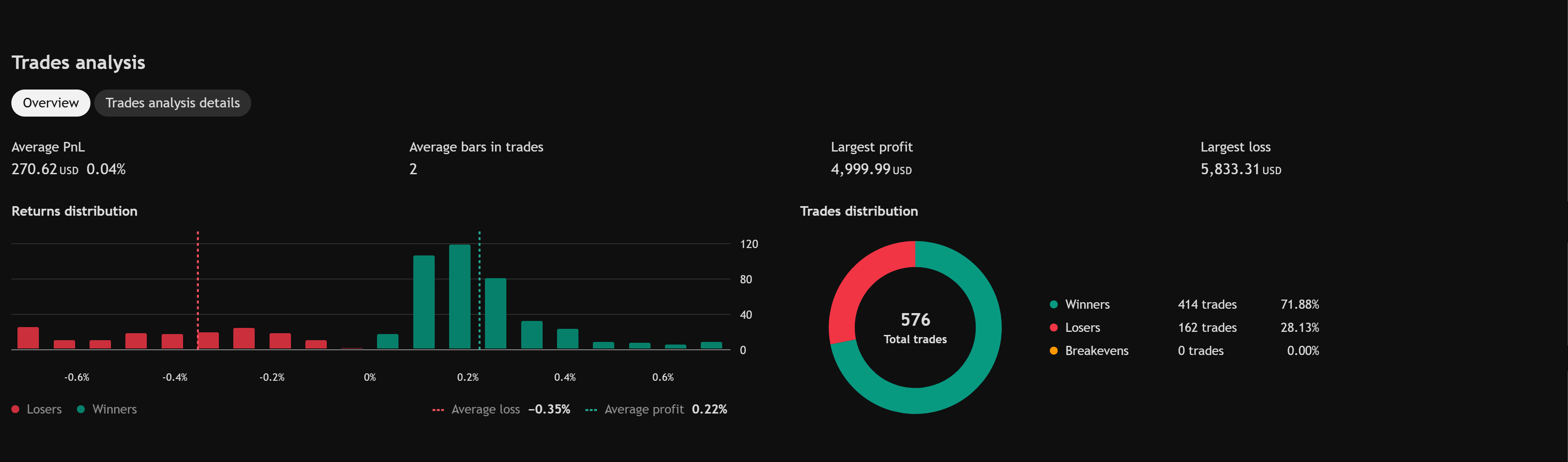
- Review Overview, Performance summary, Return details, Trades analysis, and Equity run-ups and drawdowns.
Example backtest snapshot
Backtest example — January 2020 through April 2025 on a single Nasdaq-100 configuration with $100,000 initial capital. Your results will differ by symbol, timeframe, inputs, and TradingView data.
Overview
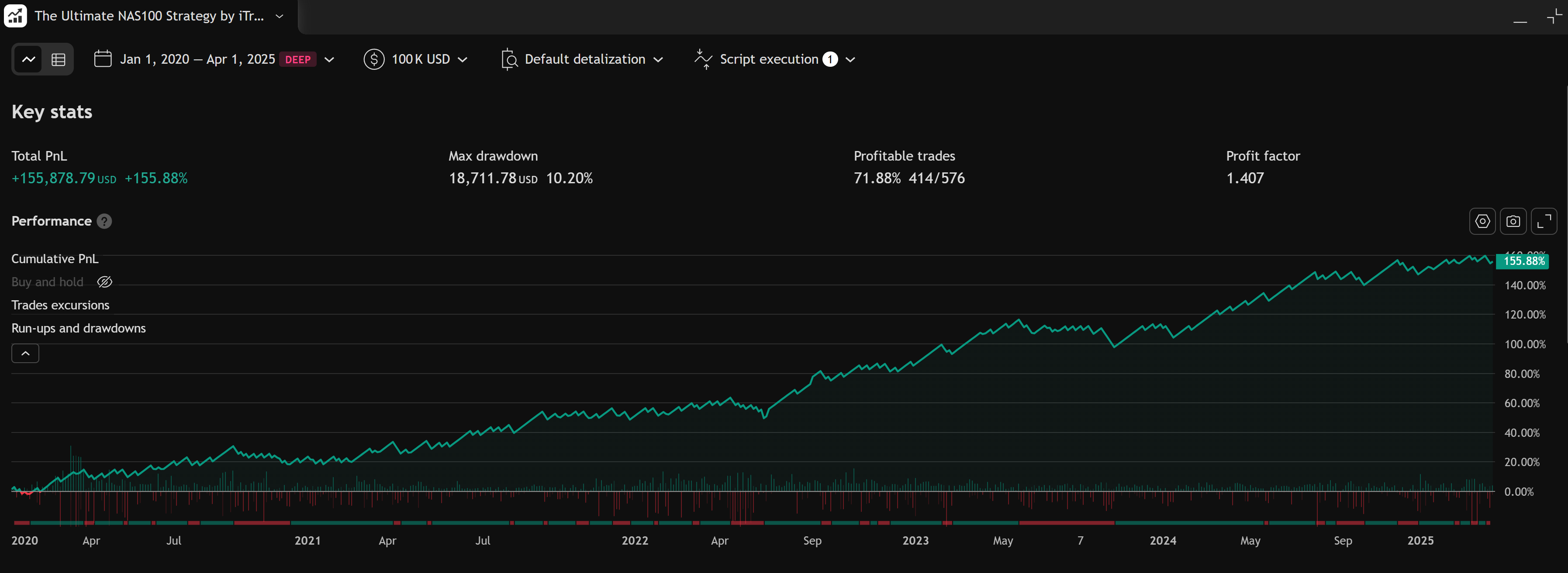
Full report
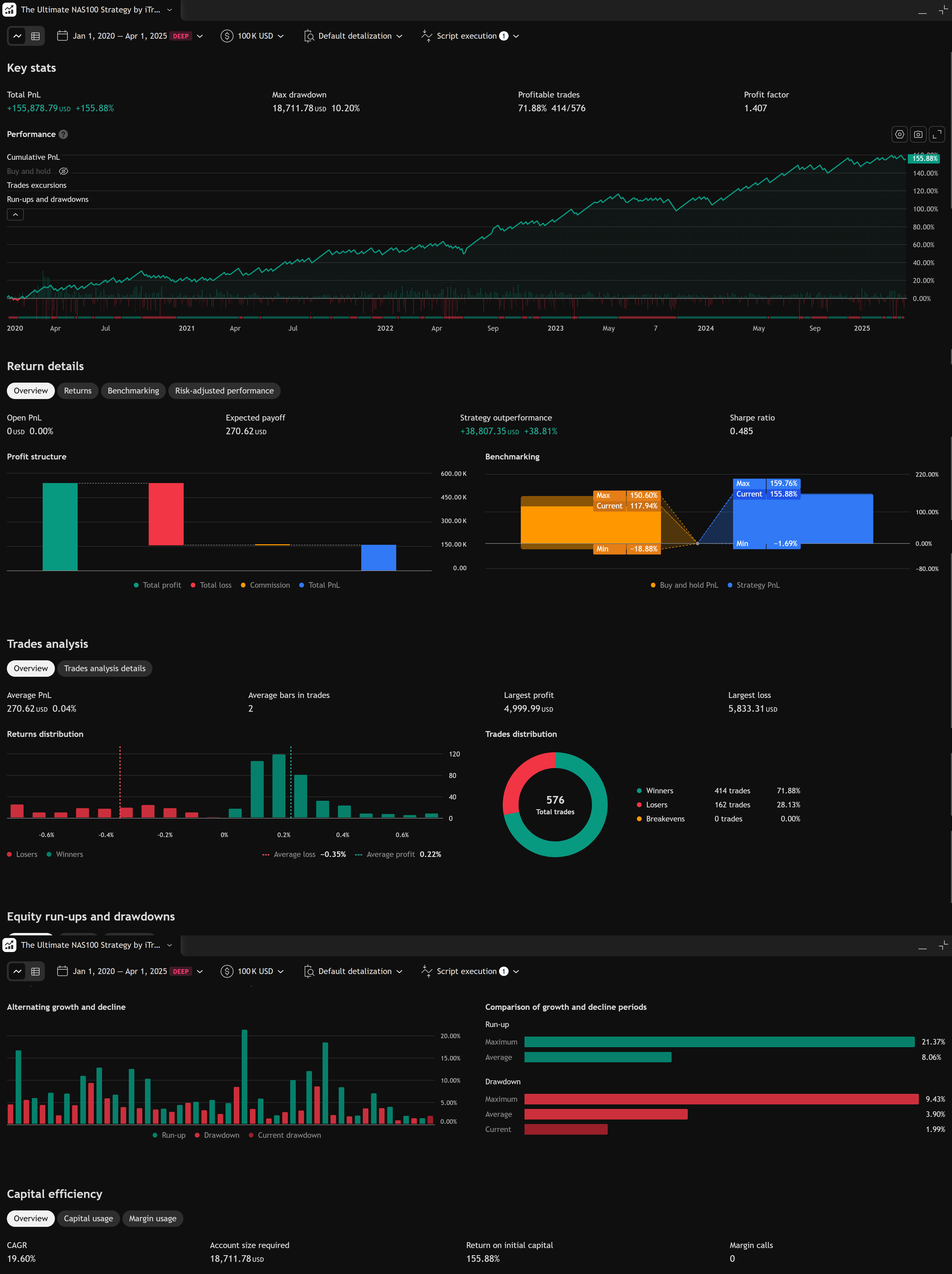
Return details
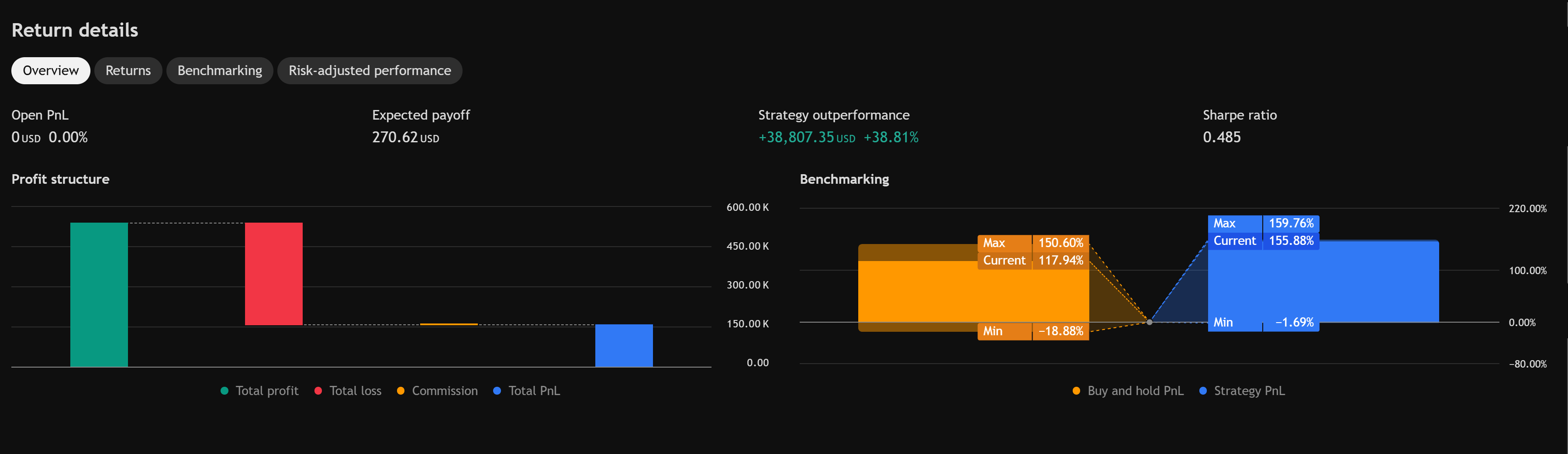
Equity run-ups and drawdowns
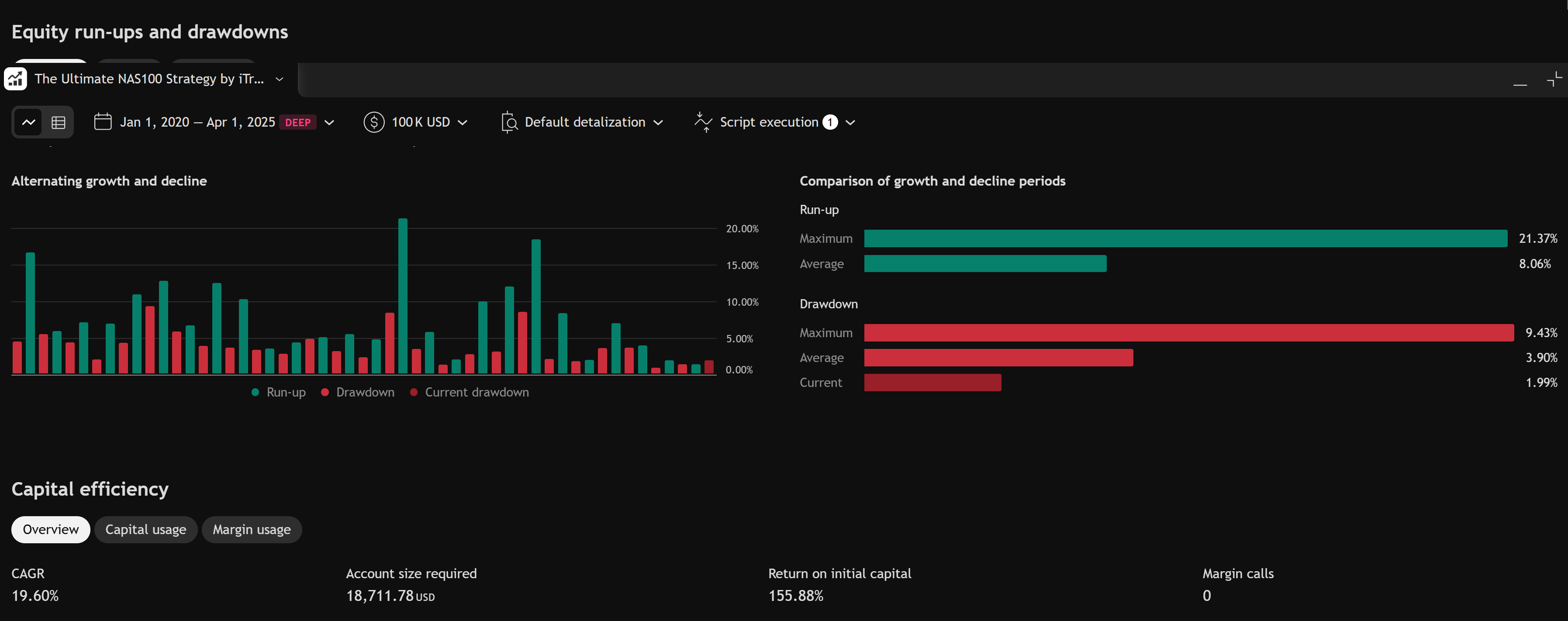
Trades analysis
How to read the equity curve
- Slope — whether simulated equity rose or fell over the selected window.
- Drawdowns — depth and duration of equity dips; compare to your personal risk tolerance.
- Flat periods — may be correct when the strategy had no valid setup.
Do not select inputs solely because one backtest window looks smooth.
Capture a snapshot for your records
When comparing runs or contacting support:
- Screenshot the Overview tab (net profit, max drawdown, percent profitable).
- Screenshot the equity curve panel and any Return details / Trades analysis tabs you changed.
- Note symbol, timeframe, date range, and whether inputs differ from default.
Before you change inputs to chase metrics
- Confirm data quality for your Nasdaq-100 symbol on TradingView.
- Re-run with default inputs on a second symbol you know well.
- Read the trade list — are losses clustered in one regime?
- Only then adjust settings — see Strategy settings.
Next step
If access or display is wrong, use Troubleshoot TradingView.