MT4 Guide
Use this page if you are using AIMS Box Advanced Indicator on MetaTrader 4.
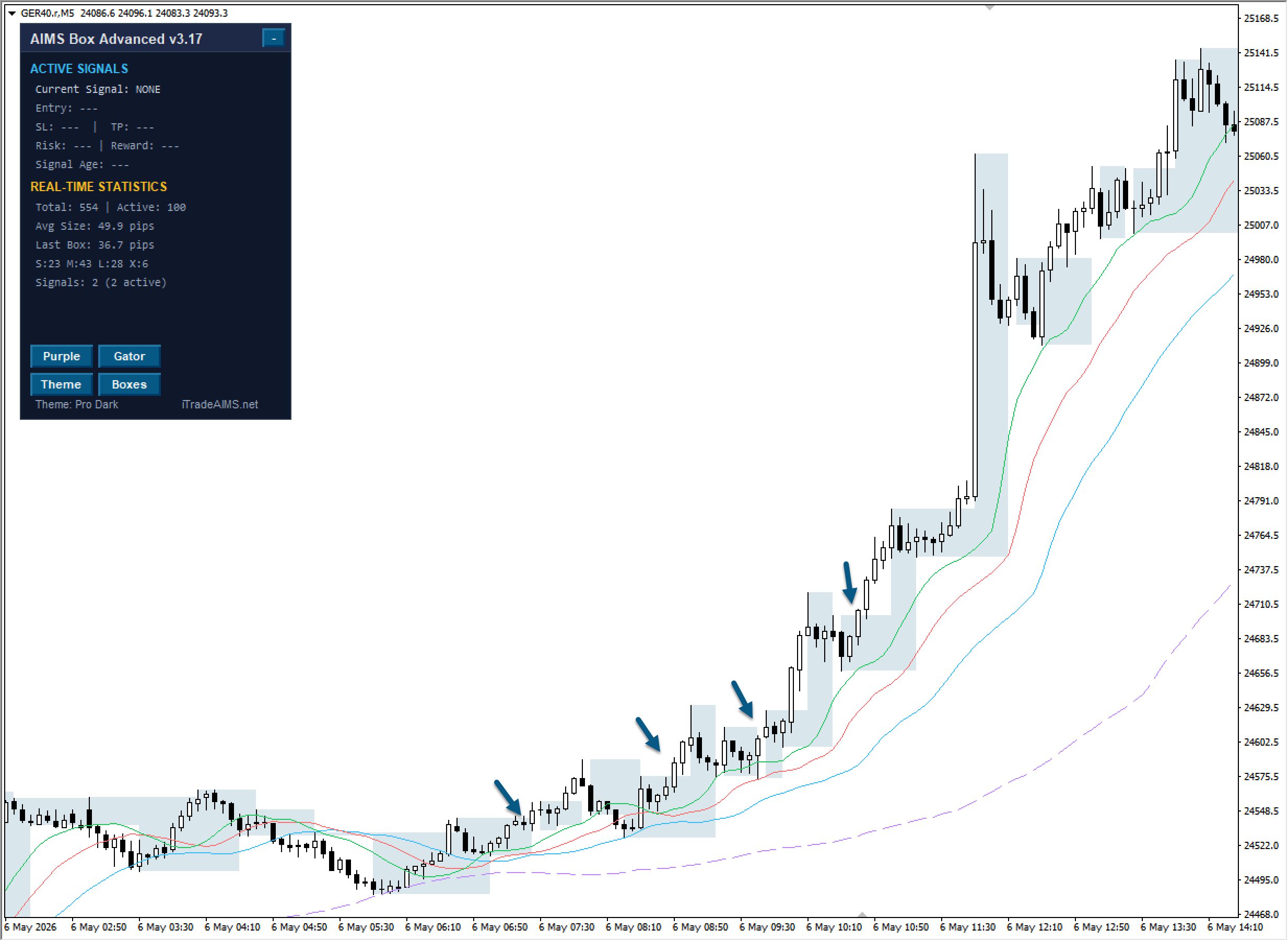
The MT4 version is the simpler version of the indicator. It focuses on drawing AIMS Box zones, showing the current box state, displaying active signal levels, and giving a compact dashboard summary on the chart.
AIMS Box MT5 has evolved into a member of the wider AIMS Confluence Indicator dashboard. Do not expect every MT5 dashboard section, alert control, or confluence feature to appear in MT4.
What The MT4 Version Shows
The MT4 version can show:
- Grey AIMS Box zones.
- Current upper and lower box levels.
- Active signal level lines when signal levels are enabled.
- A compact dashboard with box count, high and low levels, state, signal, context, setup, trade reference, and filter status.
- Simple dashboard buttons for box visibility, Gator, Purple, and theme controls, depending on the installed MT4 build.
First MT4 Setup
- Open MT4.
- Click
File > Open Data Folder. - Run the MT4 installer and select that same MT4 data folder.
- Restart MT4, or right-click inside Navigator and select Refresh.
- Open
Navigator > Indicators > iTradeAIMS. - Drag AIMS Box Advanced Indicator onto a clean chart.
- Enter your license key in SerialKey if required.
- Leave the default settings unchanged for the first test.
- Click OK.
After attaching the indicator, wait for enough chart history to load. No boxes can be normal until MT4 has enough candles to confirm upper and lower fractal levels.
MT4 Dashboard
The MT4 dashboard is a compact chart panel, not the full MT5 confluence dashboard.
It can show rows such as:
- Active Signals
- Current Signal
- Entry
- SL
- TP
- Risk
- Reward
- Real-Time Statistics
- Avg Size
- Last Box
Use these rows to review the current chart state. They are not trade instructions.
MT4 Dashboard Buttons
Depending on the installed MT4 build, the dashboard can include buttons such as:
- Boxes shows or hides the grey box zones.
- Gator shows or hides the Gator lines.
- Purple shows or hides the Purple line.
- Theme changes the dashboard theme.
These buttons change visibility only. Box calculation, setup evaluation, and filter evaluation continue in the background.
Key MT4 Inputs
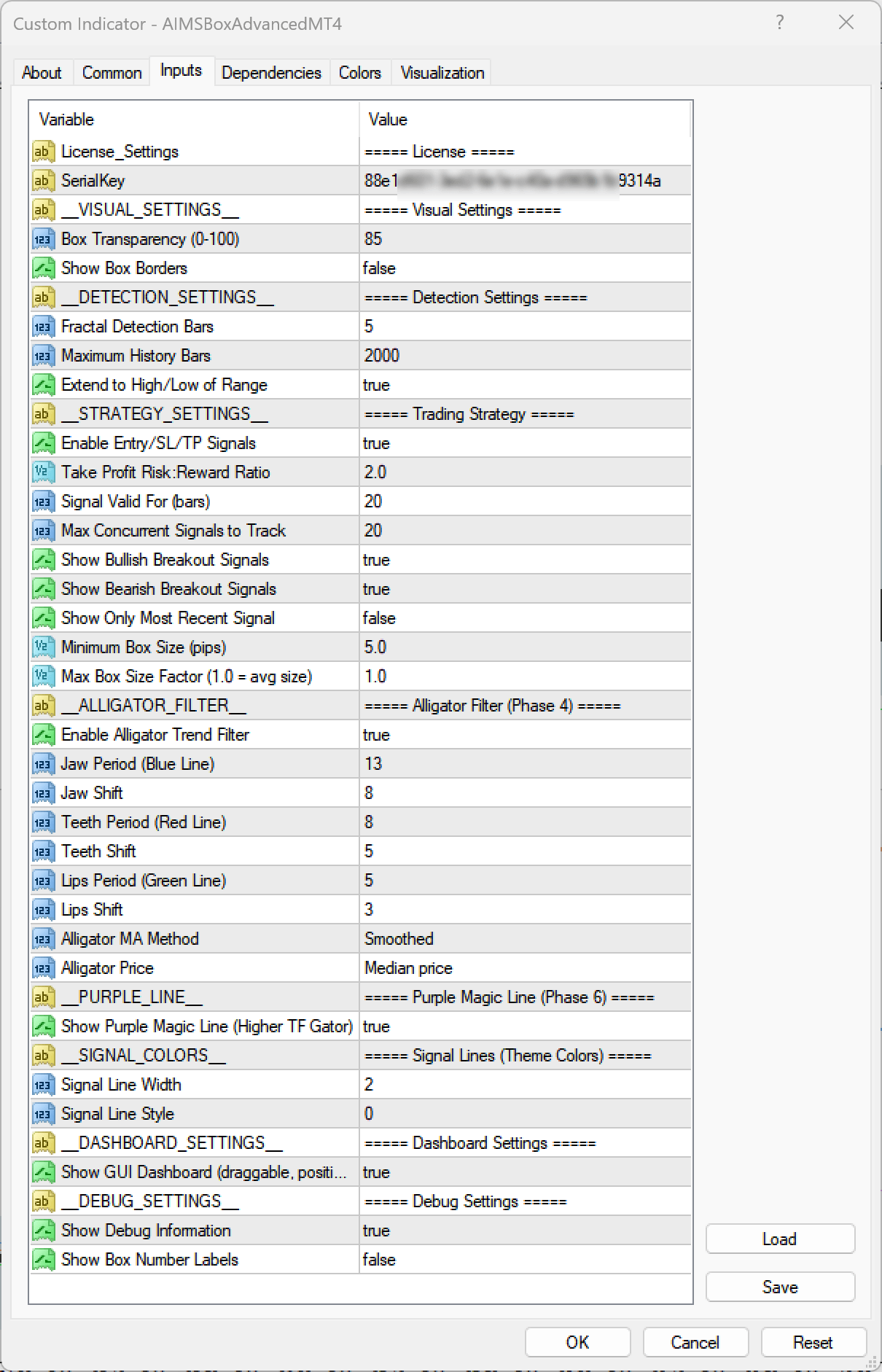
MT4 setting labels can vary by build. In the MT4 Inputs tab, most users should only need to recognize these areas:
| Setting | Use |
|---|---|
| SerialKey | Enter your license key when required. |
| Box Fill Strength (0-100) | Changes how strong the grey box fill appears. |
| Show Subtle Box Borders | Adds or removes box borders. |
| Fractal Detection Bars | Controls how many bars are used to confirm box structure. |
| Maximum History Bars | Limits how much chart history the indicator scans. |
| Show Active Box Signal Levels | Shows entry, stop-loss, and level references when signal levels are enabled. |
| Use ATR Box Size Filter | Checks whether the active box size is acceptable relative to ATR. |
| Maximum Box ATR Multiple | Sets the maximum ATR multiple used by the ATR box size check. |
| Use Gator Setup Filter | Uses Gator/Alligator context in setup review. |
| Require Purple/Gator Direction | Requires Purple and Gator direction to agree for setup review. |
| Signal Line Width | Changes signal line thickness. |
| Signal Line Style | Changes signal line style. |
| Show Minimal Dashboard | Shows or hides the compact MT4 dashboard. |
Leave filter settings on while learning unless support or your tested plan says otherwise.
Reading MT4 States
The MT4 dashboard can report states such as:
- Inside Box: price is between the upper and lower box levels.
- Above Box: price is above the upper box level.
- Below Box: price is below the lower box level.
- Setup 1: the box-inside setup is ready for review.
- Setup 2: the continuation setup is ready for review.
- LiveBreak: price is breaking a box level before the candle has fully confirmed.
- ClosedBreakout: price has closed beyond the relevant box level.
Always review the candle close, box height, filters, spread, and your own trading plan before acting.
What MT4 Does Not Include
Compared with the current MT5 version, the MT4 version does not use the full unified confluence dashboard.
MT4 users should not expect:
- MT5 dashboard tabs.
- MT5 market-state sections.
- MT5 news panel sections.
- MT5 GUI scale and theme controls.
- MT5 confluence sections from the wider MT5 dashboard.
- MT5-specific popup alert inputs such as Alert Setup Ready, Alert Live Break, or Alert Closed Breakout.
This does not mean the MT4 version is wrong or incomplete for MT4 use. It is a simpler AIMS Box indicator focused on the box, setup state, and level references.
MT4 Troubleshooting
If the indicator does not appear:
- Confirm you installed into the MT4 data folder from
File > Open Data Folder. - Restart MT4 or refresh Navigator.
- Check
Navigator > Indicators > iTradeAIMS.
If the dashboard is missing:
- Open the indicator Inputs tab.
- Confirm Show Minimal Dashboard or the equivalent dashboard visibility setting is enabled.
- Check whether the dashboard is behind other chart objects or near the top-left of the chart.
If boxes are missing:
- Confirm the license is accepted.
- Load more chart history.
- Confirm the Boxes button is enabled on the dashboard.
- Click Boxes off and on again.
- If the boxes still do not refresh, switch to another timeframe and then switch back.
- Wait for enough candles to confirm valid upper and lower fractal levels.
If the chart feels slow or laggy, reduce Maximum History Bars in the Inputs tab. For live chart use, 500 is a practical starting point. If the chart is still slow, try 300.
Lower values make the indicator focus on recent chart history near the right side of the chart. If you scroll far back for backtesting or chart review, boxes may stop appearing beyond the selected history limit. For deeper backtesting, increase Maximum History Bars again, for example back toward 2000, and reduce it later for normal live use.
Next Step
After MT4 is working, read Using AIMS Box Levels.