Installation
Requirements
- MetaTrader 5 (any recent build) from a supported broker
- A valid Banana EA MT5 license key
- BananaEA-Auto.ex5 (and optional
.setpresets) from Latest Downloads on your member dashboard - AutoTrading enabled in your MT5 terminal
- Windows (MT5 desktop client)
Sign in at my.itradeaims.net, open Latest Downloads, and download the Banana EA MT5 files before copying them into your data folder.
Step 1 — Open your MT5 data folder
In MetaTrader 5 go to File → Open Data Folder. This opens the directory where MT5 stores all Expert Advisors, indicators, and scripts.
Step 2 — Copy the EA file
Download BananaEA-Auto.ex5 from Latest Downloads on your member dashboard, then copy it into:
<Data Folder>\MQL5\Experts\
If you received a preset file (.set), copy it into:
<Data Folder>\MQL5\Presets\
Step 3 — Refresh the Navigator
Back in MT5, press F5 or right-click inside the Navigator panel and choose Refresh. The EA will appear under Expert Advisors.
Step 4 — Attach to a chart
- Open a chart for your chosen pair and timeframe (e.g. EURUSD, H1).
- Drag BananaEA Auto from the Navigator onto the chart, or double-click it.
- The EA inputs dialog opens. Enter your License Key.
- Review inputs and click OK.
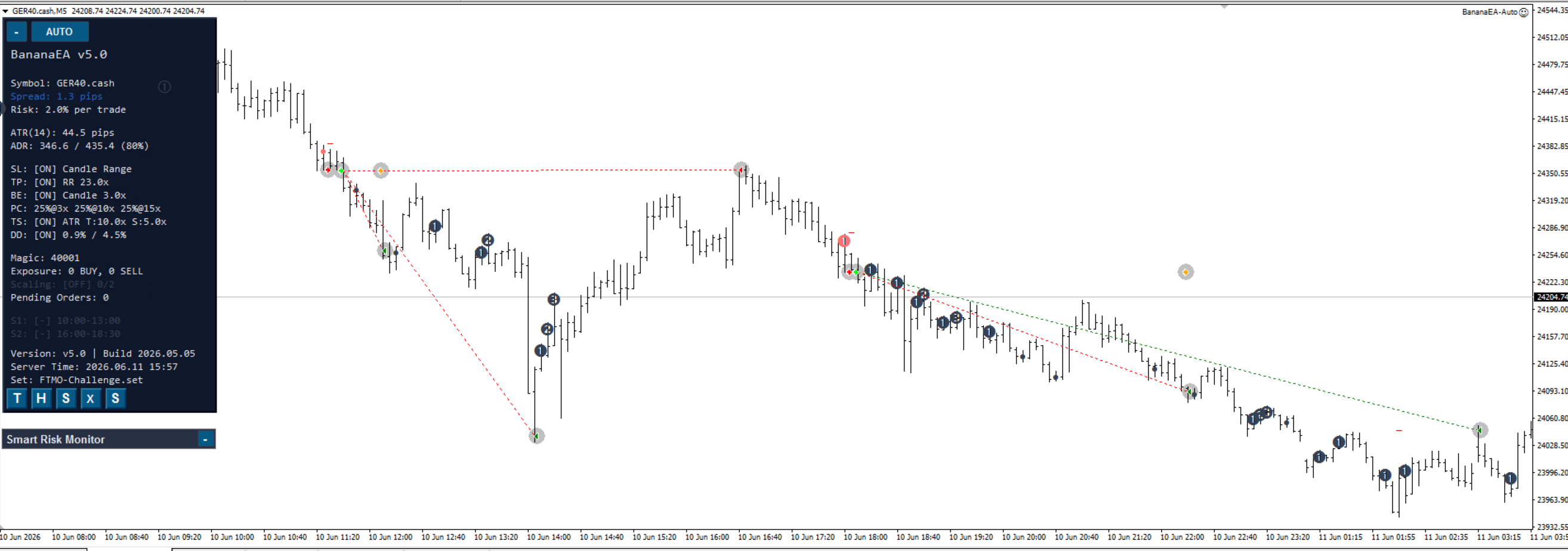
- Confirm the EA icon appears in the top-right corner of the chart (smiley face = running).
Step 5 — Enable AutoTrading
Make sure the AutoTrading button in the toolbar is active (green). Without it the EA cannot place any orders.
If you see a red/disabled AutoTrading button, click it to enable. The EA checks this on every tick — no trades will be placed while it is off.
Verifying the EA is active
Once attached, the Banana EA dashboard appears on the chart showing:
- Session status (Active / Inactive)
- Account balance and equity
- Open trade count
- License validation status
If the dashboard is blank or shows a license error, see Licensing.
Account type note
MT5 brokers operate either netting (one position per symbol) or hedging (multiple independent positions) accounts. Banana EA MT5 supports both account types. Check with your broker which model your account uses — this affects how simultaneous signals on the same pair are handled.
If your broker appends a suffix to symbol names, use the exact symbol name from Market Watch when selecting charts and portfolio symbols.