Quick Start On TradingView
Use this page after TradingView access for AIMS Box (Free, Advanced, or PRO).
Prefer a walkthrough? See Quick start on TradingView (tutorial).
AIMS Box marks setups to review. It does not place trades, size positions, or replace your trading plan. Not financial advice.
Before You Start
Confirm:
- You are signed in to the TradingView username that matches your grant (Advanced / PRO / Super).
- You can open the matching script below (Free needs no invite; paid editions must not show an invite-only block).
- You have a chart open on the symbol and timeframe you intend to review.
1. Add The Script To Your Chart
Open the edition that matches your license:
Public structure teaser — last fractal box + optional pip-limit tint. No Setup 1/2 lifecycle.
Invite-only — full box lifecycle with visible Gator lines, mouth ribbon, settings, and trend candle tint (legacy all-in-one).
Invite-only Pro — fractal boxes, MT5-parity Setup 1/2 lifecycle, invisible Gator/Purple bias, ALMA option, volatility cloud, volume anomaly + ATR box gate, dashboard, PineConnector pending-order alerts.
Structure-only Setup 1/2 lane — invisible Gator/Purple bias validation, no gator lines, no candle tint. Open the Box Super docs while the TradingView URL is pending.
Box Super structure plus Support & Resistance zones and ★ S&R confluence. Open the Liquidity Box docs while the TradingView URL is pending.
- Select Add to chart (or Use on chart).
- Confirm the chart lists AIMS Box TV, AIMS Box Advanced, AIMS Box Pro, or the exact name from your grant.
- If TradingView asks you to sign in, use the same username that received access.
2. Leave Defaults For The First Session
For your first look, avoid changing settings until you can read:
- Grey AIMS Box / fractal zones on the chart.
- On Advanced / PRO: setup state labels such as Setup 1 · Ready, entry references (BuyStop / SellStop), and Blocked when filters reject a setup.
- On Advanced: visible Gator lines / ribbon / candle tint (legacy all-in-one).
- On PRO: clean chart with invisible bias, optional cloud / dashboard.
- On Free: last fractal box structure (no Setup 1/2 lifecycle).
Open Settings (gear on the indicator) only if you need to reduce visual density or move labels.
3. Read Your First Chart
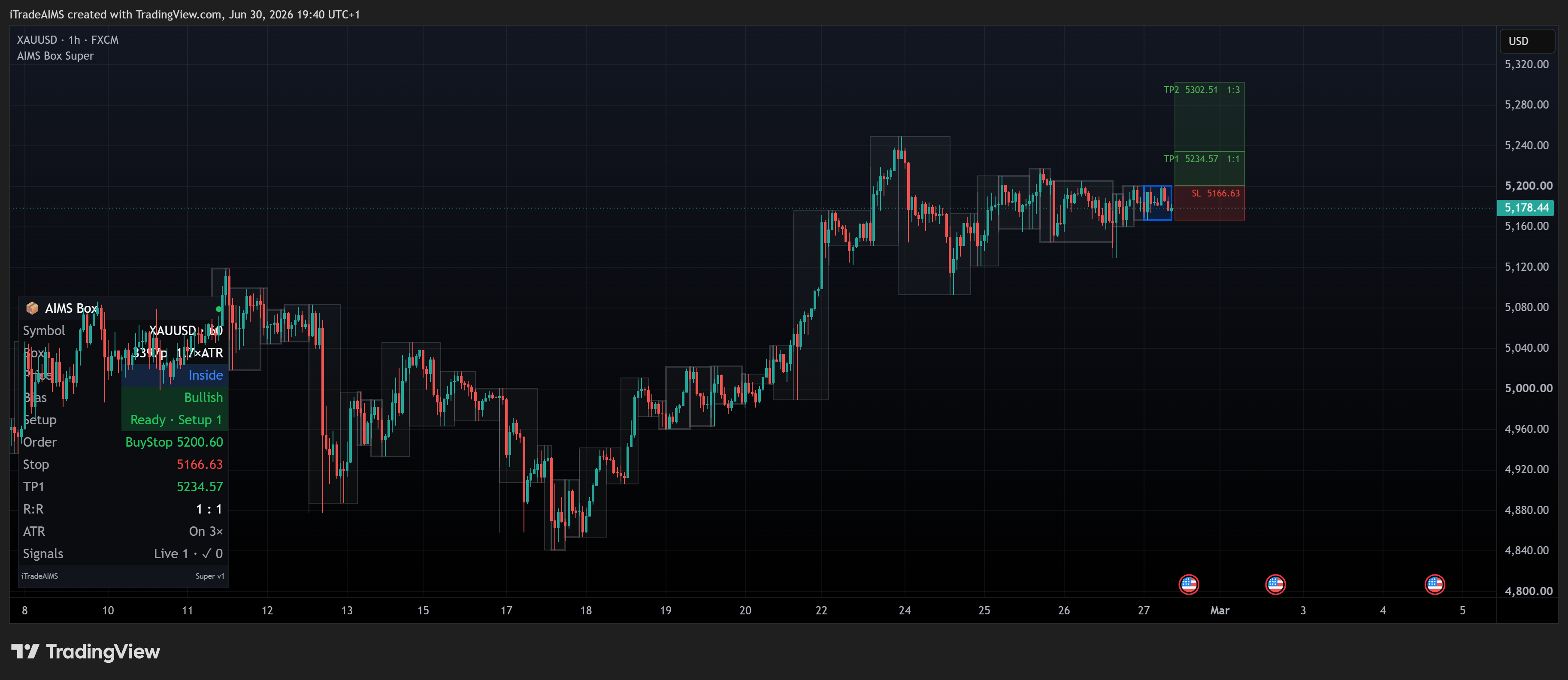
When a setup appears (Advanced / PRO / setup-capable editions):
- Wait for the relevant candle to close.
- Check upper and lower box levels.
- Check whether the box is tight enough for your risk plan.
- Decide whether the setup matches your trading plan.
4. If You Also Use The Confluence Suite
On MT5, Banana and Wave context lives on the same dashboard. On TradingView, AIMS Box is a standalone script — add Banana TV or review MT5 suite docs separately if you want full-stack confluence.