Quick Start AIMS Box on TradingView
Follow these steps to add AIMS Box to your TradingView chart and review your first setup. For MetaTrader, use the MT5 installation tutorial.
Before you start
- For Advanced / PRO: TradingView invite-only access granted to your username — see Get access.
- Free needs a TradingView account only.
- Chart open on the symbol and timeframe you intend to review.
1. Add the matching script to chart
Open the edition that matches your license:
Public structure teaser — last fractal box + optional pip-limit tint. No Setup 1/2 lifecycle.
Invite-only — full box lifecycle with visible Gator lines, mouth ribbon, settings, and trend candle tint (legacy all-in-one).
Invite-only Pro — fractal boxes, MT5-parity Setup 1/2 lifecycle, invisible Gator/Purple bias, ALMA option, volatility cloud, volume anomaly + ATR box gate, dashboard, PineConnector pending-order alerts.
Structure-only Setup 1/2 lane — invisible Gator/Purple bias validation, no gator lines, no candle tint. Open the Box Super docs while the TradingView URL is pending.
Box Super structure plus Support & Resistance zones and ★ S&R confluence. Open the Liquidity Box docs while the TradingView URL is pending.
- Select Add to chart.
- Confirm AIMS Box TV, AIMS Box Advanced, AIMS Box Pro, or your grant name appears in the chart legend.
2. Read your first setup
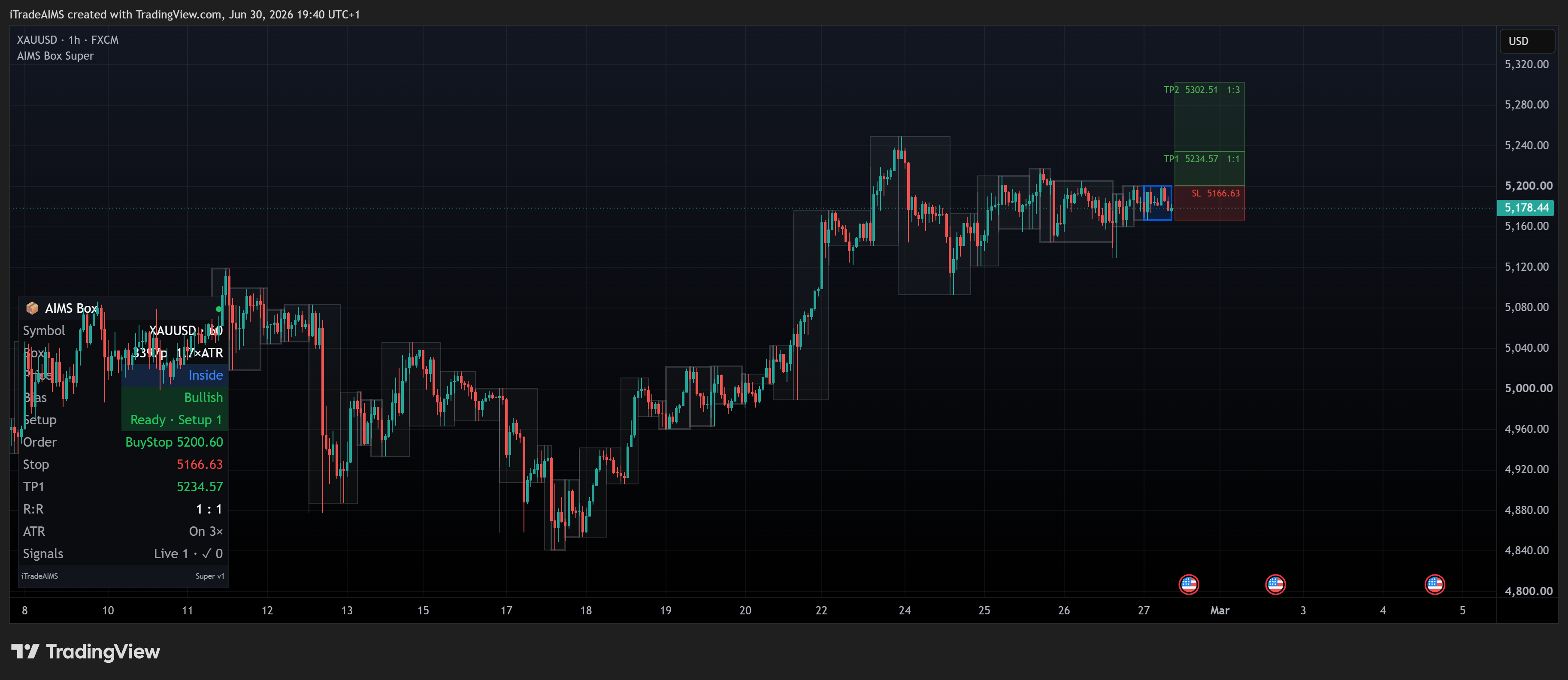
More examples: Chart examples on TradingView.
3. Compare to MetaTrader
AIMS Box on MT4/MT5 uses different installers and dashboards. See Compare platforms if you use multiple terminals.
Risk notice
Markers and setup labels are prompts to review — not trade instructions. Not financial advice.