MT4 and MT5 Versions
AIMS Box MT5 is the MetaTrader 5 edition. AIMS Box Advanced Indicator is the MetaTrader 4 edition. Install the version that matches the terminal you actually use.
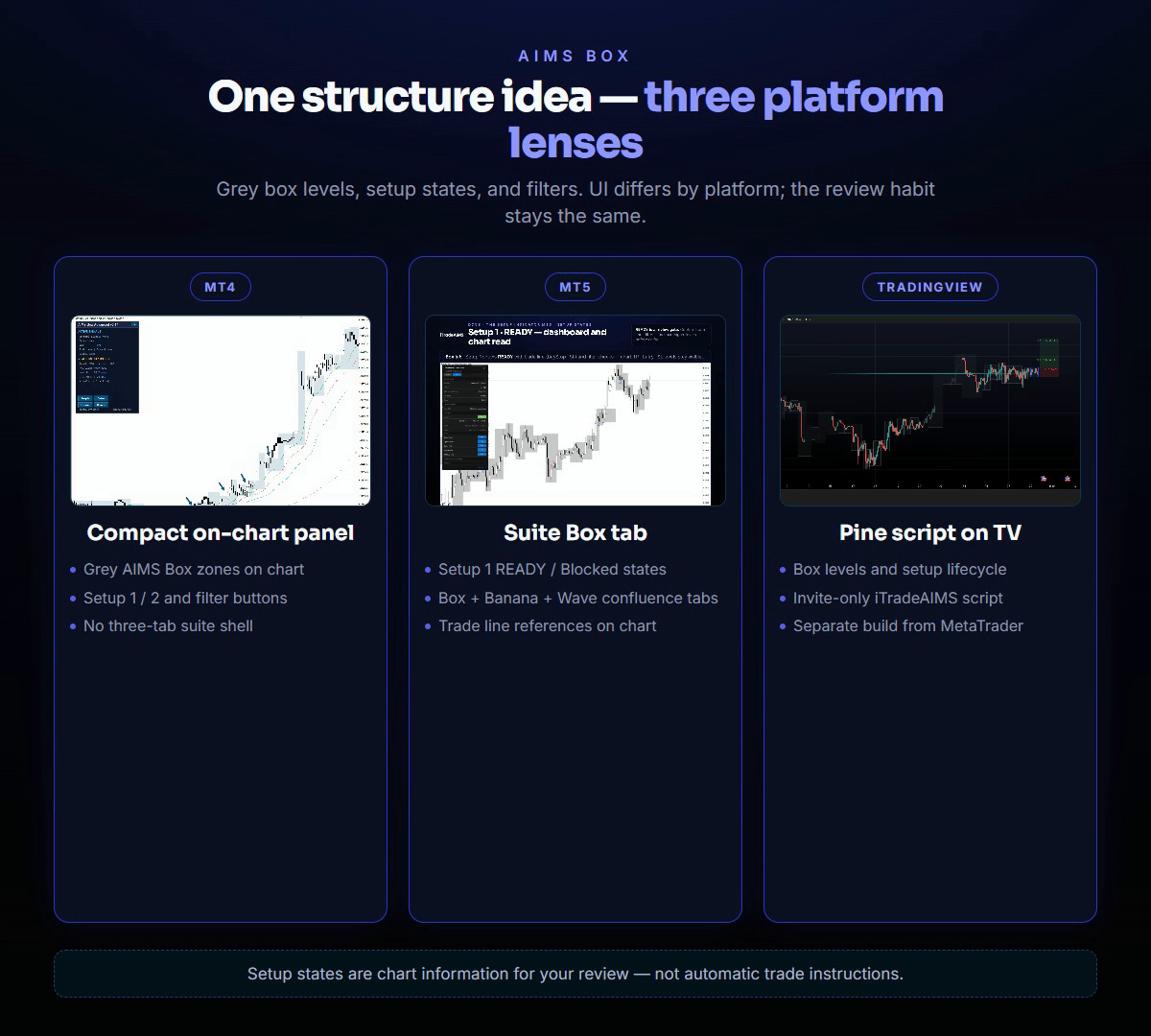
Quick Choice
MetaTrader 4
Choose MT4 if your broker account and charts are in MT4.
- Dashboard style: compact MT4 mini dashboard.
- Main setup task: select the MT4 data folder during install.
- Best next page: MT4 Guide.
MetaTrader 5
Choose MT5 if your broker account and charts are in MT5.
- Dashboard style: AIMS Confluence Indicator dashboard and confluence surface.
- Main setup task: select the MT5 data folder during install.
- Best next page: continue with the main guide and AIMS Confluence Indicator dashboard/control pages.
MetaTrader 4
Use the MT4 version if your broker account is in MetaTrader 4 or you already have MT4 chart templates.
What to expect:
- Install with the official AIMS Box Advanced Indicator MT4 installer.
- Select the MT4 data folder opened from
File > Open Data Folder. - Find the indicator under
Navigator > Indicators > iTradeAIMS. - Enter your license key in SerialKey if the Inputs tab asks for it.
- Use the compact MT4 dashboard for box state, setup state, trade reference, and filter status.
- Use dashboard controls such as Boxes, Gator, Purple, and Theme when available.
Expected installed locations:
MQL4/Indicators/iTradeAIMS/
MQL4/Libraries/
MetaTrader 5
Use the MT5 version if your broker account is in MetaTrader 5 or you prefer the newer MetaTrader platform.
AIMS Box MT5 is part of the wider AIMS Confluence Indicator dashboard workflow. It can expose richer dashboard sections and more platform-specific controls than MT4.
What to expect:
- Install with the official AIMS Box MT5 installer (or Confluence suite installer).
- Select the MT5 data folder opened from
File > Open Data Folder. - Find the indicator under
Navigator > Indicators > iTradeAIMS. - Enter your license key if the Inputs tab asks for it.
- Use the AIMS Confluence Indicator dashboard to review AIMS Box state, controls, market context, and confluence context where available.
Expected installed locations:
MQL5/Indicators/iTradeAIMS/
MQL5/Libraries/
What Is The Same
Both versions are built around the same AIMS Box workflow:
- Read the current upper and lower box levels.
- Watch whether price is inside the box, breaking the box, or has closed beyond it.
- Check dashboard context and filter status.
- Decide whether the setup matches your trading plan.
What Can Differ
MT4 and MT5 can differ in:
- Installer file name.
- MetaTrader folder structure.
- Exact Inputs tab labels.
- Dashboard layout and available controls.
- Alert inputs and notification setup.
- Signal-level text and take-profit reference display.
- AIMS Confluence Indicator dashboard sections on MT5.
- Licensing and installer convenience behavior.
For support, always say whether you are using MT4, MT5, or TradingView (and which TV edition: Free / Advanced / PRO / Super / Liquidity Box).
TradingView
Use TradingView if you trade on Pine charts and do not need MetaTrader installers.
- Free (AIMS Box TV) — public fractal-box teaser.
- Advanced — invite-only legacy all-in-one with visible Gator lines, ribbon, settings, and candle tint.
- PRO — invite-only Setup 1/2 lifecycle, invisible Gator/Purple bias, ALMA option, volatility cloud, volume anomaly + ATR box gate, dashboard, PineConnector.
- Super — structure-only Setup 1/2 with invisible Gator/Purple bias — no gator lines, no candle tint — publish pending.
- Liquidity Box — structure plus Support & Resistance confluence — docs. S&R layer is TV-only (no MT5 Box equivalent yet).
Start at TradingView · Get access.
Which Guide Should I Read?
If you use MT4, start with the MT4 Guide. It focuses on the simpler MT4 indicator surface and avoids MT5-only dashboard expectations.
If you use MT5, continue through the main guide and the dashboard/control pages. Those pages describe the richer AIMS Confluence Indicator dashboard experience where the current product has more capability.
If you use TradingView, start at Start on TradingView.