Dashboard Panel
The dashboard is available on Banana Indicator for MT4 and The Banana Indicator MT5 for MT5. TradingView v3 uses a separate Pine dashboard on chart.
TradingView v3 dashboard
On The Banana Indicator TV, the Banana panel (top right by default) shows:
- Symbol and timeframe
- Trend pill (bull / bear)
- RSI value and state
- Session active or closed (when the session filter is on)
- Active LONG or SHORT row: Entry, Stop, TP1, Invalidation, Risk:Reward
- Active filters (EMA, RSI, SuperTrend, …)
It does not show P/L, win rate, or lot size — those belong to AIMS Algo, not this indicator.
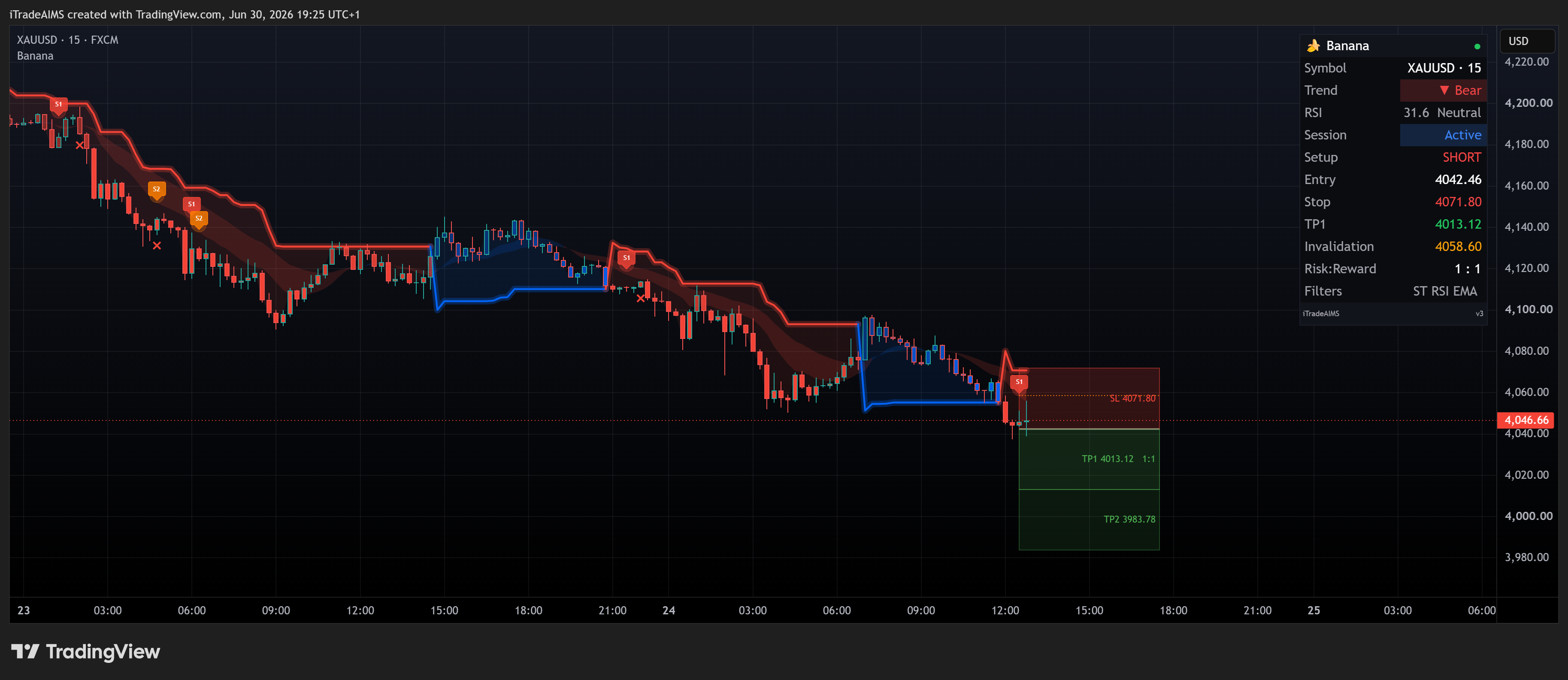
More dashboard + zone combinations: Chart examples on TradingView.
MetaTrader dashboard
The sections below cover MT4 and MT5 only.
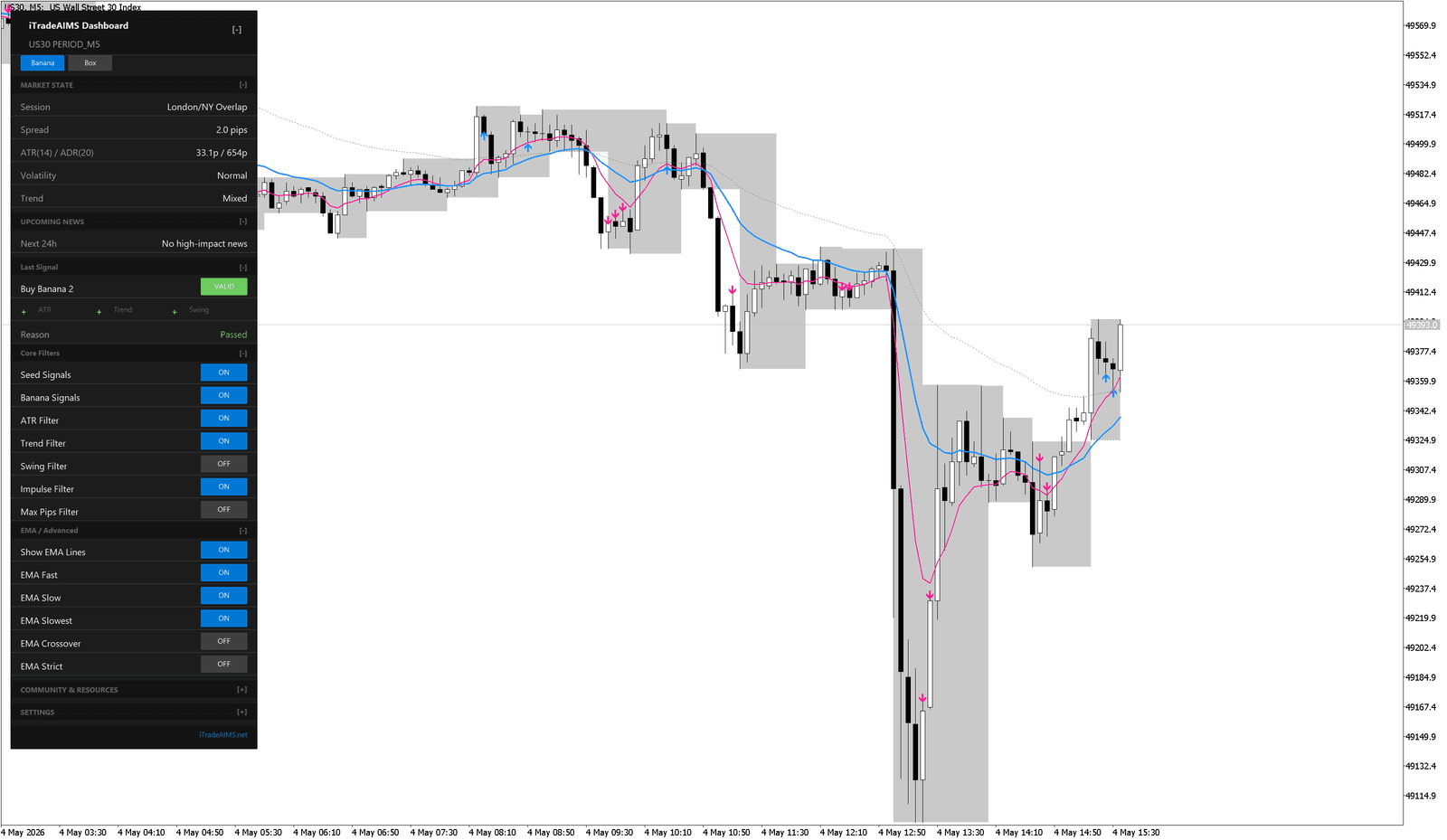
On MT5, many traders use the unified iTradeAIMS Dashboard with Banana and Box tabs at the top. The examples below include both the older v44-style panel and the unified dashboard.
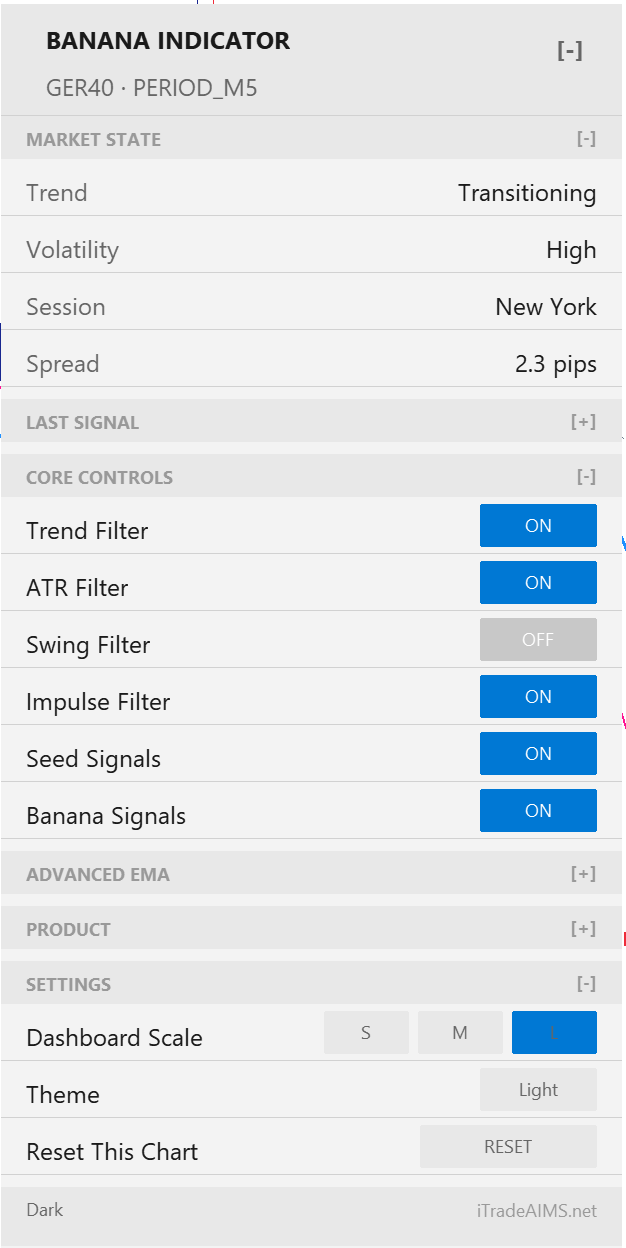
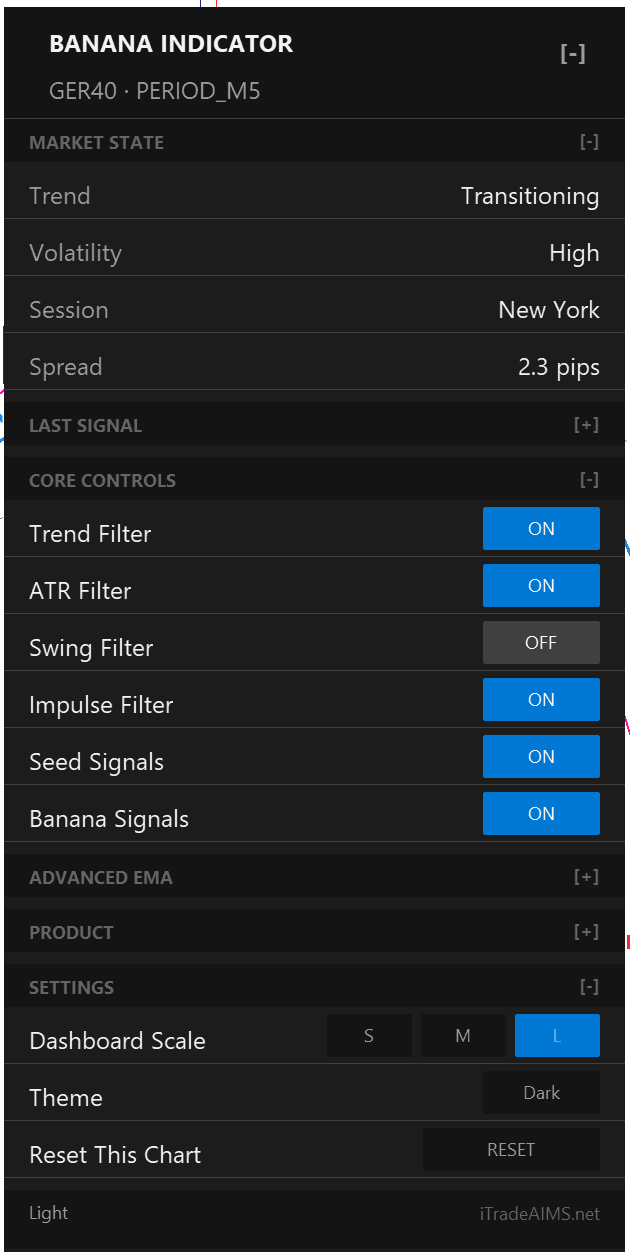
The AIMS Confluence Indicator dashboard on MT5 can be shown in light or dark theme. The information is the same; only the display theme changes.
| MT5 light theme | MT5 dark theme |
|---|---|
 |  |
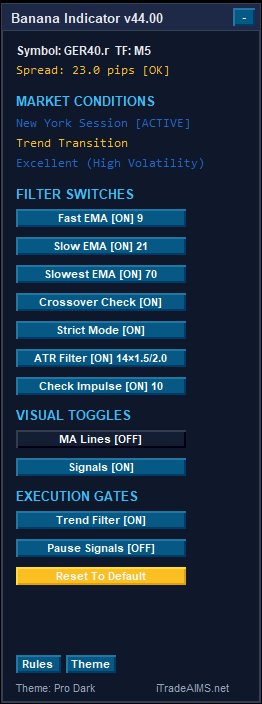
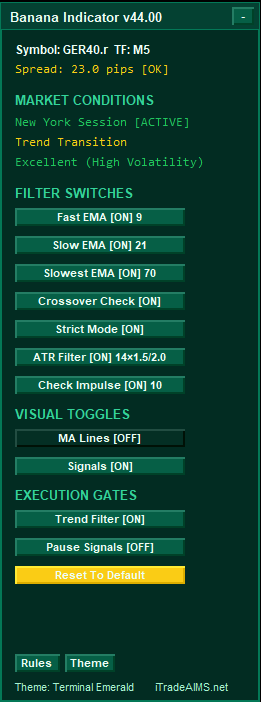
Some MT4 versions use the older v44 dashboard layout. It has similar controls, but the panel style and section names may look different.
| MT4 Pro Dark theme | MT4 Terminal Emerald theme |
|---|---|
 |  |
What The Dashboard Is For
The dashboard gives quick chart information without opening the indicator settings every time.
Depending on your version, it can show:
- Product and license state.
- Symbol and timeframe.
- Recent signal information.
- Filter or market-state information.
- Dashboard controls such as collapse, theme, reset, or toggles.
Market State
The MARKET STATE section gives a quick read of the current chart environment.
Common fields include:
Trend: whether the chart is bullish, bearish, weak, or transitioning.Volatility: whether current movement is calm, normal, or high.Session: the active market session shown by the indicator.Spread: the current spread shown in pips.
Use this as context. It helps explain the chart, but it is not a trade instruction by itself.
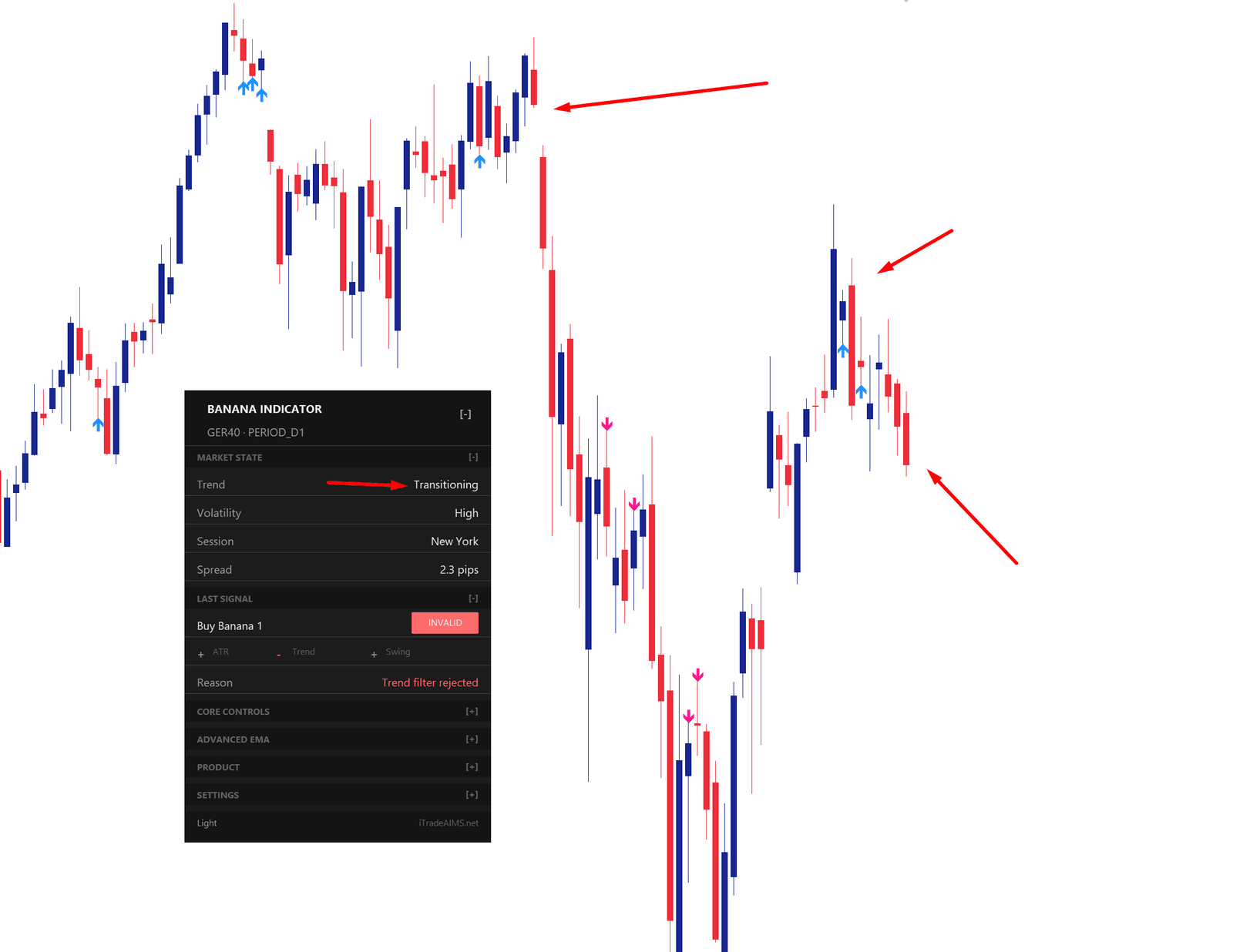
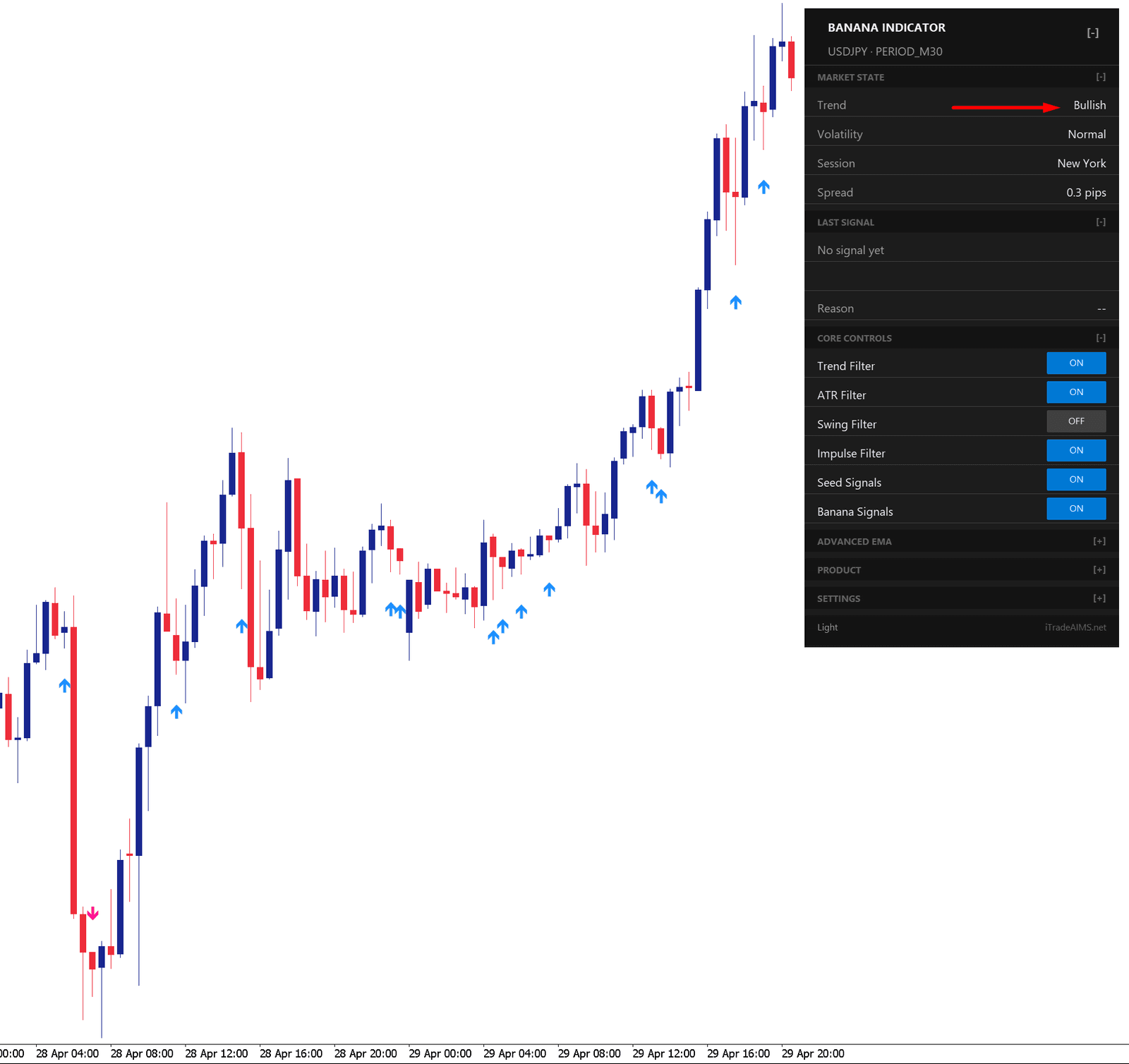
Market State should be read together with the chart. A bullish, bearish, or transitioning label is context for the trader; it is not a command to buy or sell.
Last Signal
The LAST SIGNAL section shows the most recent candidate signal and whether the dashboard currently treats it as valid or invalid.
A signal can appear as INVALID when one or more important checks do not agree with the setup. For example, a buy pattern can be rejected if the trend filter does not support the buy direction.
The dashboard may show checks such as:
ATR: whether the volatility/range condition is acceptable.Trend: whether the trend condition supports the signal.Swing: whether the swing or pullback condition supports the signal.
The plus and minus signs show which checks passed or failed. The Reason row explains the main reason a signal was rejected, such as Trend filter rejected.
This means Banana Indicator on MT4 and The Banana Indicator MT5 on MT5 do more than mark a raw pattern. They also check whether key market conditions agree before treating the signal as valid.
On the unified MT5 dashboard (Banana tab), a valid Banana signal and a valid Seed signal can look like this:
| Valid Banana signal | Valid Seed signal |
|---|---|
 | 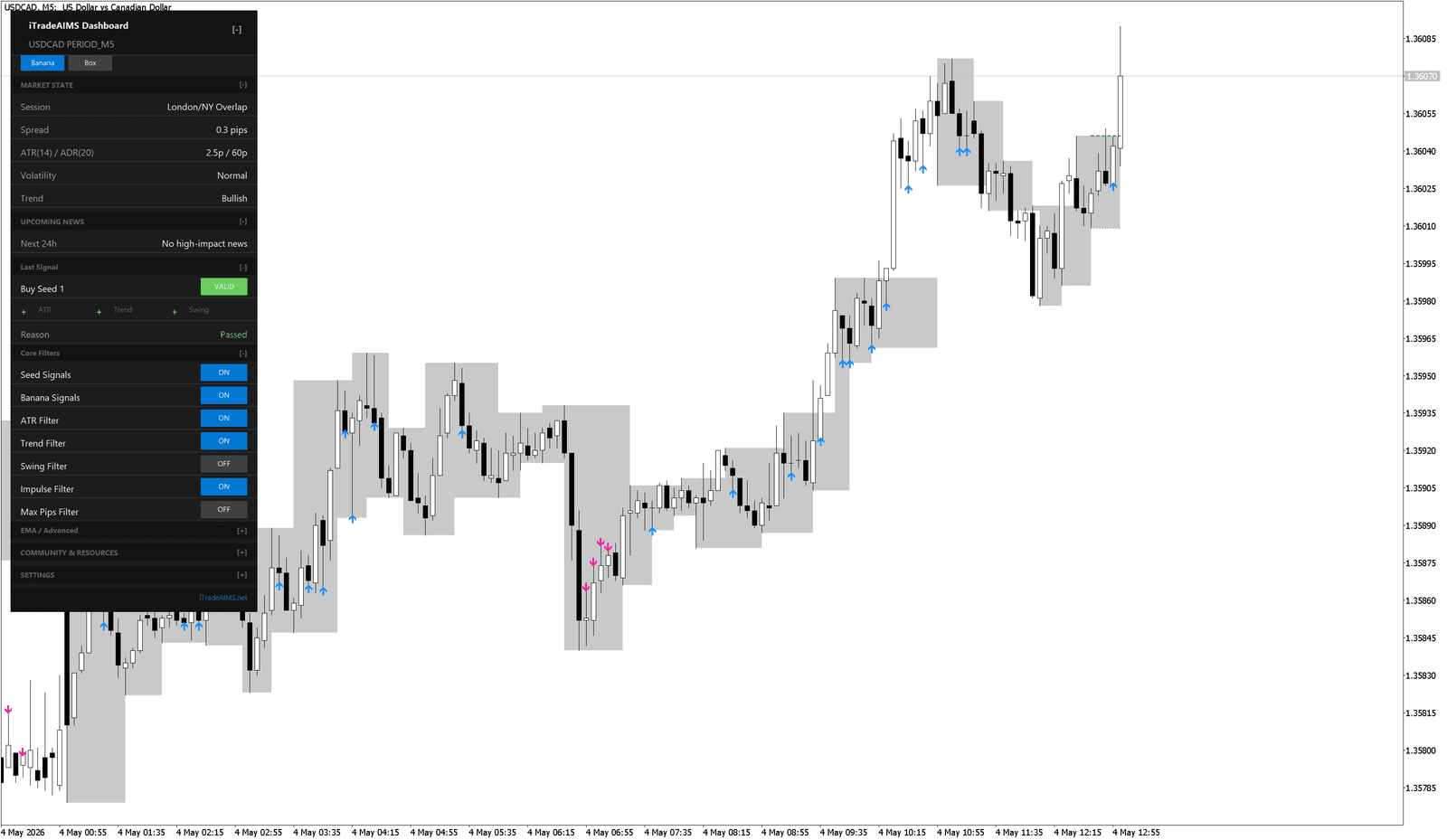 |
Older MT5 builds may use a slimmer last-signal panel:
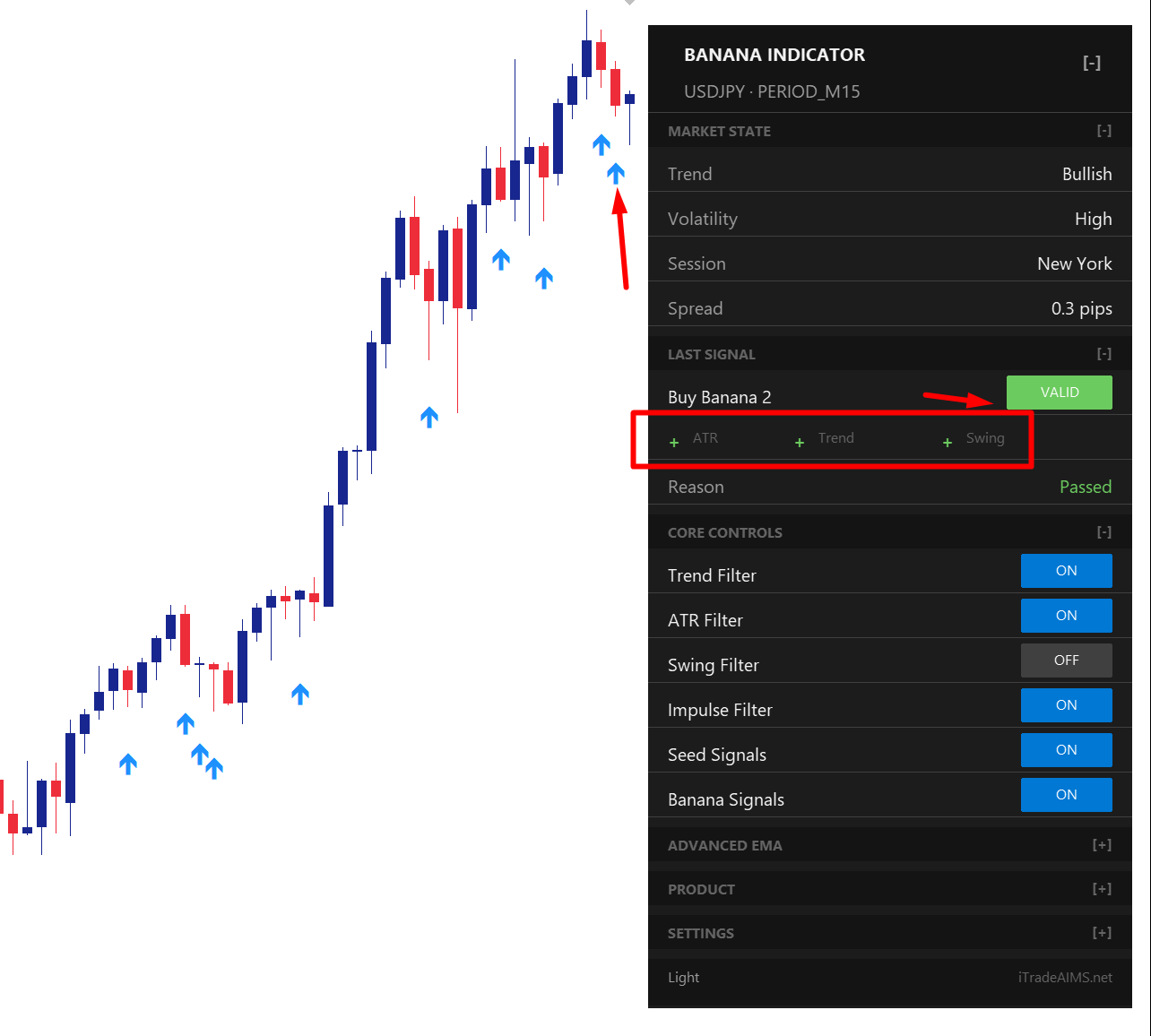
When these checks are green, it means the indicator conditions shown on the dashboard agree with the candidate signal. It does not remove the need to check your chart, spread, timing, and risk before making a trading decision.
Basic Controls
Common dashboard actions:
- Move the panel if it covers price.
- Collapse it when you want more chart space.
- Change theme if the text is hard to read.
- Reset dashboard state if the panel is off-screen or confusing.
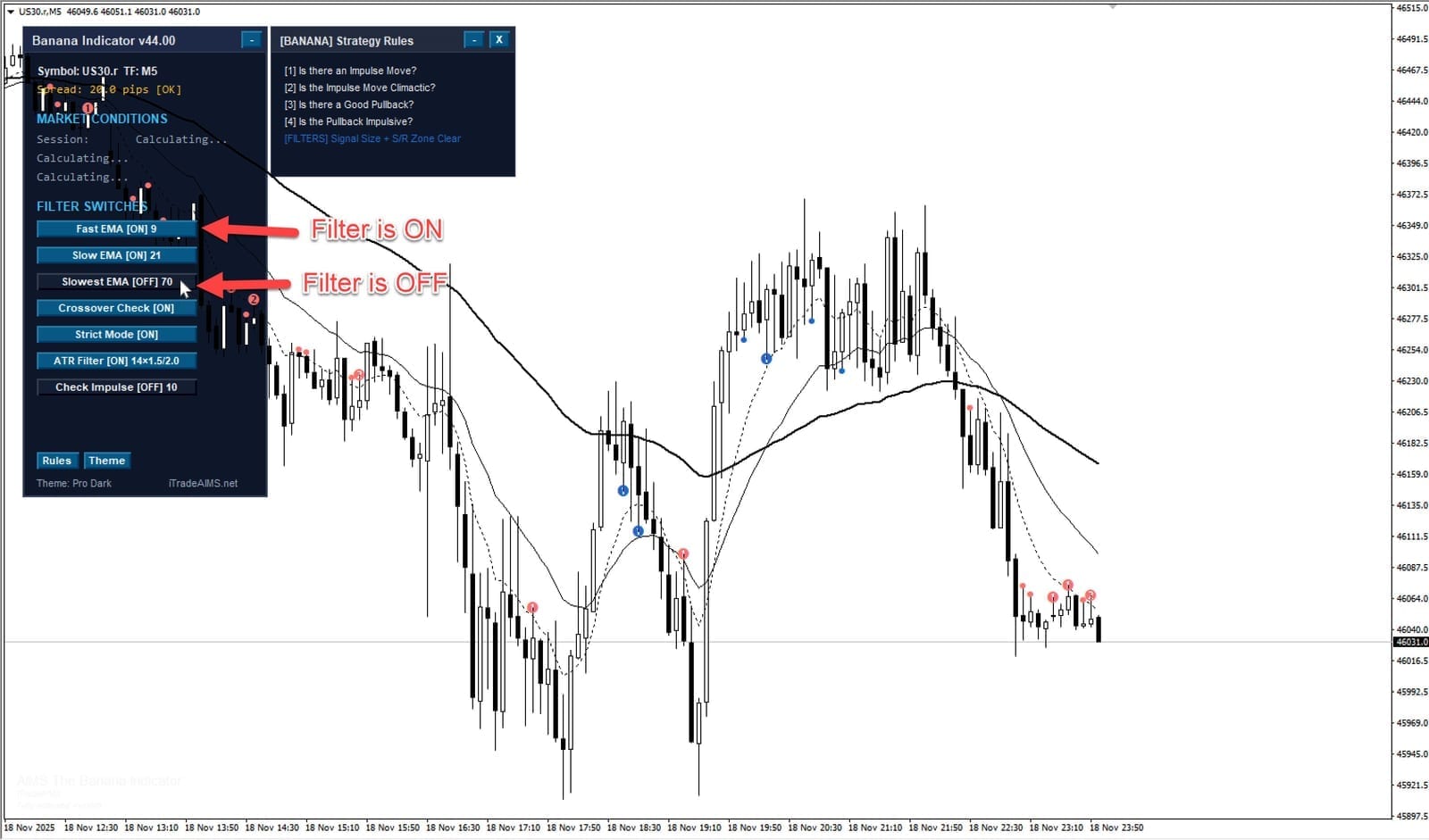
Dashboard controls may vary by version.
Filter Toggles
Some MetaTrader versions include clickable filter toggles on the dashboard.
Banana Indicator on MT4 and The Banana Indicator MT5 on MT5 use layered filtering. Some checks are built into the signal logic, and some checks are exposed as user controls on the dashboard or in the Inputs tab.
Common visible filters can include:
Trend FilterATR FilterSwing FilterImpulse Filter
Use them carefully:
- Change one setting at a time.
- Watch how the chart changes.
- Avoid switching many filters on and off during live trading.
- Return to default settings if the chart becomes confusing.
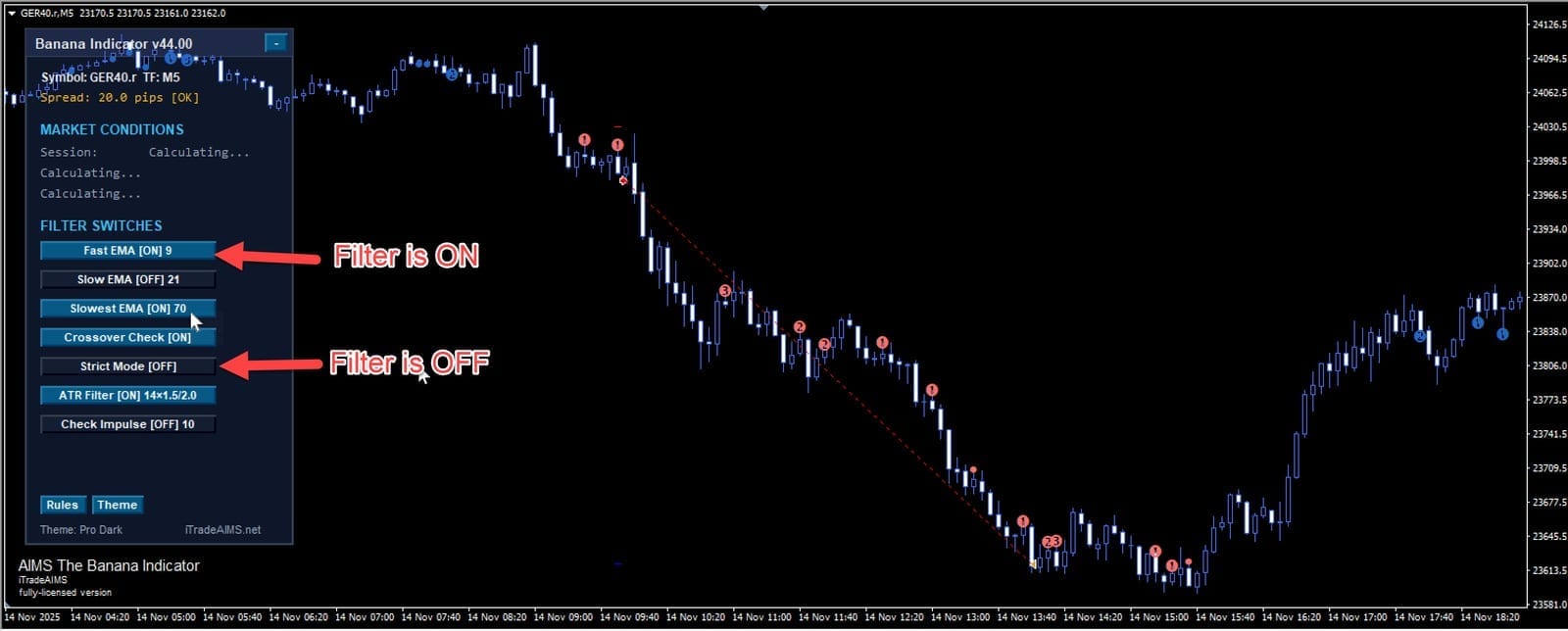
Filter buttons show whether a control is on or off.
License Display
If the dashboard shows a license message, read it before looking for signals.
Common meanings:
- License missing: enter your license key.
- License invalid: check the key and account details.
- Connection or validation issue: check internet access and try reattaching the indicator.
If MetaTrader shows [ERROR 100] License Key Required, open the indicator Inputs and enter your license key. This means the indicator is attached, but the license key was not found.
If The Dashboard Is Not Visible
- Confirm Show/Hide Main Dashboard is enabled.
- Check whether the dashboard is collapsed.
- Remove and reattach the indicator on one clean chart.
- Restart the platform if the panel still does not appear.
- Contact support with a screenshot.
Best Practice
Use the dashboard as a status panel. Do not let it replace chart review. A dashboard state or filter status is only one part of deciding whether a signal is useful.