Multi-Account Fund Manager (1 -> N Trade Copier)
Most active traders today manage more than one account—for example, a $100,000 FTMO evaluation, a $50,000 FundedNext account, and a $10,000 personal Pepperstone or IC Markets account.
Manually switching between three or five MetaTrader windows, recalculating lot sizes for each account's balance, and clicking buy on each one causes missed entries, wrong lot sizes, and execution fatigue.
TM Pro's Fund tab turns your desktop into a unified multi-terminal execution desk.
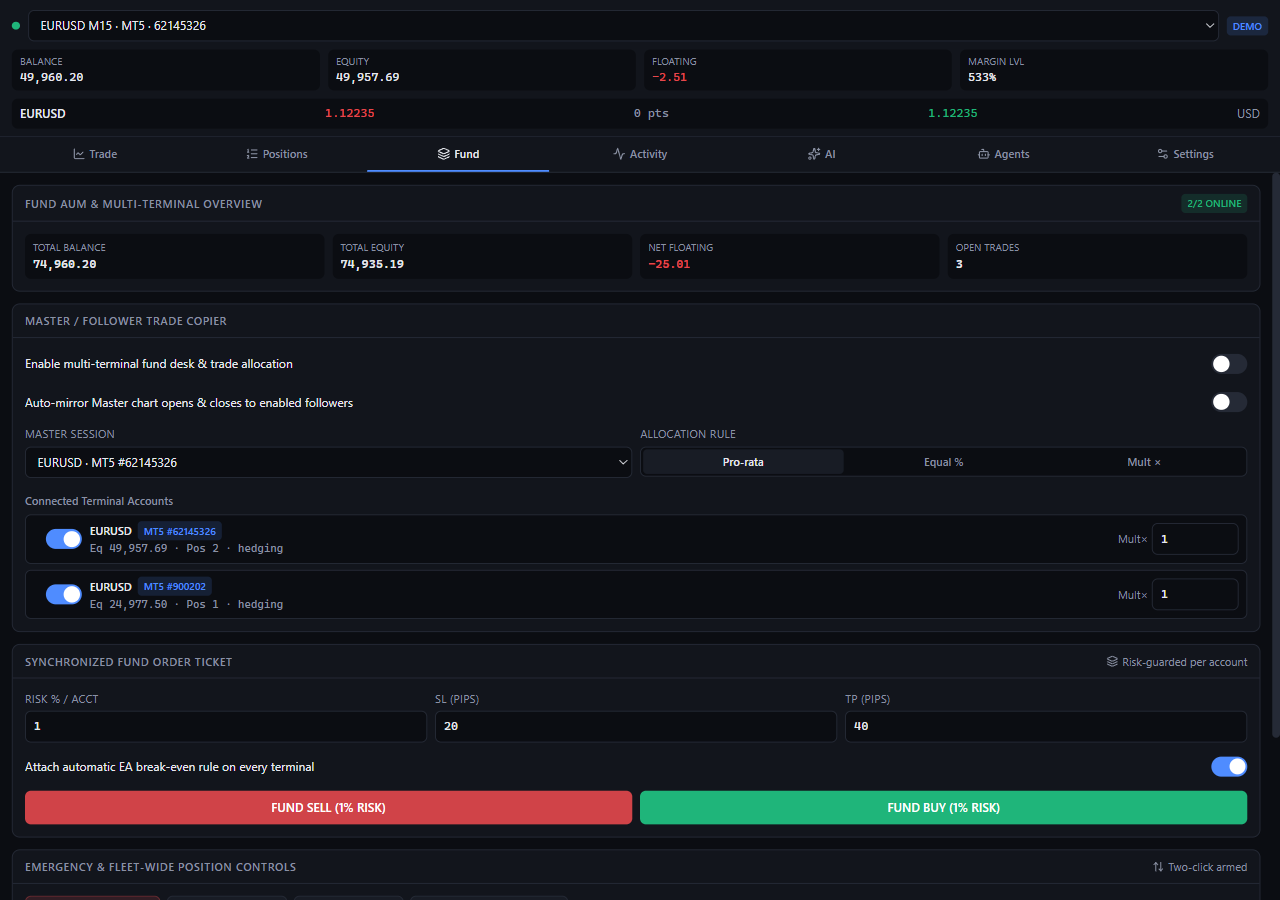
How Multi-Terminal Allocation Works
When you attach the TMPro EA to charts across multiple MetaTrader 4 and MetaTrader 5 terminals on your PC, every connected terminal registers simultaneously with the TM Pro hub.
Crucially, TM Pro does NOT blindly copy raw lot sizes:
- Copying
5.00 lotsfrom a$100,000prop account onto a$5,000personal account would blow the small account on a single trade. - Instead, TM Pro independently plans and risk-checks every follower terminal using that terminal's own live Equity, its own broker tick value / contract specification, and your Risk Guard rules!
Choosing Your Allocation Mode
In the Multi-Terminal Trade Copier / Allocator card on the Fund tab, choose one of three institutional allocation engines:
| Allocation Mode | How It Sizes Each Account | Best When... |
|---|---|---|
Pro-Rata Equity % (Recommended) | Risks the exact same percentage of equity on every selected terminal (e.g., 0.75% or 1.00%). | You are trading multiple accounts of different sizes ($100k, $50k, $5k) and want identical percentage return and drawdown curves on all of them. |
Equal Risk $ | Risks the exact same dollar amount on every selected terminal (e.g., $100 per account). | You want a flat cash risk per terminal regardless of account balance. |
Quant Kelly Optimal | Automatically reads the active chart's Quarter-Kelly regime recommendation (0.25% to 2.00%) and applies that percentage across every selected terminal. | You want your multi-account fund risk to automatically expand in clean Hurst > 0.55 trends and contract during choppy regimes. |
Step-by-Step: Executing a Multi-Terminal Fund Trade
- Connect Your Terminals: Make sure
TMProis attached to the target symbol chart (e.g.,EURUSD) in each of your open MT4/MT5 terminals. - Open the
FundTab:- At the top, review your Combined Fund Telemetry: number of live terminals, Total Balance, Total Equity, and Combined Floating P&L across all accounts.
- Select Master & Follower Terminals:
- Choose your Master Reference Chart from the dropdown.
- Under Target Terminals, check or uncheck which accounts should receive this trade (all connected terminals on that symbol are checked by default).
- Set Your Allocation & Stops:
- Select
Pro-Rata Equity %,Equal Risk $, orQuant Kelly Optimal. - Enter your Risk Value, SL (pips), and TP (pips).
- Check the live preview line right above the buttons—it shows the exact calculated lot size and dollar risk for each selected terminal before you click!
- Select
- Two-Click Dispatch (
Fund BUY→Confirm Fund BUY):- Click Fund BUY (or Fund SELL) once to arm, then click Confirm within
2.5 secondsto dispatch the orders across every selected terminal in parallel. - Every terminal's individual broker ticket number and fill price is reported back immediately below the buttons and logged in the Activity tab.
- Click Fund BUY (or Fund SELL) once to arm, then click Confirm within
Emergency 1-Click "Flatten All Terminals"
What happens when a surprise central-bank headline hits the tape, or your combined fund hits its daily profit target and you want to lock in gains across every terminal immediately?
At the top of the Fund tab inside the Fund Manager — Multi-Terminal Portfolio card sits the red Flatten All Terminals button:
- Click Flatten All Terminals once to arm (
Confirm: Flatten All Terminals). - Click a second time within
3 secondsto send an immediateclose_allcommand to every connected MT4 and MT5 terminal simultaneously.