Quick Start On MT5
Use this page after install on MT5.
Review prompts, not orders
Setup states and box levels are chart information to review. They are not automatic trade instructions. Not financial advice.
Before You Start
Confirm:
- AIMS Box MT5 is installed in the MT5 terminal you are using.
- You have a license key entered if your build requires one.
- You opened one clean chart (one symbol, one timeframe) for the first test.
1. Open A Clean Chart
Recommended first setup:
- One symbol you already understand.
- One timeframe you normally watch.
- No extra indicators until Box levels appear correctly.
- Enough history loaded to show recent box structures.
2. Add The Indicator
- Press
Ctrl+Nto open Navigator. - Open
Indicators > iTradeAIMS. - Drag AIMS Box MT5 onto the chart.
- Enter your license key if required.
- Click OK.
For dashboard confluence, also attach iTradeAIMS Dashboard to the same chart and select the Box tab.
3. Confirm It Is Running
Check:
- The indicator name appears on the chart.
- The Box tab is selected when you want AIMS Box information.
- Grey box zones or levels appear after enough candles load.
- No license error on the chart.
- The Experts tab does not show a repeated setup error.
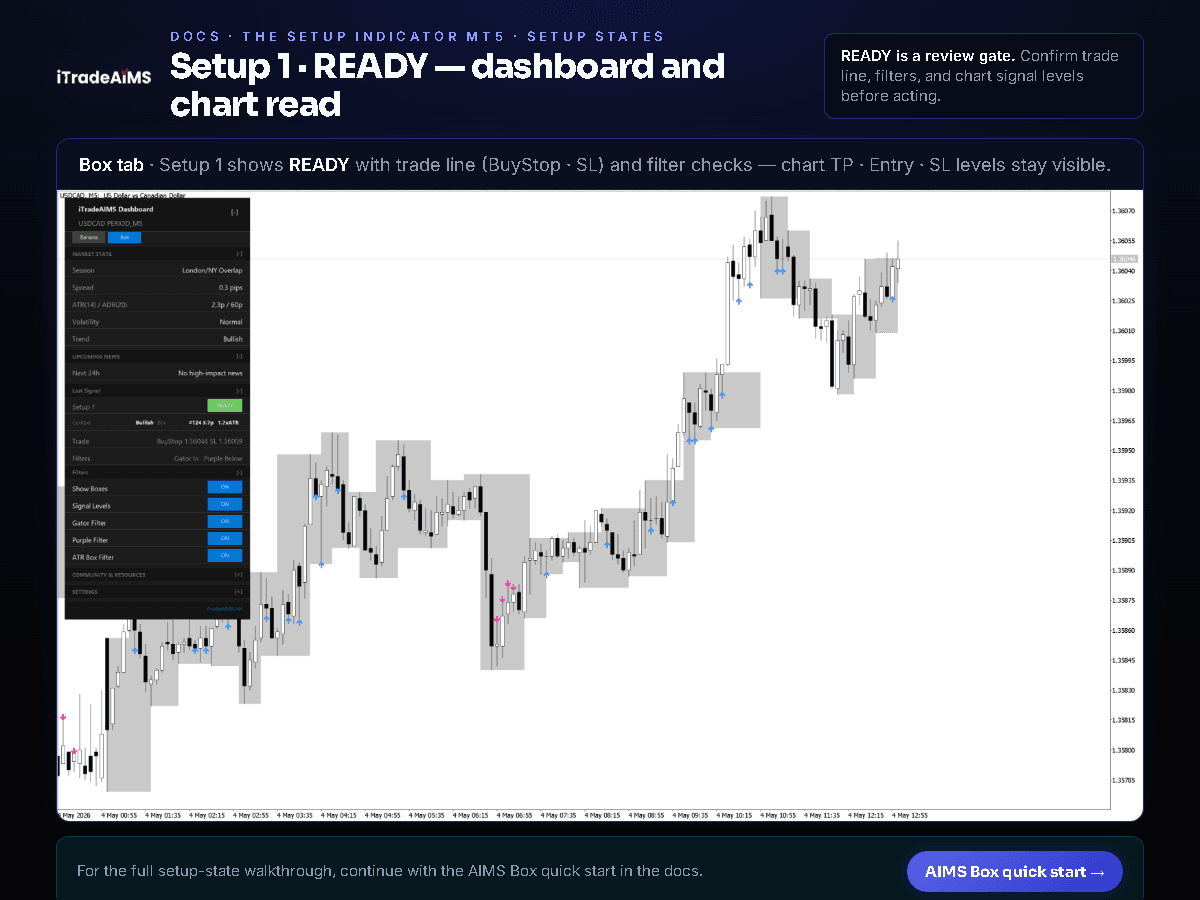
4. Read The Box State
The dashboard can show states such as:
- Setup 1 · WAIT (or forming) — structure is building; review the box on chart but do not treat labels as trade orders yet.
- Setup 1 · READY — candidate setup ready for review; check trade lines, filters, and grey zones before acting.
- Setup 2 — alternate setup type ready for review.
- Closed break — price closed beyond the relevant box level.
- Blocked — a filter or risk condition does not allow the setup (for example box too tall).
Read these as prompts for review, not orders to trade.
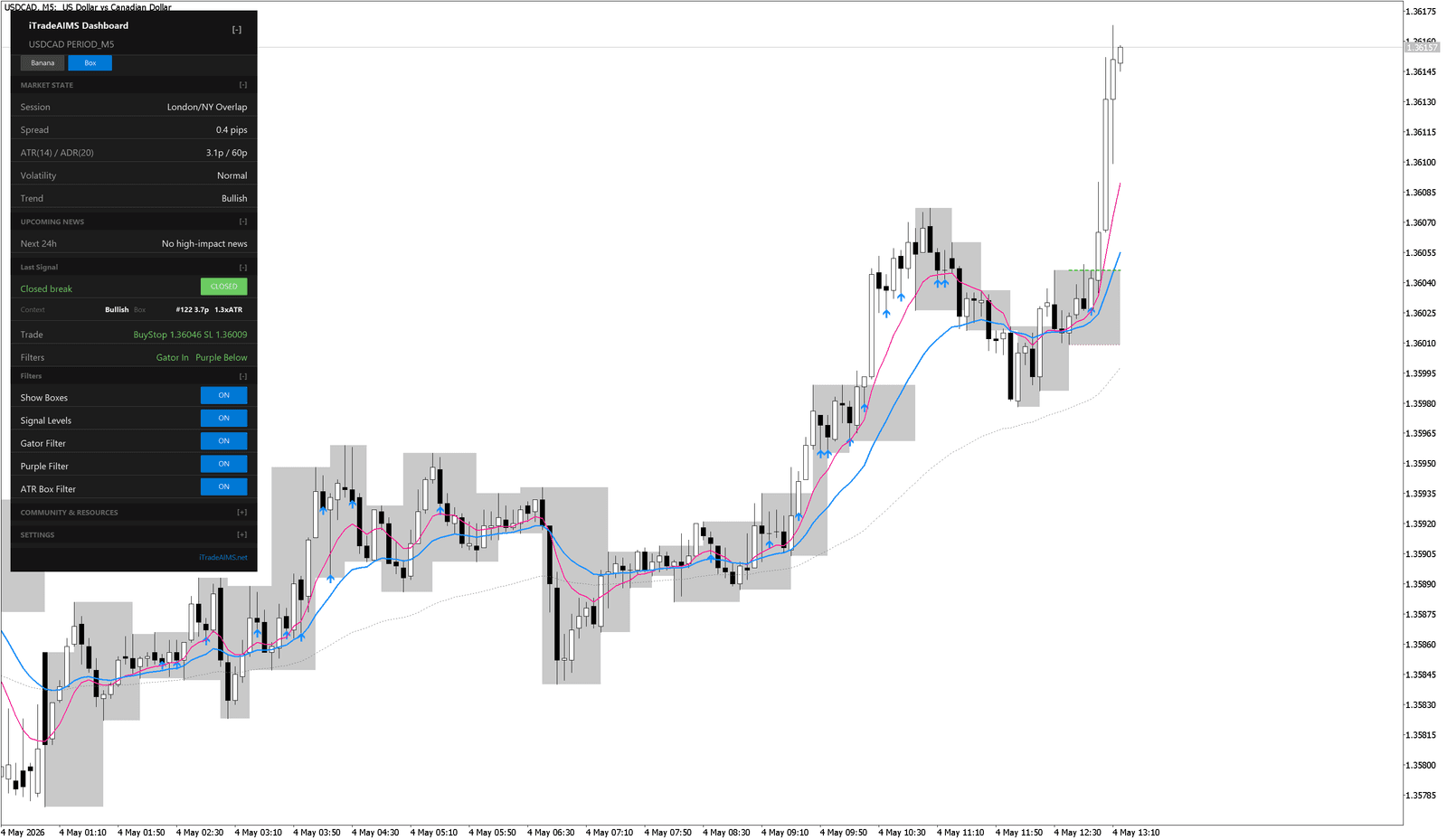
5. Keep Settings Simple At First
For the first few sessions:
- Leave Boxes on.
- Leave Gator and Purple filters on unless support says otherwise.
- Use popup alerts only if you want them — see MT5 alerts.
- Avoid advanced debug toggles until you understand defaults.
6. If Something Looks Wrong
- Use Troubleshoot MT5.
- Restart or refresh MT5.
- Confirm install folder and license details.
- Try one clean chart.
- Contact support with platform, broker, symbol, timeframe, and screenshots.