MT5 Settings
Use this page to review the main settings areas for AIMS Box MT5 on MetaTrader 5.
MT5 is not the MT4 indicator with different screenshots. The MT5 build exposes its own Inputs tab and publishes box and filter state to the iTradeAIMS Dashboard Box tab.
Open Settings
- Right-click the chart.
- Select Indicators List.
- Select AIMSBoxAdvancedMT5 (or AIMS Box MT5).
- Select Properties.
- Open the Inputs tab.
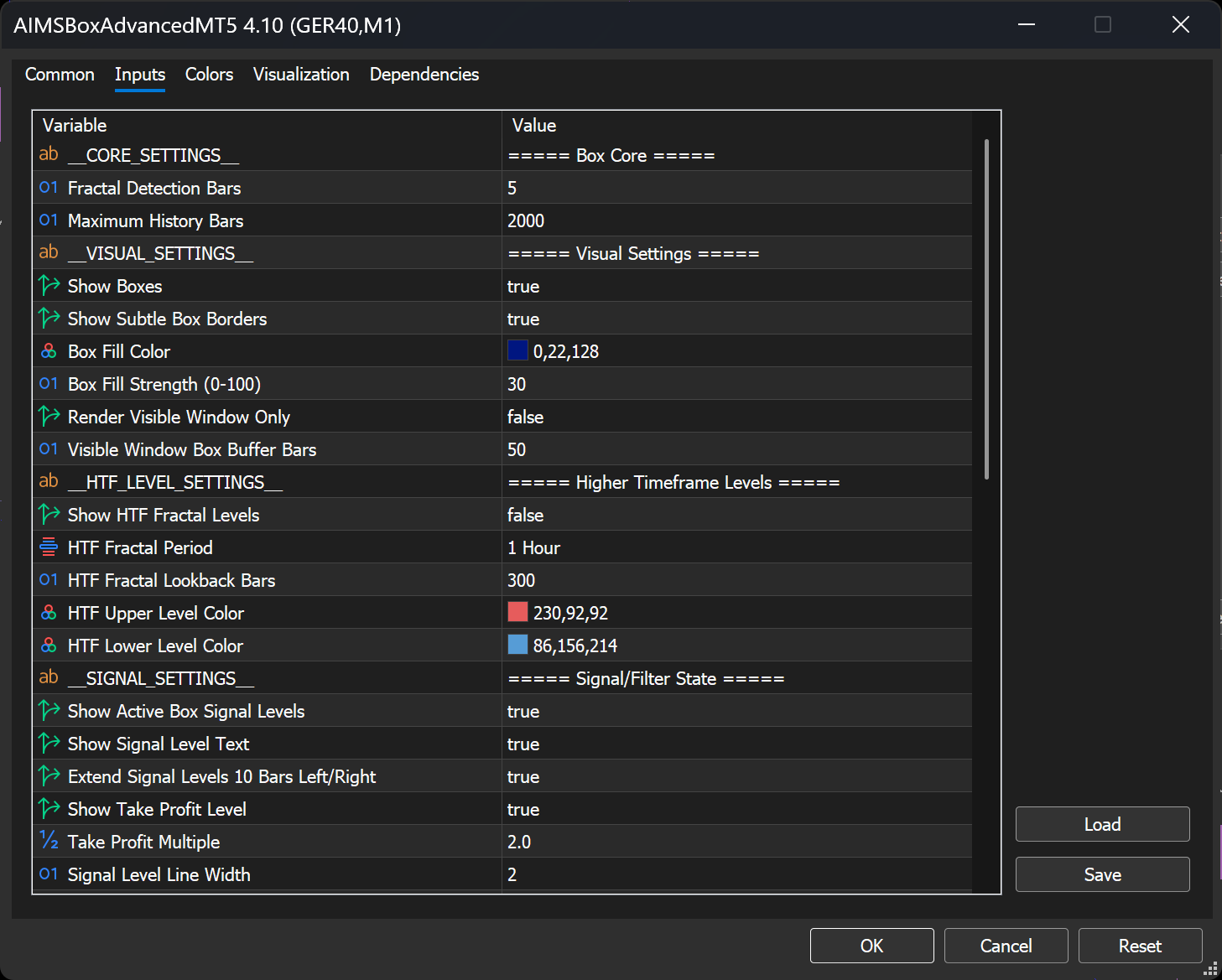
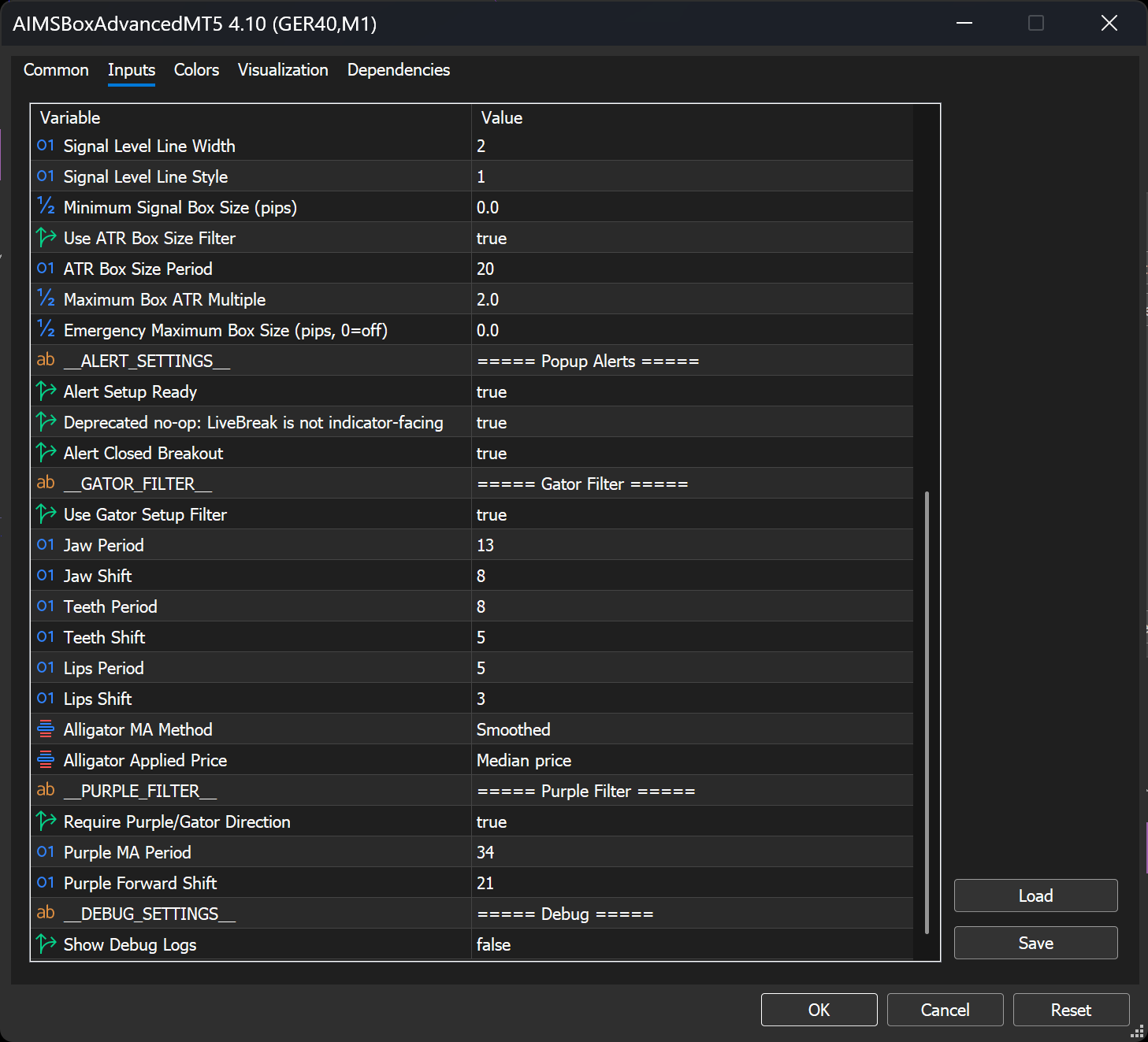
Settings Most Traders Touch First
| Area | What it controls |
|---|---|
| Box core | Whether boxes draw, how levels update, and how setup states are evaluated |
| Visual settings | Box shading, signal levels, and on-chart labels |
| Gator / Purple filters | Whether filtered setups show as Blocked instead of Ready |
| ATR Box filter | Whether unusually tall boxes are blocked by setup logic |
| Alert settings | Popup alerts for setup ready, live break, closed breakout — see MT5 alerts |
License
Enter SerialKey exactly as issued. Remove and reattach the indicator if validation fails after correcting the key.
When To Change Advanced Settings
Leave debug and experimental toggles off until you understand what each one does. If the chart becomes confusing, return to defaults and start again on one clean symbol.
Full Reference
For a complete walkthrough of every input group (including MT4 comparison notes), see Core settings.
Next Step
Configure MT5 alerts or return to Quick start on MT5.