Install On MT5
Use this guide for AIMS Box MT5 only.
Prefer a walkthrough? See Install on MT5 (tutorial).
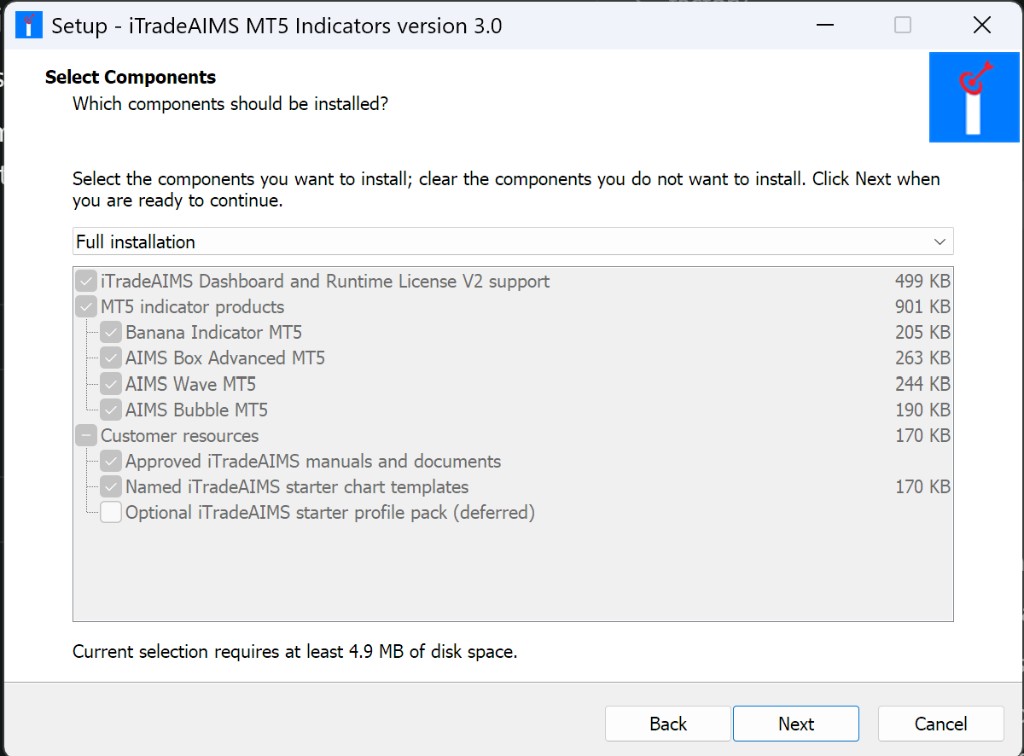
iTradeAIMS MT5 products share one installer UI — license agreement, terminal picker, components, and completion screens look the same as Install on MT5 (Confluence suite). Your standalone package may list fewer components on the components step; the wizard flow does not change.
Before You Start
You need:
- MetaTrader 5 installed and opened at least once.
- The official AIMS Box MT5 installer from Latest Downloads on your member dashboard.
- Your license key or activation file, if one was issued.
- Internet access for license validation.
Sign in at my.itradeaims.net, open Latest Downloads, and download the AIMS Box MT5 installer (or suite package) before you run the wizard below.
Each license binds to a specific MT5 data folder. Pick the terminal you will keep using before you install or activate.
1. Run The MT5 Installer
- Download the installer from Latest Downloads on your member dashboard.
- Run the official AIMS Box MT5 installer you downloaded.
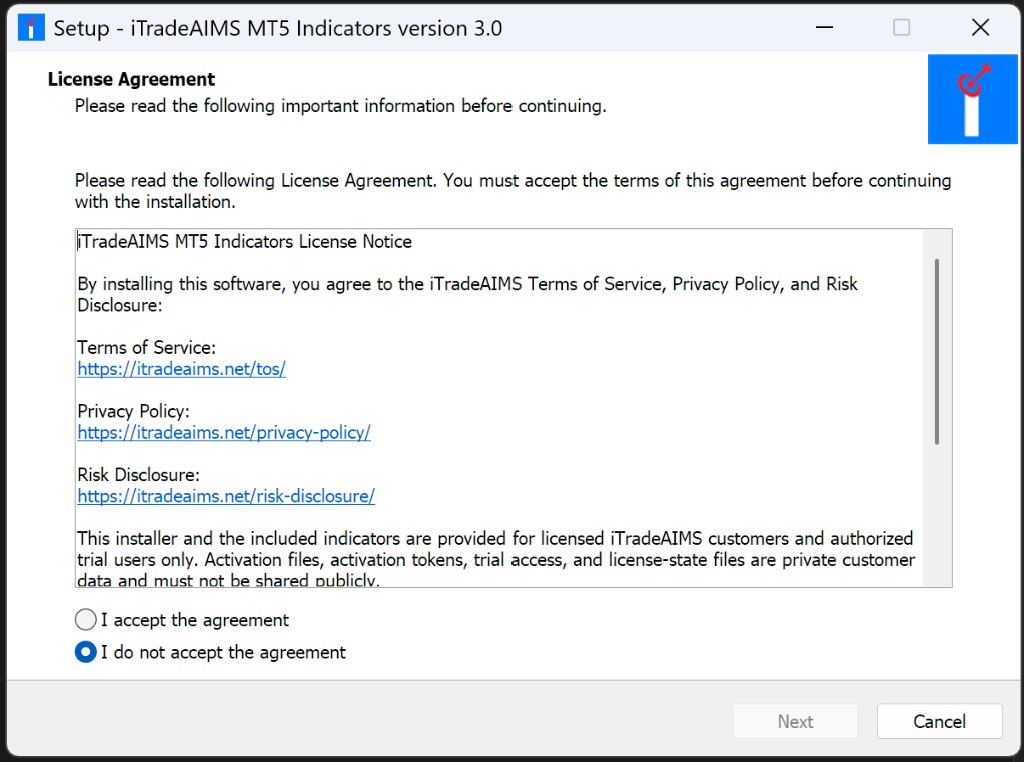
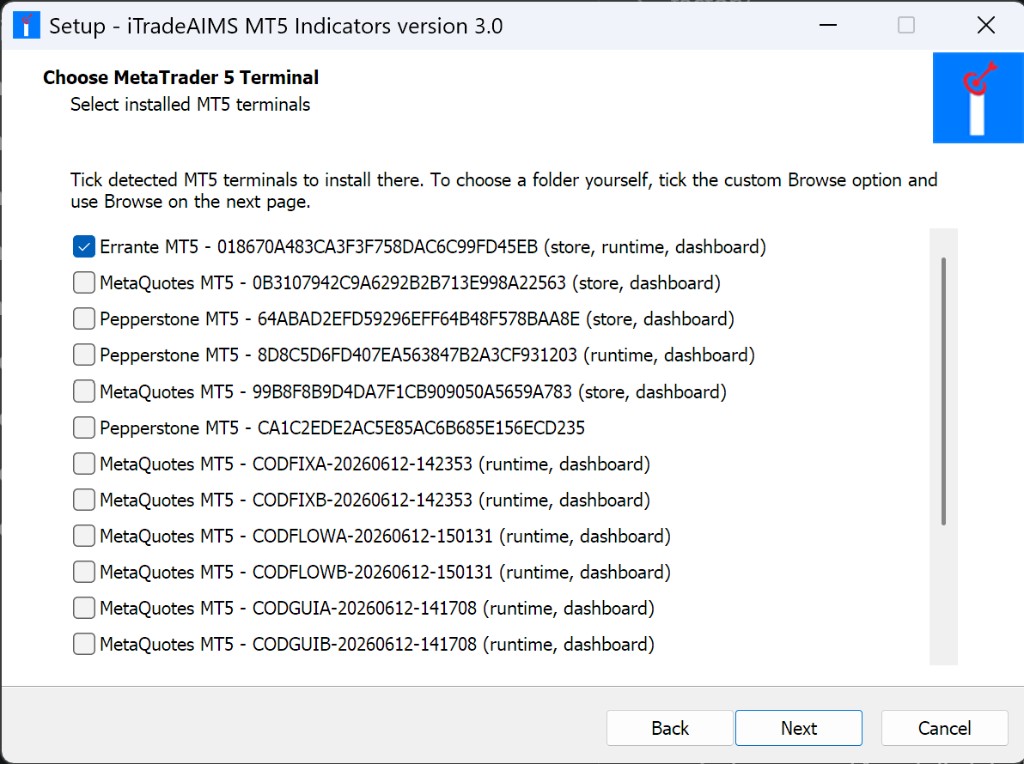
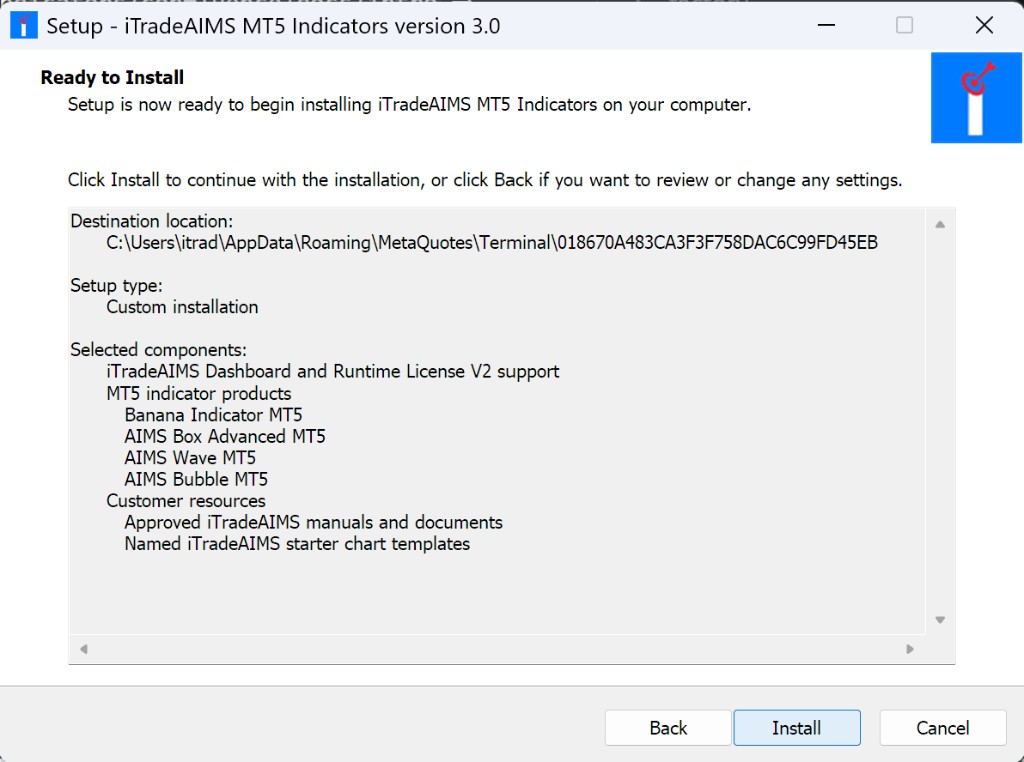
- Walk through the wizard: accept the license notice, tick one MT5 terminal, confirm components, review the destination data folder, then click Install.
- On the completion screen, note the installed data folder path for activation.
- Restart MT5, or right-click inside Navigator and select Refresh.
The screens below are from the shared iTradeAIMS MT5 installer (Confluence suite example — your components list may be shorter):
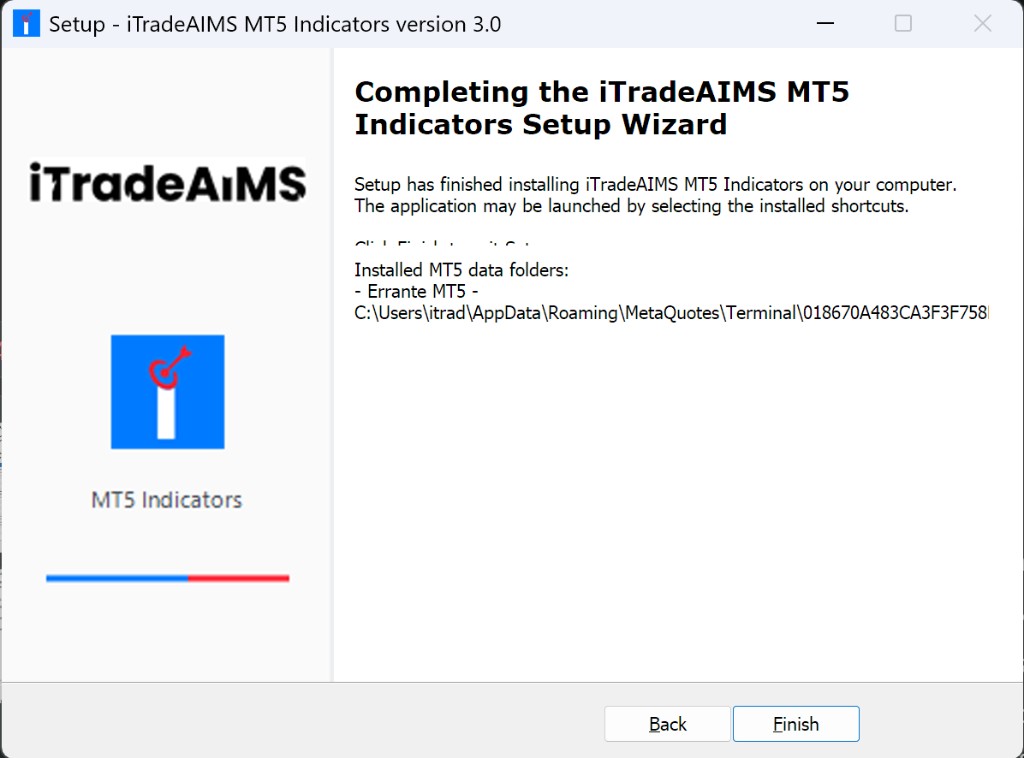
Full wizard reference (activation, DLL, License Center): Confluence suite install on MT5.
Expected files after install:
MQL5/Indicators/iTradeAIMS/
MQL5/Libraries/
If you use more than one MT5 terminal, run the installer once per terminal and select that terminal's data folder each time.
2. Verify In Navigator
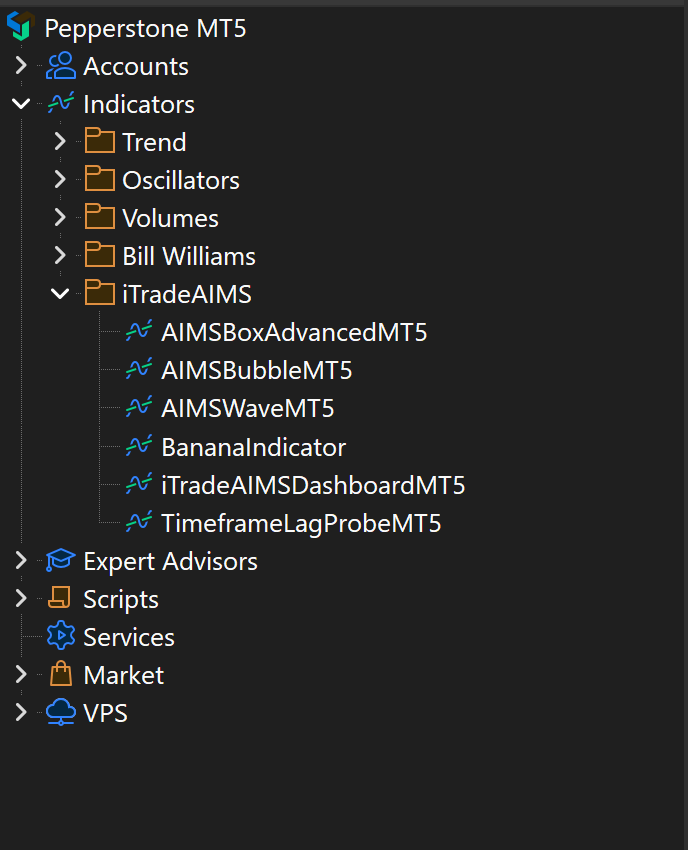
- Press
Ctrl+Nto open Navigator. - Open
Indicators > iTradeAIMS. - Confirm AIMS Box MT5 (or AIMSBoxAdvancedMT5) is listed.
- Drag it onto a clean chart and enter your license key if required.
3. Attach The Dashboard (Recommended)
On MT5, the unified iTradeAIMS Dashboard is the main surface for Box, Banana, and Wave confluence. Attach it to the same chart as AIMS Box MT5 when you want Box-tab reads.
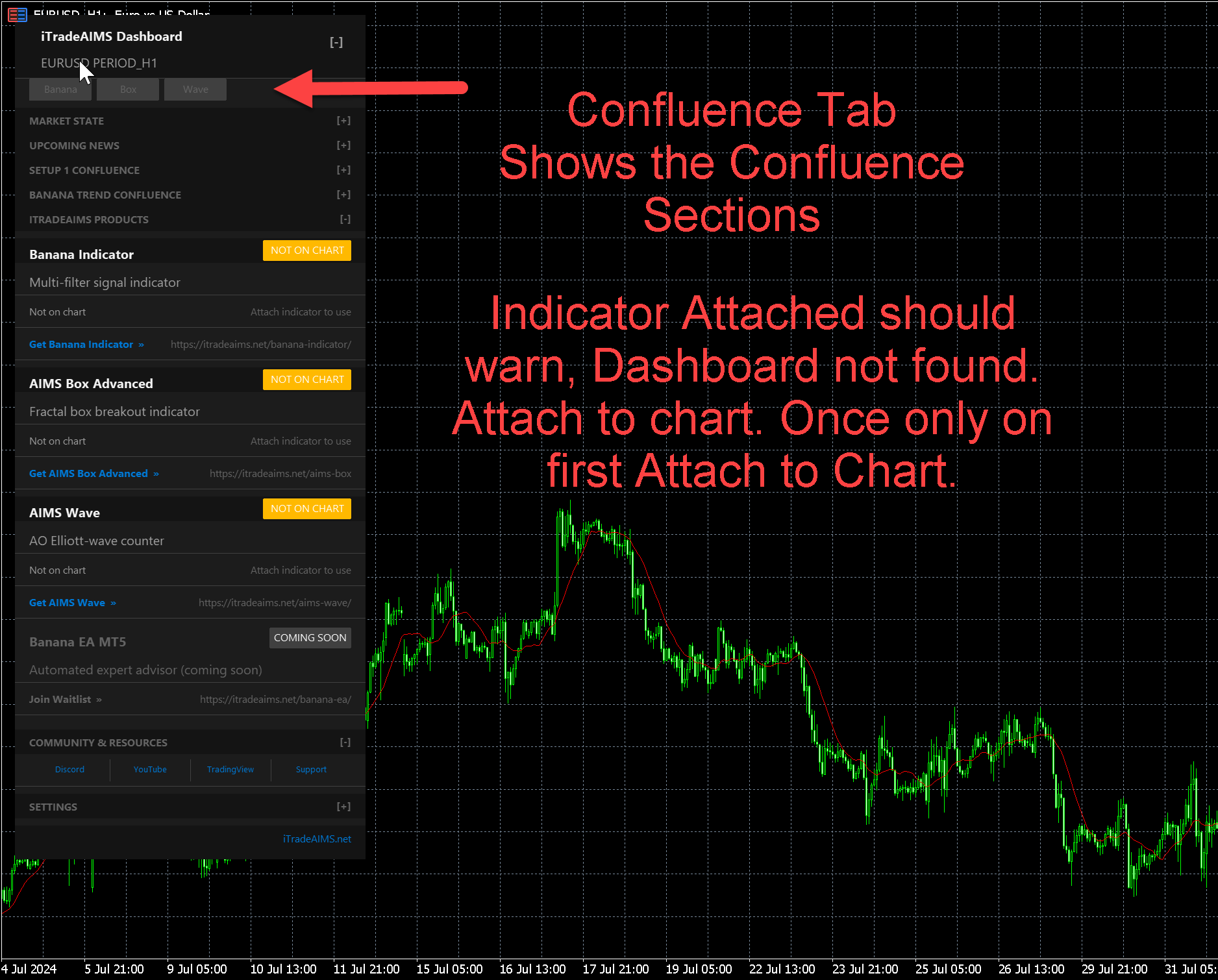
Windows Security Warning
The installer may show Microsoft Defender SmartScreen because it is not code-signed. If the file came from an official iTradeAIMS source, click More info then Run anyway. Stop and contact support if Windows reports a virus or you are unsure of the download source.
Common Problems
Indicator Not In Navigator
- Restart MT5 and refresh Navigator.
- Confirm you selected the correct data folder during install.
- Re-run the installer for the exact broker terminal you use.
License Not Accepted
- Enter the key exactly as issued (no extra spaces).
- Confirm internet access.
- Remove and reattach the indicator.
If problems remain, use Troubleshoot MT5.
Next Step
Continue with Quick start on MT5.