💾 Installation Guide
These are Version 4 installation steps. The latest stable Version 4 release is v4.5.1. Version 4 uses MQL4\Experts\BananaEA.ex4; Version 5 installs separately and uses Version 5 presets.
🚀 Before You Begin
Make sure you have the following ready:
✅ MetaTrader 4 (MT4) installed and working ✅ Active broker account with MT4 access ✅ Valid BananaEA License Key (provided with purchase) ✅ AutoTrading enabled in MT4 → Tools → Options → Expert Advisors
📁 File Installation
Step 1: Download BananaEA Package
Single Zip File: Download the latest BananaEA.zip from Latest Downloads on your member dashboard.
Zip Contents (MQL4 folder structure):
| File | Folder | Description |
|---|---|---|
BananaEA.ex4 | MQL4/Experts/ | Main Expert Advisor |
iTradeAIMSLib.ex4 | MQL4/Libraries/ | Required dependency (MUST be installed) |
BananaBacktestLicense_202601.ex4 | MQL4/Libraries/ | 6-Month License (Valid until June 30, 2026) |
BEA4-DAXH1-A.set | MQL4/Presets/ | DAX H1 preset configuration |
BEA4-DAXM5-Main.set | MQL4/Presets/ | DAX M5 preset configuration |
Backtest license: The current backtest license file is valid for 6 months. Check your customer portal for the latest license file and expiry date.
⚠️ Note: Preset filenames may vary in future updates. Always check the latest files in your customer portal.
Optimization Sets: Download the latest optimization sets from https://my.itradeaims.net/latest-optimization-sets/
Step 2: Locate MT4 Data Folder
- Open MetaTrader 4
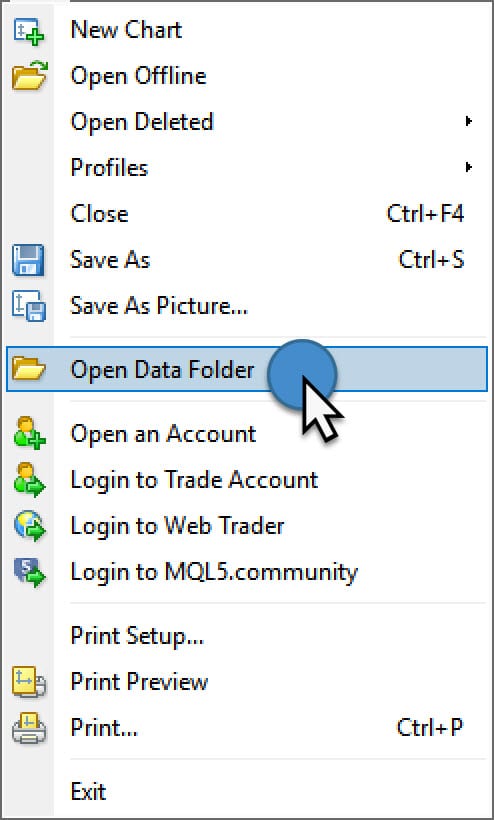
- Click File → Open Data Folder
- This opens your MT4 installation directory
Step 3: Extract and Copy Files
Quick Installation:
- Extract the downloaded BananaEA.zip file
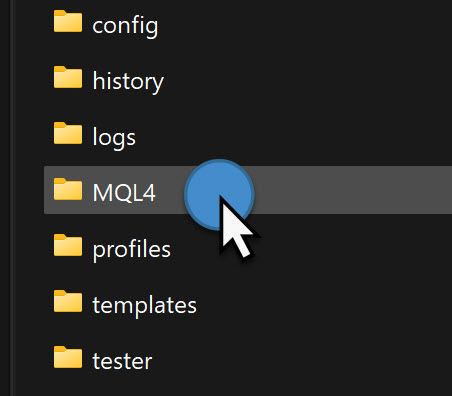
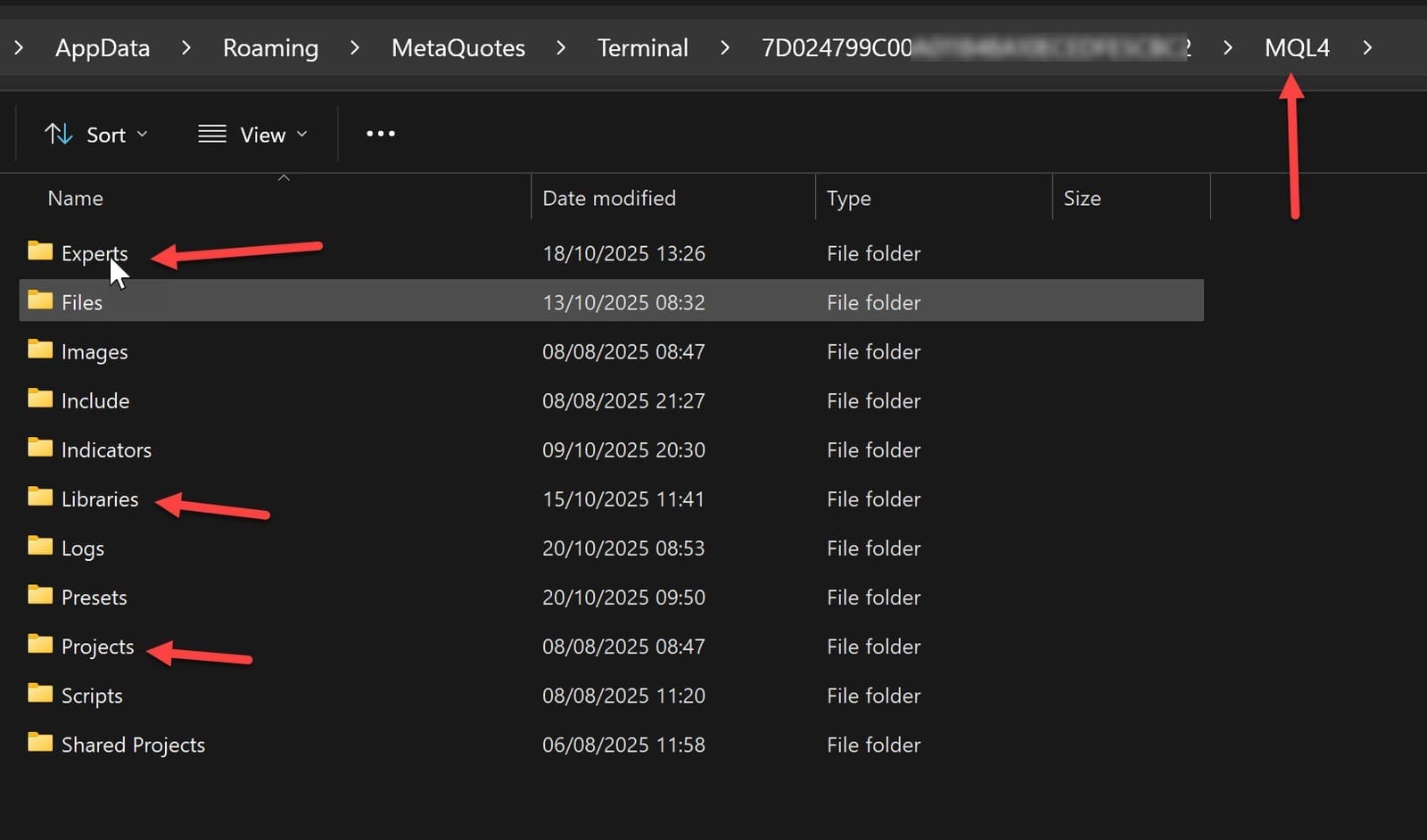
- Copy the entire MQL4 folder from the zip
- Paste into your MT4 Terminal folder (from Step 2)
- Click "Yes to All" when Windows asks to merge/replace files
What Gets Installed:
- ✅
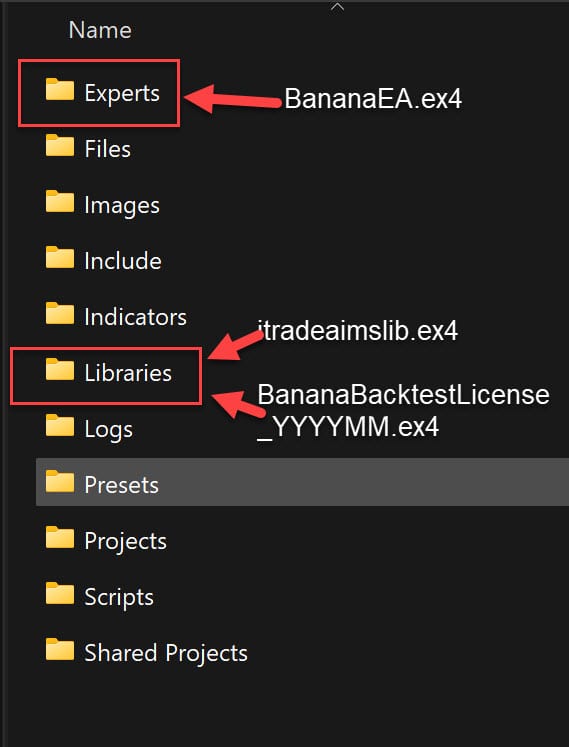
BananaEA.ex4→ Experts folder - ✅
iTradeAIMSLib.ex4→ Libraries folder - ✅
BananaBacktestLicense_202601.ex4→ Libraries folder (6-month license!) - ✅ Preset files → Presets folder
⚠️ Critical: Without
iTradeAIMSLib.ex4in the Libraries folder, the EA will not initialize and may show errors.
Manual Installation (if preferred):
- Copy
.setfiles →MQL4/Presets/ - Copy templates →
MQL4/Templates/ - Copy images →
MQL4/Images/
Step 3a: Set High DPI Compatibility for Fresh MT4 Installs
If this is a new MT4 installation, check the Windows High DPI compatibility setting before you rely on the object-based BananaEA dashboard.
Use this fix if the dashboard looks too small, stretched, clipped, misplaced, or the buttons do not line up with mouse clicks.
- Close MetaTrader 4 completely.
- Open the folder where MT4 is installed.
- If you use a desktop shortcut, right-click the shortcut and choose Open file location.
- Look for
terminal.exe. It may appear as terminal if Windows hides file extensions.
- Right-click
terminal.exeand choose Properties. - Open the Compatibility tab.
- Click Change high DPI settings.
- Tick Override high DPI scaling behaviour.
- Set Scaling performed by to System.
- Click OK, then Apply, then OK.
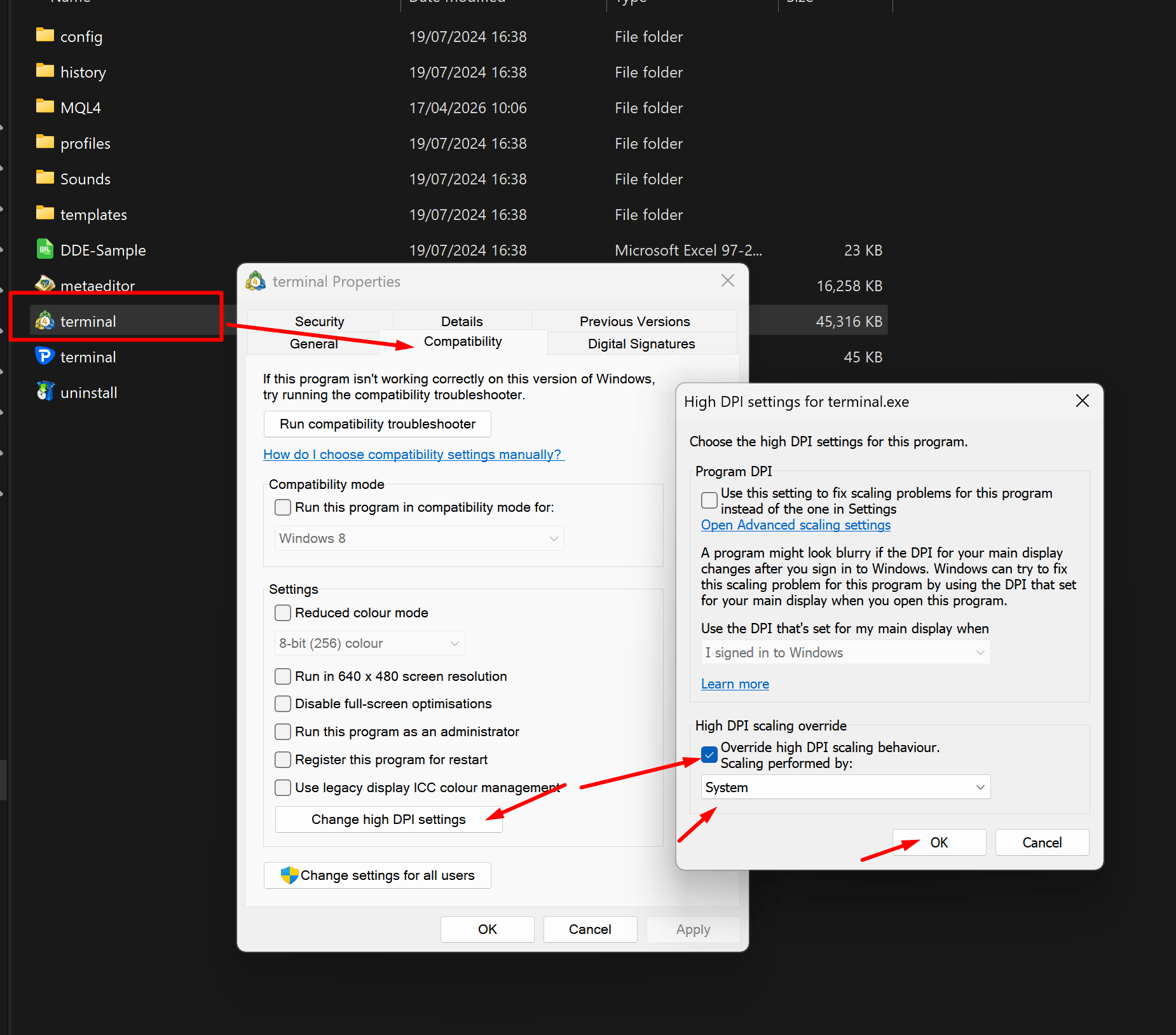
For more display symptoms and checks, see MT4 High DPI compatibility fix.
Step 4: Restart MetaTrader 4
- Close MT4 completely
- Re-open MT4
- BananaEA should now appear under Navigator → Expert Advisors
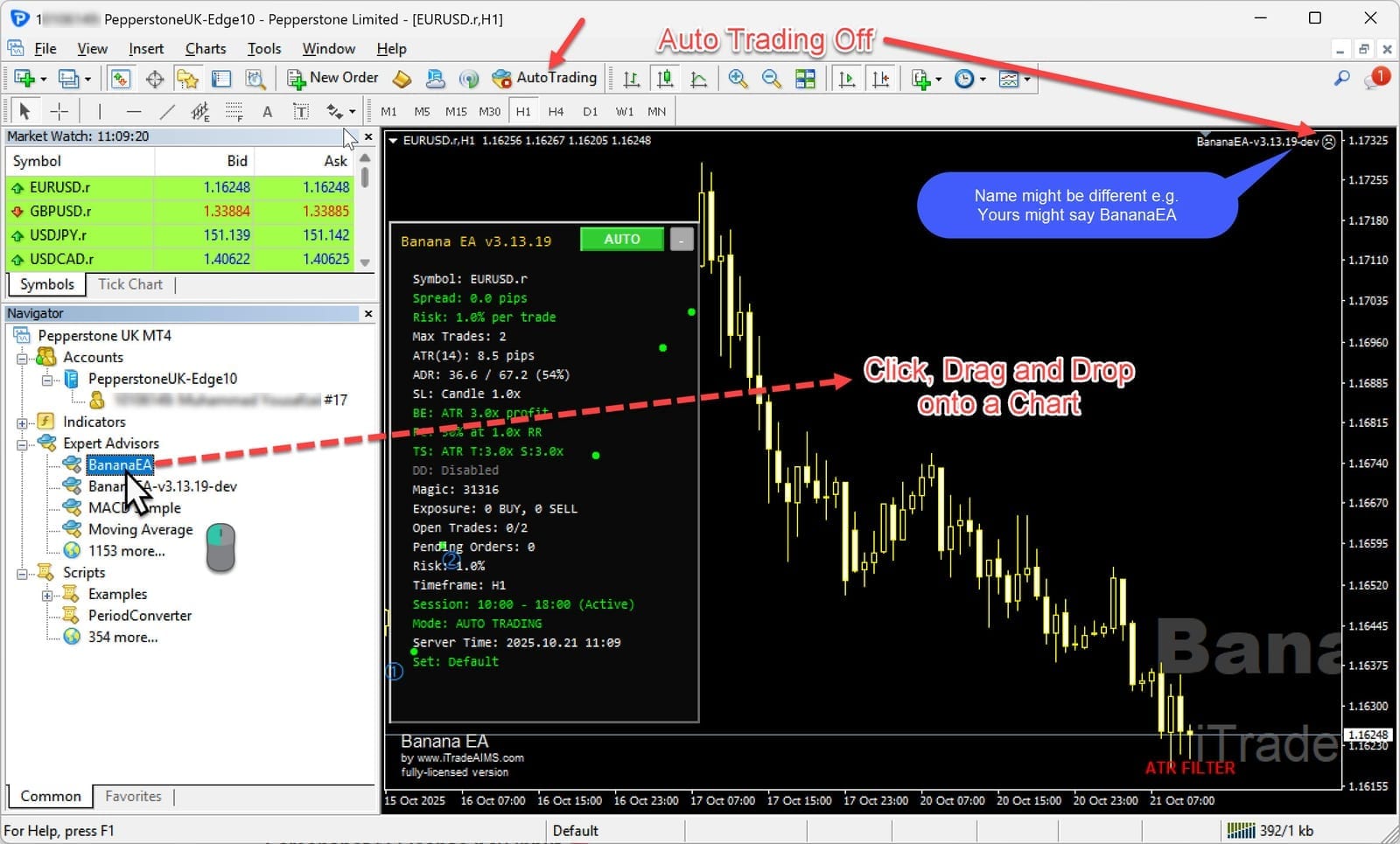
Step 5: Attach EA to Chart
- In Navigator, expand Expert Advisors
- Double-click BananaEA, or drag it onto your chart
⚙️ Configure Initial Settings
When the EA Properties dialog opens:
Common Tab
✅ Check Allow live trading ✅ Check Allow DLL imports ✅ Check Allow import of external experts
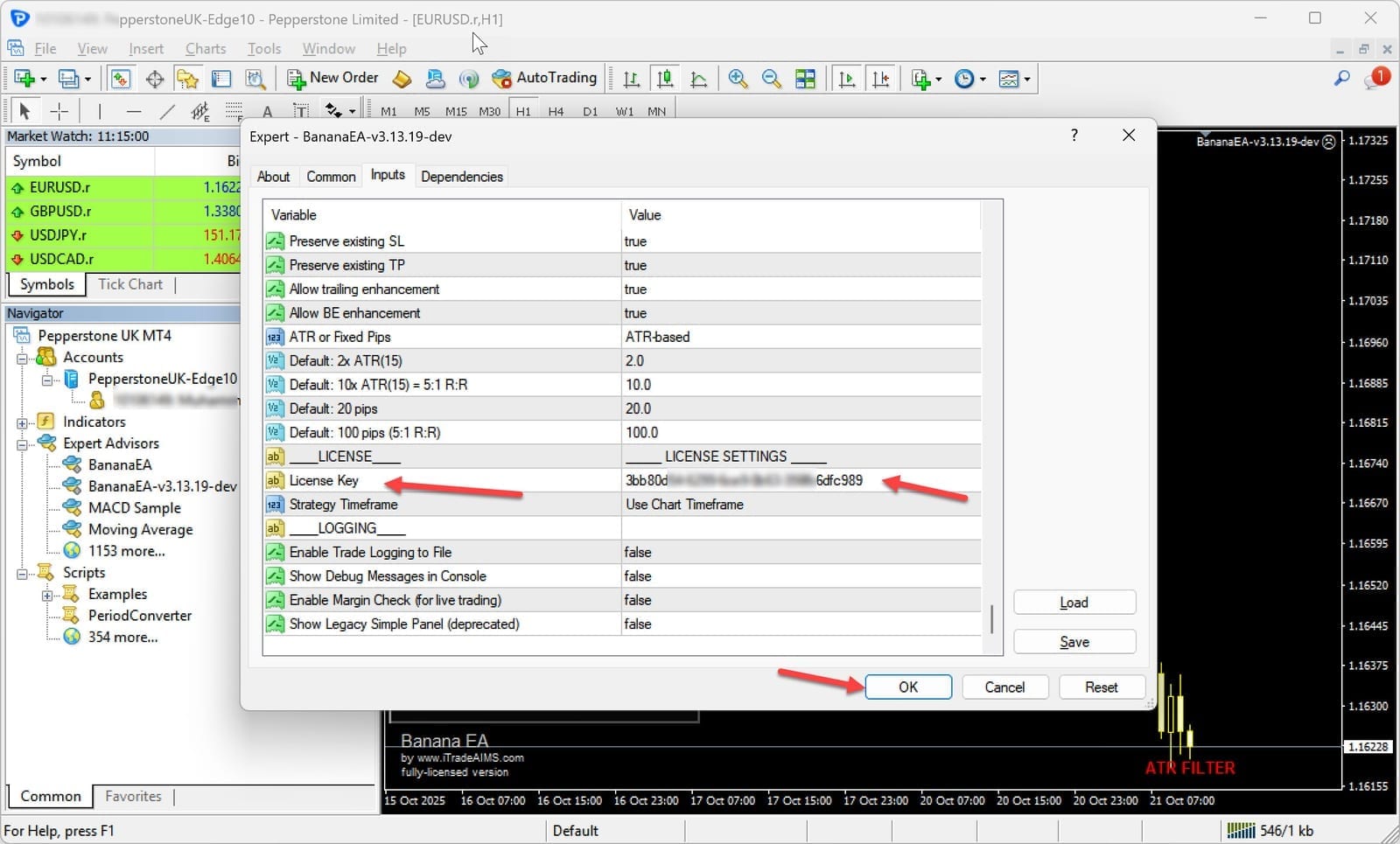
Inputs Tab – License & Configuration
🔐 License Configuration (Required)
Enter your license key in License Key.
Example License Key Format: 3bb80d54-6299-6ce9-0b63-356fb6dfc989
⚠️ Your license must match your MT4 account for the EA to function.
📊 Trading Configuration
Configure your preferred trading parameters or load a preset file (see next section).
📈 Step 8: Install Optimization Files (ESSENTIAL)
structured configuration files are updated weekly for current market conditions.
Download the Latest Files
👉 https://my.itradeaims.net/latest-optimization-sets/
Installation Process
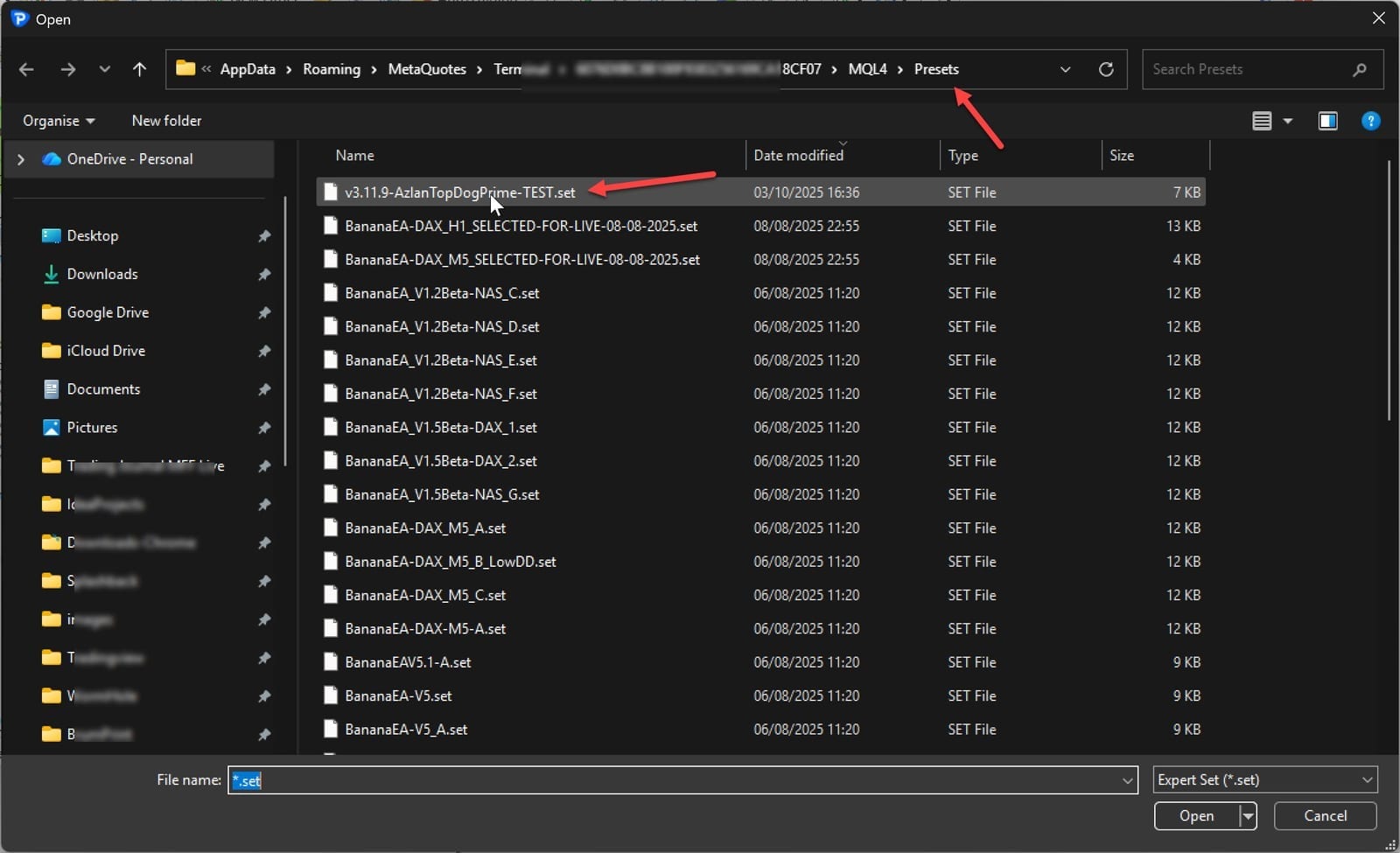
- Download your chosen
.setfile(s) - Copy to
MQL4/Presets/folder in your MT4 data directory
Load Optimization File in EA
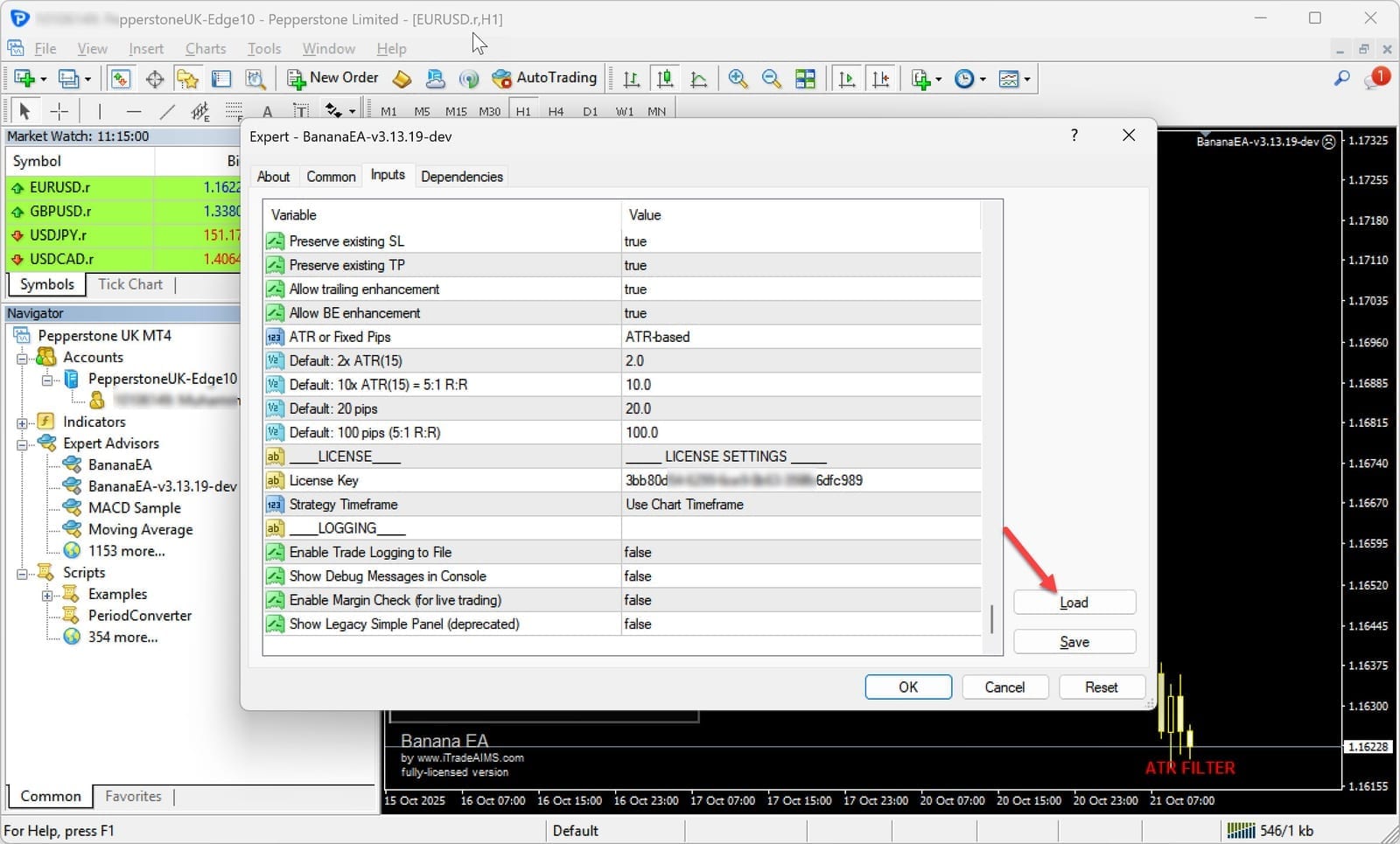
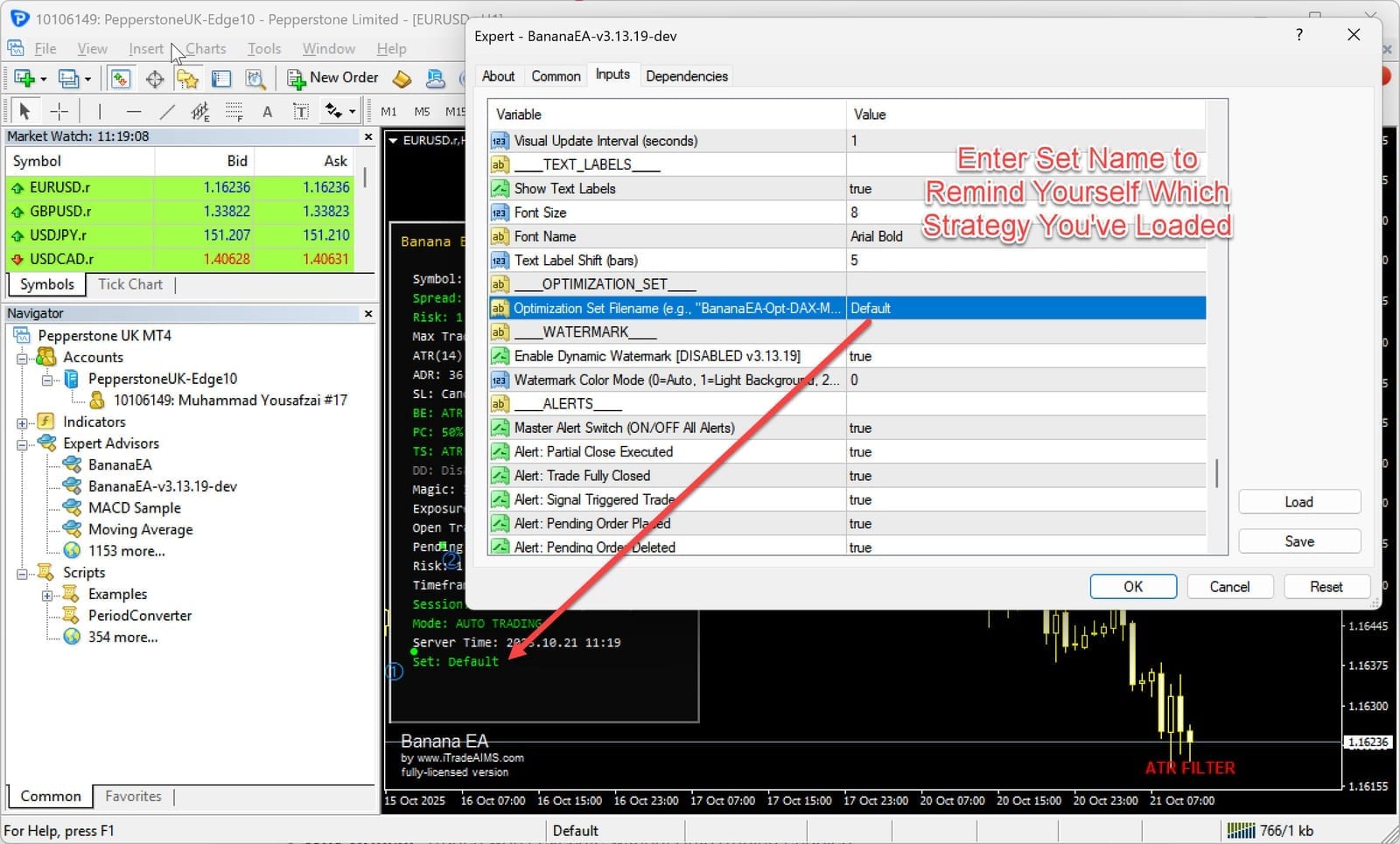
- Open EA Properties → Inputs
- Click Load
- Select your downloaded
.setfile- e.g.
AZLN_BananaEA-DAX-M5-TOPDOG-PRIME.set - or
BananaEA-DAX-M5.set
- e.g.
All parameters will load automatically.
✅ Step 9: Activate Trading Mode (FIRST TIME USERS)
✨ NEW Safety Feature (v4.4.4)
BananaEA starts in PAUSED mode for your protection. This means YOU control when trading begins.
Safety First: The EA will monitor markets and display signals, but won't open any trades until you activate it.
To Start Trading:
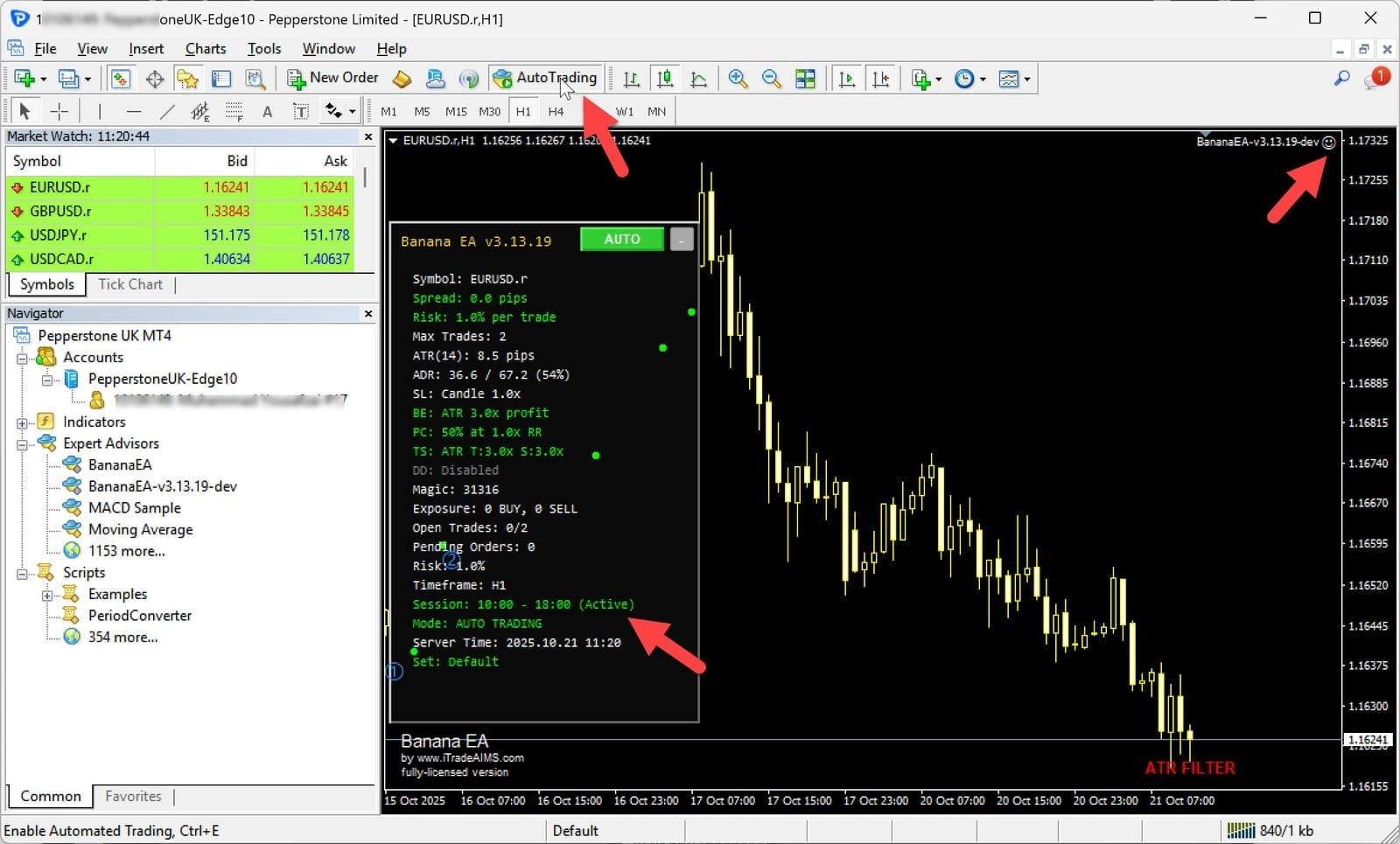
- Locate the TC button on your dashboard (top-left by default)
- Click once: PAUSED → AUTO (trading enabled) ✅
- EA is now active and will detect signals and open trades
TC Button Three-State System:
Understanding the Button States:
- 🔴 PAUSED (Red button): EA monitoring only, no trades opened
- 🟢 AUTO (Green button): Full automated trading enabled
- 🔵 MANAGE (Blue button): Managing existing trades only, no new entries
Button Cycling: Click repeatedly to cycle through states:
PAUSED → AUTO → MANAGE → PAUSED → AUTO → ...
Strategy Tester Note: When running backtests, the EA automatically detects Strategy Tester mode and bypasses PAUSED mode. Your backtests will run normally without manual activation.
Learn more about three-state control →
✅ You're Ready to Trade!
BananaEA is now fully installed and configured. Click the TC button to activate trading!
🔁 Important Notes on Optimization Files
- ✅ Check weekly for updated optimization sets
- ✅ Optimizations adapt to current market conditions
- ✅ Symbol-specific options available for different instruments
- ✅ Always demo-test before going live