Install And Upgrade
Use this page to install BananaEA Version 5 with the MT4 installer, or to add Version 5 beside an existing Version 4 setup.
You do not need to remove Version 4 before installing Version 5.
Version 4 and Version 5 use different preset formats. Do not load Version 4 .set files into Version 5, and do not load Version 5 .set files into Version 4. Always use presets built for the EA version attached to your chart.
Use the official BananaEA installer from Latest Downloads on your member dashboard. If your link shows a newer file name than this guide describes, use the latest official file on the dashboard.
Before You Start
You need:
- MT4 installed and opened at least once.
- The official BananaEA MT4 installer from Latest Downloads on your member dashboard.
- Your BananaEA license key.
- A demo chart or Strategy Tester workflow ready for first validation.
- Your existing Version 4 charts and presets left unchanged, if you are upgrading.
Open Latest Downloads on your member dashboard and download the BananaEA MT4 installer before you open the data folder.
MT4 Data Folder
Install into the MT4 data folder, not the Windows program folder.
- Open the exact MT4 terminal you want to install into.
- Click
File > Open Data Folder. - Keep that folder window open.
- Close MT4 before running the installer.
- When the installer asks for a folder, select the same data folder.
File > Open Data Folder
The data folder is often inside hidden Windows AppData. Do not guess the path. Use File > Open Data Folder.
If you click Browse in the installer, you may see many long folder names under:
C:\Users\YourName\AppData\Roaming\MetaQuotes\Terminal\
Each long folder name can belong to a different MT4 terminal. Choose the folder that matches the path opened by File > Open Data Folder in the exact terminal you want to use.
If The Installer Says MQL4 Is Missing
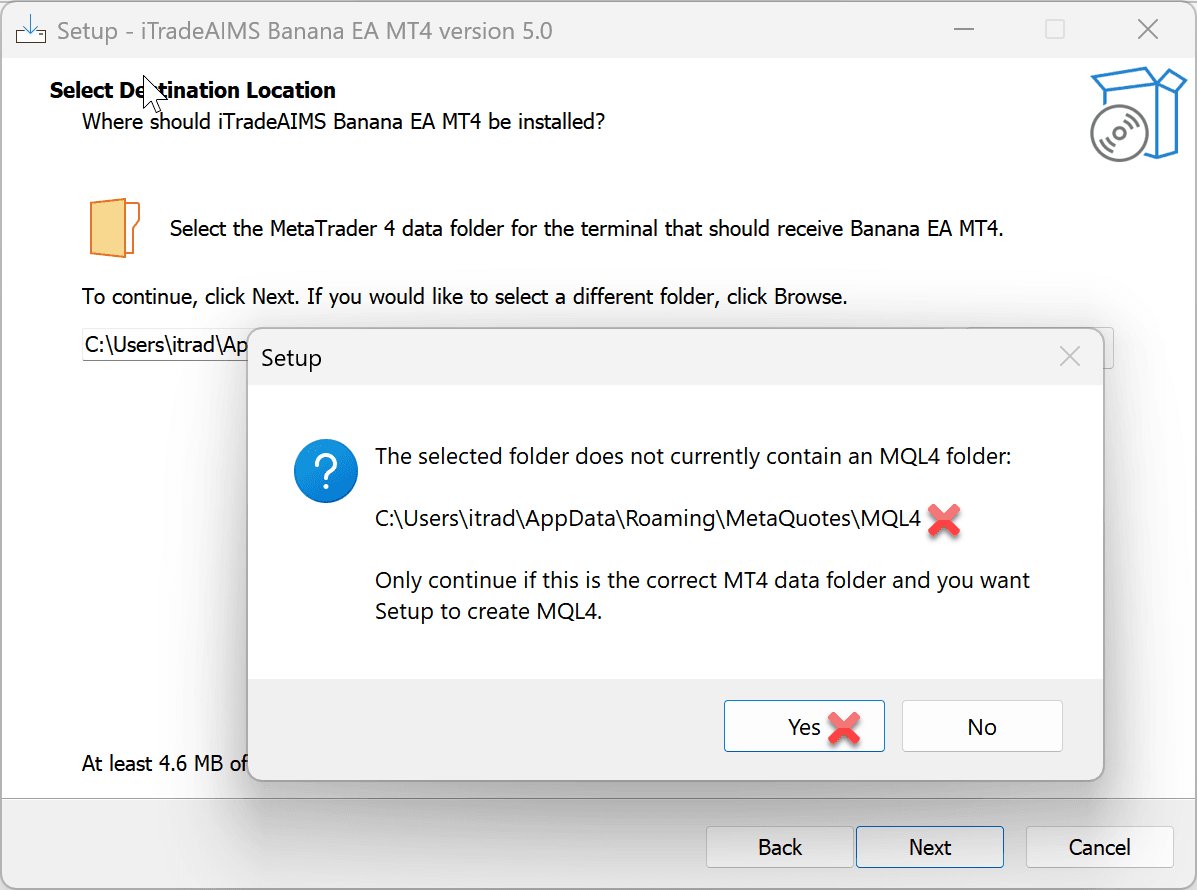
During folder selection, the installer may warn that the selected folder does not contain an MQL4 folder.
This usually means one of these is true:
- You selected the wrong folder.
- You selected the Windows program folder instead of the MT4 data folder.
- MT4 has not been installed or opened on that computer yet.
- You are installing for a different broker terminal than the one you opened.
Do not continue unless you are sure the selected folder is the correct MT4 data folder. If you continue with the wrong folder, the installer may create files in the wrong location and the EA may not appear in Navigator.
To fix it:
- Click
Noor go back in the installer. - Open the exact MT4 terminal you want to use.
- Click
File > Open Data Folder. - Select that folder in the installer.
Only click Yes if you deliberately selected a valid MT4 data folder and understand that Setup will create the missing MQL4 folder.
Windows Security And Certificate Prompts
The installer may show a Windows security message before setup opens. This can look like:
Windows protected your PC
Microsoft Defender SmartScreen prevented an unrecognized app from starting
You may also see an Unknown publisher or certificate-related confirmation prompt.
A self-signed installer certificate does not remove this warning for normal public Windows users. Windows does not trust self-signed code-signing certificates by default unless the certificate has been manually installed as trusted, or a managed company/VPS policy already trusts it. A trusted public code-signing certificate can show a verified publisher name, but new downloads may still show SmartScreen warnings until Microsoft reputation builds for the file or publisher.
Before continuing, check:
- You got the installer from an official iTradeAIMS link.
- The file name matches the BananaEA MT4 installer you intended to run.
- You did not download it from a third-party file-sharing site.
- You are installing on your own Windows computer or VPS.
To continue from the SmartScreen warning:
- Click
More info. - Confirm the app name is the BananaEA installer you intended to run.
- Click
Run anyway. - Continue with the installer steps below.
Do not turn off Windows Defender. If Windows reports a virus, quarantines the file, or the installer came from anywhere other than an official iTradeAIMS source, stop and contact support.
Installer Screens
The BananaEA MT4 installer follows the same basic flow as the Banana Indicator MetaTrader installer.
- Read and accept the license agreement.
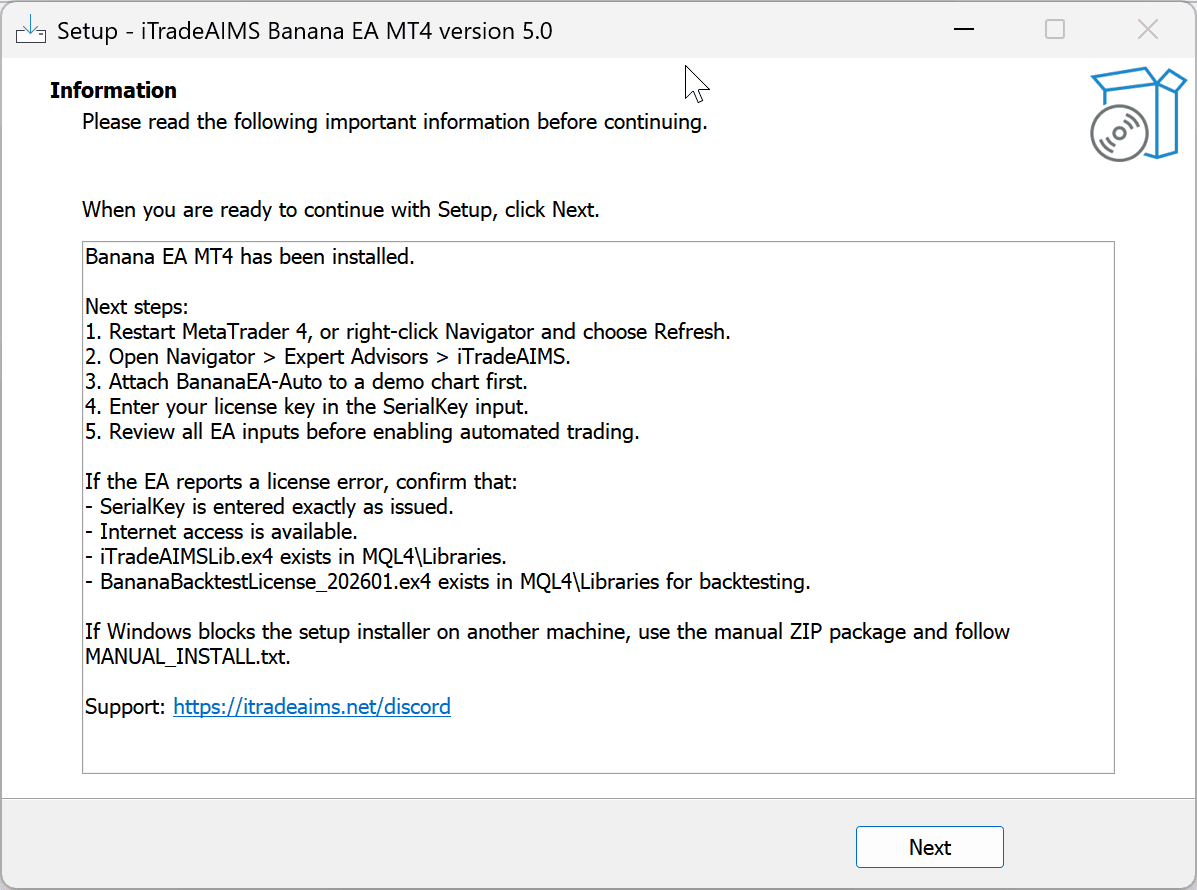
- Review the setup information screen.
- Select the MT4 data folder opened from
File > Open Data Folder. - Review the
Ready to Installdestination location. - Click
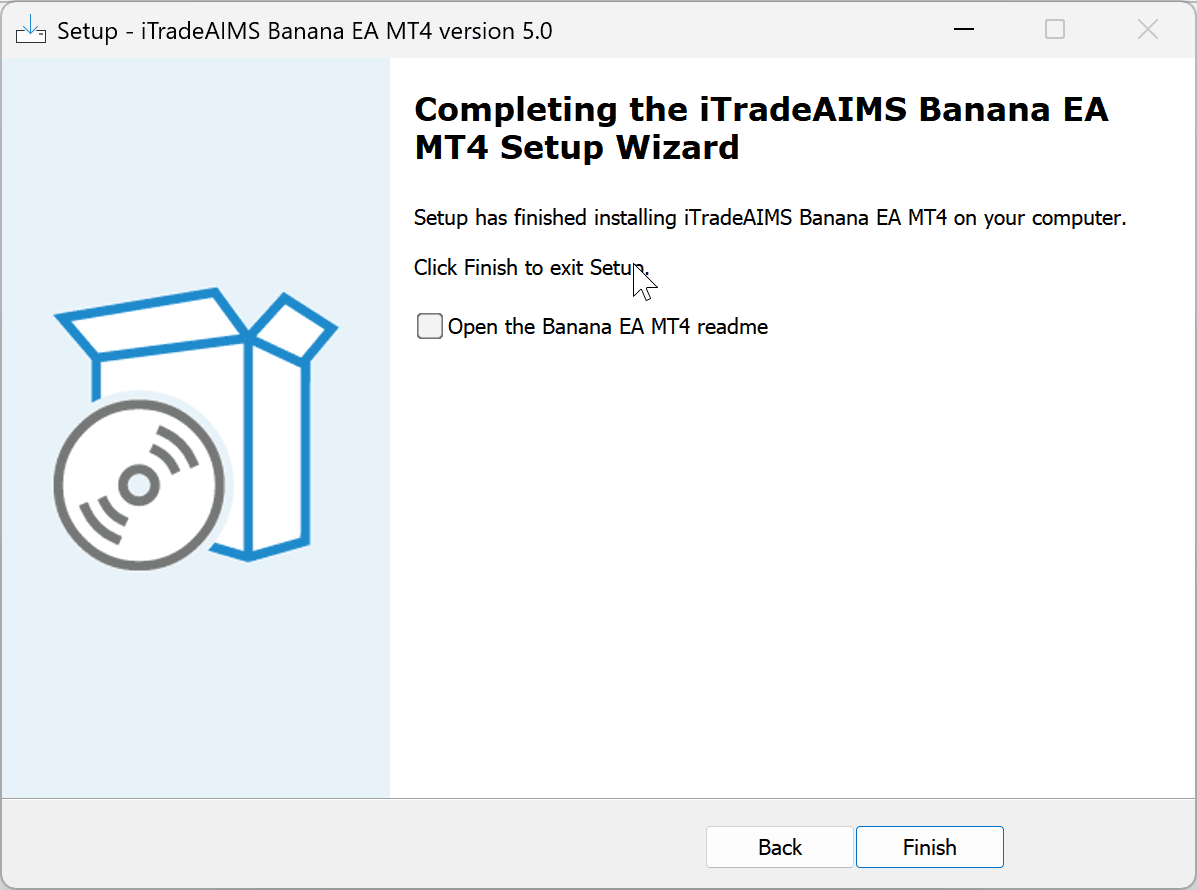
Installonly when the path is correct. - Read the post-install information page, then click
Nextor finish setup.
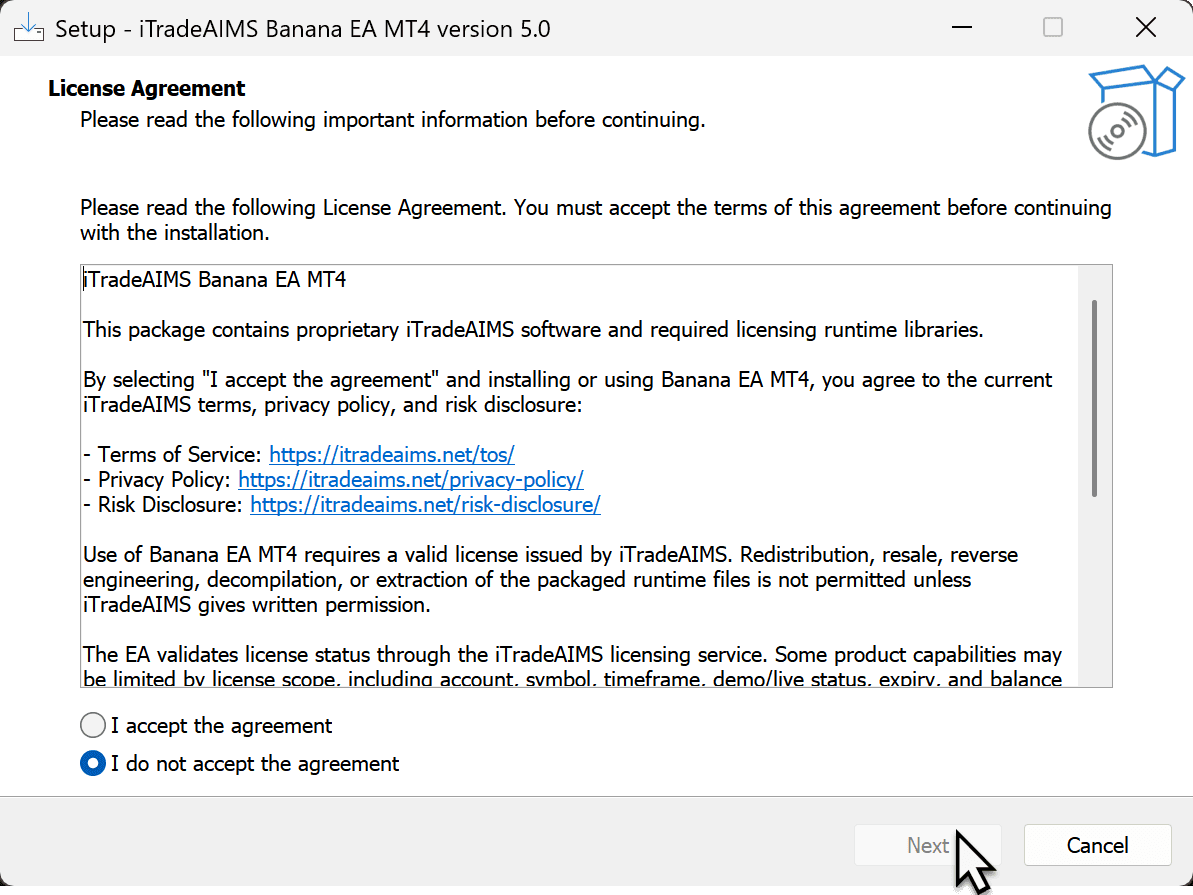
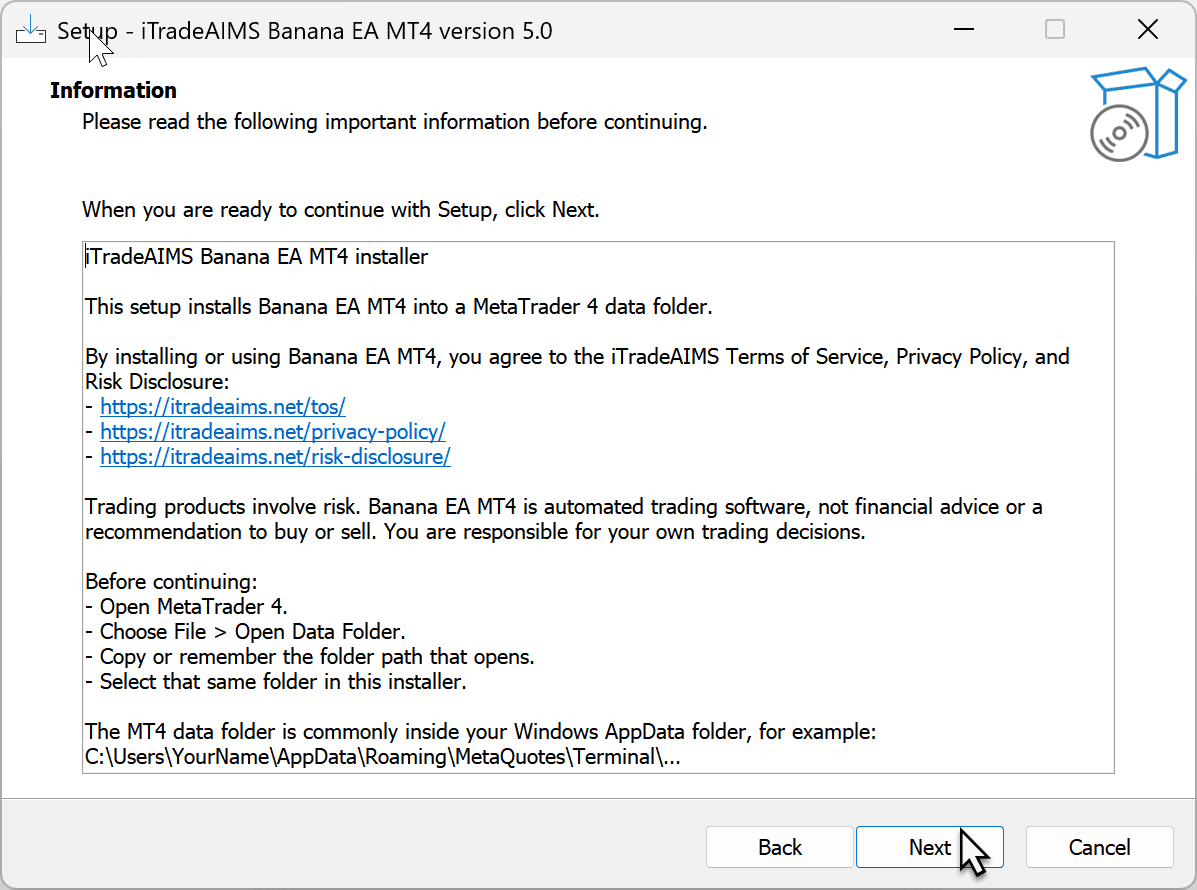
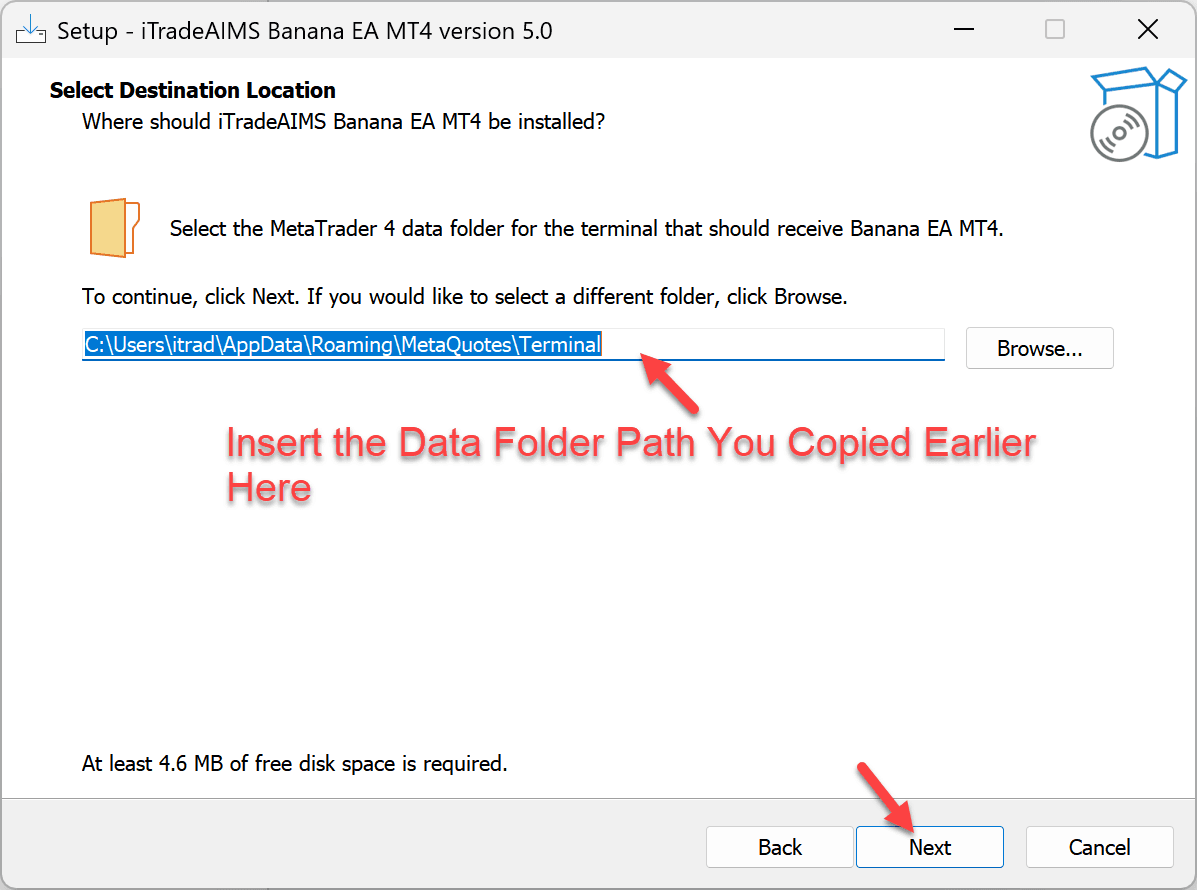
Before clicking Install, read the destination path one more time. Click Install only if it matches the data folder opened from File > Open Data Folder. If the path looks wrong, click Back and choose the correct folder.
Install Version 5 On MT4
- Open MT4.
- Click
File > Open Data Folder. - Keep the data folder window open, then close MT4.
- Run the official BananaEA MT4 installer from your member area, purchase email, or support team.
- When the installer asks where to install, select the MT4 data folder that opened in step 2.
- Complete setup.
- Reopen MT4, or right-click inside Navigator and choose
Refresh. - Open:
Expert Advisors > iTradeAIMS
- Attach the Version 5 EA to a new chart.
- Enter your license key in the License Key input.
- Load a Version 5 preset. For detailed steps, see Presets And Set Files.
- Confirm AutoTrading is enabled only when you are ready for the EA to manage trades.
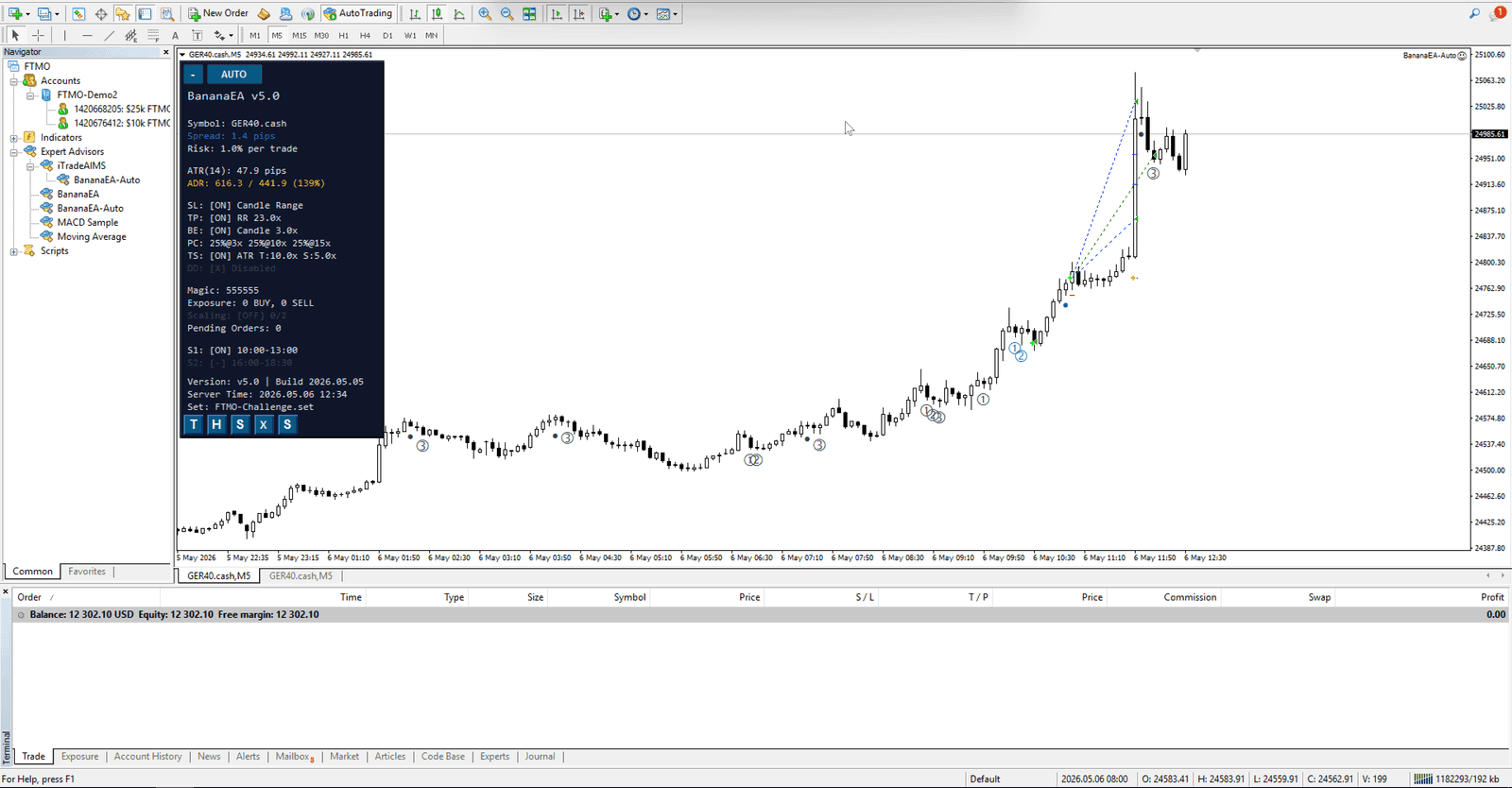
Expected installed location for the Version 5 EA runtime:
MQL4\Experts\iTradeAIMS\BananaEA-Auto.ex4
You normally do not need to copy files manually when using the installer.
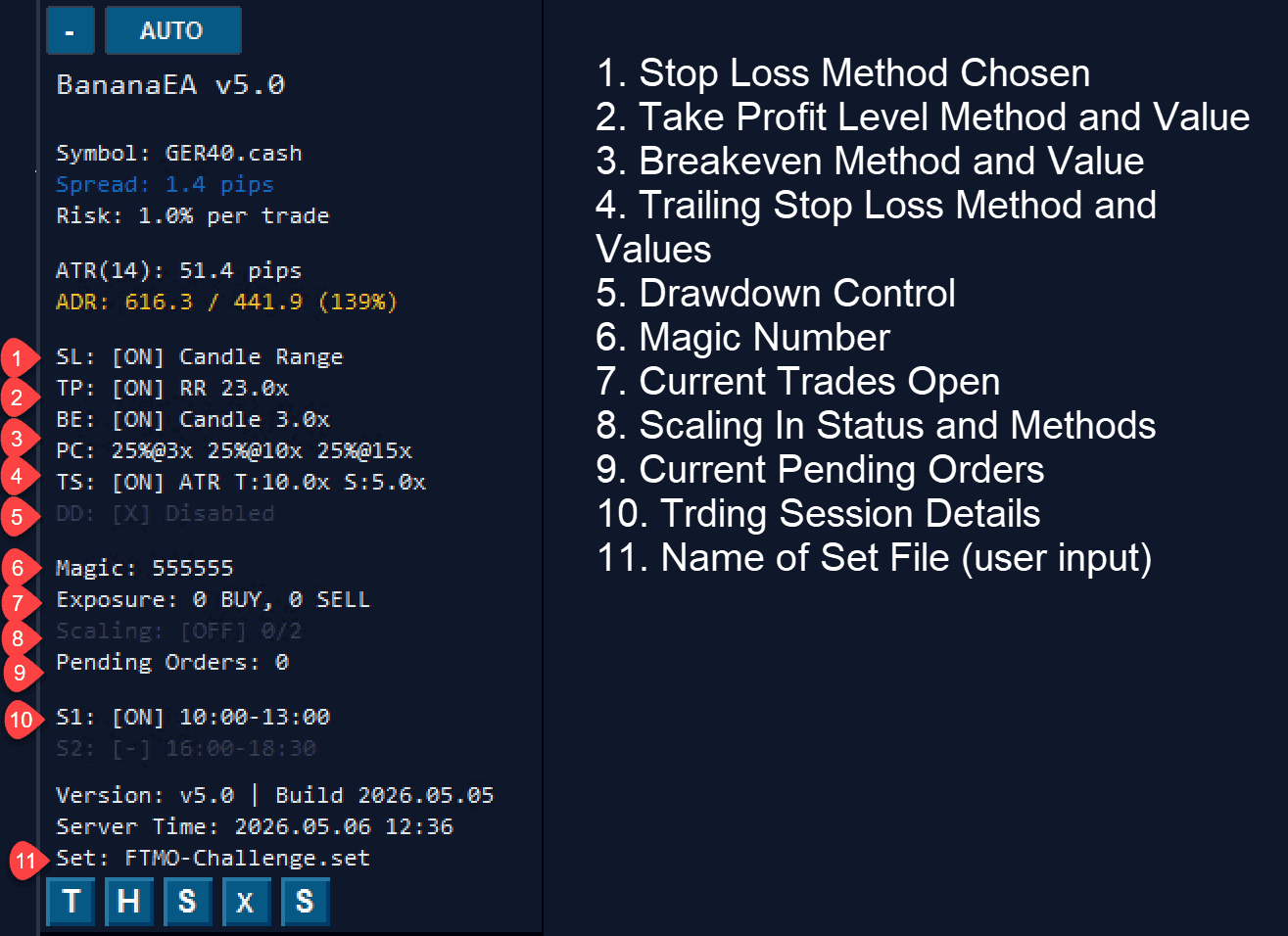
Upgrade From Version 4
Version 4 uses the existing stable path:
MQL4\Experts\BananaEA.ex4
Version 5 installs separately under the iTradeAIMS expert folder:
MQL4\Experts\iTradeAIMS\BananaEA-Auto.ex4
Recommended upgrade approach:
- Leave existing Version 4 charts unchanged.
- Install Version 5 into the same MT4 data folder.
- Open a new chart for Version 5.
- Load a Version 5 preset.
- Use demo or Strategy Tester first.
- Move one live workflow at a time only after you understand the Version 5 settings.
Version 5 may not match the same performance profile as an existing Version 4 setup because trade management, filters, scaling, cancellation, and risk behavior can differ.
Version 4 And Version 5 Together
You can install both versions in the same MT4 terminal. Do not attach both versions to the same chart. Use separate charts, separate presets, and separate or intentionally planned Magic Numbers.
Manual ZIP Fallback
The installer is the standard installation method. Use the manual ZIP only if support provides it, or if Windows, SmartScreen, antivirus, firewall, or company policy blocks the installer and support confirms the ZIP path.
- Open the MT4 data folder from
File > Open Data Folder. - Close MT4.
- Extract the ZIP.
- Copy the packaged
MQL4andtesterfolders into the MT4 data folder. - Reopen MT4.
- Confirm the EA appears under
Expert Advisors > iTradeAIMS.
After Installation
Check these items before using Version 5:
- The EA appears under
Expert Advisors > iTradeAIMS. - The EA can be attached to a new chart.
- Your license key is accepted.
- A Version 5 preset is loaded. See Presets And Set Files if you need the click-by-click loading steps.
- AutoTrading is enabled only when intended.
- Version 4 and Version 5 are on separate charts with separate or intentionally planned Magic Numbers.
Common Problems
I Cannot Find The EA In MT4
- Restart MT4.
- Right-click Navigator and choose
Refresh. - Confirm you selected the correct data folder during install.
- If you have several broker terminals, repeat the install for the terminal you are using.
The License Is Not Accepted
- Check that the License Key input is entered exactly as issued.
- Confirm internet access is available.
- Confirm the installed package is the official customer package.
- Remove and reattach the EA after correcting the key.
- Contact support if the message remains.
Version 5 Behavior Looks Different From Version 4
This can be expected. Version 5 changes presets, trade management, filters, scaling, pending-order behavior, and risk controls. Use Version 5 presets only, then test on demo or in Strategy Tester before moving a live workflow.