Presets And Set Files
Use this page to load, verify, and save BananaEA Version 5 .set files.
Version 5 uses Version 5 presets. Version 4 and Version 5 .set files are not interchangeable.
Do not load Version 4 .set files into BananaEA Version 5. Version 5 requires presets built for Version 5—use the official Version 5 presets or save your own after configuring Version 5 on a chart.
Before Loading A Set File
Check these points first:
- BananaEA Version 5 is installed. See Install And Upgrade.
- The EA is attached to a demo chart or Strategy Tester before live use.
- The
.setfile is an official Version 5 preset or a Version 5 preset you created yourself. - The symbol, timeframe, risk level, and account purpose match the preset you plan to load.
- You have your license key ready because the License Key input may need to be entered or confirmed after loading.
- AutoTrading is enabled only when you are ready for the EA to manage trades.
Why Presets Changed
Version 5 includes changed or expanded behavior in:
- Smart Risk Monitor and challenge controls
- trade management
- partial close levels
- scaling in
- scaling out
- trailing activation
- pending-order cancellation
- day-of-week controls
- filters and signal blocking
Because these inputs affect trade entries, exits, and risk, a Version 4 preset cannot safely represent a Version 5 setup.
Version 5 Preset Locations
The public Version 5 package includes customer preset files in:
MQL4\Presets\iTradeAIMS\BananaEA\
The Strategy Tester preset is also staged under:
tester\
The default package preset name is:
BananaEA-Auto-Default.set
The installer normally places the preset files for you. If support gives you a separate .set file, copy it into:
MQL4\Presets\iTradeAIMS\BananaEA\
If that folder does not exist, open the MT4 data folder from File > Open Data Folder, create the missing folders under MQL4\Presets, then copy the .set file there.
If you use more than one MT4 terminal, repeat this for each terminal's own data folder. Each broker terminal has its own data folder.
Load A Version 5 Set File
- Open MT4.
- Open a chart for the symbol and timeframe you want to test.
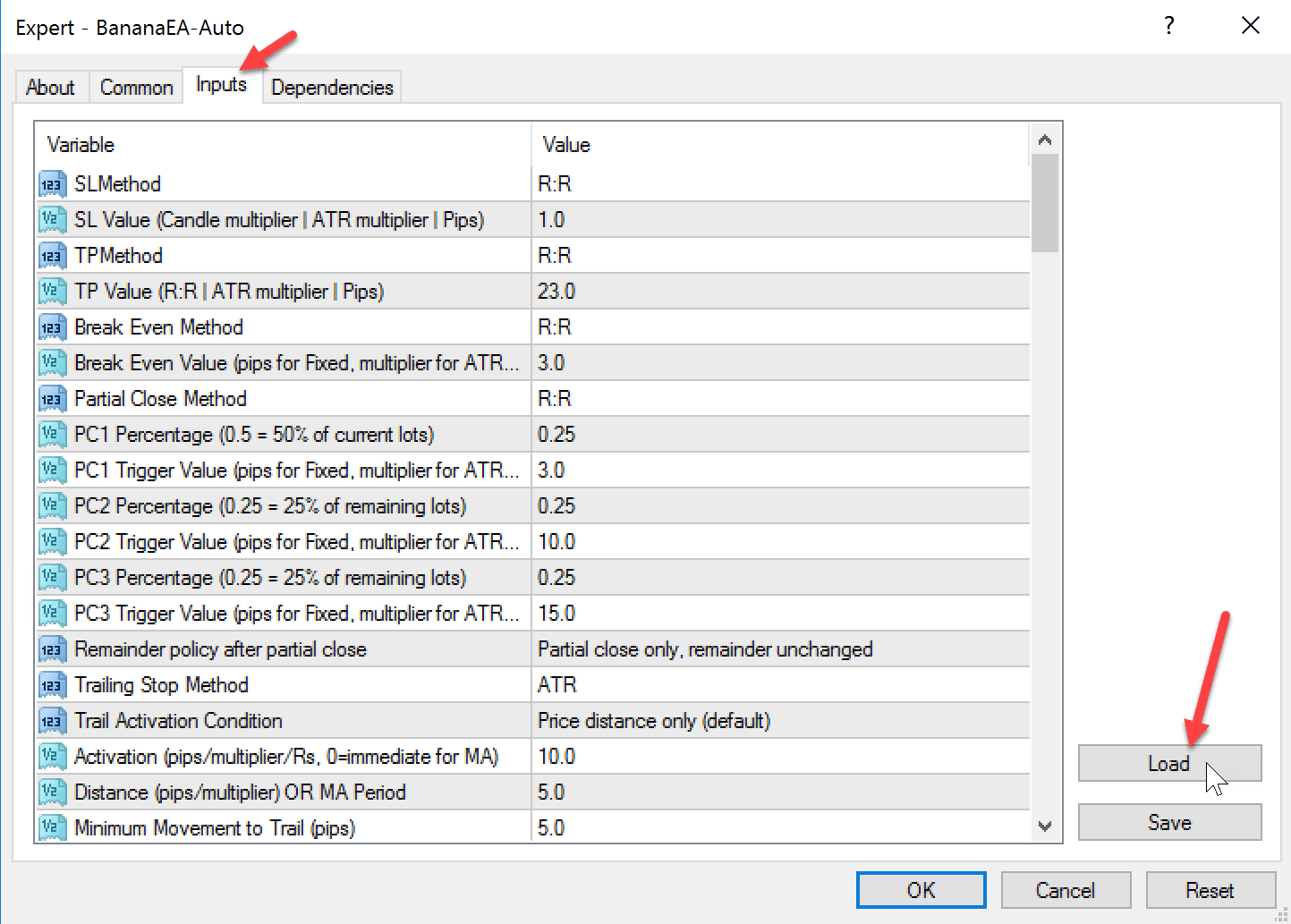
- Open
Navigator > Expert Advisors > iTradeAIMS. - Drag
BananaEA-Autoonto the chart, or double-click it. - In the EA settings window, open the
Inputstab. - Click
Load.
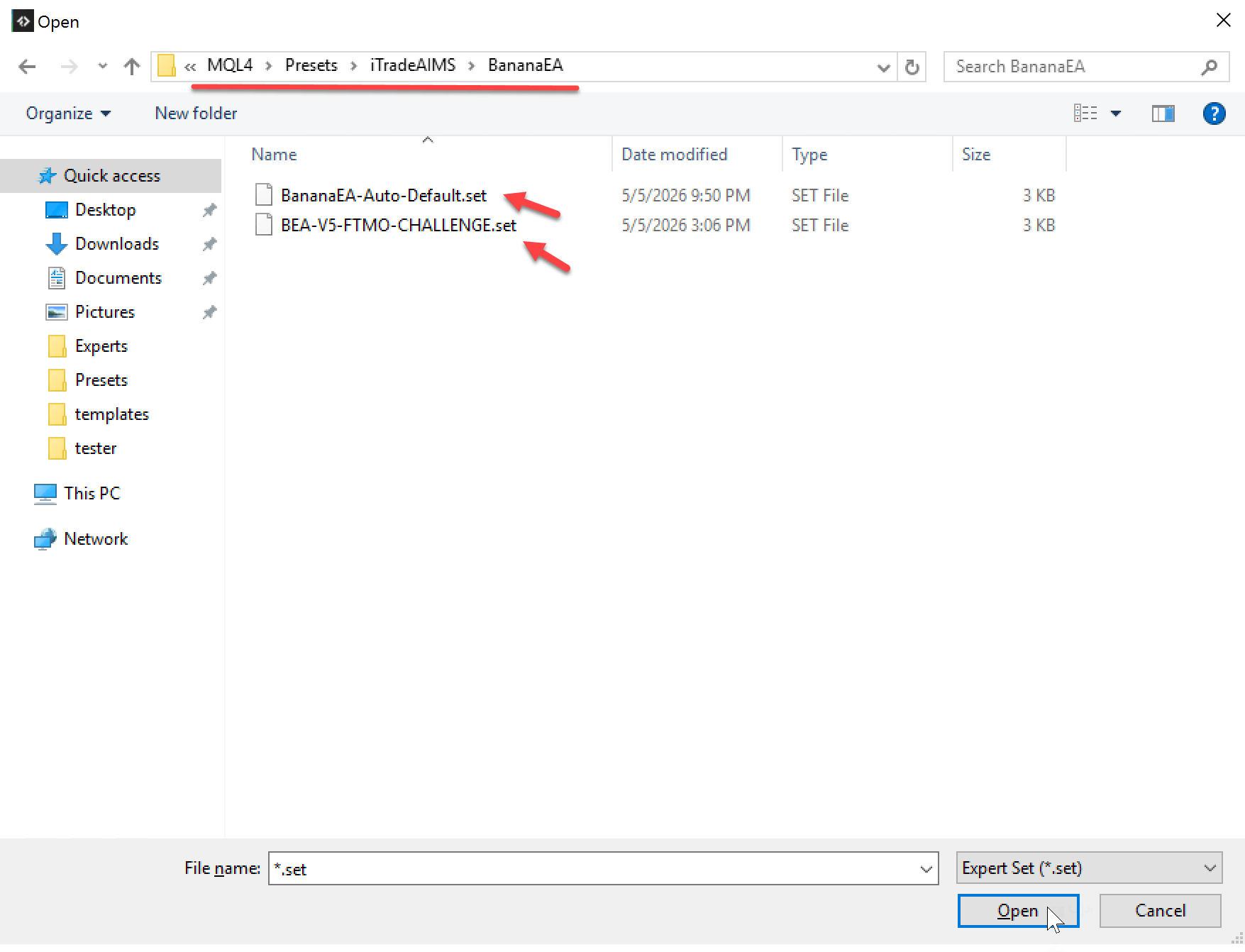
- Browse to the Version 5 preset folder if MT4 does not open it automatically:
MQL4\Presets\iTradeAIMS\BananaEA\
- Select the Version 5
.setfile you want to use. - Click
Open.
- Confirm the inputs changed in the Inputs list.
- Enter or confirm your license key in the License Key input.
- Confirm Magic Number is unique for this chart unless you deliberately planned to share it.
- Click
OK.
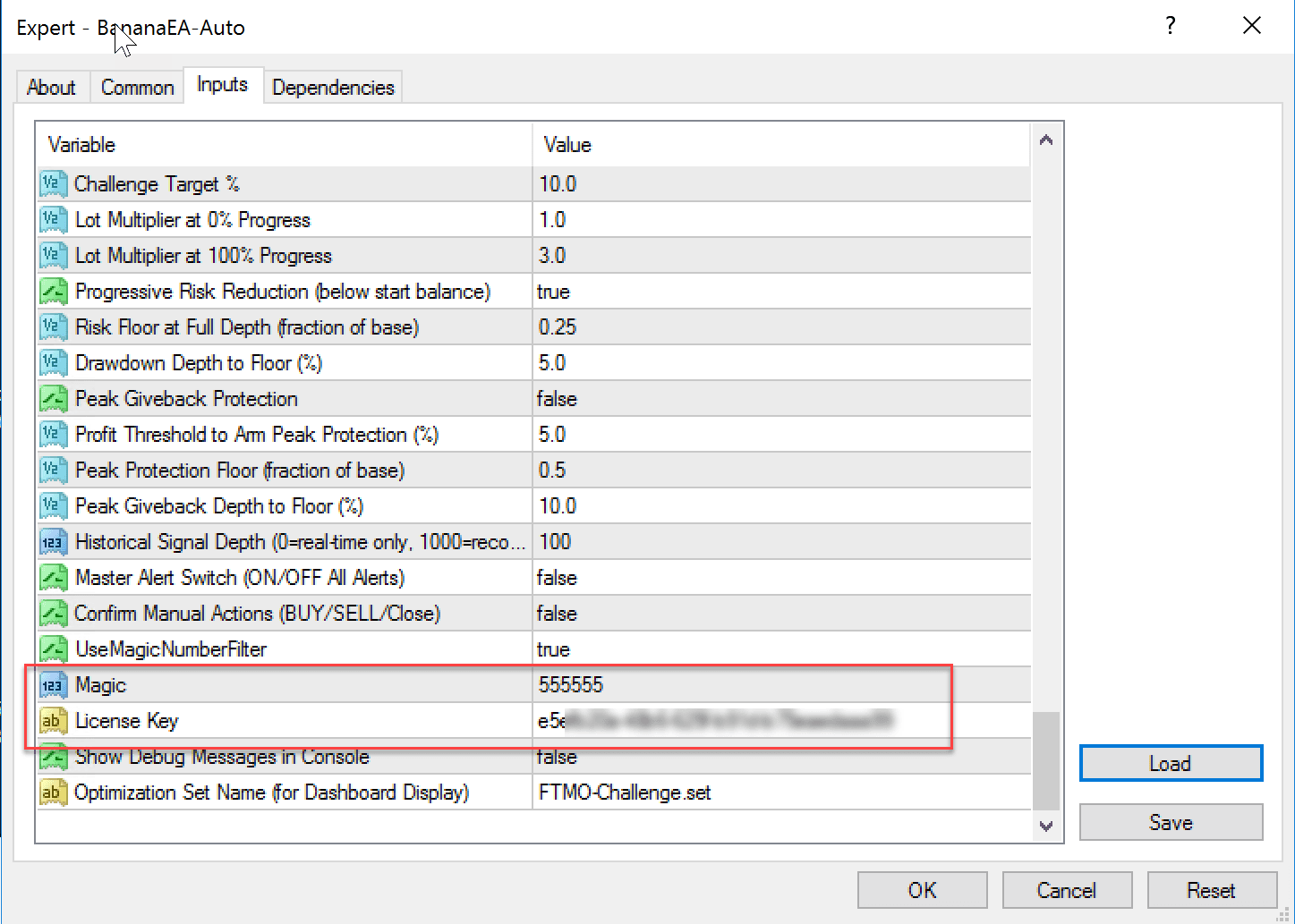
Do not click OK until you have checked the risk, session, Magic Number, and trade-management inputs.
Verify The Loaded Preset
After the EA appears on the chart, check:
- The dashboard shows the expected set file name.
- Magic Number matches your plan for this chart.
- Risk settings match the account and test purpose.
- Session times match the broker/server time you intend to trade.
- The symbol and timeframe match the preset purpose.
- AutoTrading is enabled only when you are ready.
- You are testing on demo or in Strategy Tester before using live funds.
If the dashboard does not match the preset you expected, remove the EA from the chart, attach it again, and reload the preset.
Magic Number Planning
Use separate or intentional Magic Numbers when Version 4 and Version 5 are both installed. This helps prevent one chart from managing or interpreting another chart's trades unexpectedly.
Use a different Magic Number for each independent chart unless you intentionally want multiple charts to share management behavior.
Safe Preset Migration Workflow
- Keep the Version 4
.setfile as a reference only. - Open Version 5 on a demo chart.
- Load a Version 5 preset.
- Manually compare risk, symbol, timeframe, session, and trade-management intent.
- Save a new Version 5
.setfile. - Backtest the new Version 5 setup before live use.
Do not use a file rename as a migration method. Renaming a Version 4 .set file does not make it compatible with Version 5.
Save Your License Key For Future Loads
If this is your own computer or VPS, you can save a personal Version 5 .set file after entering your license key. Loading that saved file later can restore the key so you do not need to type it again every time.
Treat this saved file as private because it can contain your license key.
- Load the Version 5 preset first.
- Enter your license key in the License Key input.
- Confirm the risk, session, Magic Number, and trade-management inputs.
- Click
Savein the Inputs tab. - Save the file under a new private filename.
- Click
OKto attach or update the EA on the chart.
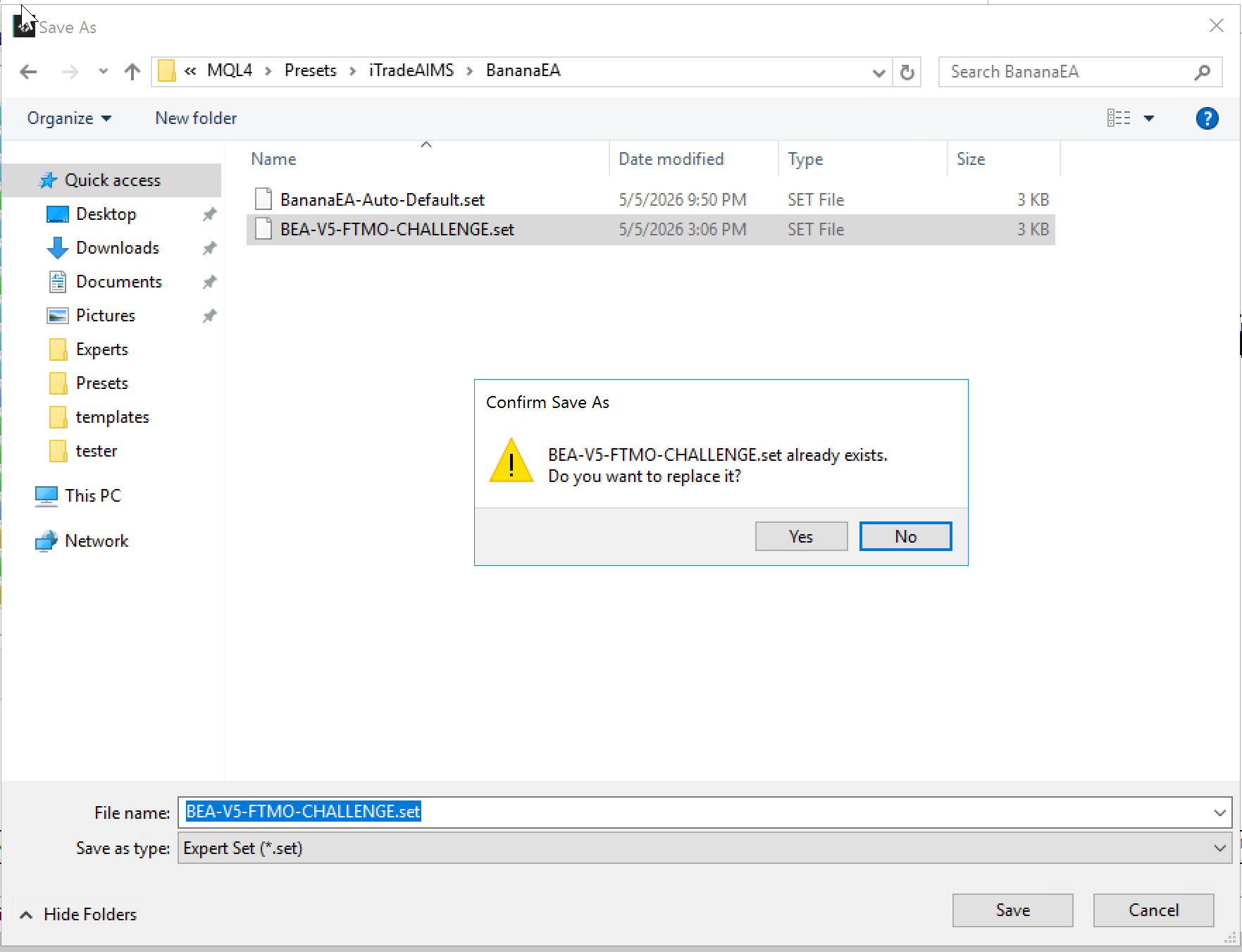
Use a clear filename that includes the EA version, purpose, symbol, timeframe, and risk level. For example:
BananaEA-v5-GER40-M5-demo-1pct-private.set
Do not overwrite official presets unless support specifically tells you to do that. If Windows asks whether to replace an existing file, choose No unless you intentionally want to overwrite that file.
Save A Custom Version 5 Set File
Use this when you adjust an official Version 5 preset and want to keep your own copy without changing the original.
- Load the Version 5 preset first.
- Adjust the inputs you understand and intend to change.
- Decide whether this saved file is private or shareable.
- If it is private, you may keep your license key in the file for future loading.
- If you plan to share it, remove the license key before saving.
- Click
Savein the Inputs tab. - Save the file under a new name.
- Keep the original official preset unchanged.
Use a clear filename that includes the EA version, purpose, symbol, timeframe, and risk level. For example:
BananaEA-v5-GER40-M5-demo-1pct.set
Do not overwrite official presets unless support specifically tells you to do that.
Save The Full Chart As A Template
A .set file saves EA input values. An MT4 template saves the broader chart setup: chart appearance, timeframe, indicators, objects, and the EA attached to that chart with its inputs.
Use a template when you want to open a new chart later and recreate the same chart setup quickly.
- Load the Version 5 preset and enter your license key if you want the template to remember it.
- Set up the chart exactly how you want it.
- Confirm the EA dashboard, set file name, Magic Number, timeframe, and chart appearance.
- Click the Templates button on the MT4 toolbar.
- Click
Save Template.... - Save the template under a clear private name.
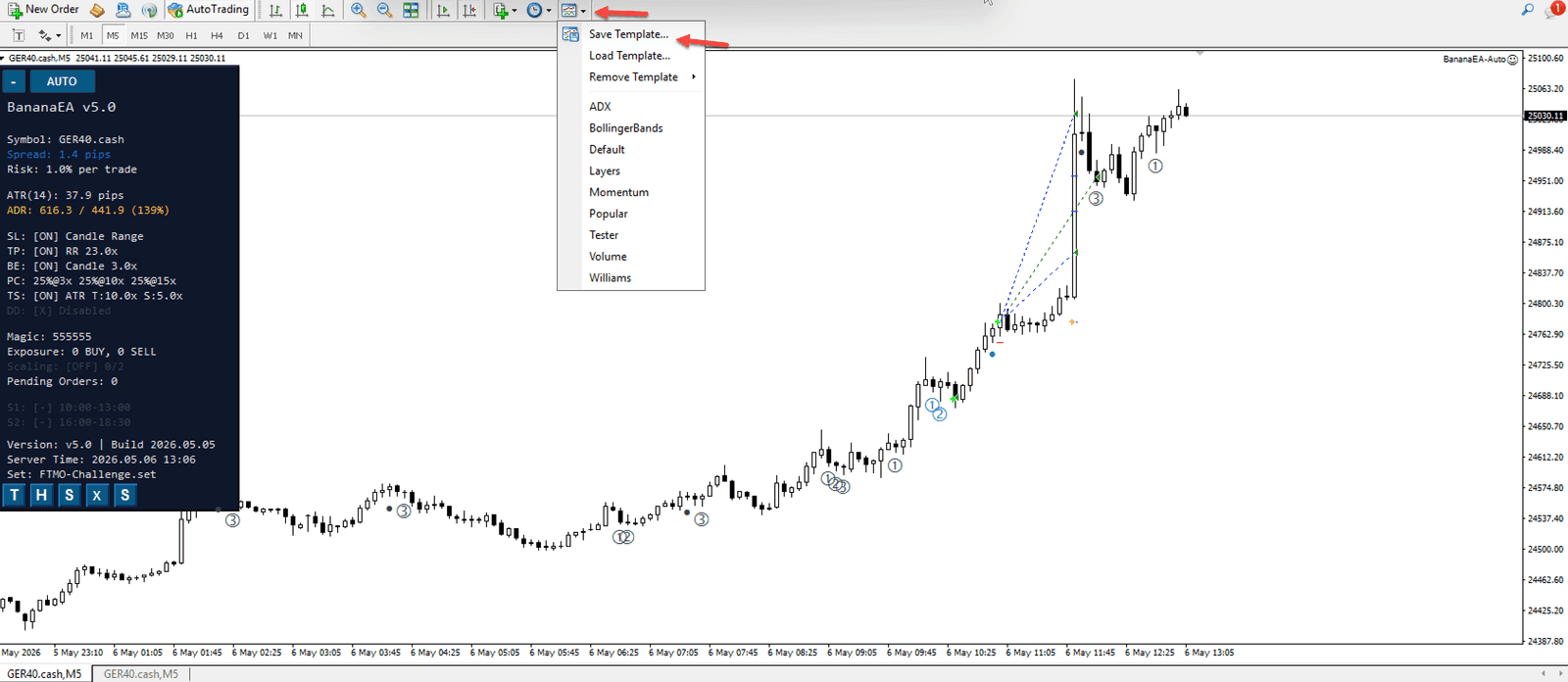
To reuse the setup:
- Open a new chart.
- Click the Templates button.
- Click
Load Template.... - Choose the saved template.
- Confirm the EA appears on the chart and the dashboard settings match your saved setup.
Templates are useful for repeating your own chart setup, but they are not an installer. BananaEA Version 5 must already be installed in that MT4 terminal. If the template contains your license key, treat it as private and do not share it.
Sharing Set Files
A .set file or template can include sensitive settings if it was saved after you entered them. Before sharing a file with support or another user:
- Remove the License Key value if it is present.
- Check account-specific risk settings.
- Check Magic Number.
- Confirm the file is a Version 5 preset.
Do not post license keys, account details, private templates, or private broker information in public channels.
Common Problems
The Preset Does Not Appear In The Load Window
- Confirm the file ends in
.set. - Confirm it was copied into the correct MT4 data folder.
- Browse manually to
MQL4\Presets\iTradeAIMS\BananaEA\. - If you have several broker terminals, open
File > Open Data Folderin the exact terminal you are using and copy the file there.
The EA Loads But Behavior Looks Wrong
- Confirm the preset is a Version 5
.setfile. - Confirm the symbol and timeframe match the preset purpose.
- Confirm Magic Number, risk, sessions, filters, and trade-management inputs.
- Remove the EA, attach it again, and reload the preset if the dashboard does not update as expected.
The Preset Came From Version 4
Do not load it into Version 5. Use it as a reference only, then rebuild the setup with a Version 5 preset and save a new Version 5 .set file.