Settings
The Banana Indicator settings are platform-specific. MT4 and MT5 settings can differ, and TradingView uses its own script and chart interface.
Choose your settings guide:
- TradingView settings — v3 Pine Inputs (groups 1–10)
- MT5 settings — MetaTrader 5 Inputs tab
- MT4 settings — MetaTrader 4 Inputs tab
SerialKey
MetaTrader versions use the SerialKey input for license validation.
Enter the key exactly as issued. Avoid extra spaces before or after the key.
If the key is rejected:
- Check spelling and spacing.
- Confirm internet access.
- Remove and reattach the indicator.
- Contact support if the message remains.
TradingView access is managed by TradingView invite-only script permission, not by a MetaTrader SerialKey input.
Dashboard
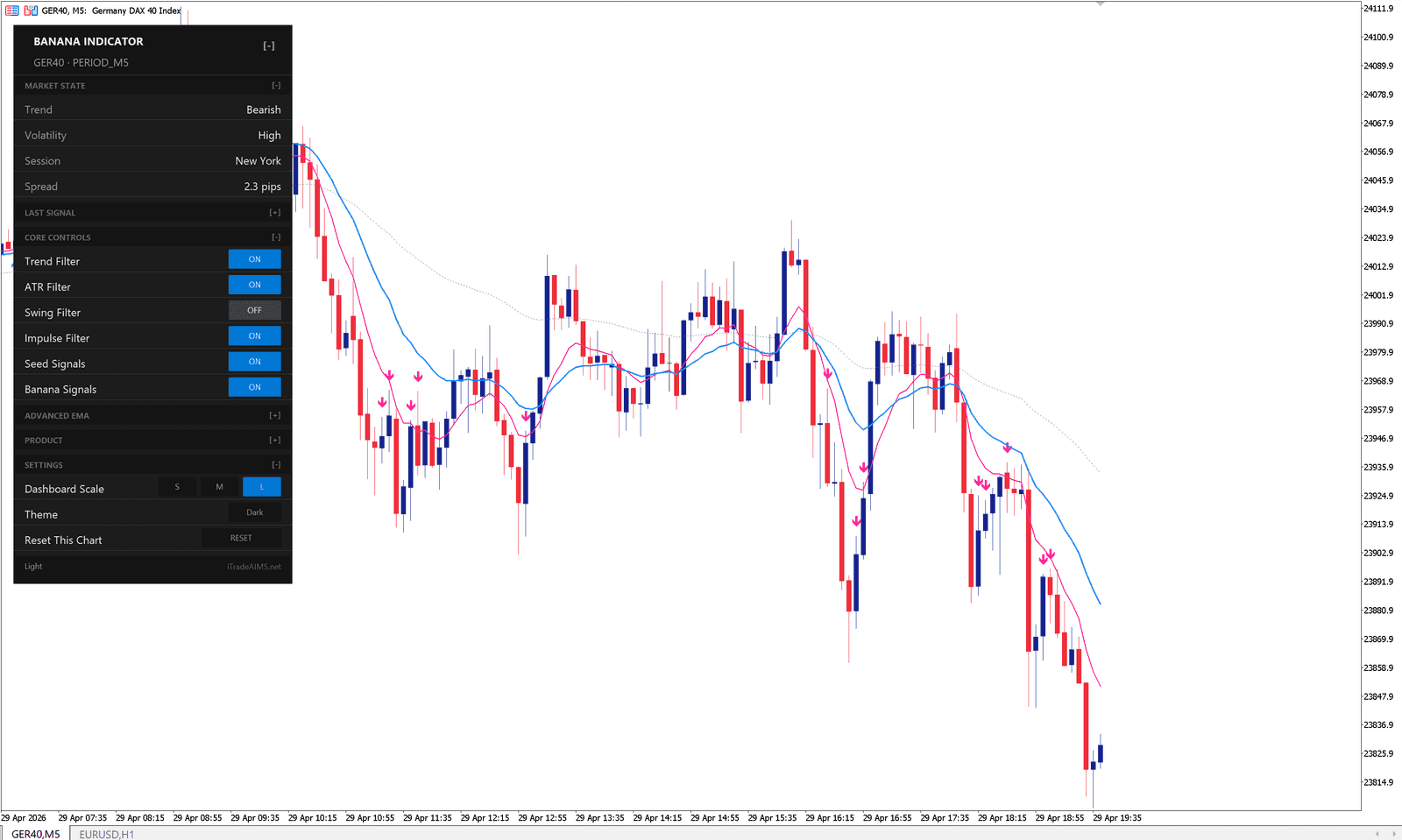
Show/Hide Main Dashboard
Turns the MetaTrader dashboard on or off.
Use on if:
- You want quick chart status.
- You want dashboard controls.
- You are learning what the indicator is showing.
Use off if:
- You want a cleaner chart.
- You are using a small screen.
- You only need signal markers.
Signal Visibility
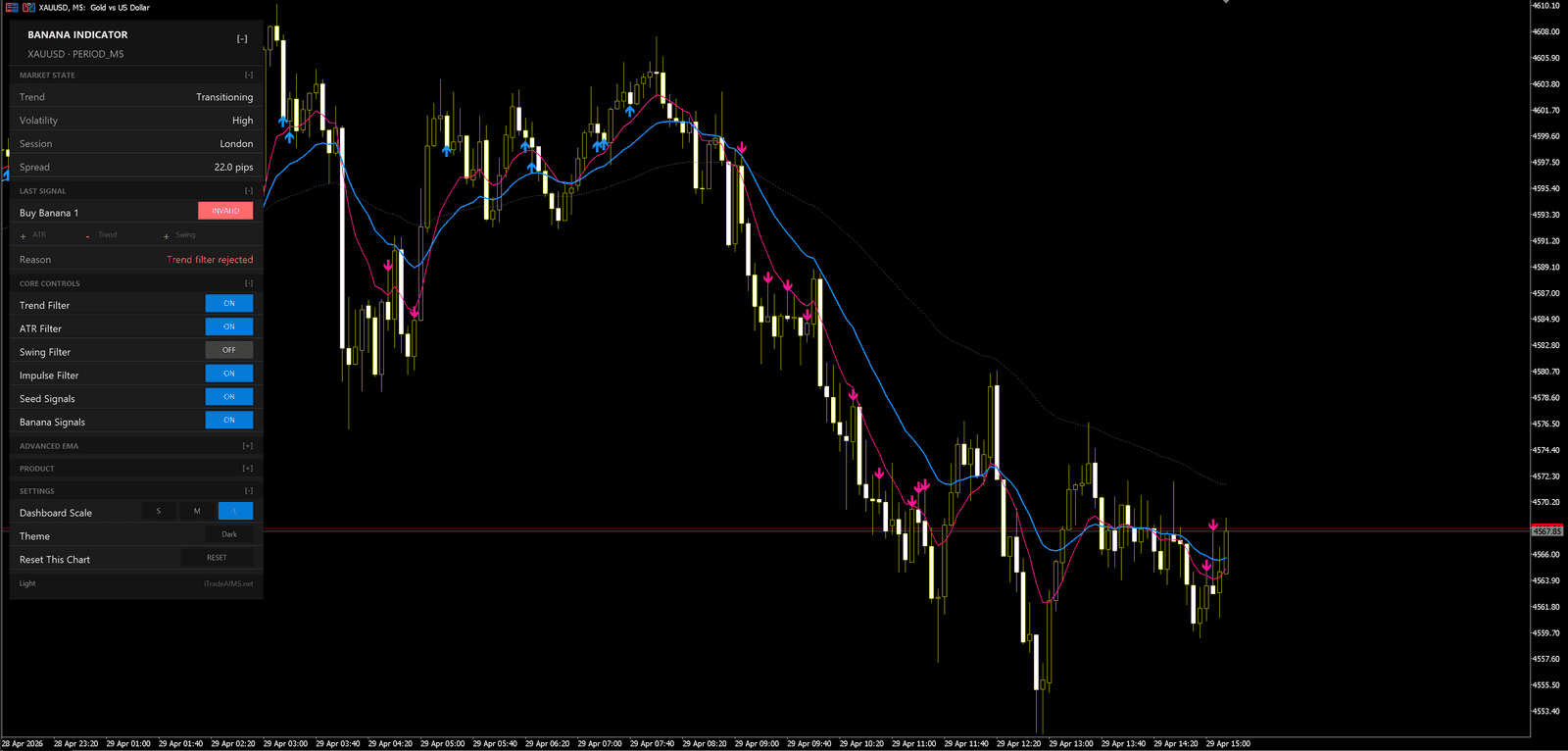
Banana Signals
MetaTrader versions may include:
- Show #1 Banana
- Show #2 Banana
- Show #3 Banana
- Show #4 Banana
- Show #5 Banana
- Show #6 Banana
- Show #7 Banana
These control which Banana signal counts are visible.
Beginner suggestion: leave defaults at first. If the chart feels busy, reduce visible signal types later.
Seed Signals
MetaTrader versions may include:
- Show #1 Seed
- Show #2 Seed
- Show #3 Seed
Seed signals are earlier pattern markers. If you are new, consider hiding Seed signals until you understand the main Banana signals.
EMA Lines
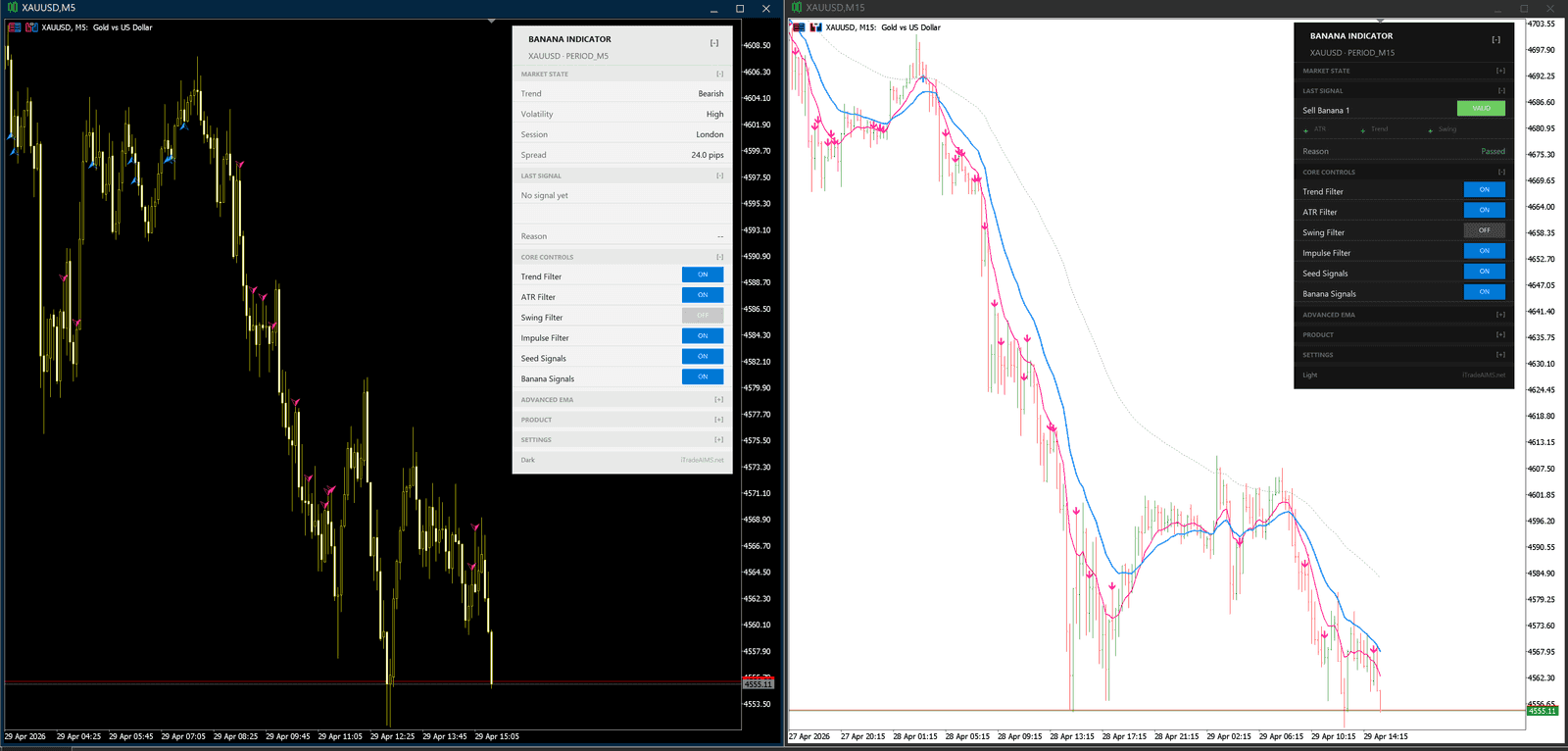
Display EMA Lines On Chart
Shows or hides moving average lines on the chart.
Use on if you want to see the trend reference. Use off if the chart becomes too crowded.
EMA Colors And Width
In MetaTrader, open the indicator settings and use the Colors tab to change EMA line appearance.
You can adjust:
- EMA Fast color and width.
- EMA Slow color and width.
- EMA Slowest color, width, and line style.
These settings only change how the lines look on the chart. They do not change the signal calculation.
Alerts
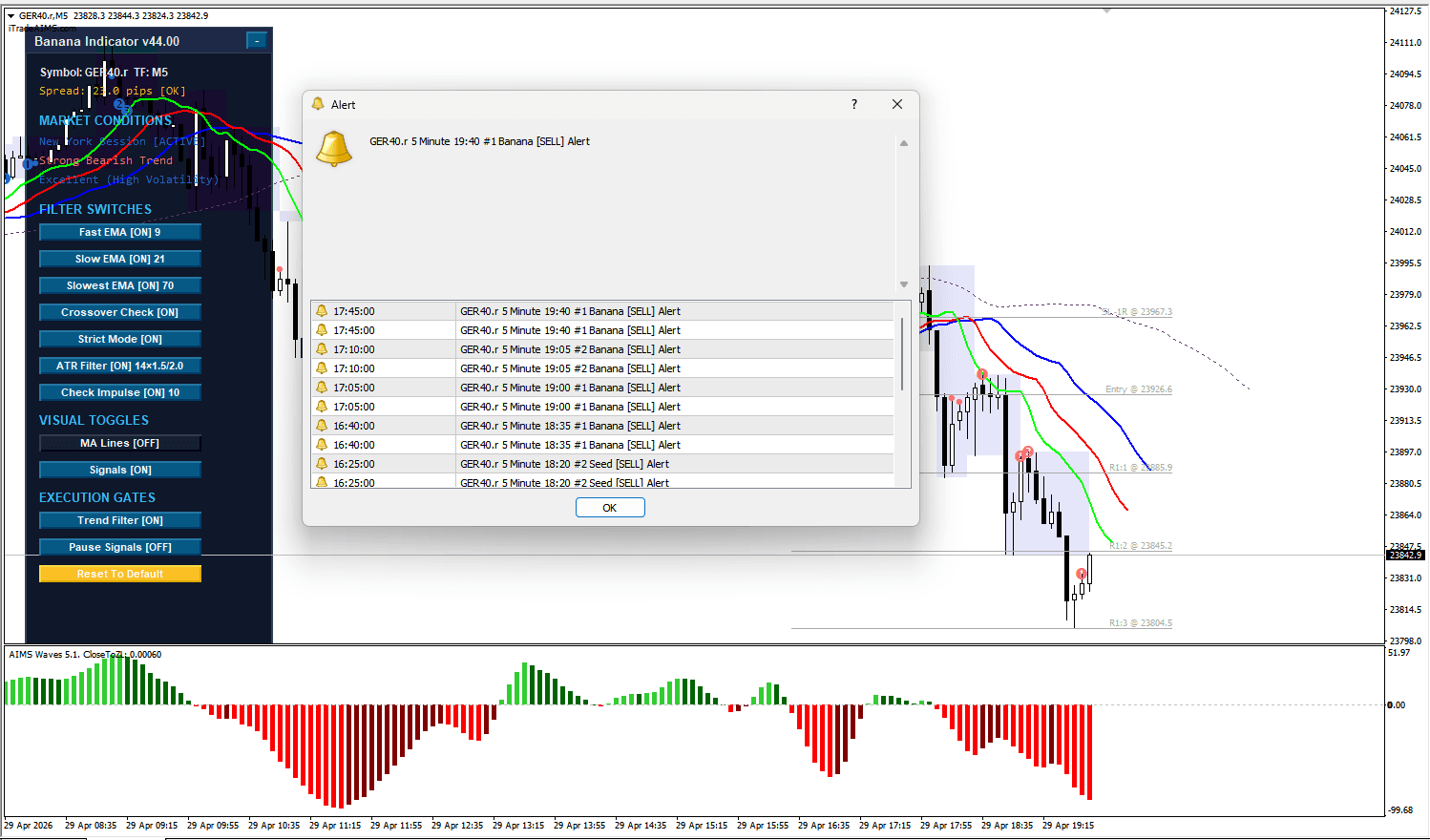
Common MetaTrader alert settings:
- Show Pop Up Alert
- Play Sound File at Alert
- Send Email Alert
- Send Push Notification
- Sound File Name
Start with popup alerts only. Add sound, email, or push after testing your platform settings.
TradingView alerts are created from TradingView's alert menu.
Signal Control
Pause New Signal Generation
Stops new signal markers while the indicator remains attached.
Use this if:
- You want to observe the chart without new signals.
- You are testing settings.
- You want a pause during news or uncertain conditions.
Turn it off again when you want new signals to appear.
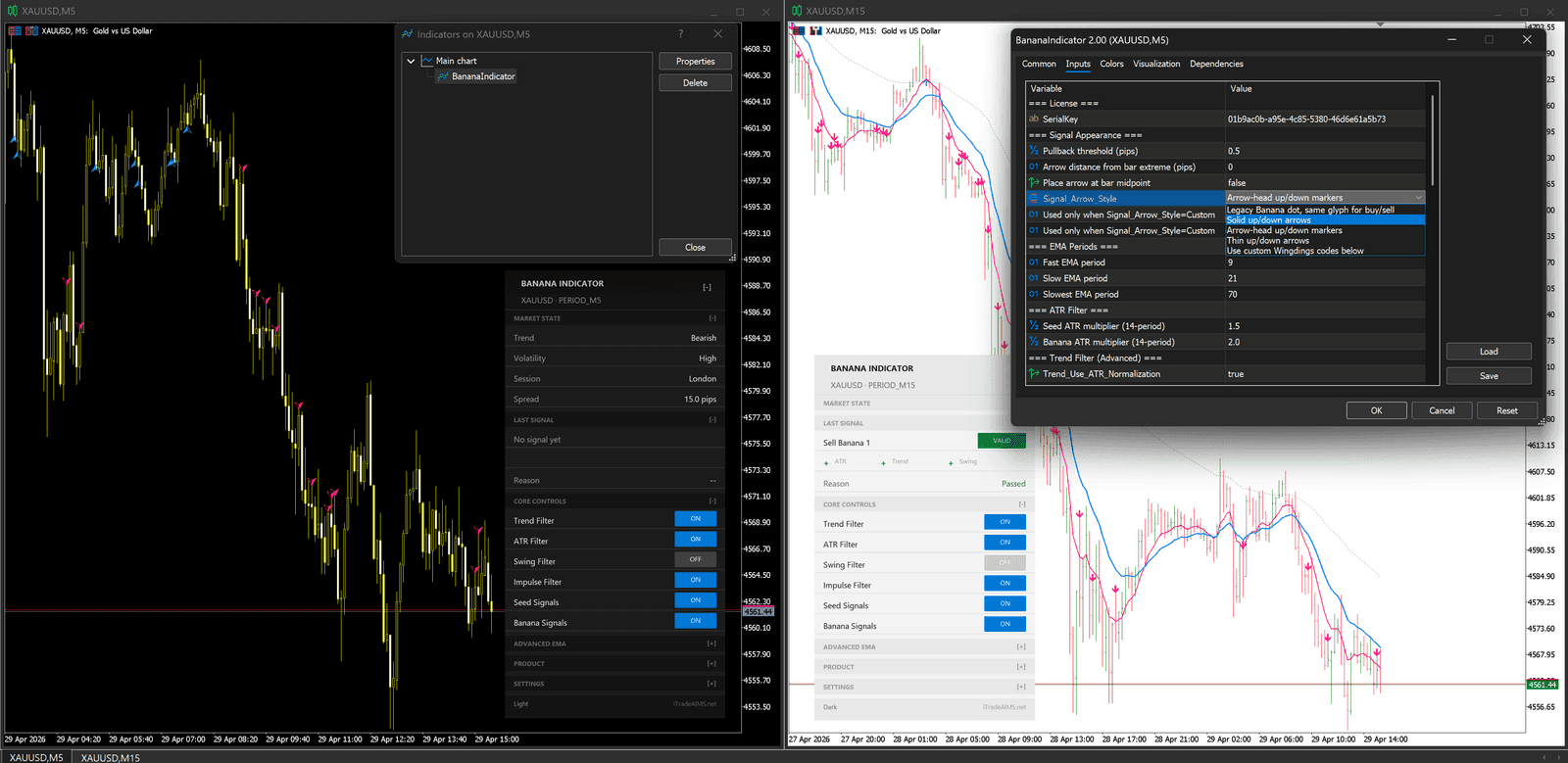
Signal Appearance
Common MetaTrader appearance settings can include:
- Signal Arrow Style
- Custom Buy Arrow Code
- Custom Sell Arrow Code
- Arrow distance from bar/candle high or low
- Display Signal Mid Bar
Change these only for visibility. They affect how markers look, not whether a trade should be taken.
Marker Colors And Size
In MetaTrader, the Colors tab controls the basic display style for chart markers and lines.
Common rows include:
Buy: buy marker color and width.Sell: sell marker color and width.Buy Type: buy marker style.Sell Type: sell marker style.
Use this when arrows are too small, too large, or hard to see against your chart background. Keep changes visual only; changing marker colors or widths does not make a signal stronger or weaker.
Advanced Settings
Advanced settings can include ATR, trend, impulse, breakout, and retracement controls.
Do not change them during your first setup. If support asks for a screenshot, include the full Inputs tab so your current settings can be reviewed.
Safe Setup Routine
When changing settings:
- Change one setting at a time.
- Write down what you changed.
- Watch a few signals before changing another setting.
- Return to defaults if the chart becomes confusing.