MT4 Settings
Use this page to review the main settings areas for The Banana Indicator MT4.
MT4 and MT5 do not use the same settings screens or dashboard implementation. Use this page only for the MT4 version.
Open Settings
- Right-click the chart.
- Select Indicators List.
- Select
The Banana Indicator MT4. - Select Edit or Properties.
- Open the Inputs tab.
Signal Appearance
Use Signal Appearance settings to control how markers are placed on the chart:
- Banana Symbol Width controls the size of Banana markers.
- Seed Symbol Width controls the size of Seed markers.
- Distance from Candle High/Low moves markers away from the candle.
- Show Number on Seed Signals controls whether Seed markers include numbers.
- Display Signal Mid Bar places the marker around the candle midpoint instead of the candle extreme.
- Signal Threshold (pips) controls the pullback threshold used by the signal logic.
Change these settings only when you need the chart to be easier to read. They should not be treated as a complete strategy by themselves.
Signal Types
Use Signal Types (Show/Hide) to reduce chart clutter:
- Show #1 Banana through Show #7 Banana control Banana signal types.
- Show #1 Seed through Show #3 Seed control Seed signal types.
- Show/Hide all signal arrows is the master visibility control for signal markers.
Recommended first setup: keep Banana signals visible, then add Seed signals only after you understand why you want earlier or developing signal information.
Arrow Styles
Use Arrow Styles (Wingdings) only if you need different marker symbols.
Each Banana and Seed signal type has separate buy and sell arrow codes. If you change these values, change one signal type at a time and confirm the chart still remains readable.
ATR Filters
The MT4 version uses ATR Filters (14 Period) to avoid signals where the measured move is too large relative to current volatility:
- Enable Seed ATR Filter controls the Seed signal ATR filter.
- Seed ATR Multiplier controls the Seed threshold.
- Enable Banana ATR Filter controls the Banana signal ATR filter.
- Banana ATR Multiplier controls the Banana threshold.
These settings are symbol-sensitive because ATR changes with the market and timeframe.
Pattern Recognition
Use Pattern Recognition settings to control extra pullback checks:
- Check Max 50% Pullback filters pullbacks that retrace too far.
- Check Min 25% Pullback filters pullbacks that are too shallow.
- Lookback Candles controls the candle window used by selected pattern checks.
These settings affect which pullback conditions qualify. Change them carefully and observe several signals before deciding whether the change helped.
Trend Filters
Use Trend Filters (EMA) to control the moving-average context used by the indicator:
- Fast EMA Period
- Slow EMA Period
- Slowest EMA Period (HTF)
- Display EMA lines used by filters
- Normalize trend strength using ATR
- ATR period used for trend normalization
- Bars back for EMA slope calculation
- Minimum slow-EMA slope (ATR units)
- Minimum EMA separation (ATR units)
- Bars required to confirm trend direction
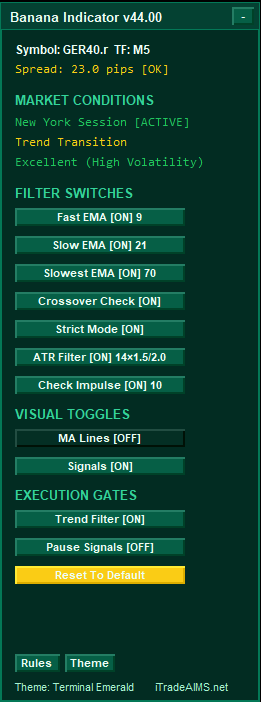
The MT4 dashboard also includes buttons for Fast EMA, Slow EMA, Slowest EMA, Crossover Check, Strict Mode, Trend Filter, and MA Lines. Dashboard changes can affect what you see and how signal candidates are filtered.
Additional Filters
Use Additional Filters to add stricter checks:
- Directional Confirmation - Banana
- Directional Confirmation - Seeds
- Check Breakout
- Breakout Lookback Period
- Confirm Breakout
- Pause new signal generation
If the chart becomes too quiet after changing these options, restore defaults and re-enable filters one at a time.
GUI Display
Use Show/Hide Main Dashboard to show or hide the MT4 dashboard.
The dashboard provides quick controls and status feedback. Hiding it does not mean the indicator has been removed from the chart.
Alerts
Use Alerts settings to control notification methods:
- Send Email Alert
- Send Push Notification
- Play Sound File at Alert
- Show Pop Up Alert
- Sound File Name
Alert settings require MT4 terminal notification settings to be configured as well. Continue with MT4 alerts for the full checklist.
Change One Area At A Time
Use this order when learning:
- Confirm the indicator loads.
- Confirm signal visibility and chart display.
- Confirm dashboard controls.
- Confirm alert settings.
- Review signal or filter settings only after the chart display is clear.