MT5 Settings
Use this page to review the main settings areas for The Banana Indicator MT5.
MT5 is not just the MT4 indicator with different screenshots. The MT5 version has its own inputs and can publish signal and filter state to the MT5 dashboard through the platform bus.
Open Settings
- Right-click the chart.
- Select Indicators List.
- Select
The Banana Indicator MT5. - Select Properties.
- Open the Inputs tab.
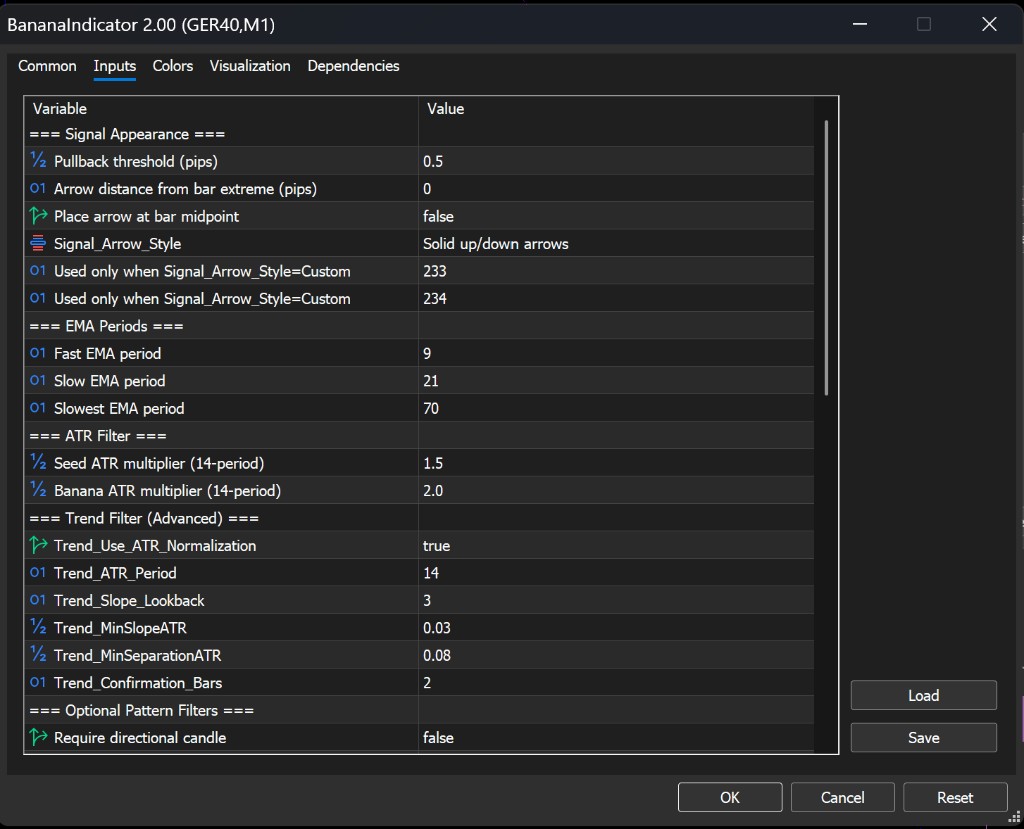
Signal Appearance
Use Signal Appearance settings to control marker placement and marker style:
- Pullback threshold (pips) controls the pullback threshold used by the signal logic.
- Arrow distance from bar extreme (pips) moves markers away from the candle high or low.
- Place arrow at bar midpoint changes marker placement.
- Signal Arrow Style selects the marker style.
- Custom Buy Arrow Code and Custom Sell Arrow Code are used only when the custom marker style is selected.
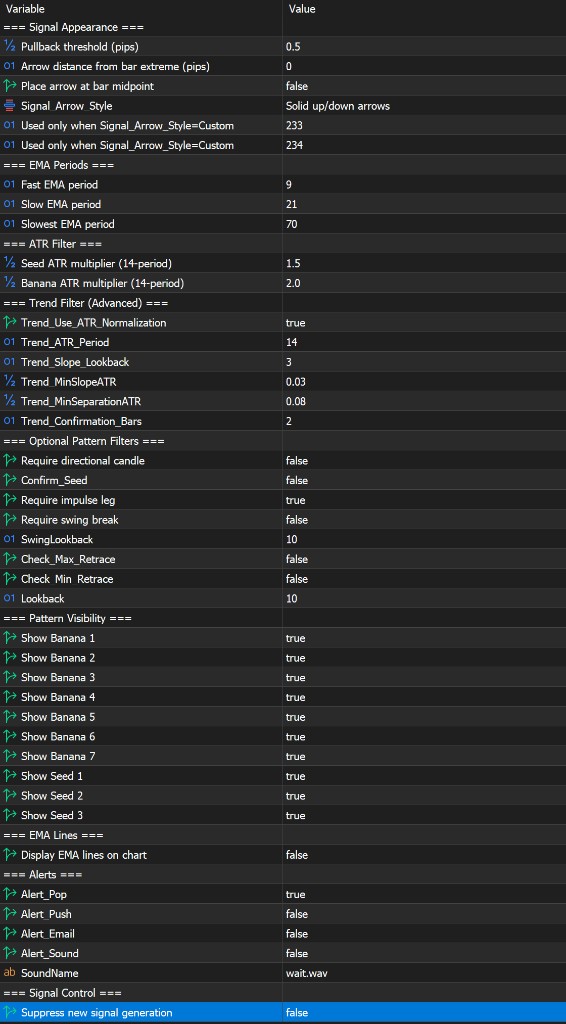
The screenshot above shows the Signal Appearance block at the top of the MT5 Inputs tab.
EMA Periods
Use EMA Periods to control the moving-average context:
- Fast EMA period
- Slow EMA period
- Slowest EMA period
The dashboard can also show or hide EMA lines where that control is available.
ATR And Trend Settings
Use ATR Filter and Trend Filter (Advanced) settings carefully:
- Seed ATR multiplier (14-period)
- Banana ATR multiplier (14-period)
- Trend ATR period
- Bars back for EMA slope calculation
- Minimum slow-EMA slope
- Minimum EMA separation
- Bars required to confirm trend direction
These settings affect whether a candidate signal passes volatility and trend context checks.
Optional Pattern Filters
Use Optional Pattern Filters to add stricter signal qualification:
- Require directional candle
- Require impulse leg
- Require swing break
- Breakout lookback
- Check Max 50% Pullback
- Check Min 25% Pullback
- Lookback
Change one option at a time. If you change several filters together, it becomes difficult to know which setting affected the chart.
Pattern Visibility
Use Pattern Visibility to control which signal types are visible:
- Show Banana 1 through Show Banana 7
- Show Seed 1 through Show Seed 3
Start with fewer visible markers if you are learning the indicator.
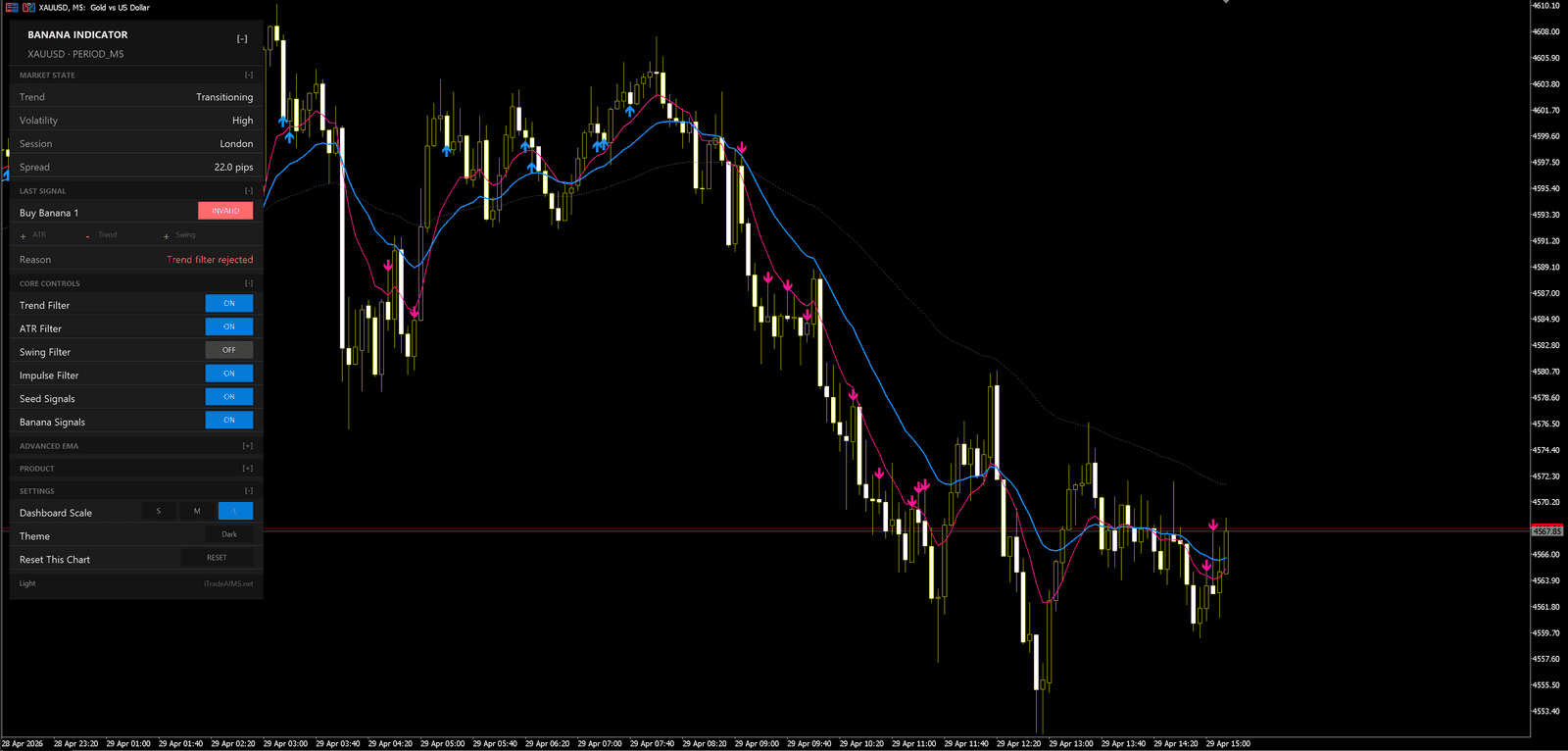
EMA Lines And Signal Control
Use EMA Lines to display or hide EMA lines on the chart.
Use Signal Control to suppress new signal generation when you want to keep the indicator attached but pause new markers.
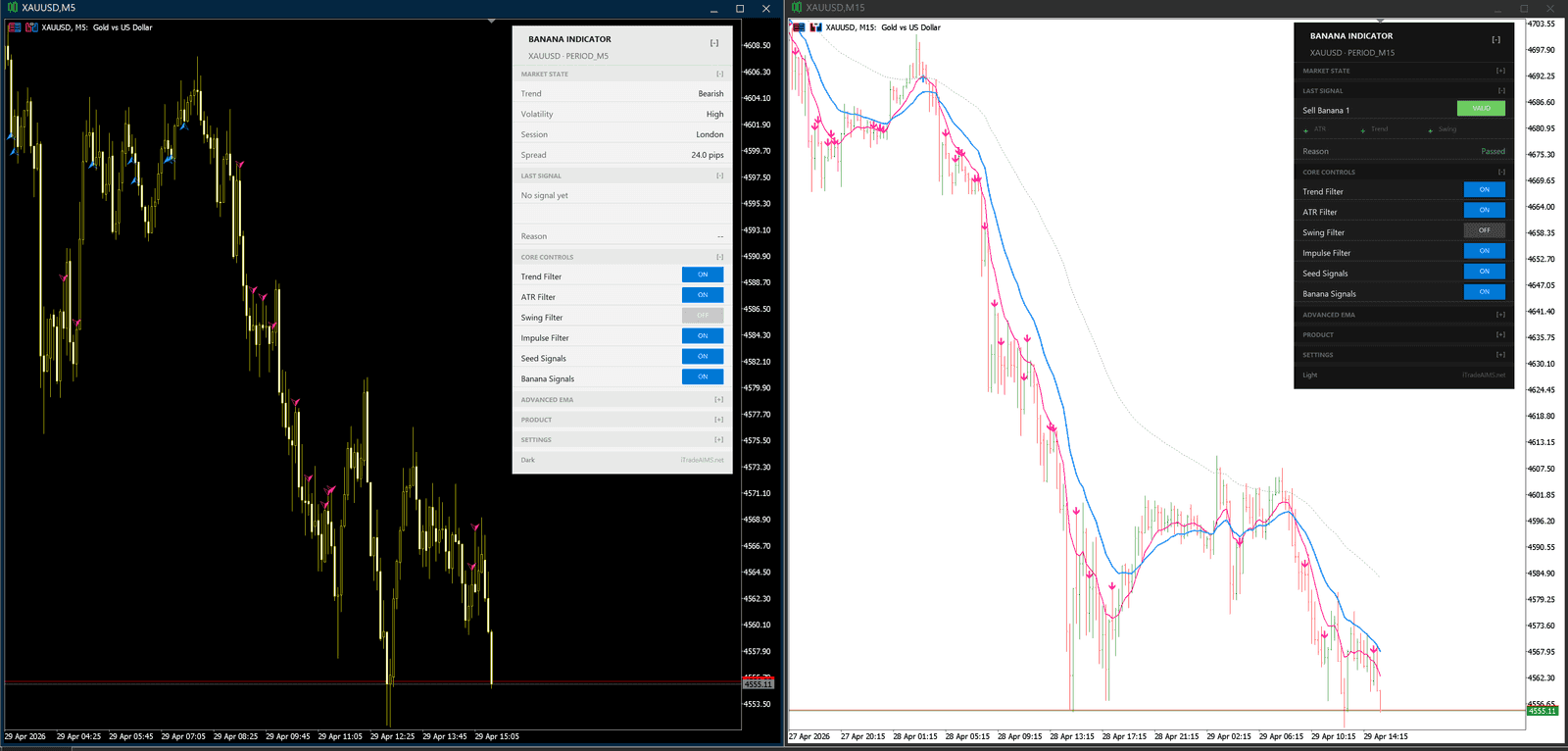
Dashboard Context
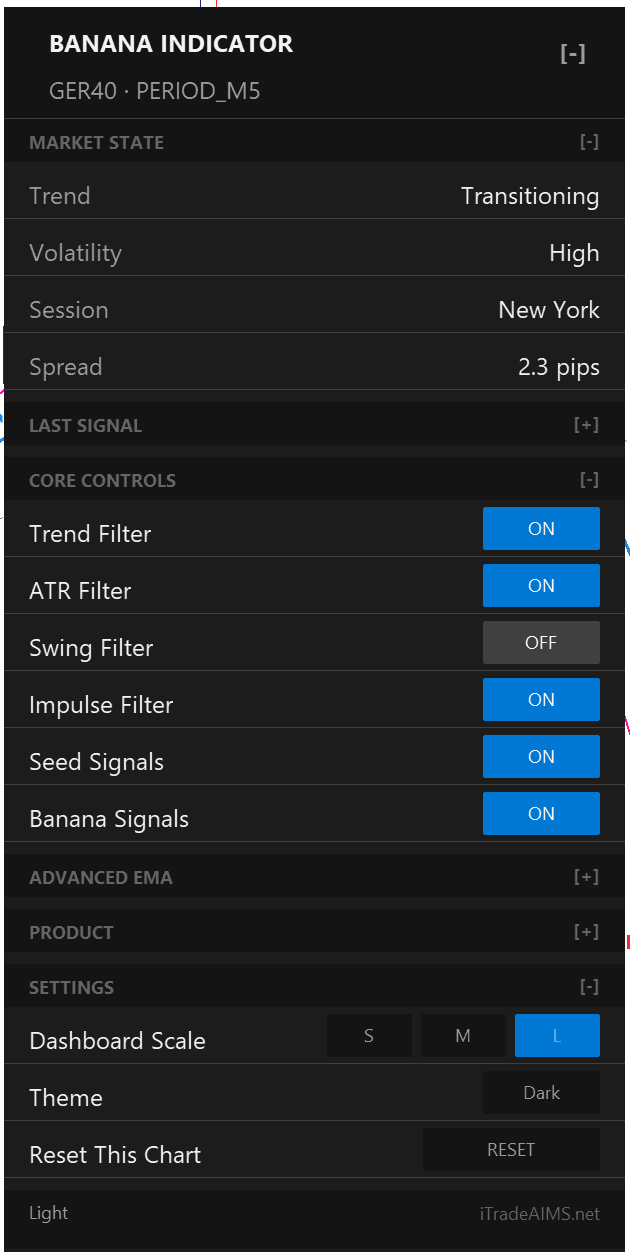
The MT5 indicator can publish filter state, signal state, license state, and dashboard-control state to the MT5 dashboard. Treat dashboard information as decision support, not as a command to trade.
If a panel or setting is not visible in your MT5 build, do not copy MT4 labels as a substitute. Use the labels visible in your MT5 Inputs tab and dashboard.
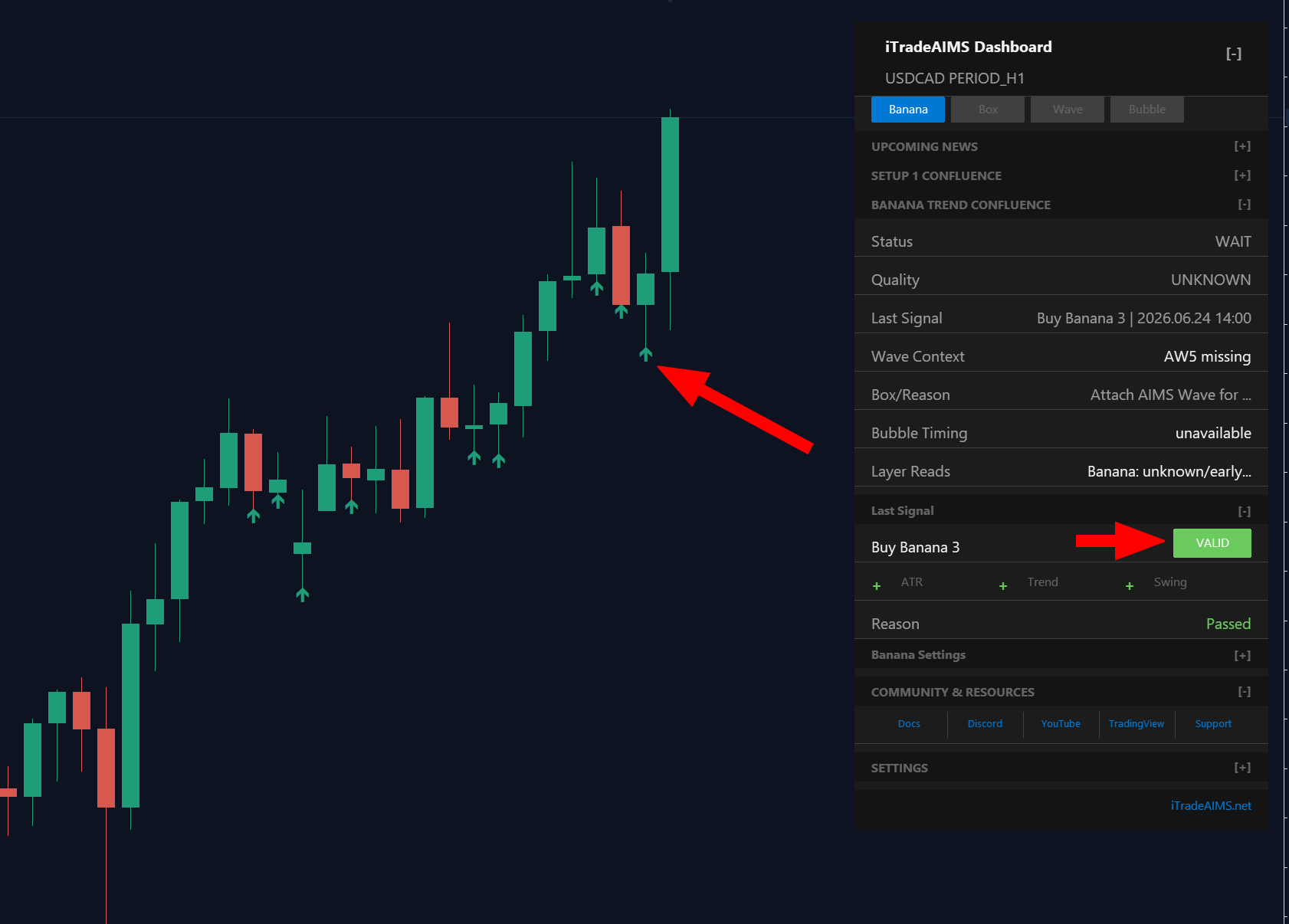
Alerts
MT5 alert inputs include popup, push, email, sound, and sound file settings. Enable them on the Inputs tab under Alerts, then continue with MT5 alerts for terminal notification checks.
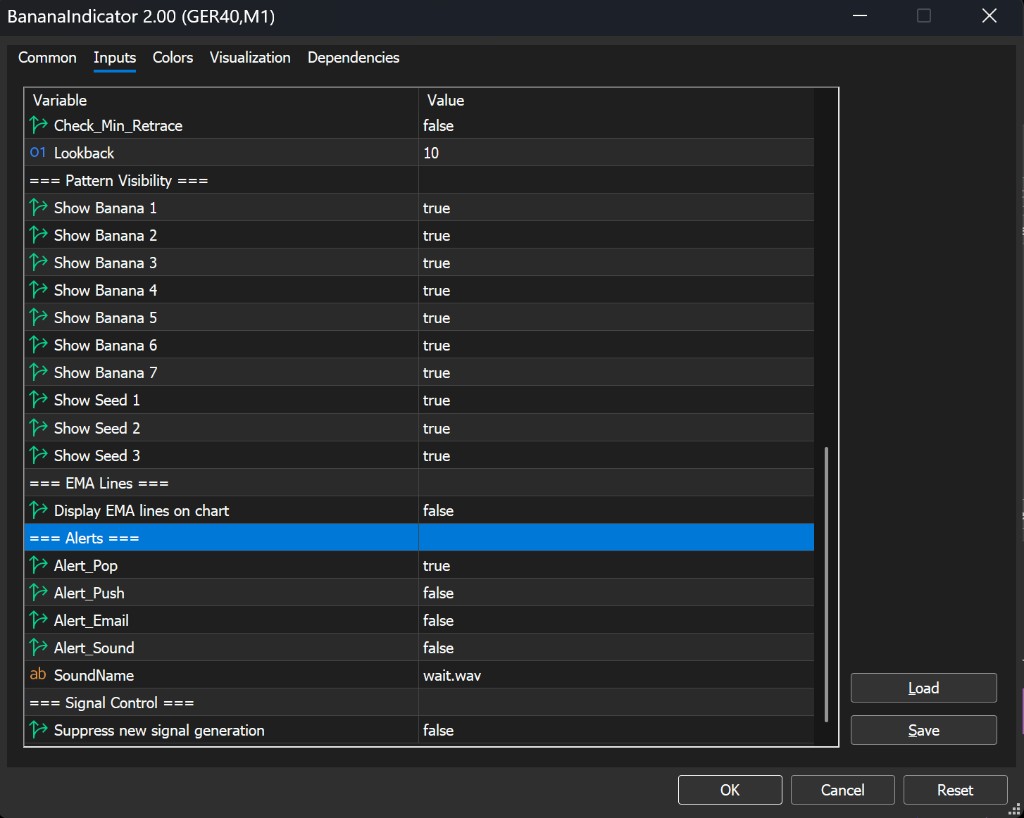
This page does not use the MT4 popup screenshot. MT5 alert dialogs can look different — use the labels in your MT5 build.
Full Inputs Reference
Screenshots of the full Inputs panel on GER40, M1. Use these to locate a setting.
Change One Area At A Time
Use this order when learning:
- Confirm the indicator loads.
- Confirm signal visibility and chart display.
- Confirm alert settings.
- Review signal or filter settings only after the chart display is clear.
- Change one setting group at a time and observe the chart before changing another group.