Start On TradingView
Use this path for The Banana Indicator TV. iTradeAIMS ships Latest (v3, Pine v6) and Legacy — pick the script that matches your charts and license.
TradingView does not use a Windows installer or MetaTrader data folder. Access is granted to a TradingView username, then the invite-only script is added to a chart. This edition is not the same UI as MT4 or MT5.
TradingView editions
Current Pine build (v3) — B#/S# labels, zones, dashboard.
Previous edition — keep only if your charts still use the Legacy script.
Check my.itradeaims.net → License Center, then open Latest unless your saved layouts still use Legacy.
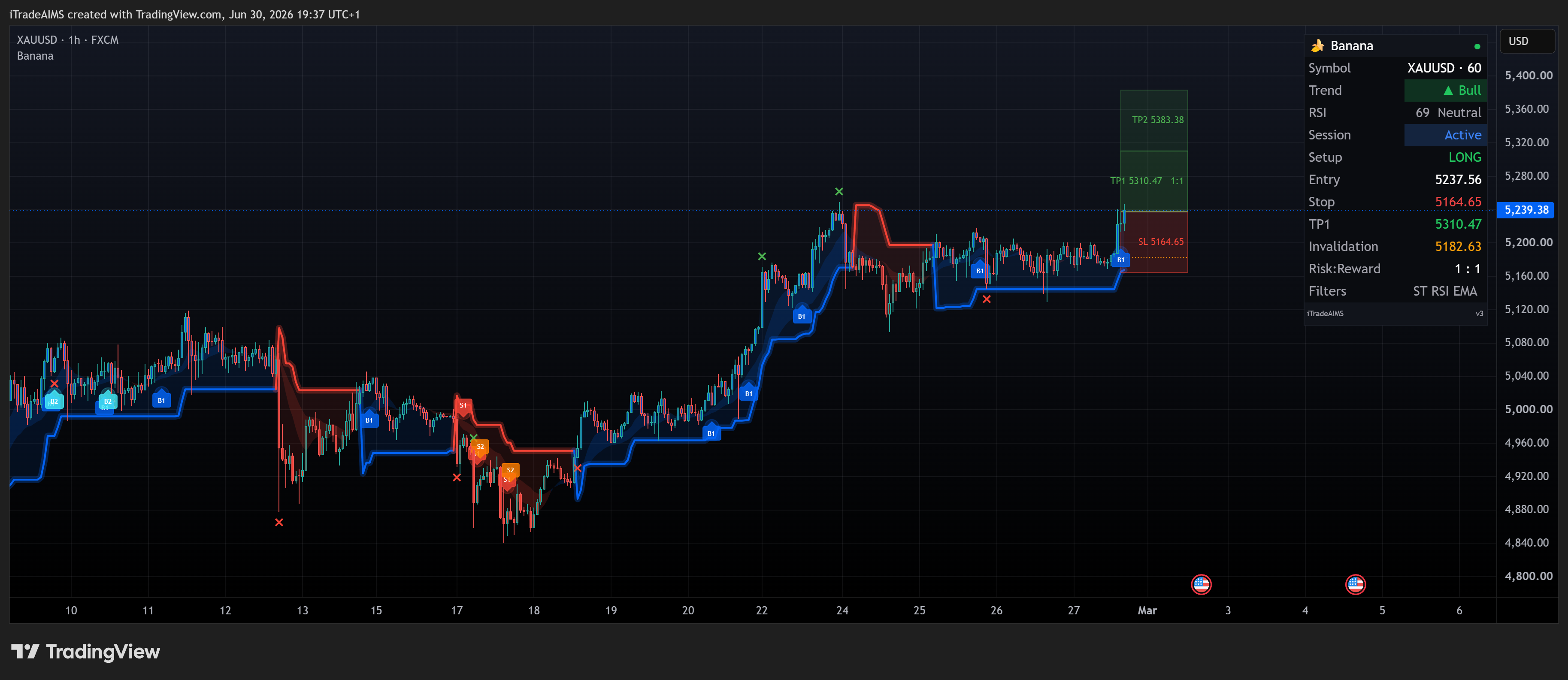
Fast Path
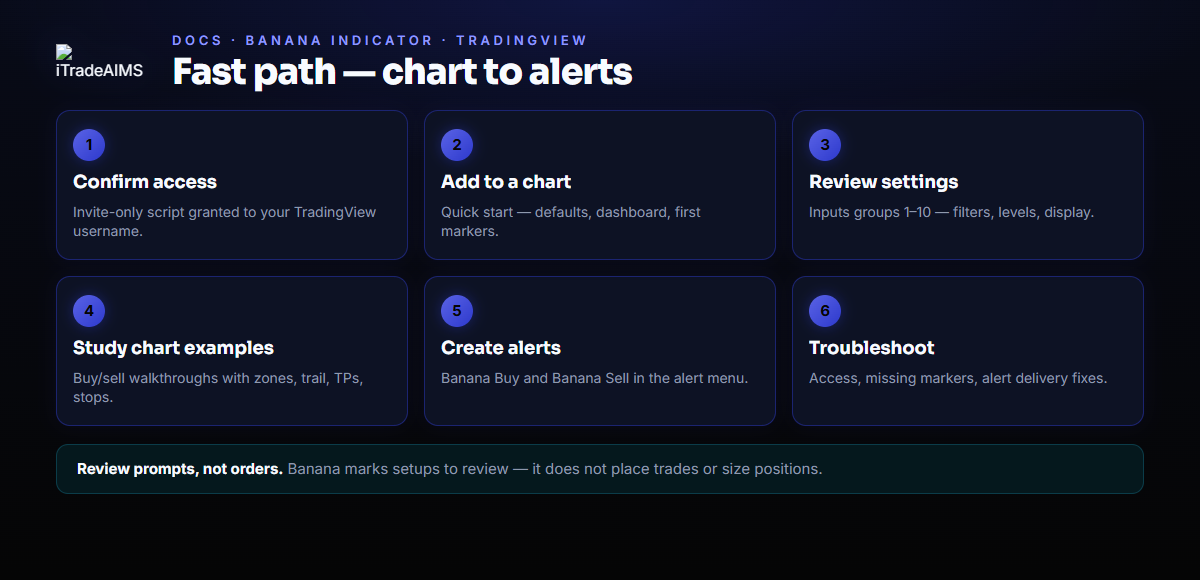
- Confirm TradingView access
- Add it to a chart
- Review TradingView settings
- Study chart examples
- Create TradingView alerts
- Troubleshoot TradingView
The Banana Indicator marks setups to review. It does not place trades, size positions, or replace your trading plan. Not financial advice.
What To Confirm First
Before troubleshooting chart display or alerts, confirm:
- You are signed in to the TradingView username that was granted access.
- The chart lists Banana or iTradeAIMS | The Banana Indicator™ (Latest or Legacy).
- TradingView no longer shows an invite-only access message.
- The indicator is on the chart where you expect signals.
MetaTrader Users
If you chart on MetaTrader, use the MT4 or MT5 guides instead.