Alerts
TradingView alerts are created from TradingView's alert menu, not from MetaTrader.
Script pages
Alerts fire on the same B# / S# markers you see on chart — configure them for once per bar close to match v3. See a live S# setup on the Signals page before wiring alerts.
The steps below use screenshots from The Banana Indicator TV. The TradingView UI is the same for other invite-only scripts — only the Condition dropdown name changes.
Before You Create Alerts
Confirm:
- You are signed in to the TradingView username that has access.
- The indicator is already added to the chart.
- The chart symbol and timeframe are the ones you intend to monitor.
- Your TradingView plan supports the number of active alerts you need.
Create an alert (step by step)
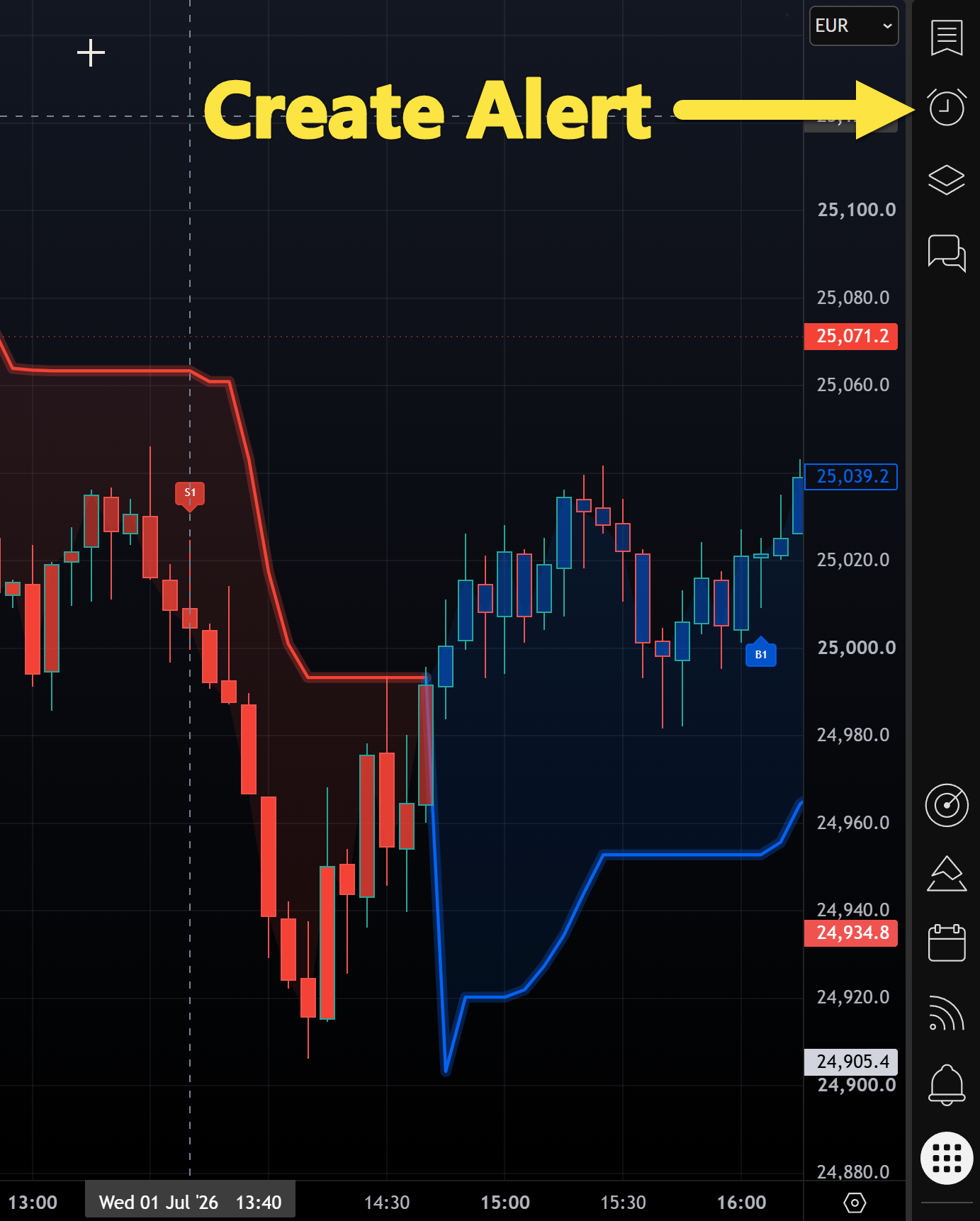
Step 1 — Open the Alerts panel
With your chart open, click the Alerts (clock) icon on the right toolbar.
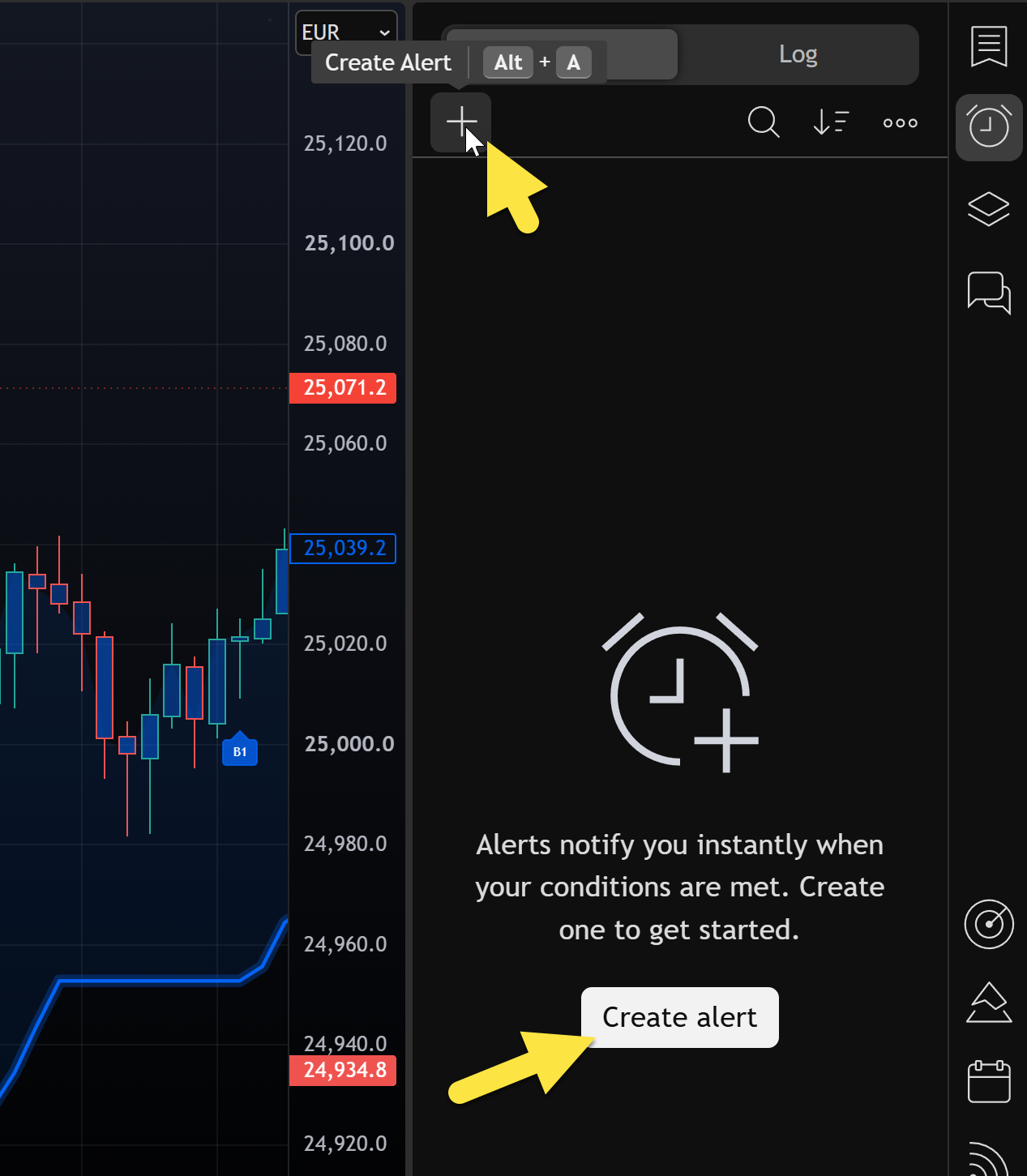
Step 2 — Start a new alert
In the Alerts panel, click + (top left) or the Create alert button.
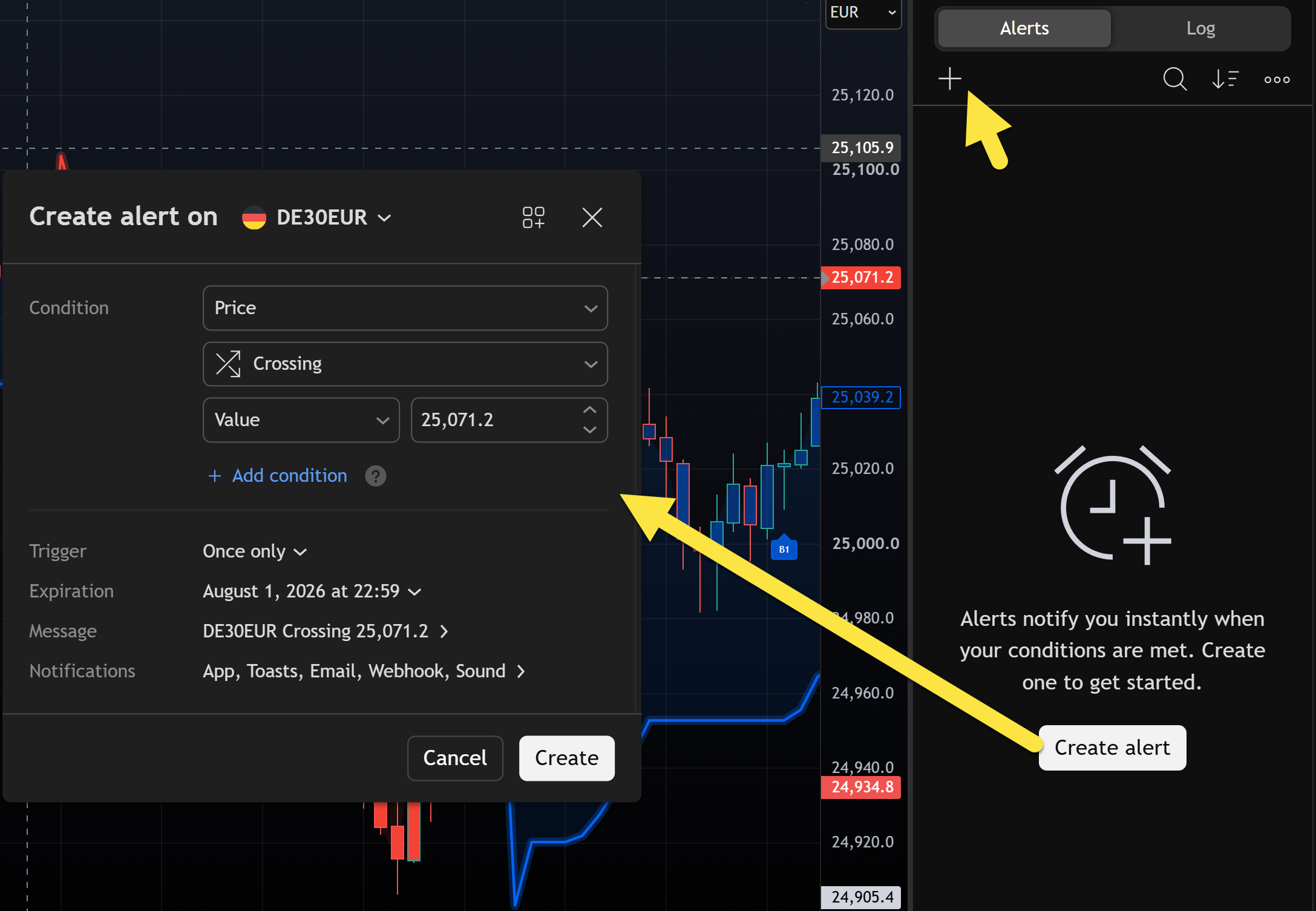
Step 3 — Open the Create alert dialog
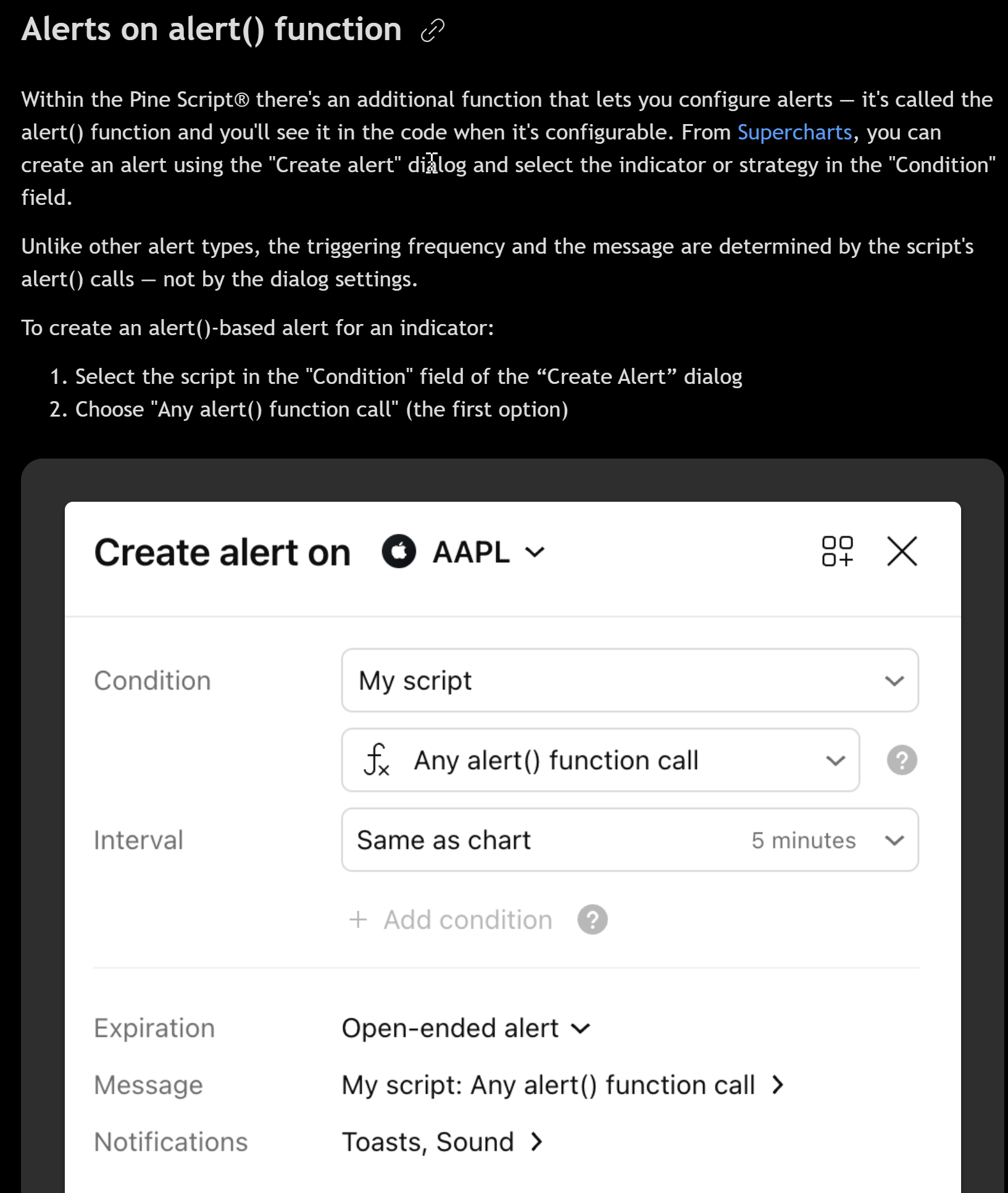
TradingView opens the Create alert dialog for the active chart symbol — set Condition, Interval, notifications, then Create.
Step 3a — Pick the script condition (Pine alert())
For Pine scripts (including Banana TV), set Condition to your script name, then choose Any alert() function call — the script controls when alerts fire and what message is sent.
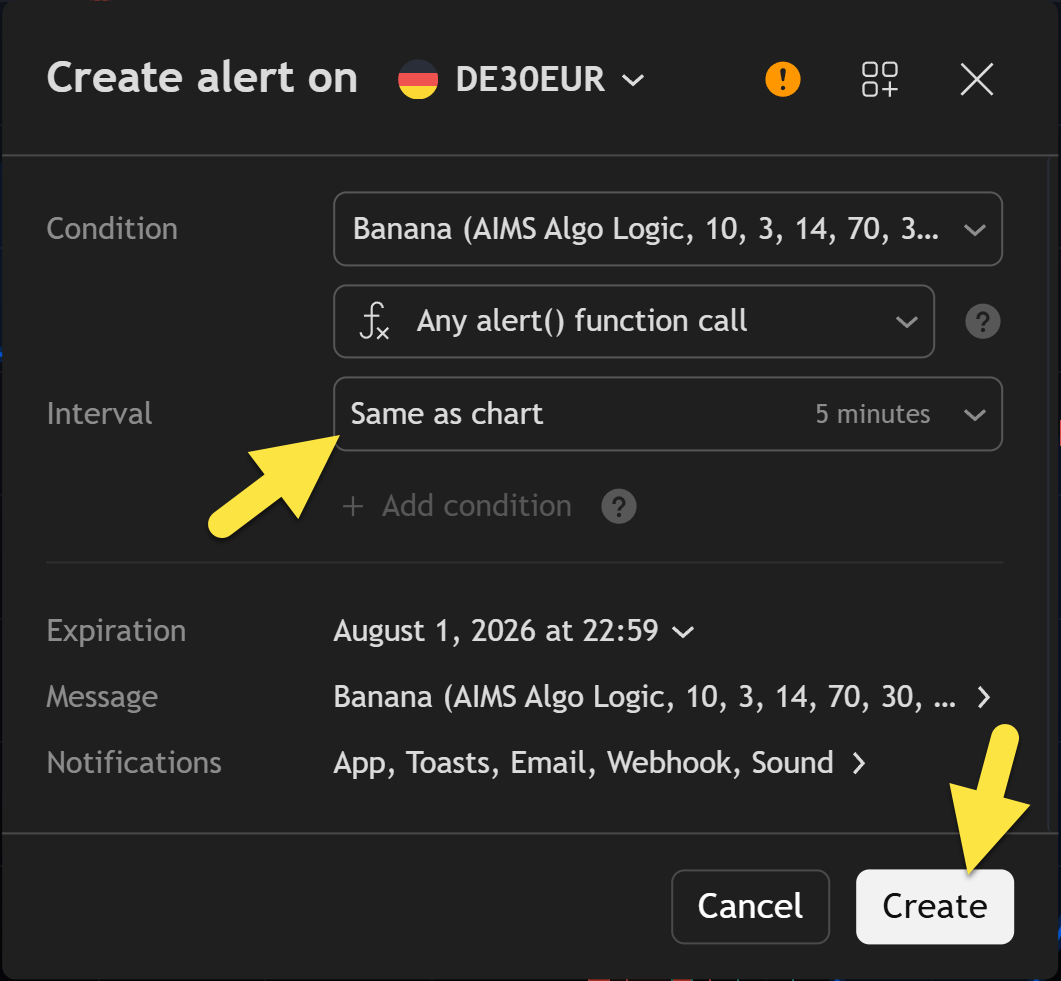
Step 4 — Banana: interval, notifications, Create
On The Banana Indicator TV:
- Condition — Banana (or the script title on your chart) → Any alert() function call (or Banana Buy / Banana Sell if your build lists them).
- Interval — Same as chart (matches the timeframe you are monitoring).
- Trigger / frequency — Once per bar close when TradingView shows that option (matches v3 non-repainting markers).
- Notifications — enable App, email, webhook, etc. per your plan.
- Click Create and confirm the alert appears in the Alerts list.
Optional: enable PineConnector messages under 10 · Alerts / PineConnector in TradingView settings if you route alerts to automation (requires your PineConnector license ID and symbol).
Available alert conditions can depend on the TradingView script version and your account access.
Check alert delivery
Check:
- The alert is active in the Alerts panel (not paused or expired).
- TradingView notifications are enabled for your chosen delivery method.
- You are signed in to the correct TradingView account.
- The alert was created on the chart symbol and timeframe you expect.
If nothing fires, see Troubleshoot TradingView.
Related
- Signals — what B# / S# look like before you alert on them
- TradingView settings — group 10 · Alerts / PineConnector
- Visual alerts — on-chart popups vs TradingView push alerts