⚙️ Backtesting Setup
Preparing for Your First Backtest
Setting up a proper backtest is important for producing useful historical test data. This guide walks through the MT4 Strategy Tester settings used to test BananaEA.
Goal: Create a realistic test environment that mimics live trading conditions as closely as possible.
Pre-Backtest Checklist
Before starting your backtest, ensure:
- EA Installed: BananaEA .ex4 file in
MQL4/Experts/folder - Historical Data: Sufficient price history downloaded
- Broker Settings: Spread and commission configured realistically
- Parameters Set: Input parameters configured or preset loaded
- Test Period Selected: Date range covering appropriate market conditions
- Modeling Quality: "Every Tick" selected for accurate results
Step 1: Install BananaEA
Locating the EA File
You'll receive BananaEA as a compiled .ex4 file:
BananaEA.ex4
Installation
1. Copy EA to MT4 Folder:
1. Open MT4 Data Folder: File → Open Data Folder
2. Navigate to: MQL4 → Experts
3. Copy BananaEA .ex4 file into this folder
4. Restart MT4 (or refresh Navigator: right-click Navigator → Refresh)
2. Verify Installation:
1. Open MT4 Navigator (Ctrl+N)
2. Expand "Expert Advisors" section
3. Look for BananaEA in the list ✅
EA Appears in Navigator: If you see BananaEA in the Expert Advisors list, installation is successful and it's ready for backtesting!
Step 2: Download Historical Data
If your DAX/GER40 chart only shows one to three months of history, see Historical Data For Backtesting before importing third-party files or relying on generic History Center downloads.
Check Available History
- Open chart for your test symbol (e.g., GER40.r)
- Open desired timeframe (e.g., H1)
- Scroll left to see how far back history goes
- Aim for at least 2+ years of data
Download More History [Important]
Method 1: Broker chart history (Best for broker-specific testing)
1. Log in to the correct broker account/server
2. Tools > Options > Charts
3. Increase Max bars in history and Max bars in chart
4. Restart MT4
5. Open the exact Market Watch symbol on M1
6. Press Home repeatedly or scroll left to request older bars
7. Repeat for the timeframes you need
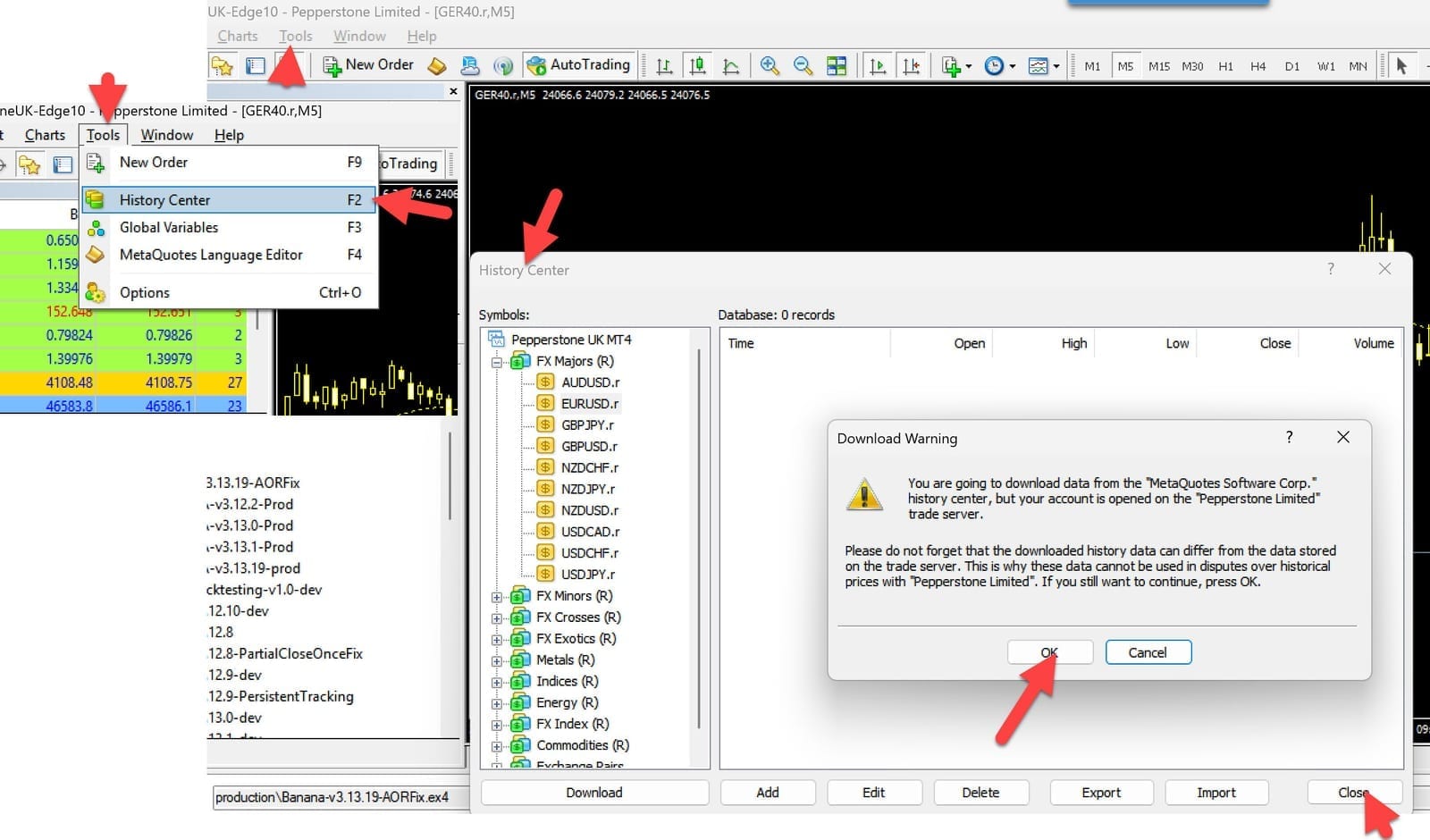
Method 2: History Center (Use With Caution)
1. Tools → History Center (F2)
2. Find your symbol in list
3. Select timeframe (e.g., 1 Hour)
4. Click "Download" button
5. Wait for download to complete
6. Close History Center
History Center downloads may not match your broker's trade server history. For broker-specific BananaEA validation, use the exact broker-server symbol history where possible.
Method 3: Scrolling Back
1. Open chart (e.g., GER40.r H1)
2. Hold Home key or scroll left continuously
3. MT4 loads more history automatically
4. Slow but works for recent history
Method 4: Import from File
If you have .hst files from data provider:
1. Tools → History Center
2. Select symbol and timeframe
3. Click "Import"
4. Select .hst file
5. Verify import successful
For CSV exports, .hst files, and third-party data limitations, see Historical Data For Backtesting.
Data Quality Check
After downloading, verify:
Open chart for test symbol/timeframe
→ Scroll through history visually
→ Check for gaps (missing bars)
→ Verify prices look realistic
→ Ensure continuous data (no large jumps in time)
Poor Data = Unreliable Results: Gaps, missing bars, or corrupted data will produce meaningless backtest results. Always verify data quality first.
Step 3: Configure Strategy Tester Settings
Basic Configuration
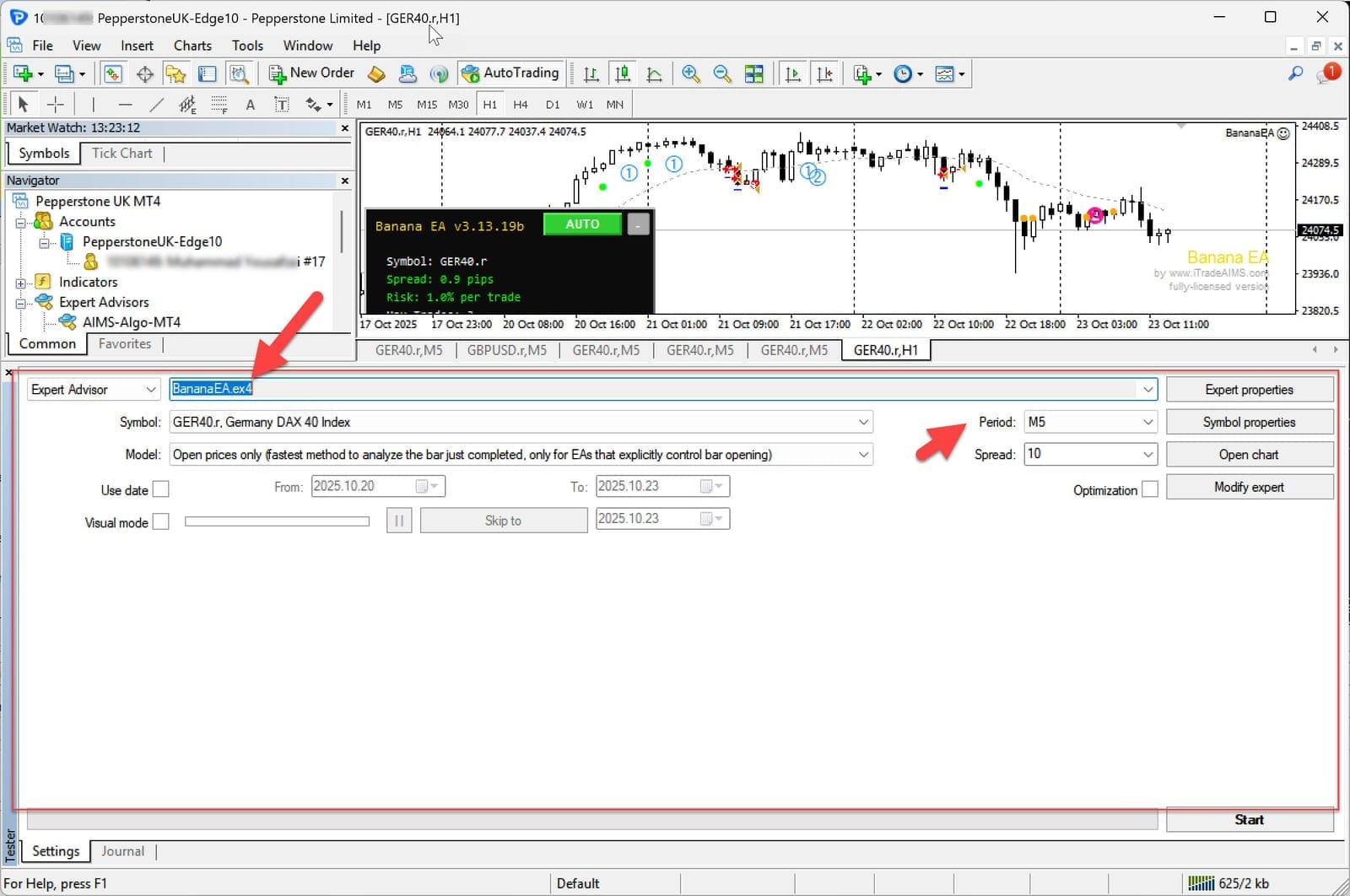
Open Strategy Tester (Ctrl+R) and configure:
Expert Advisor: Select BananaEA
Symbol: GER40.r (or your preferred symbol)
Period: H1 (recommended for BananaEA)
Model: Every Tick (for accurate results)
Spread: 10-15 points i.e 1 to 1.5 pips (realistic for DAX)
Date Range Selection
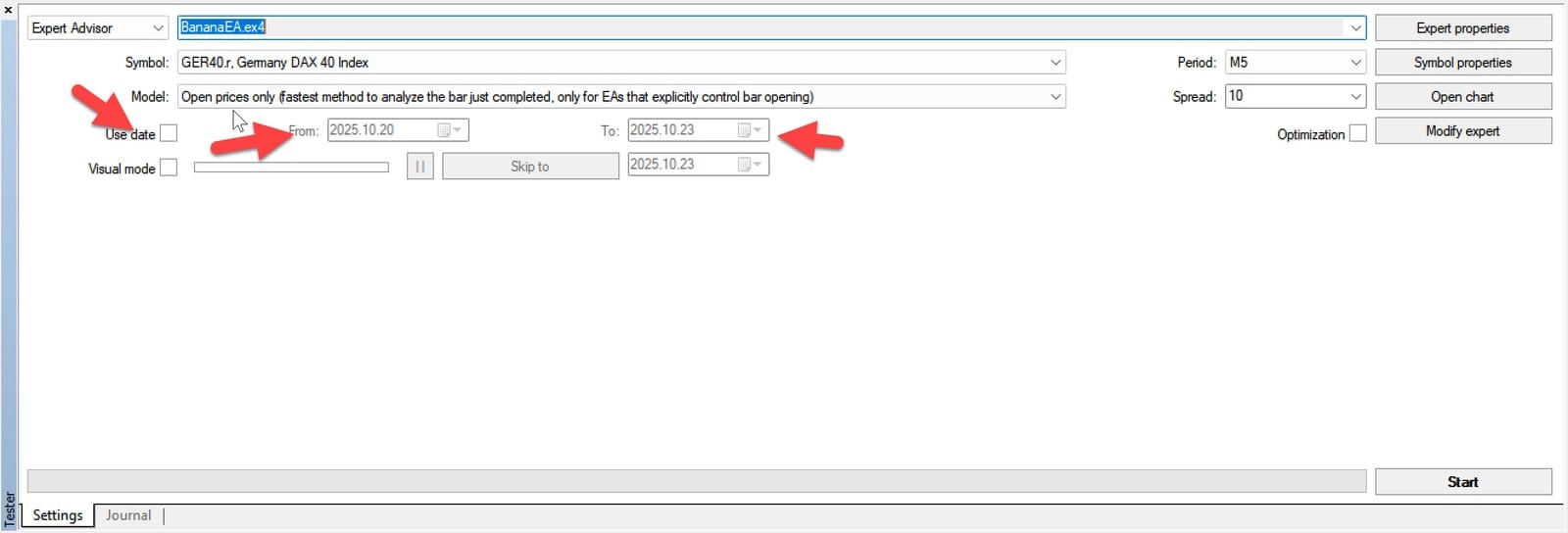
Conservative Approach (Recommended):
From: 2023.01.01 (2 years ago)
To:   2025.01.01 (or today's date)

Duration: 2 years
Market Conditions: Mix of trends, ranges, volatility
Comprehensive Approach (Advanced):
From: 2020.01.01 (5+ years ago)
To:   2025.01.01

Duration: 5+ years
Market Conditions: Includes COVID crash, recovery, recent trends
Quick Screening (Initial Testing):
From: 2024.07.01 (6 months ago)
To:   2025.01.01

Duration: 6 months
Purpose: Quick parameter validation
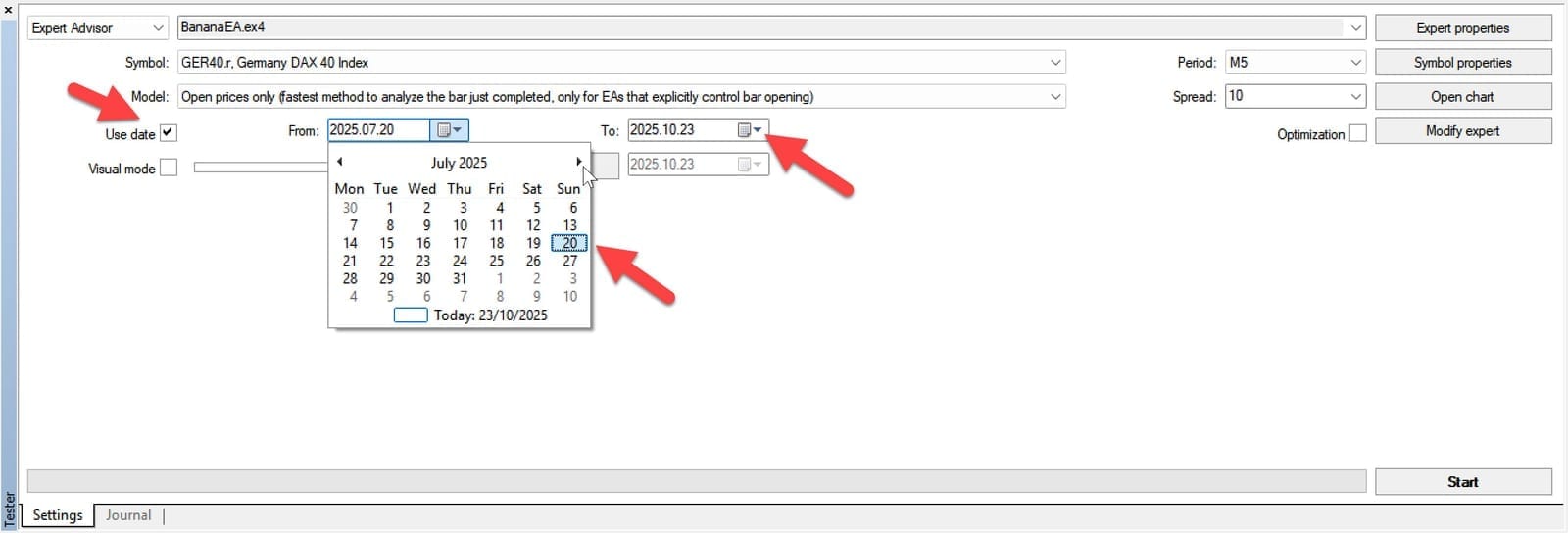
Recommendation: Start with 6 months for quick screening, then extend to 2+ years for validation.
Step 4: Configure EA Parameters
Option A: Use Default Parameters
When to Use:
- First-time testing
- Evaluating baseline performance
- Comparing changes against known baseline
How: Simply leave all parameters at their default values (shown in Inputs tab).
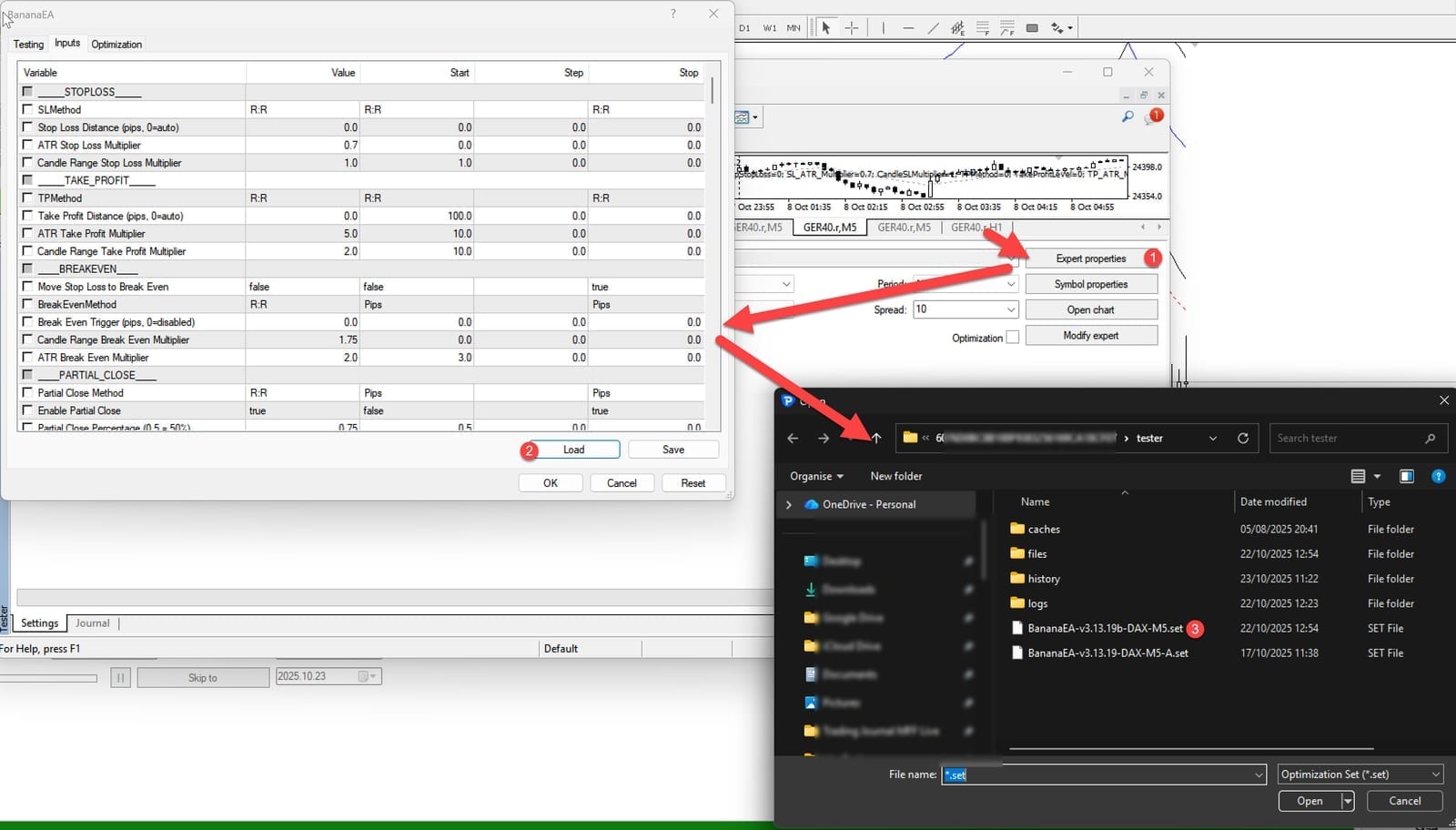
Option B: Load Preset Configuration
When to Use:
- Testing optimized parameter sets
- Comparing different strategies (conservative, aggressive)
- Replicating published backtest results
How to Load Preset:
1. In Strategy Tester, click "Inputs" tab
2. Right-click in inputs area
3. Select "Load"
4. Navigate to: MQL4/Presets/
5. Select preset file (e.g., "BananaEA-DAX-H1-Conservative.set")
6. Click "Open"
7. Verify parameters loaded correctly
Available Presets (Example):
BananaEA-DAX-M5-Default.set- Lower risk, stableBananaEA-DAX-H1-Balanced.set- Default recommendedBananaEA-DAX-H1-Aggressive.set- Higher risk/reward
Option C: Manual Configuration
When to Use:
- Testing specific parameter changes
- Optimization follow-up
- Custom strategy validation
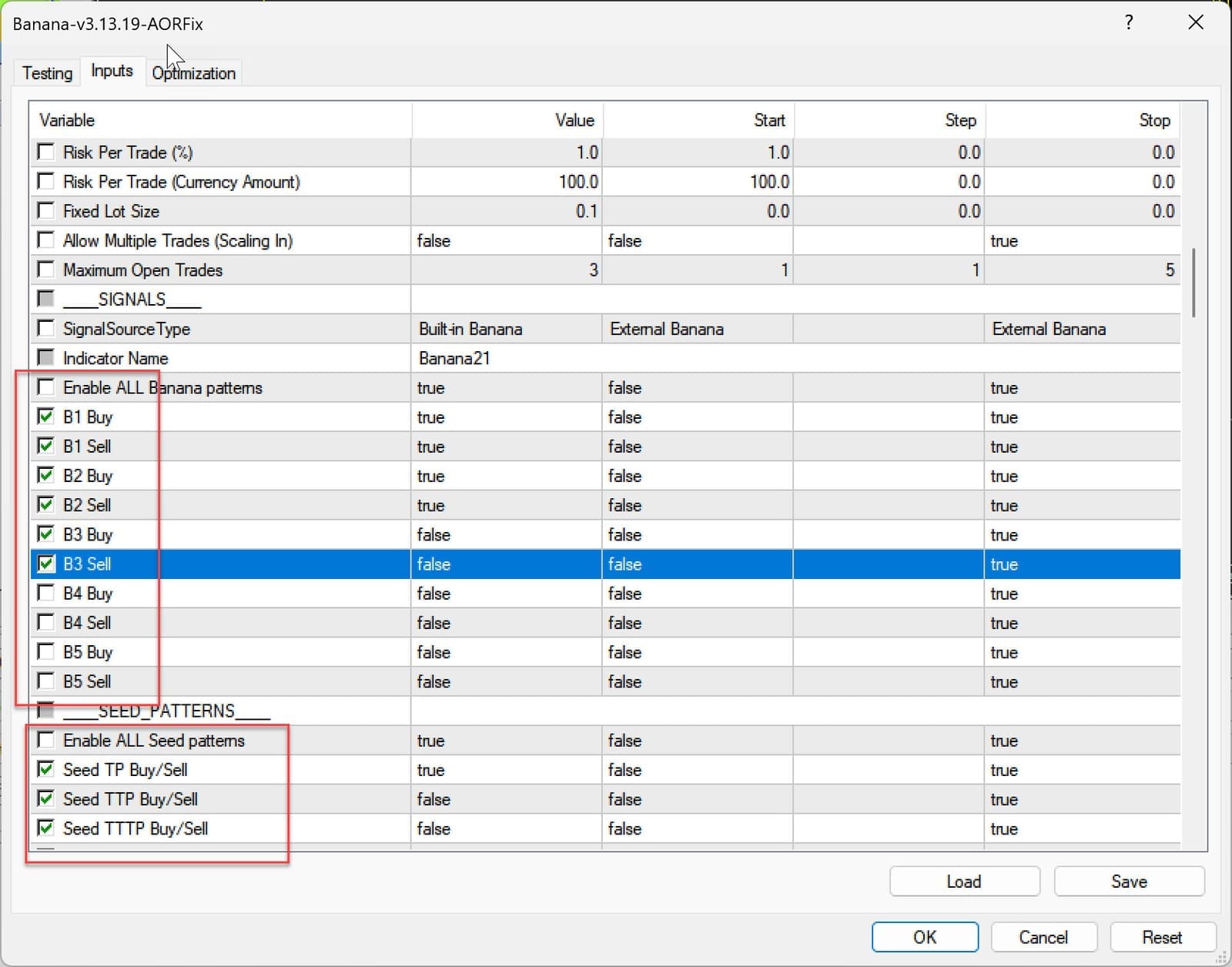
Key Parameters to Configure:
Risk Management
RiskPercent = 1.0        // Risk per trade (1-3% typical)
RiskMethod = 0           // 0=Risk%, 1=RiskAmount, 2=FixedLots
MaxOpenTrades = 1        // Maximum simultaneous positions
Entry Settings
SignalSourceType = 1     // 1=Internal Banana patterns
Use Banana Signals = true // Enable Banana pattern signals
Use Seed Signals = false // Disable Seed patterns
Stop Loss / Take Profit
SLMethod = 0             // 0=CandleRange, 1=ATR, 2=Fixed
TPMethod = 0             // 0=CandleRange, 1=ATR, 2=Fixed
CandleRangeSL = 10       // Candles to include for SL
CandleRangeTP = 20       // Candles to include for TP
Trade Management
UseSLtoBE = true         // Enable break-even
BreakEvenMethod = 2      // 2=ATR-based (recommended)
UsePartialClose = true   // Enable partial profit taking
UseTrailing = true       // Enable trailing stop
Step 5: Configure Broker Costs
Spread Configuration
Finding Your Broker's Spread:
1. Open live chart for symbol
2. Look at Market Watch or chart info
3. Note current spread (e.g., 1.5 pips = 15 points)
4. Add buffer for peak times (+50%)
5. Set in Strategy Tester: 20 points
Conservative Approach (Recommended): Use higher spread than average to account for:
- Peak hour widening
- News event spikes
- Slippage simulation
- Realistic live conditions
Example for DAX (GER40):
Typical spread: 1.0-1.5 pips (10-15 points)
Peak spread: 2.0-3.0 pips (20-30 points)
Backtest setting: 20 points (conservative but realistic)
Commission & Swap
Enable Commission (if your broker charges):
Strategy Tester → Settings tab
→ Advanced options
→ Commission: [X.XX] per lot/side
Example Commission Rates:
- Prop firms: $0-5 per side per lot
- Retail brokers: Often spread-only (no commission)
- ECN brokers: $2-7 per side per lot
Swap/Rollover (if holding overnight):
MT4 automatically uses symbol's swap rates
→ No manual configuration needed
→ Check: Symbols → Properties → Swap Long/Short
BananaEA Typical: Intraday trading style usually closes before day end, minimal swap impact. However, always enable for accuracy.
Step 6: Set Initial Deposit
Field: Initial Deposit (in Strategy Tester settings)
Recommendations:
Match Your Real Capital:
If trading with $10,000 → Set initial deposit to $10,000
If trading with $5,000 → Set initial deposit to $5,000
Why This Matters:
- Realistic drawdown assessment
- Accurate lot size calculation
- Margin requirement validation
- Risk percentage accuracy
Typical Amounts:
- $5,000: Small account, conservative risk
- $10,000: Standard account, balanced risk
- $25,000: Larger account or prop trading
- $50,000+: structured/advanced
Don't Test with Unrealistic Amounts: Testing with $1M when you have $5K gives misleading results. Risk management scales differently.
Step 7: Configure Leverage
Field: Leverage (in Strategy Tester settings)
BananaEA Recommendations:
Conservative: 1:30 leverage
Standard: 1:50 leverage
Aggressive: 1:100 leverage
Match Your Broker: Check your live account leverage and use same in backtests.
Step 8: Double-Check Everything
Pre-Launch Checklist
Before clicking [Start], verify:
EA Configuration:
- Correct EA selected in dropdown
- Parameters loaded/set correctly
- Magic number unique (if testing multiple EAs)
Symbol & Timeframe:
- Correct symbol (GER40.r for DAX testing)
- Correct period (H1 recommended)
- Historical data sufficient (2+ years)
Test Settings:
- Modeling quality: "Every Tick"
- Spread realistic (15-20 points for DAX)
- Date range appropriate (2+ years)
- Initial deposit matches real capital
Advanced Settings:
- Commission configured (if applicable)
- Leverage matches broker
- Optimization OFF (unless optimizing)
- Visual mode OFF (for full speed)
Common Setup Mistakes
Mistake 1: Using Wrong Spread
❌ Problem: Spread set to 0 or 1 point
✅ Solution: Use realistic spread (15-20 points for DAX)
Mistake 2: Insufficient Data
❌ Problem: Testing on 1-3 months of data
✅ Solution: Use minimum 6-12 months, ideally 2+ years
Mistake 3: Wrong Modeling Quality
❌ Problem: Using "Open Prices Only" for final validation
✅ Solution: Use "Every Tick" mode for accurate results
Mistake 4: Mismatched Capital
❌ Problem: Testing with $100K when trading with $5K
✅ Solution: Match initial deposit to real account size
Mistake 5: Ignoring Trading Costs
❌ Problem: Not including commission or swap
✅ Solution: Configure all broker costs for realistic results
Quick Setup Guide (Checklist)
Copy this workflow for consistent backtests:
1. [ ] Install BananaEA .ex4 file in MQL4/Experts folder
2. [ ] Download 2+ years historical data
3. [ ] Open Strategy Tester (Ctrl+R)
4. [ ] Select BananaEA from EA dropdown
5. [ ] Symbol: GER40.r (or preferred)
6. [ ] Period: H1
7. [ ] Model: Every Tick
8. [ ] Spread: 20 points
9. [ ] Dates: 2023.01.01 to 2025.01.01
10. [ ] Initial Deposit: $10,000 (or your amount)
11. [ ] Load preset or configure parameters
12. [ ] Enable commission (if applicable)
13. [ ] Verify leverage matches broker
14. [ ] Click [Start]
Next Steps
Now that your backtest is properly configured:
- Run Your Backtest → Running Backtests
- Analyze Results → Analyzing Results
- Try Optimization → Running Optimizations
Structured approach: Taking time to set up correctly makes the test easier to review and easier to reproduce later.
Related Resources
- MT4 Strategy Tester Guide - Interface walkthrough
- Introduction to Backtesting - Fundamentals
- Best Practices & Tips - structured workflow