⚙️ Installation & Setup
Complete Step-by-Step Installation Guide
💥 Target Audience: Complete beginners with zero EA trading experience
⚡ Already familiar with MetaTrader 4? Check out our 💻 Installation Guide for a faster, technical installation process.
Reading Time: 15 minutes
This guide will walk you through installing BananaEA on MetaTrader 4 with zero technical experience required. Follow each step carefully and you'll be ready to trade in 15 minutes.
🎯 Before You Start
What You Need
✅ MetaTrader 4 installed and working
✅ Demo trading account with your broker (start here!)
✅ BananaEA files downloaded from Latest Downloads on your member dashboard
✅ 15 minutes of uninterrupted time
What You DON'T Need
❌ Programming knowledge
❌ Previous EA experience
❌ Expensive computer or VPS
❌ Live trading account (demo first!)
📋 Step 1: Prepare MetaTrader 4
Check Your Demo Account
- Open MetaTrader 4 from your desktop
- Verify you're connected - Look for connection status in bottom-right corner
- Ensure demo account is active - Check account number and balance
Verify Chart Display
- Look at any currency pair (e.g. EUR/USD chart) - Some brokers open default charts
- Confirm price updates - Prices should be moving (during market hours)
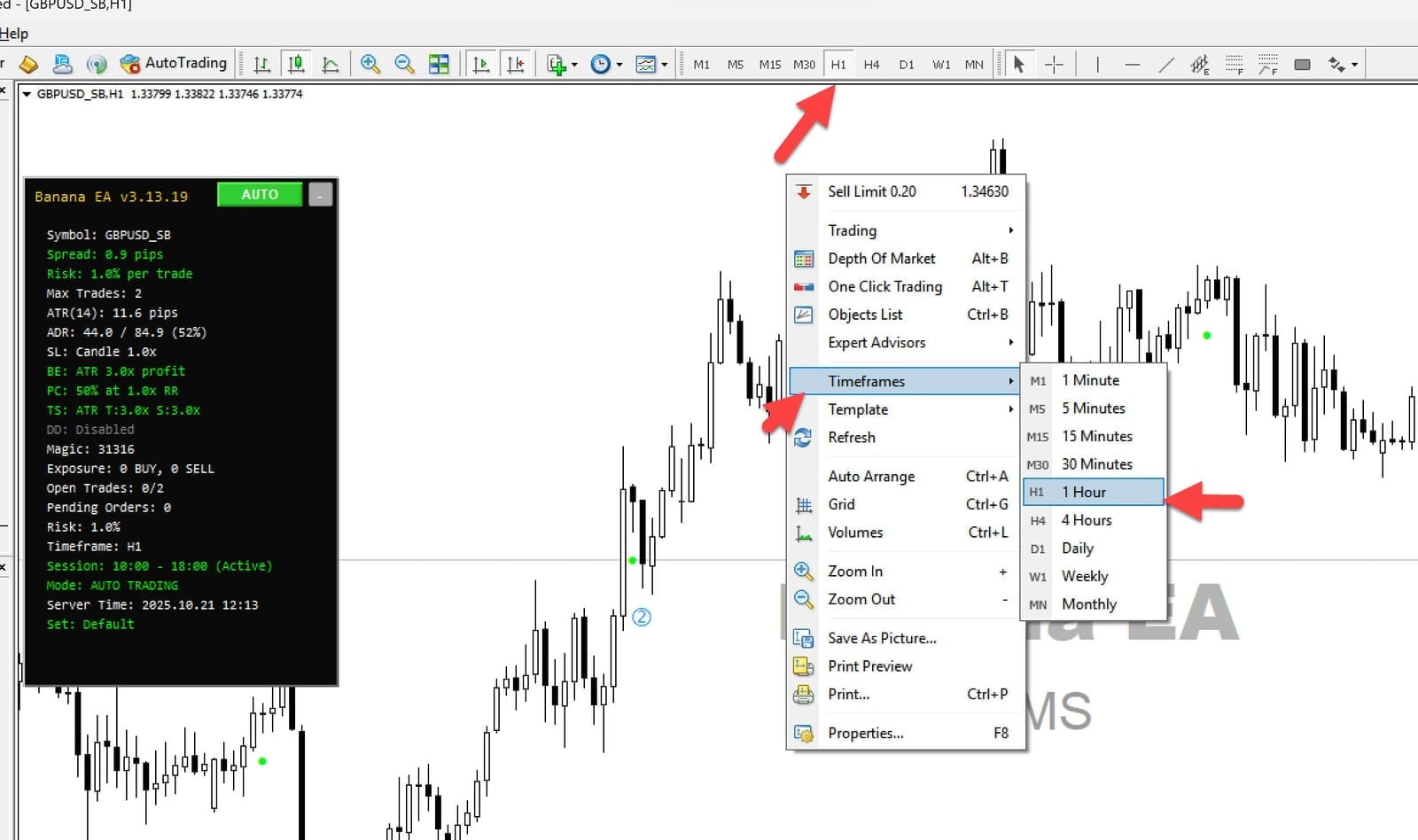
- Check timeframe - Start with M1 (1-minute) charts switch to M5 if needed. To change timeframe, right-click chart → Timeframes → M1 or what most traders do is click on the M1 button in the toolbar.
Enable Expert Advisors
- Look for "AutoTrading" button in MT4 toolbar (top of screen)
- Check button status:
- ✅ GREEN AutoTrading button = EAs can trade
- ❌ RED AutoTrading button = EAs cannot trade
If button is RED: Click it to turn GREEN
Configure EA Settings
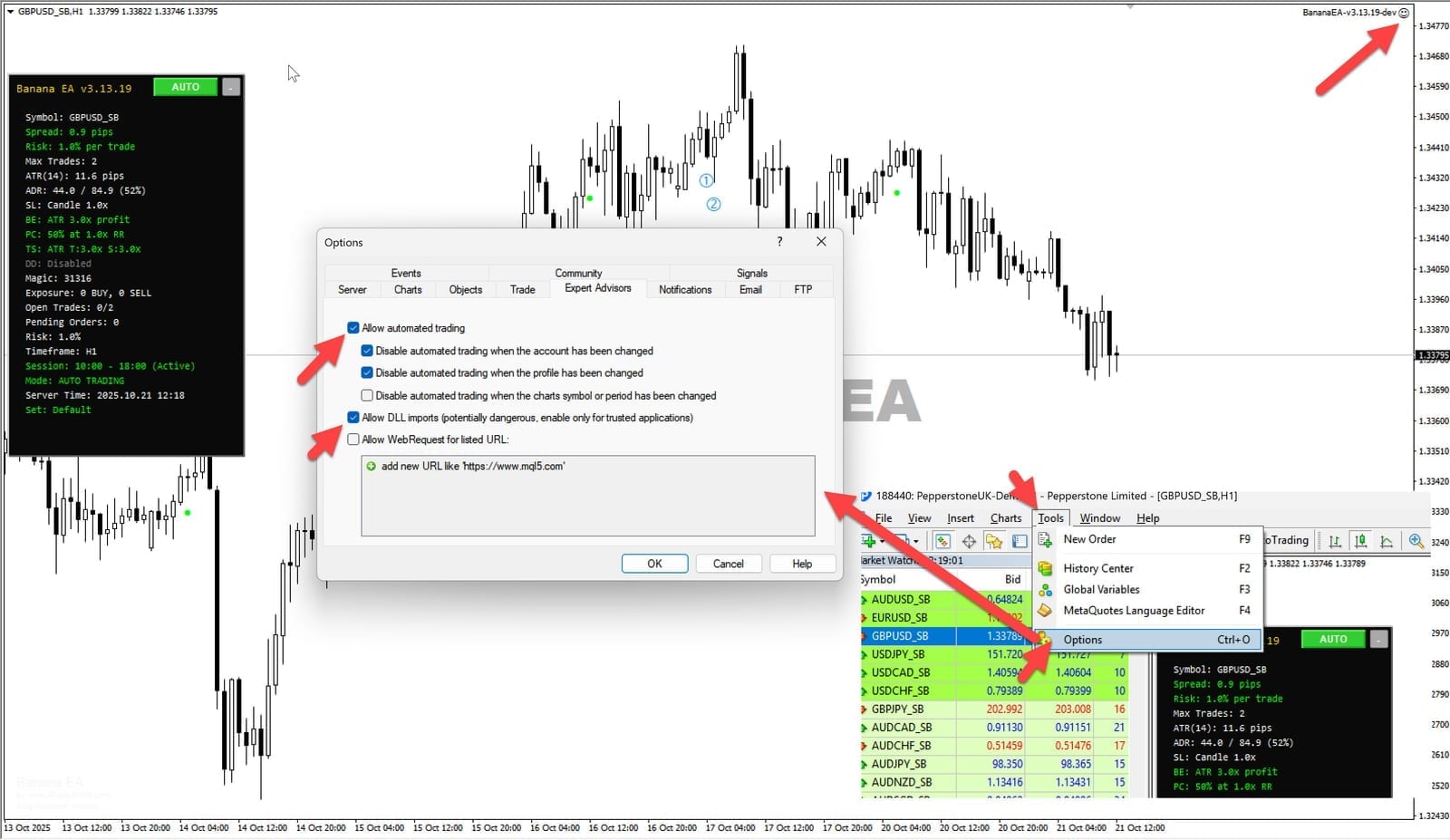
- Go to Tools → Options
- Click "Expert Advisors" tab
- Enable these settings:
☑ Allow automated trading
☑ Allow DLL imports
☑ Confirm DLL function calls
☑ Allow imports of external experts
Click "OK"
📂 Step 2: Locate MetaTrader Data Folder
Method 1: Through MT4 Menu
- In MT4: File → Open Data Folder
- Data folder opens automatically
Method 2: Manual Location
- Usually located at:
C:\Users\[YourName]\AppData\Roaming\MetaQuotes\Terminal\[BrokerID]\
Navigate to Experts Folder
- In the opened folder: Go to
MQL4folder - Open the
Expertsfolder
Copy BananaEA Files
- Copy the main EA file to the
Expertsfolder:BananaEA.ex4(main EA file)
- Copy the library file to the
Librariesfolder:- Navigate back to
MQL4folder - Open the
Librariesfolder - Copy
iTradeAIMSLib.ex4(required library file - MUST BE INSTALLED)
- Navigate back to
⚠️ Important: You will only receive compiled
.ex4files for security. Source code is not distributed to protect intellectual property.⚠️ Critical: Both files are required! The EA will not work without the library file in the Libraries folder.
Restart MetaTrader
- Close MetaTrader 4 completely
- Wait 5 seconds
- Reopen MetaTrader 4
📊 Step 3: Choose Your Trading Pair
Beginner Recommendation: EUR/USD
Why EUR/USD is perfect for beginners:
- Commonly available major currency pair
- Lowest spreads (reduced trading costs)
- Predictable behavior during European/US sessions
- Extensive historical data for backtesting
Alternative Options
For more experienced traders:
- GBP/USD: Higher volatility, bigger moves
- USD/JPY: Asian session activity
- EUR/GBP: European pairs correlation
Open Your Chart
- File → New Chart → EURUSD
- Set timeframe to M1 (1-minute)
- Ensure chart is displaying current prices
🤖 Step 4: Attach BananaEA to Chart
Open Expert Advisor Panel
- View → Navigator (or press Ctrl+N)
- Look for "Expert Advisors" section
- Find "BananaEA" in the list
Attach EA to Chart
- Drag "BananaEA" from Navigator to your EUR/USD chart
- EA Settings window opens automatically
Configure Basic Settings
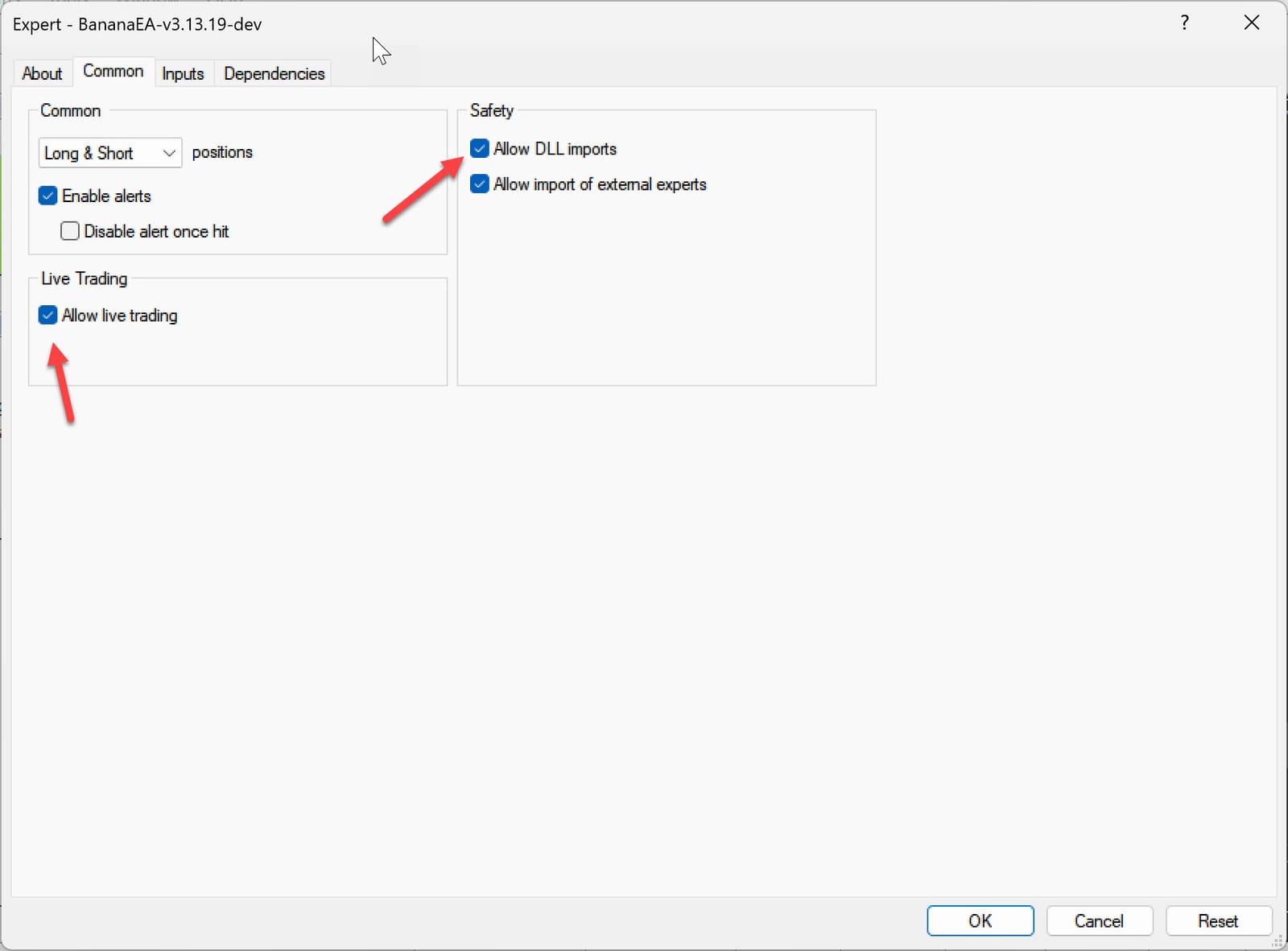
On "Common" tab:
☑ Allow live trading
☑ Allow DLL imports
☑ Confirm DLL function calls
☑ Allow imports of external experts
On "Inputs" tab: (Start with default settings)
- Lot Size: 0.01 (micro lots for demo)
- Max Spread: 3.0 pips
- Risk Percent: 2% (conservative)
Click "OK"
✅ Step 5: Verify Installation
Check EA is Active
Look for these indicators:
- Smiley face icon in top-right corner of chart
- EA name "BananaEA" displayed on chart
- "Expert Advisors" tab in Terminal window (bottom)
Common Status Messages
✅ Good Messages:
- "BananaEA initialized successfully"
- "iTradeAIMSLib loaded successfully"
- "Ready for trading"
- "Waiting for signal"
⚠️ Warning Messages:
- "AutoTrading is disabled" → Click AutoTrading button
- "Not enough money" → Normal on small demo accounts
- "Invalid symbol" → Use correct currency pair
❌ Error Messages:
- "Expert advisor is not allowed to trade" → Check settings
- "DLL not allowed" → Enable DLL imports in settings
- "iTradeAIMSLib not found" → Library file missing from Libraries folder
⚠️ Library Check: If you don't see "iTradeAIMSLib loaded successfully", the library file was not installed correctly. Ensure
iTradeAIMSLib.ex4is in theMQL4/Libraries/folder.
🎮 Step 6: Test With Demo Account
Start Conservative
First Week Settings:
- Account: Demo only (never live account)
- Lot Size: 0.01 (smallest possible)
- Risk: 1-2% maximum
- Timeframe: Focus on learning, not profit
Monitor Initial Trades
Watch for:
- Trade execution - EA places trades automatically
- Risk management - Stop losses and take profits set correctly
- Account balance - Should not decline rapidly
- Trade frequency - Expect 5-15 trades per day
Track Performance
Daily Review:
- Winning trades vs losing trades
- Average profit per trade
- Maximum drawdown
- EA behavior during news events
🔧 Step 7: Optimization (After 1-2 Weeks)
Fine-Tune Settings
After observing EA performance:
- Adjust lot sizes based on comfort level
- Modify risk percentage (1-5% range)
- Test different timeframes (M1, M5, M15)
- Experiment with spread settings
Advanced Configuration
For experienced users:
- News filter: Disable trading during high-impact news
- Time filters: Limit trading to specific hours
- Correlation filters: Avoid trading correlated pairs simultaneously
🚨 Critical Success Tips
Never Skip These Steps
- Always start with demo account (minimum 2 weeks)
- Test EA thoroughly before any live trading
- Start with minimal risk (1-2% per trade maximum)
- Keep MT4 running 24/7 for best results
- Monitor EA regularly (first few days especially)
Warning Signs to Watch
Stop EA immediately if:
- Account loses more than 10% in one day
- EA places trades outside market hours
- Trades are much larger than expected
- Error messages appear repeatedly
🎯 Next Steps
Ready to Learn More?
- Understand EA basics → 🤔 Understanding EAs
- Learn trading fundamentals → 📚 Trading Basics
- Optimize your setup → Advanced Settings
Need Help?
- Common problems → 🛠️ Troubleshooting
- FAQ section → ❓ Frequently Asked Questions
- Community support → 💬 Discord/Telegram
Setup Complete
You've successfully installed BananaEA. Remember: Start small, learn continuously, and never risk money you can't afford to lose.