Chart Templates
After you attach the suite indicators and configure the dashboard, save a chart template so every new chart loads the same stack without dragging each product from Navigator again.
What to attach before saving
On a reference chart (for example EURUSD M15):
| Product | Navigator path |
|---|---|
| iTradeAIMS Dashboard | Indicators → iTradeAIMS |
| AIMS Box Advanced | Indicators → iTradeAIMS |
| AIMS Wave | Indicators → iTradeAIMS |
| Banana Indicator | Indicators → iTradeAIMS |
| Confluence Indicator | Indicators → iTradeAIMS |
| AIMS Bubble (optional) | Indicators → iTradeAIMS |
Confirm License Center shows Live Active for each product you need. See Install on MT5.
Save the template
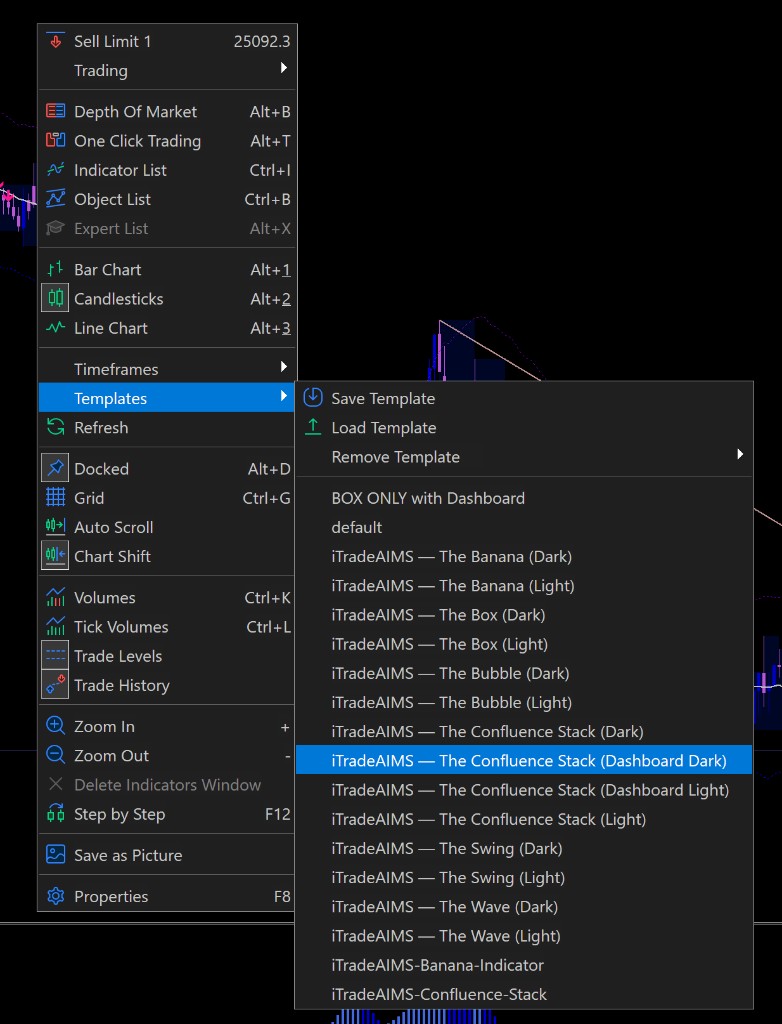
- Right-click the chart → Template → Save Template…
- Name it clearly — for example
iTradeAIMS-Confluence-Suite. - Store under MQL5/Profiles/Templates (MT5 default).
Load on a new chart
- Open the symbol and timeframe you want.
- Right-click → Template → Load Template…
- Select your saved template.
Indicators reload with the template. Re-check status pills — a new symbol may need a moment for wave and box calculations.
Tips
- One template per workflow — for example scalping vs swing — if you use different timeframes or filter sets.
- After suite updates, reload the template or re-save so new fields appear in the dashboard.
- GUI scale is saved with the dashboard instance — set Scale under Settings → GUI before saving if you share templates across monitors.