MT5 Alerts
Use this page for alerts in The Banana Indicator MT5.
This page intentionally does not show the MT4 popup screenshot. MT5 alert screens and dashboard behavior are different, so use the labels visible in your MT5 build.
Before You Rely On Alerts
Confirm:
- The indicator is attached to the MT5 chart.
- MT5 is running.
- The chart symbol and timeframe are the ones you intend to monitor.
- Alert options are enabled in the MT5 Inputs tab.
- MT5 terminal notification settings are configured if you use email or push notifications.
Check Indicator Alert Settings
- Right-click the chart.
- Select Indicators List.
- Select
The Banana Indicator MT5. - Select Properties.
- Open the Inputs tab.
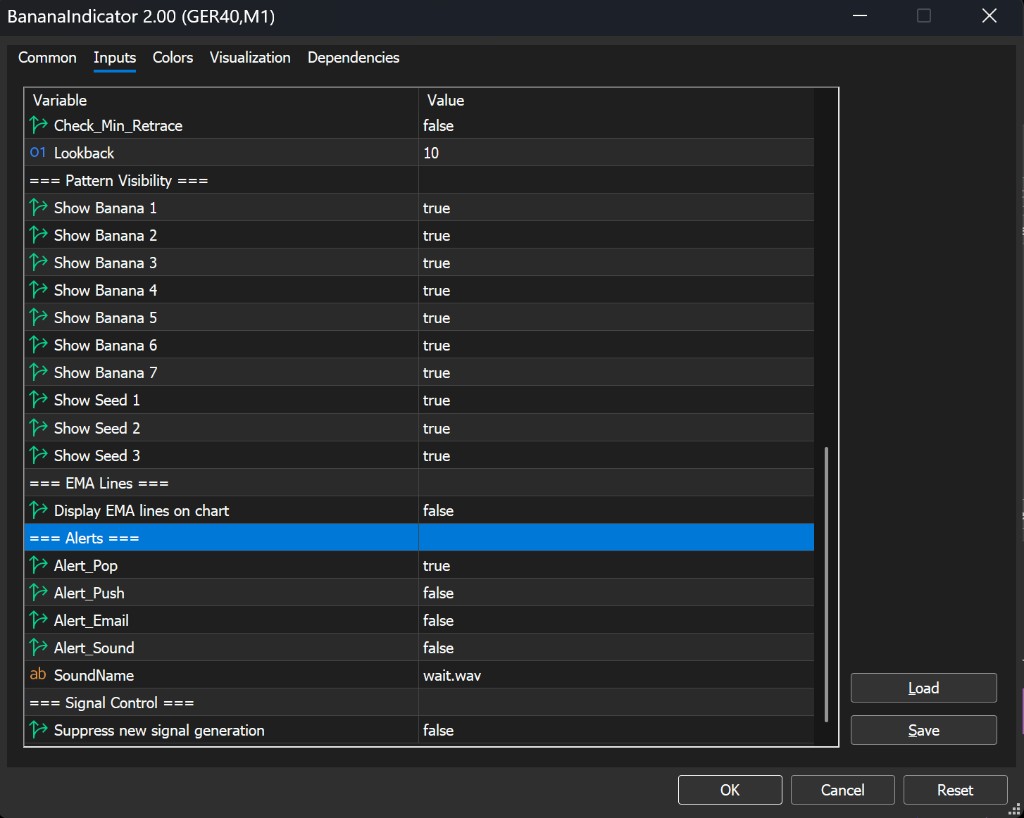
- Review the Alerts settings.
The MT5 alert settings include:
- Popup alert
- Push notification
- Email alert
- Sound alert
- Sound file
Your build may display the labels slightly differently. Use the visible MT5 labels rather than copying MT4 screenshots.
Check MT5 Terminal Notification Settings
For push notifications, confirm MetaTrader 5 notification settings are configured in Tools > Options > Notifications.
For email alerts, confirm email settings are configured in Tools > Options > Email.
For sound alerts, confirm the selected sound file is available to MT5.
If Alerts Do Not Appear
Check:
- The indicator is still attached to the chart.
- The alert setting is enabled.
- MT5 terminal notifications are configured.
- The chart has enough price history loaded.
- The signal candle has formed recently.
- The Experts tab does not show a repeated error.
- MT5 is open while alerts are expected.
MT5 alerts are not configured through TradingView.