Installation
Use this page to get AIMS Box MT5 onto your MetaTrader 5 chart, or AIMS Box Advanced Indicator onto MetaTrader 4.
Use the official download from Latest Downloads on your member dashboard. If your link shows a newer file name than this guide describes, use the latest official file on the dashboard.
Sign in at my.itradeaims.net, open Latest Downloads, and get the AIMS Box MT5 or AIMS Box Advanced installer before you install.
Before You Start
You need:
- MT4 or MT5 installed and opened at least once.
- The correct installer from Latest Downloads on your member dashboard — AIMS Box MT5 for MT5, or AIMS Box Advanced for MT4.
- Your license key, if one was issued.
- Internet access for license checks.
MetaTrader Data Folder
Install into the MetaTrader data folder, not the Windows program folder.
- Open the MetaTrader terminal you want to use.
- Click
File > Open Data Folder. - Keep that folder open.
- When the installer asks for a folder, select this same data folder.
The data folder is often inside hidden Windows AppData. Do not guess the path. Use File > Open Data Folder.
If you click Browse in the installer, you may see many long folder names under:
C:\Users\YourName\AppData\Roaming\MetaQuotes\Terminal\
Each long folder name can belong to a different broker terminal. Choose the folder that matches the path opened by File > Open Data Folder in the exact terminal you want to install into.
If The Installer Says MQL4 Or MQL5 Is Missing
During folder selection, the installer may warn that the selected folder does not contain an MQL4 or MQL5 folder.
This usually means one of these is true:
- You selected the wrong folder.
- You selected the Windows program folder instead of the MetaTrader data folder.
- MT4 or MT5 has not been installed or opened on that computer yet.
- You are installing for a different broker terminal than the one you opened.
Do not continue unless you are sure the selected folder is the correct MetaTrader data folder.
To fix it:
- Click
Noor go back in the installer. - Open the exact MT4 or MT5 terminal you want to use.
- Click
File > Open Data Folder. - Select that folder in the installer.
Only click Yes if you deliberately selected a valid MetaTrader data folder and understand that Setup will create the missing MQL4 or MQL5 folder.
Windows Security Warning
The MetaTrader installer may show a Windows security message because the installer is not code-signed.
This can look like:
Windows protected your PC
Microsoft Defender SmartScreen prevented an unrecognized app from starting
If you downloaded the installer from your official iTradeAIMS member area, purchase email, or support team, this warning can be expected for an unsigned installer.
Before continuing, check:
- You got the installer from an official iTradeAIMS link.
- The file name matches AIMS Box MT5 for MT5, or AIMS Box Advanced Indicator for MT4.
- You did not download it from a third-party file-sharing site.
- You are installing on your own Windows computer or VPS.
To continue from the SmartScreen warning:
- Click
More info. - Confirm the app name is the installer you intended to run. For MT5, this should match AIMS Box MT5.
- Click
Run anyway. - Continue with the installer steps below.
Do not turn off Windows Defender. If Windows reports a virus, quarantines the file, or the installer came from anywhere other than an official iTradeAIMS source, stop and contact support.
Install On MetaTrader 4
- Open MT4.
- Click
File > Open Data Folder. - Run the official AIMS Box Advanced Indicator MT4 installer.
- When the installer asks where to install, select the MT4 data folder that opened in step 2.
- Complete setup.
- Restart MT4, or right-click inside Navigator and choose
Refresh. - Open
Navigator > Indicators > iTradeAIMS. - Drag AIMS Box Advanced Indicator onto your chart.
- Enter your license key if required.
- Click
OK.
Expected installed locations:
MQL4/Indicators/iTradeAIMS/
MQL4/Libraries/
Install On MetaTrader 5
- Open MT5.
- Click
File > Open Data Folder. - Run the official AIMS Box MT5 installer.
- When the installer asks where to install, select the MT5 data folder that opened in step 2.
- Complete setup.
- Restart MT5, or right-click inside Navigator and choose
Refresh. - Open
Navigator > Indicators > iTradeAIMS. - Drag AIMS Box MT5 onto your chart.
- Enter your license key if required.
- Click
OK.
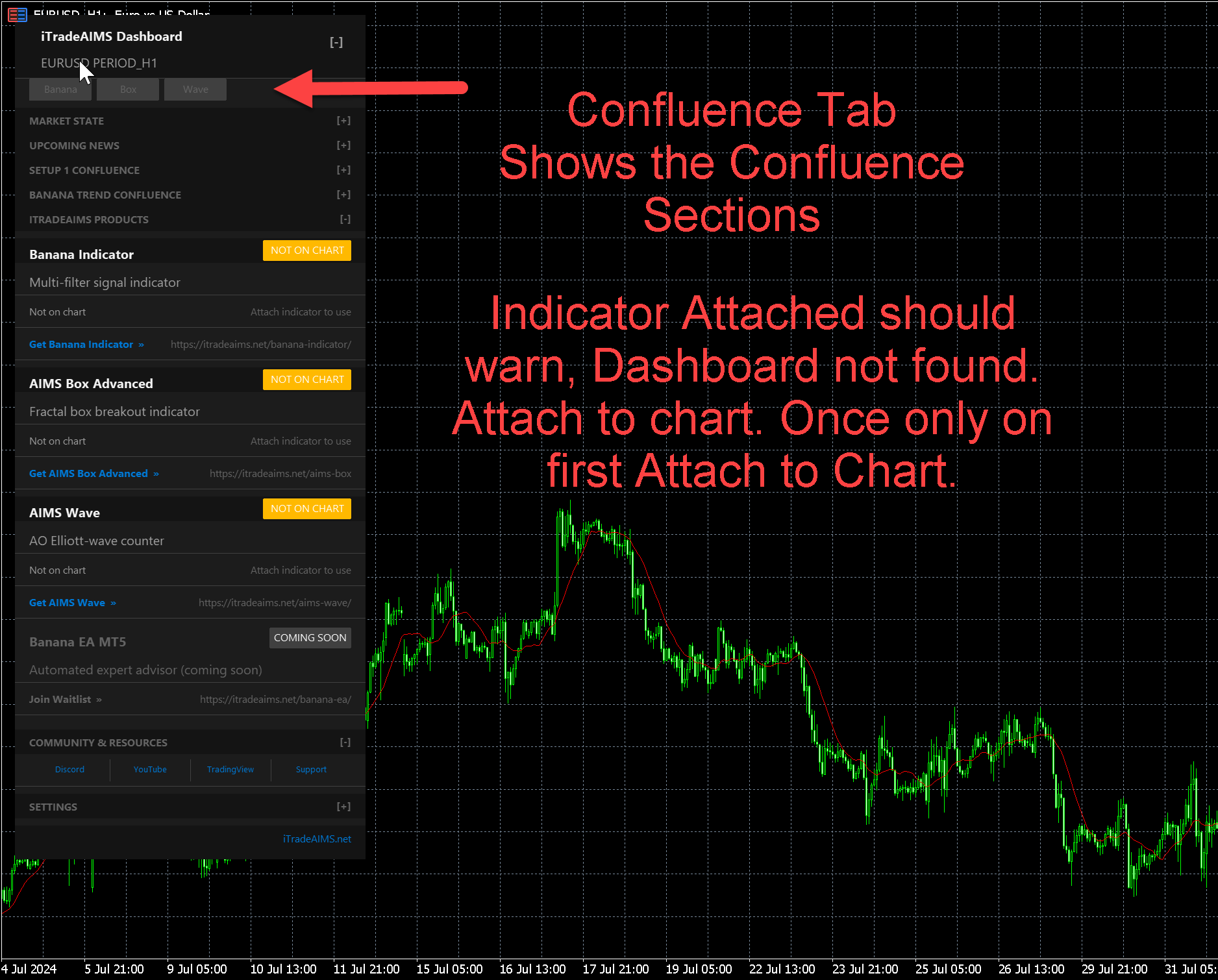
On MT5, the unified iTradeAIMS Dashboard is the main surface for Box, Banana, and Wave confluence. Individual product rows can show NOT ON CHART until that product is attached to the same chart.
Expected installed locations:
MQL5/Indicators/iTradeAIMS/
MQL5/Libraries/
If you use more than one MT5 terminal, run the installer once for each terminal and select that terminal's own data folder each time.
After Installation
Check these items before using the indicator:
- The indicator appears in the correct platform.
- The indicator can be attached to a clean chart.
- The dashboard appears if enabled.
- Box zones or levels appear when chart history contains valid structures.
- No license error is shown.
- Alerts are configured only if you want them.
- You understand that setup states are prompts for review, not automatic entry instructions.
Common Problems
I Cannot Find The Indicator In MetaTrader
- Restart MetaTrader.
- Right-click Navigator and choose
Refresh. - Confirm you selected the correct data folder during install.
- If you have several broker terminals, repeat the install for the terminal you are using.
The License Is Not Accepted
- Check that the license key is entered exactly as issued.
- Confirm internet access is available.
- Remove and reattach the indicator after correcting the key.
- Contact support if the message remains.
Next Step
Continue with the Quick Start Guide.