Quick Start Guide
Use this page after the indicator is installed. If you use MT4, the product is AIMS Box Advanced Indicator. If you use MT5, the product is AIMS Box MT5.
If you are using MT4, also keep the MT4 Guide open. The MT4 version has a compact mini dashboard, while many screenshots in this guide show the fuller AIMS Confluence Indicator dashboard experience on MT5.
Step 1: Open A Clean Chart
Start with one chart so setup is easy to check.
Recommended first setup:
- One symbol you already understand.
- One timeframe you normally watch.
- No extra indicators until the indicator is working.
- Enough chart history loaded to show recent box structures.
Step 2: Add The Indicator
MetaTrader 4
- Press
Ctrl+Nto open Navigator. - Open
Indicators > iTradeAIMS. - Drag AIMS Box Advanced Indicator onto the chart.
- In the settings window, enter your license key if required.
- Click
OK.
MetaTrader 5
- Press
Ctrl+Nto open Navigator. - Open
Indicators > iTradeAIMS. - Drag AIMS Box MT5 onto the chart.
- In the settings window, enter your license key if required.
- Click
OK.
Step 3: Confirm It Is Running
Check:
- The indicator name appears on the chart.
- The MT4 mini dashboard is visible if Show Minimal Dashboard or the equivalent dashboard visibility setting is enabled.
- On MT5, the
Boxtab or Box mode is selected when you want AIMS Box information. - Box zones or levels appear after the chart has enough candles.
- There is no license error on the chart.
- The Experts or Alerts tab does not show a repeated setup error.
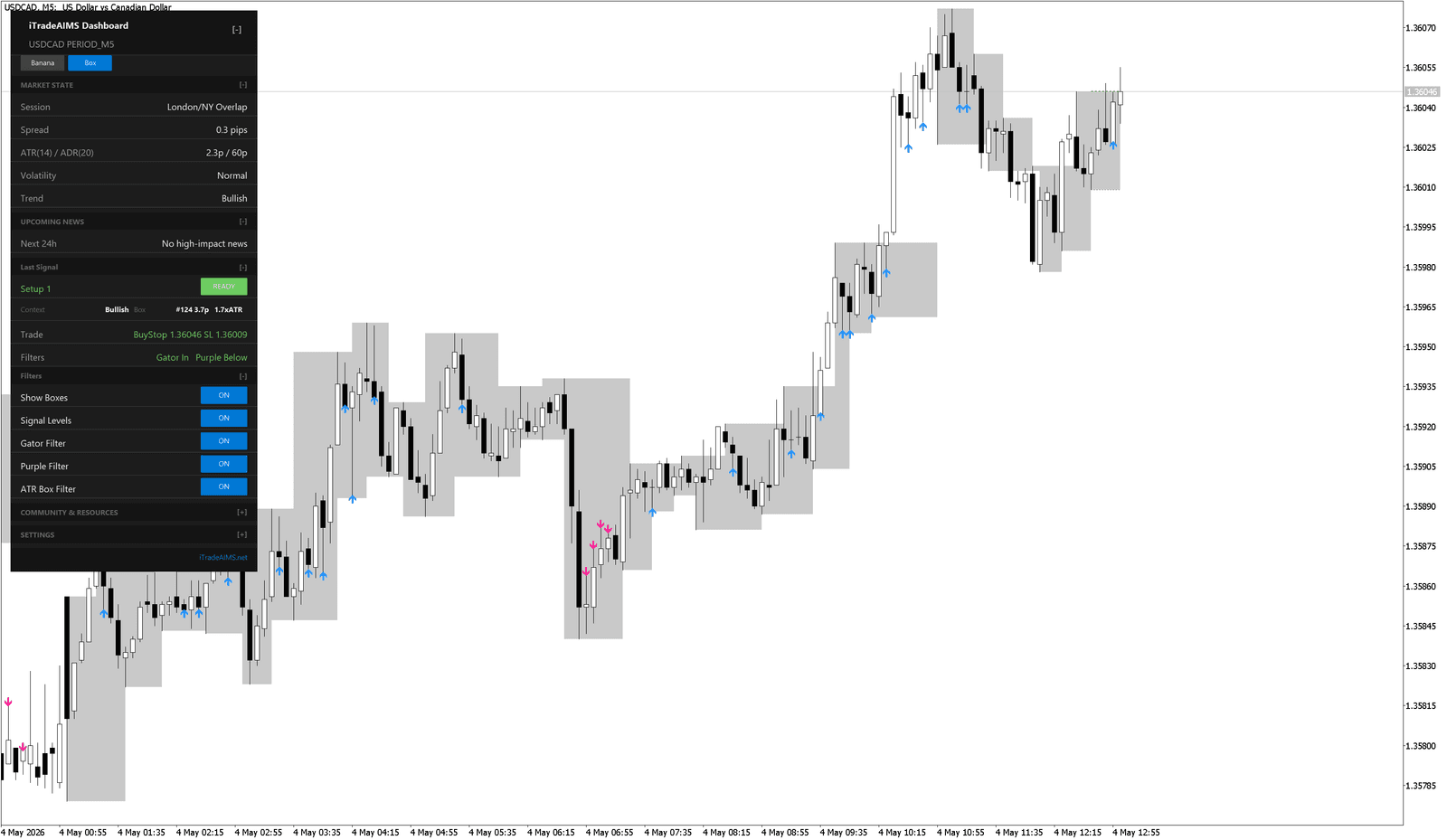
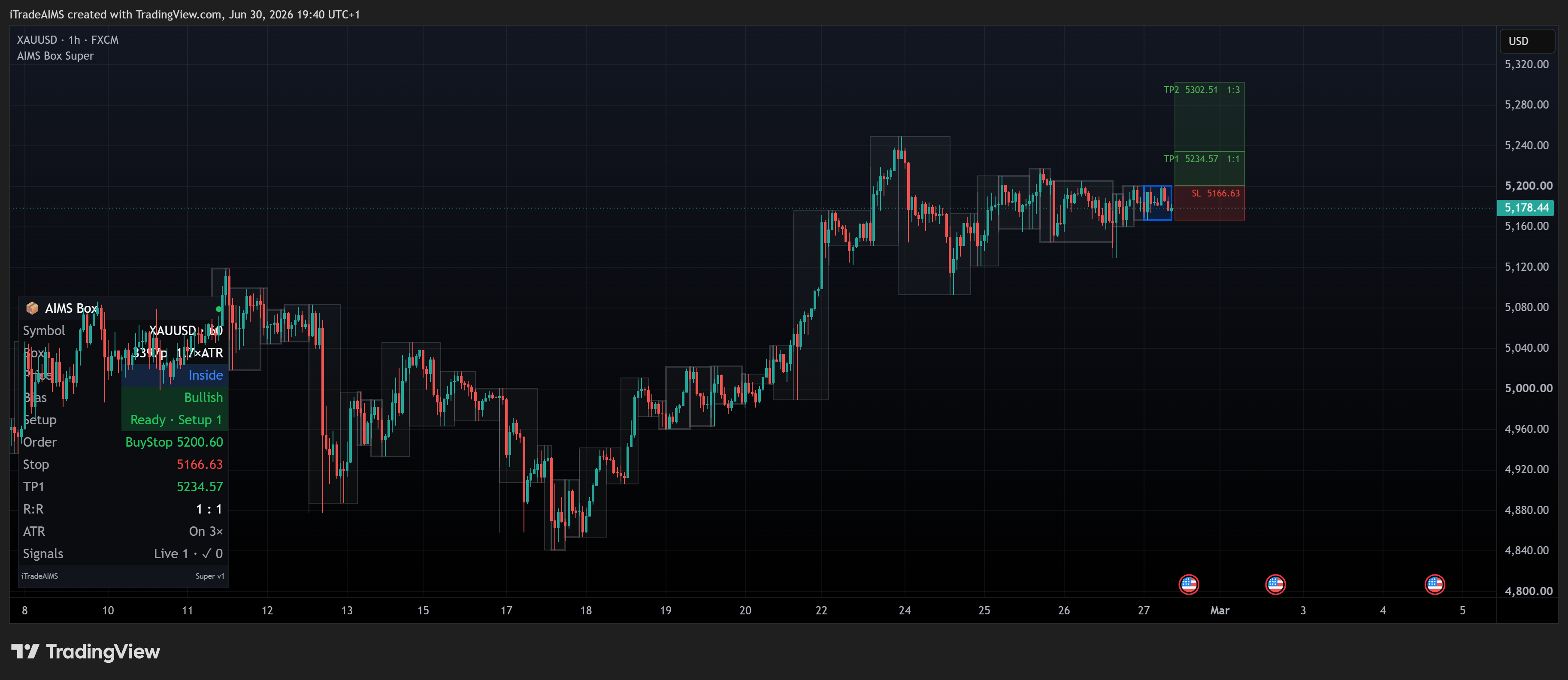
Step 4: Understand The Box State
The dashboard can show states such as:
Setup 1: a candidate setup is forming or ready for review.Setup 2: a different setup type is ready for review.Closed break: price has closed beyond the relevant box level.Blocked: a filter or risk condition does not allow the setup.
Read these states as chart information. They are not automatic trade instructions.
Step 5: Review The Box Before Acting
When a setup appears:
- Wait for the relevant candle to close.
- Check the upper and lower AIMS Box levels.
- Check whether the box is tight enough for your risk plan.
- Check Gator, Purple, ATR Box, spread, session, and news context.
- Decide whether the setup matches your plan.
Step 6: Keep Settings Simple At First
For the first few sessions, avoid changing advanced filters.
Begin with:
- Boxes or Show Boxes: on.
- Show Active Box Signal Levels or Signal Levels: on if you want level references.
- Gator Filter: on unless support or your tested plan says otherwise.
- Purple Filter: on unless support or your tested plan says otherwise.
- ATR Box Filter: on if you want tall boxes blocked by setup logic.
- Popup alerts only, if your platform version exposes alert controls and you are watching the chart.
Step 7: If Something Looks Wrong
Use this order:
- Check Troubleshooting.
- Restart or refresh MetaTrader.
- Confirm the install folder and license details.
- Try one clean chart.
- Contact support with platform, broker, symbol, timeframe, and screenshots.
Risk Reminder
The indicator shows chart information. You decide whether to trade, where to place risk, and when to stand aside.