Troubleshooting
Start with the section for the problem you can see.
When asking for help, include your platform: MT4 or MT5.
MetaTrader Indicator Not Visible
Use this for MT4 or MT5.
- Restart MetaTrader.
- Press
Ctrl+Nto open Navigator. - Right-click inside Navigator and choose
Refresh. - Open
Indicators > iTradeAIMS. - If the indicator is still missing, run the installer again and select the correct data folder.
The correct folder is the one opened from File > Open Data Folder inside the same MetaTrader terminal.
Wrong Data Folder
This is common when you have more than one broker terminal.
Check:
- Open the exact MT4 or MT5 terminal you want to use.
- Click
File > Open Data Folder. - Copy or note that folder path.
- Run the installer again.
- Select that exact folder.
- Restart or refresh Navigator.
Do not select the Windows program folder. Select the MetaTrader data folder.
Installer Says MQL4 Or MQL5 Is Missing
If Setup says the selected folder does not contain an MQL4 or MQL5 folder, pause before continuing.
This warning usually means the installer is pointed at the wrong folder, or MT4/MT5 has not been installed and opened yet.
Check:
- Open the MT4 or MT5 terminal you want to install into.
- Click
File > Open Data Folder. - Confirm the folder contains
MQL4for MT4 orMQL5for MT5. - Select that exact folder in the installer.
If you continue with the wrong folder, the installer may place files where MetaTrader will not load them.
Windows Blocks The Installer
The MetaTrader installer may show a Microsoft Defender SmartScreen warning because the installer is not code-signed.
If the installer came from your official iTradeAIMS member area, purchase email, or support team, this warning can be expected.
Use this check before continuing:
- Confirm the installer came from an official iTradeAIMS source.
- Confirm the file is for AIMS Box MT5 on MT5, or AIMS Box Advanced Indicator on MT4.
- Do not use installers from third-party file-sharing links.
- Do not disable Windows Defender.
If the warning says Windows protected your PC, click:
More info > Run anyway
Then continue with the install.
Stop and contact support if:
- Windows reports a virus or quarantines the file.
- You are not sure where the installer came from.
- The file name does not match the product.
License Key Issue
Symptoms:
- The chart shows a license message.
- The indicator attaches but does not calculate.
- Alerts or Experts tab mention license validation.
Fix:
- Right-click the chart and choose
Indicators List. - Select AIMS Box MT5 on MT5, or AIMS Box Advanced Indicator on MT4, and click
EditorProperties. - Open the
Inputstab. - Enter your license key.
- Click
OK. - Remove and reattach the indicator if the message remains.
Check:
- Enter the license key exactly as issued.
- Remove any extra spaces.
- Confirm internet access.
- Try one clean chart.
Dashboard Not Visible
- On MT4, confirm Show GUI Dashboard or the equivalent dashboard visibility setting is enabled.
- On MT5, confirm the AIMS Confluence Indicator dashboard is attached or enabled as expected.
- Check whether the dashboard is collapsed or behind other chart objects.
- On MT5, switch to the
Boxtab if the dashboard is showing another product mode. - Remove and reattach the indicator on one clean chart.
- Restart MetaTrader.
- Contact support with a screenshot if it still does not appear.
No Boxes Appearing
No boxes can be normal if the chart does not yet have enough valid structure or history loaded.
Check:
- The market is open and the chart is receiving price updates.
- The symbol and timeframe are active.
- Enough candles are loaded on the chart.
- Boxes or Show Boxes is enabled.
- The license is accepted.
- On MT5, you are looking at the correct indicator tab or chart template.
For MT4, also try this quick refresh:
- Click the Boxes dashboard button off and on again.
- If boxes still do not appear, switch to another timeframe and then switch back.
- If you recently lowered Maximum History Bars, increase it when reviewing older chart history.
Chart Is Slow Or Laggy
On MT4, a high Maximum History Bars value can make the chart slower because the indicator has more history to scan and draw.
For live chart use:
- Open the indicator Inputs tab.
- Set Maximum History Bars to
500. - If the chart is still slow, try
300. - Click OK and let the chart refresh.
Lower values focus the indicator on recent chart history near the right side of the chart. This is usually better for live trading.
For backtesting or scrolling far back on a chart, increase Maximum History Bars again. If the value is too low, older areas of the chart may not show boxes because they are outside the selected history limit.
Box Appears Then Disappears
A tentative box can appear before the structure is fully confirmed. If the next candle changes the fractal structure, the tentative box may be removed.
This is why you should wait for confirmation before treating a box as a stable chart reference.
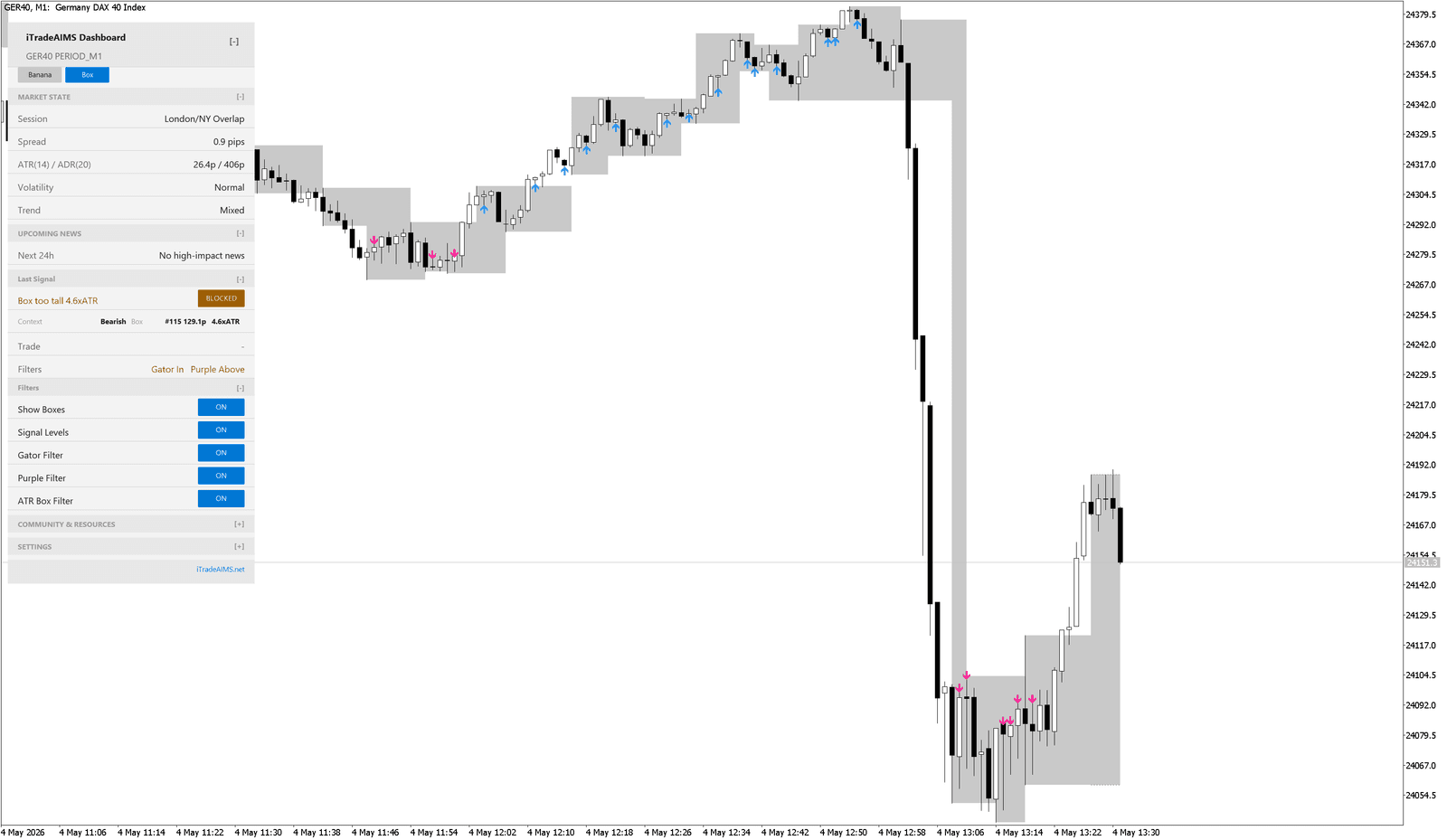
Setup Is Blocked
Blocked states can be expected.
Common reasons:
- The box is too tall.
- Gator context does not agree.
- Purple context does not agree.
- ATR Box filter rejects the setup.
- News or market conditions are not acceptable.
Alerts Not Working
Current MT4 builds do not expose the same popup alert inputs as MT5. If you use MT4, first confirm whether your installed MT4 build includes alert controls.
Check:
- The indicator alert setting is enabled.
- MetaTrader platform alert testing works.
- Sound is not muted.
- Email settings work from
Tools > Options > Email. - Push settings work from
Tools > Options > Notifications.
If the platform test fails, fix the platform setting before changing the indicator.
What To Send Support
Send:
- Platform: MT4 or MT5.
- Broker terminal name.
- Symbol and timeframe.
- What you expected to happen.
- What happened instead.
- Screenshot of the chart.
- Screenshot of any error or license message.
- Screenshot of the Inputs tab if settings may be involved.
Do not send trading account passwords.