Core Settings
This page explains the settings most traders are likely to touch.
Leave advanced settings unchanged until you understand what each change does. If your chart becomes confusing, return to defaults and start again.
Platform Note
MT4 and MT5 share the same AIMS Box idea, but they do not expose the same dashboard surface.
- MT4 uses a compact mini dashboard on the chart.
- MT5 uses the wider AIMS Confluence Indicator dashboard and can expose more controls, alerts, and confluence context.
If you use MT4, read this page together with the MT4 Guide.
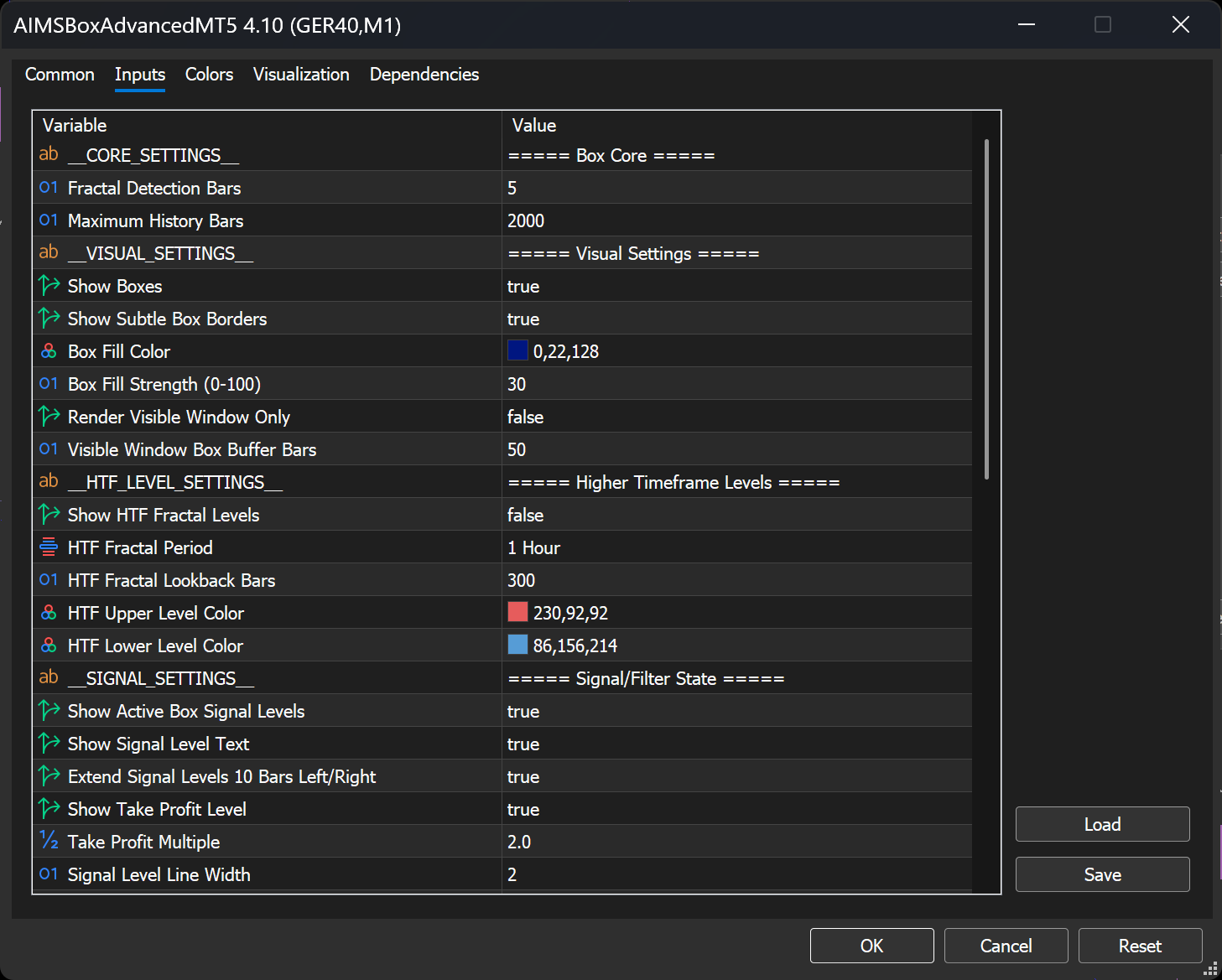
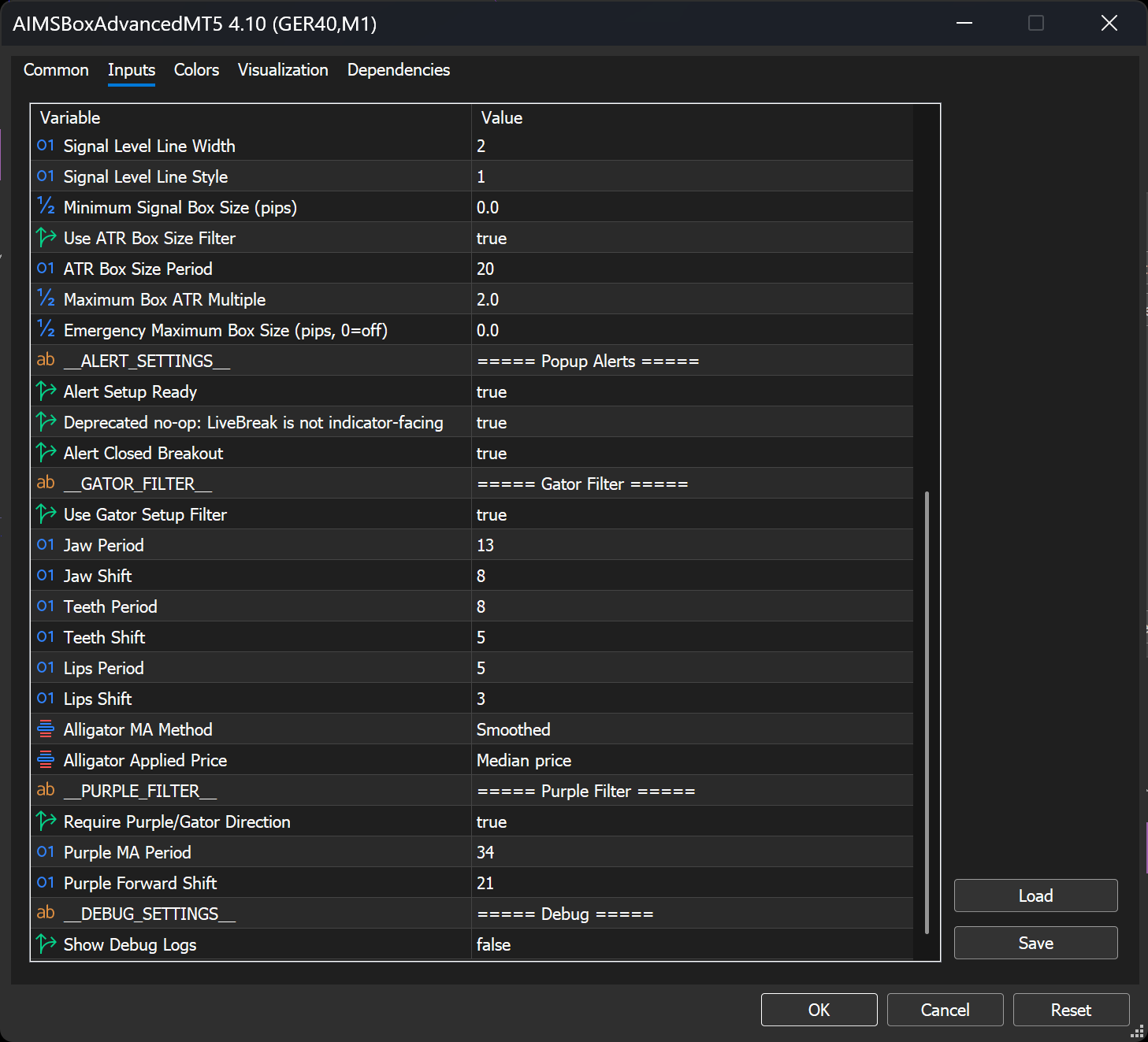
MT5 indicator inputs (AIMSBoxAdvancedMT5)
On MT5, open Indicators List → AIMSBoxAdvancedMT5 → Properties → Inputs. Labels match AIMSBoxAdvancedMT5 on chart (for example GER40, M1).
License
SerialKey
MetaTrader versions use a license key input for license validation when a key is required. On current MT4 builds, the visible input is SerialKey.
Enter the key exactly as issued. Avoid extra spaces before or after the key.
If the key is rejected:
- Check spelling and spacing.
- Confirm internet access.
- Remove and reattach the indicator.
- Contact support if the message remains.
MT4 Mini Dashboard
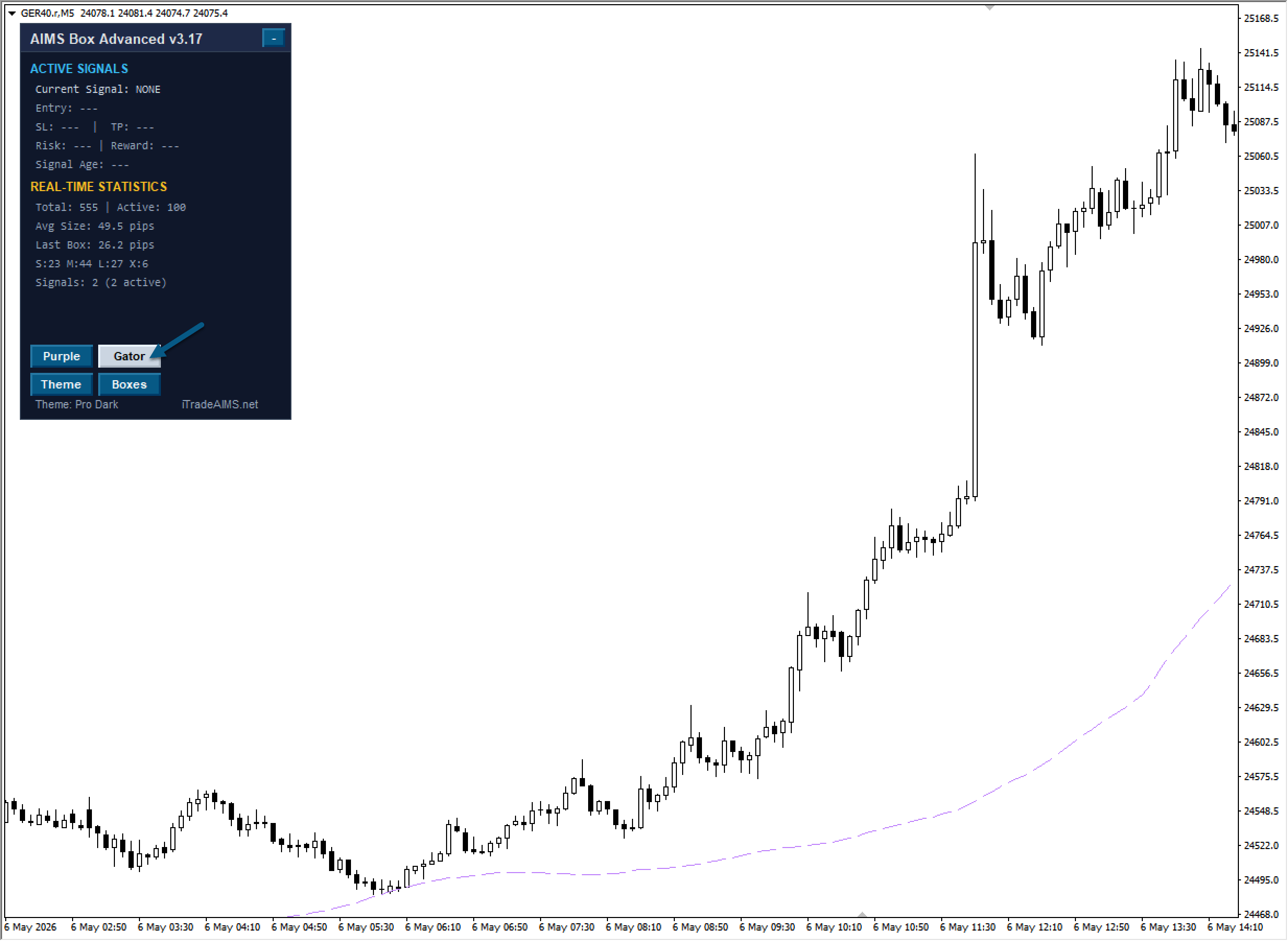
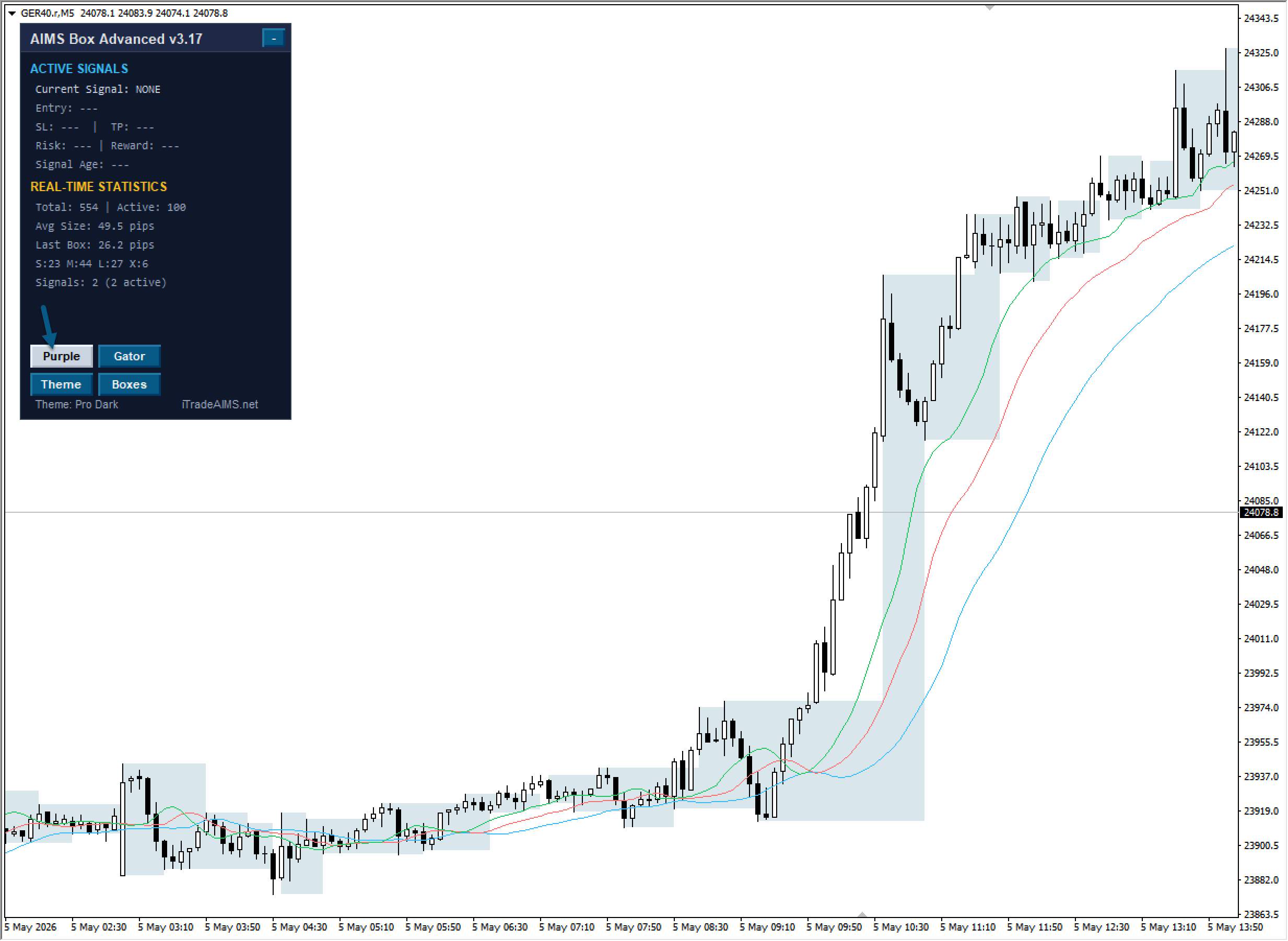
The MT4 version can show a compact dashboard with rows for:
- Active Signals
- Current Signal
- Entry
- SL
- TP
- Risk
- Reward
- Real-Time Statistics
- Avg Size
- Last Box
Some MT4 builds also expose dashboard buttons such as Purple, Gator, Theme, and Boxes.
Use Boxes to show or hide grey box zones.
Use Gator and Purple to show or hide those chart references when available.
These controls change visibility only. They do not change box calculation or setup evaluation.
AIMS Confluence Indicator Dashboard Mode
The dashboard can include product tabs such as Banana and Box.
Use Box mode when you want to review AIMS Box information.
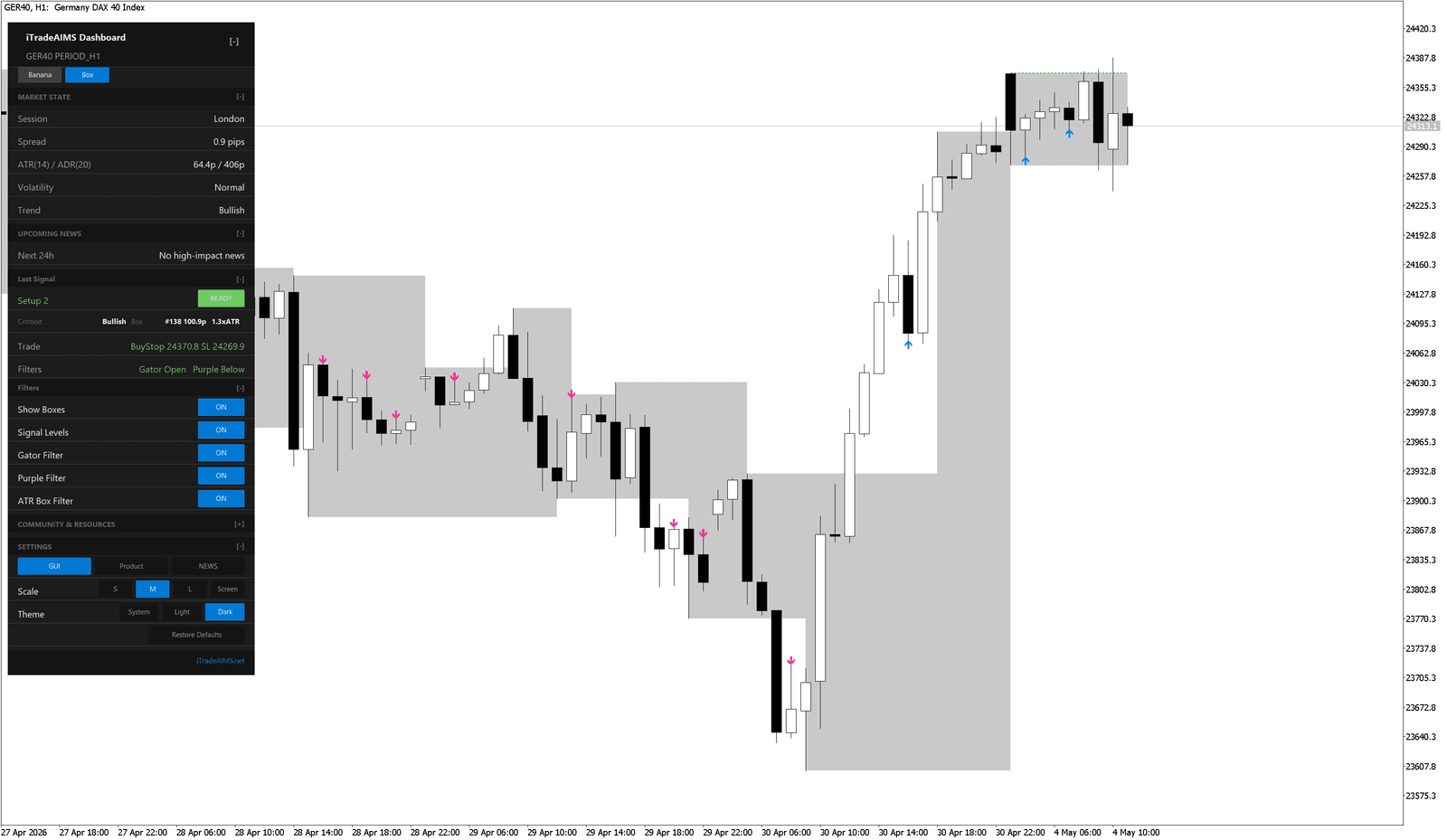
For the live Settings → GUI panel on MT5, see Unified dashboard (suite dashboard — not the Box indicator inputs above).
Display Controls
Common AIMS Confluence Indicator dashboard controls include:
Show Boxes
Signal Levels
Use Show Boxes to show or hide the grey box zones.
Use Signal Levels to show or hide entry and stop reference lines displayed by the indicator.
These settings change chart visibility. They do not make a setup stronger or weaker.
Filters
Common visible filters include:
Gator Filter
Purple Filter
ATR Box Filter
Gator Filter
The Gator filter checks trend context using the AIMS Gator or Alligator-style structure. In the Inputs tab, current builds use Use Gator Setup Filter for this setting.
Leave it on while learning unless support or your tested plan says otherwise.
Gator is a MetaTrader Box filter (compression / Alligator-style context). It appears on the MT4 mini-dashboard and MT5 Box tab. On TradingView AIMS Box Advanced, Gator lines can be visible on chart; on AIMS Box PRO, Gator/Purple bias usually runs invisible. See TradingView editions.
Purple Filter
The Purple filter checks the relationship between the setup and the Purple line context. In the Inputs tab, current builds use Require Purple/Gator Direction for this setting.
Leave it on while learning unless support or your tested plan says otherwise.
ATR Box Filter
The ATR Box filter helps block boxes that are too tall relative to recent volatility.
This is useful because tall boxes usually require wider stop distances.
Market State
The AIMS Confluence Indicator dashboard can show:
SessionSpreadATR(14) / ADR(20)VolatilityTrend- Upcoming news status
Use these as context. A dashboard state is not a command to buy or sell.
Alerts
Current MT5 builds can include popup alert controls such as:
- Alert Setup Ready
- Alert Live Break
- Alert Closed Breakout
Start with setup-ready alerts only. Add live-break or closed-breakout alerts after you understand which setup state you want to review.
Current MT4 builds focus on chart zones, active levels, and the mini dashboard. Do not expect the MT5 popup alert inputs to appear in MT4.
GUI Settings
Some MT5 versions include dashboard GUI controls:
- Scale:
S,M,L, orScreen. - Theme:
System,Light, orDark. - Restore Defaults.
Use these to make the panel readable. They do not change the box calculation.
Safe Setup Routine
When changing settings:
- Change one setting at a time.
- Write down what you changed.
- Watch a few setups before changing another setting.
- Return to defaults if the chart becomes confusing.
- Save a chart template only after the chart looks correct.